
Customize your branded report's logo and color
ReportingHandbookAdd a personal touch to your reports with custom branding.Sometimes a personal touch is all it takes to create a lasting relationship with a client. Presentation matters, and if you want to make sure the reports you send to your clients look as good as the numbers do, Timely’s got you covered. In just few clicks, you can add your company’s logo and style reports so that each time you send them out, you know they go out looking great!
Upload your logo
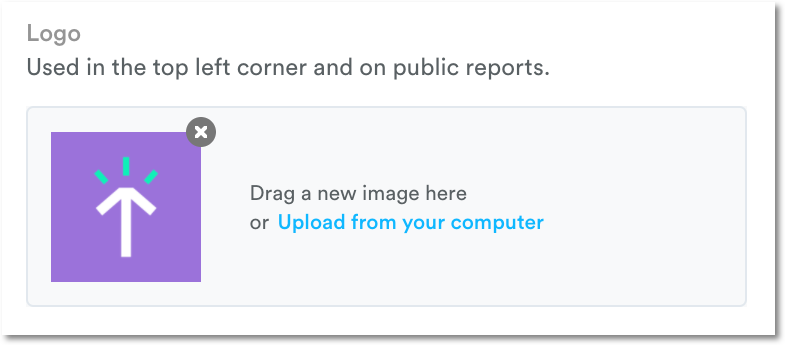
To upload or update your logo, head to Settings > Workspaces. In addition to being front-and-center on reports you share via the web, your chosen logo also doubles as the icon for the workspace you’re currently using.
Customize the background color
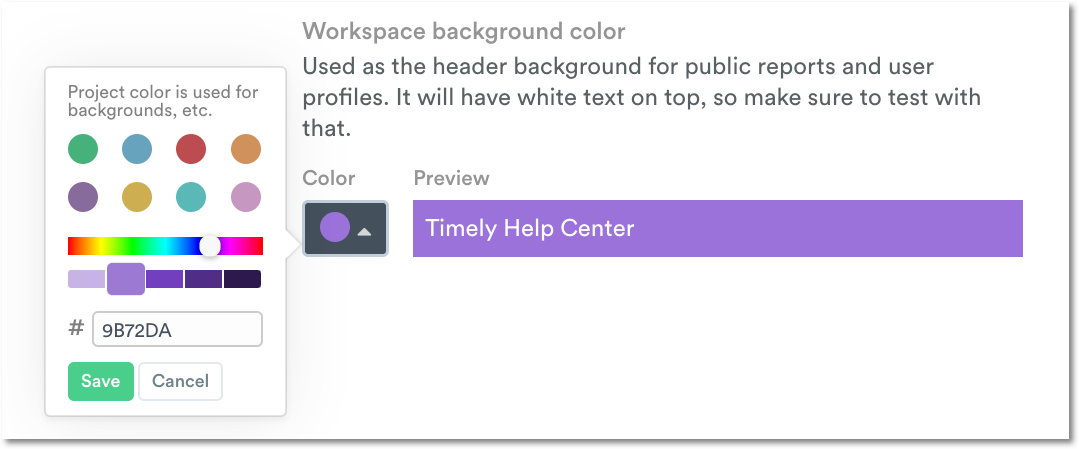
Updating your workspace background color will also change the color of your report headers for brand consistency. To change the color, you’ll need to know the hex color code. If you’re not sure what it is off the top of your head, use a tool like this color picker to find what you’re looking for.
When you’re finished, click “Update Settings” to check out your vibrant new reports!

Last updated April 1, 2026
Have feedback for this article or need more help? Contact us now.