
Deleting your workspace
Billing & Workspace ManagementWorkspace managementHandbookPermanently delete your workspace and yourself from Timely.When you cancel and delete your workspace, all of your data will be permanently deleted — including hours, users and reports.
Deleting your account
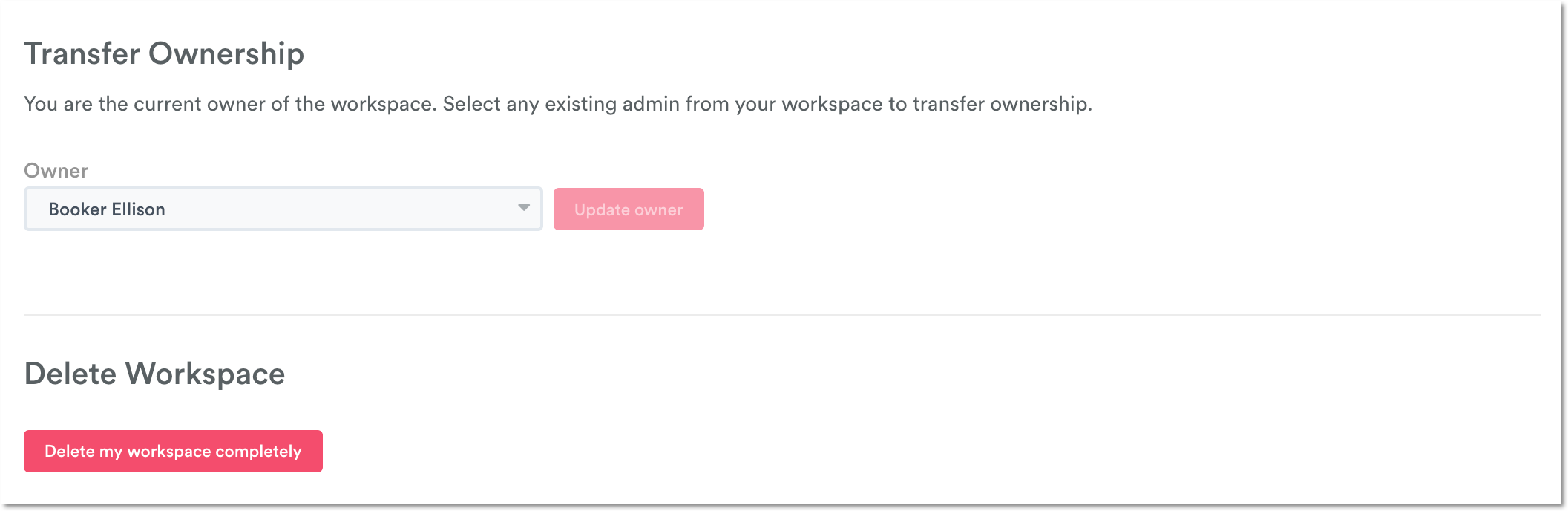
The option to delete a workspace can only be accessed by workspace owners while signed into Timely on a computer. Not sure if you’re the workspace owner? Head over to Settings > Workspace and scroll down past the “Workspace Settings” options.
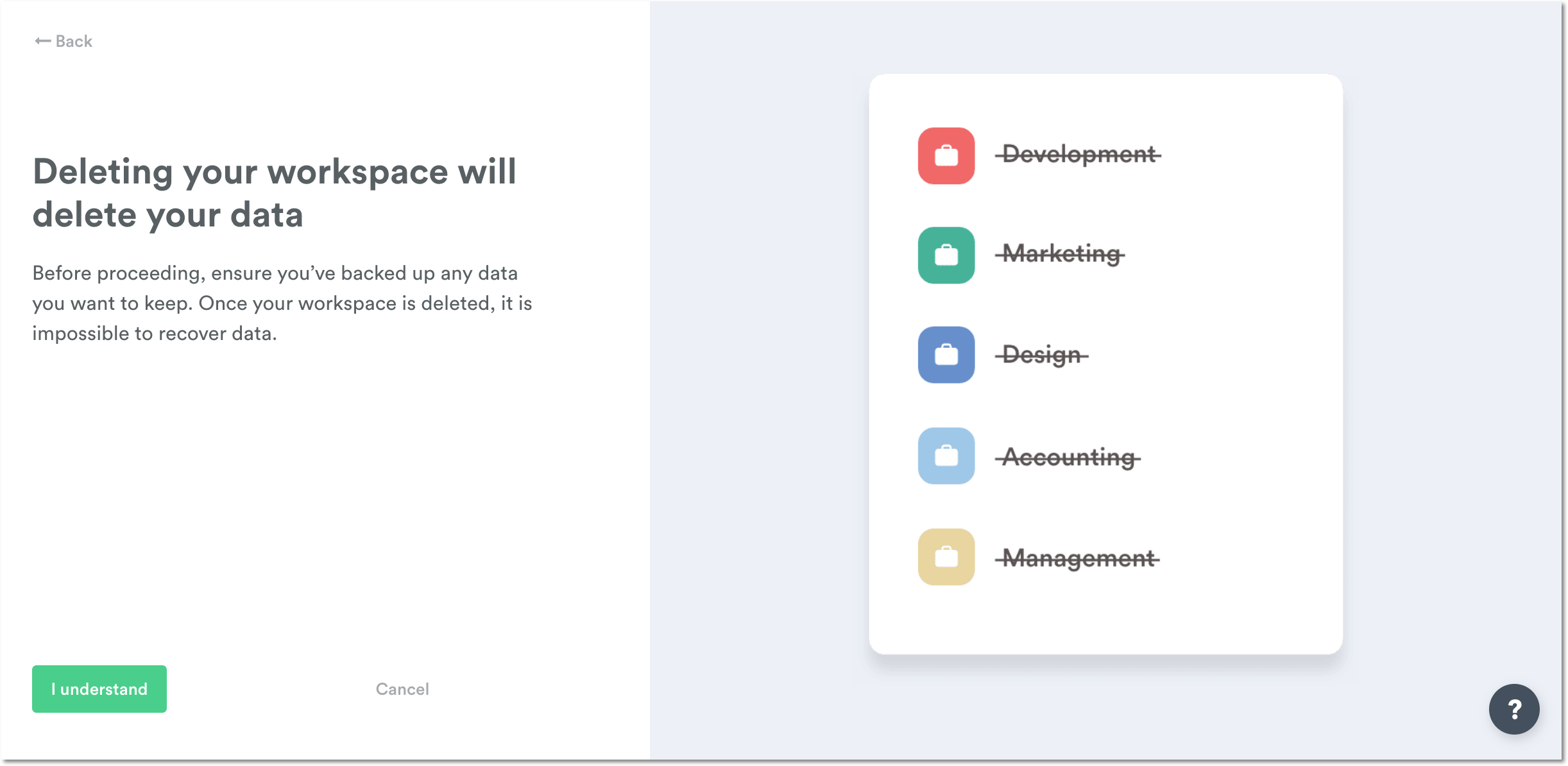
As the owner of the Timely workspace, you’ll see the option to transfer ownership (e.g. if you’re leaving the company) or delete the workspace completely. Just beware: deleting your workspace will permanently delete the data throughout the entire workspace, and we won’t be able to retrieve it once it’s gone.
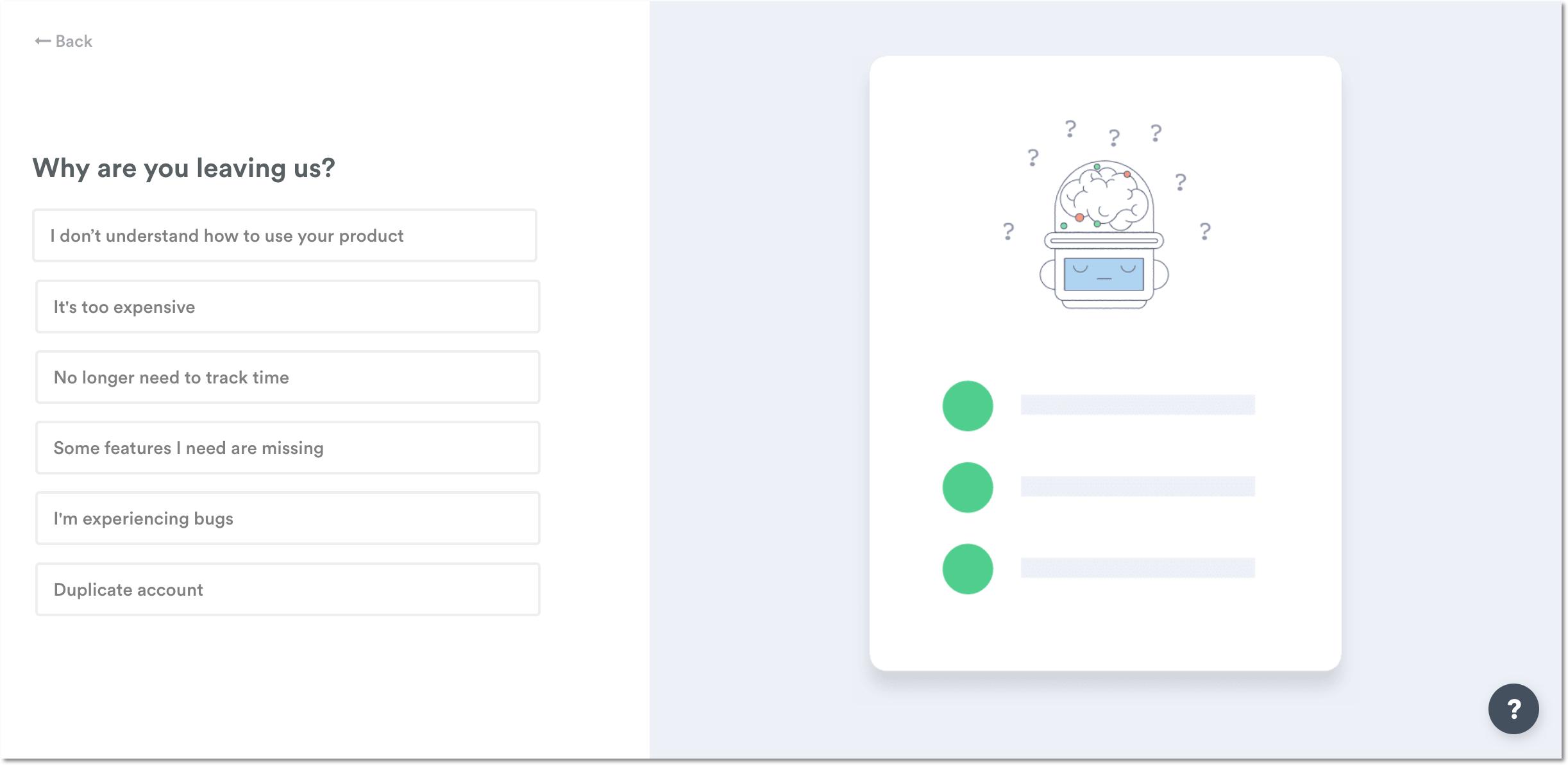
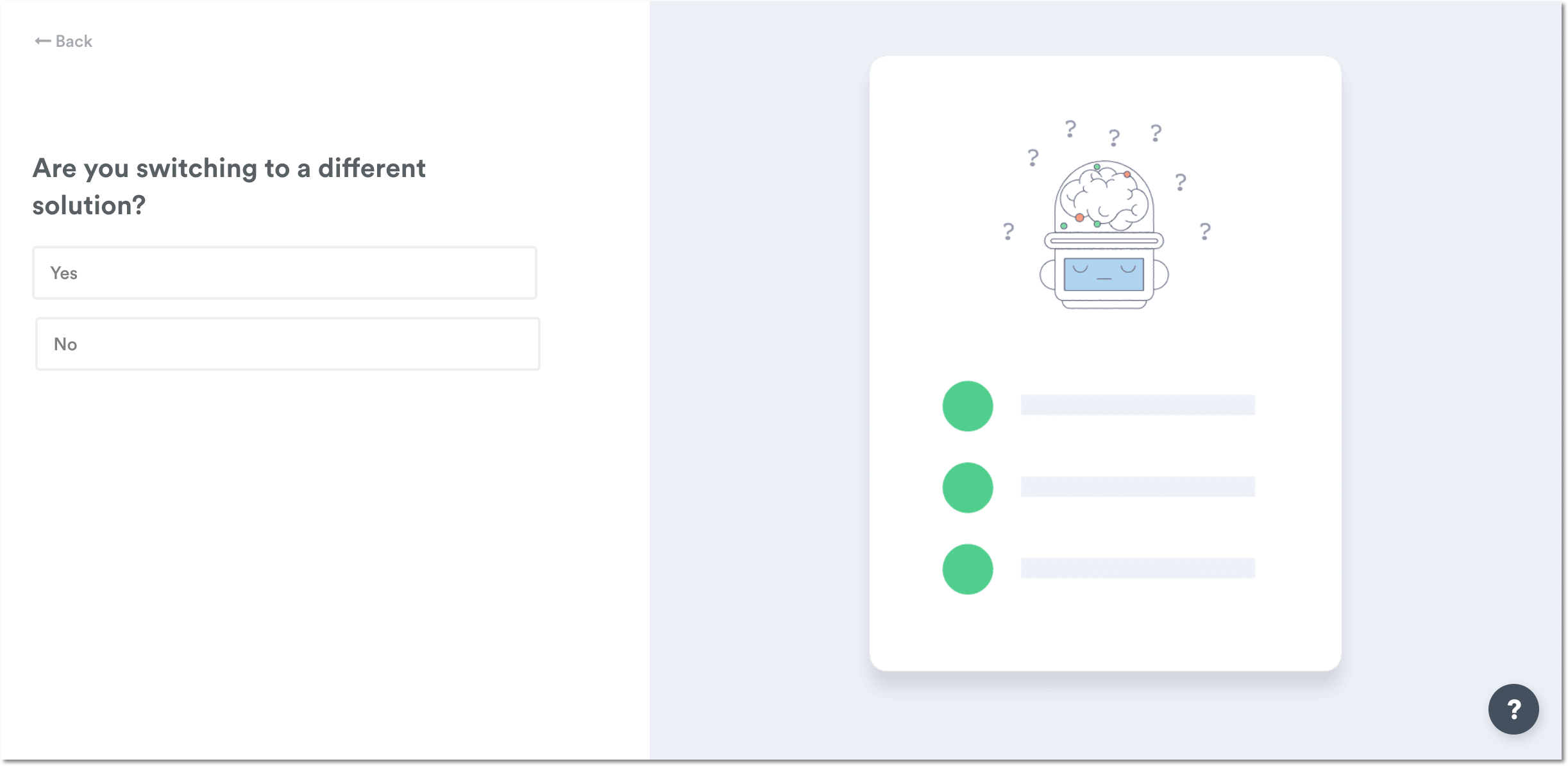
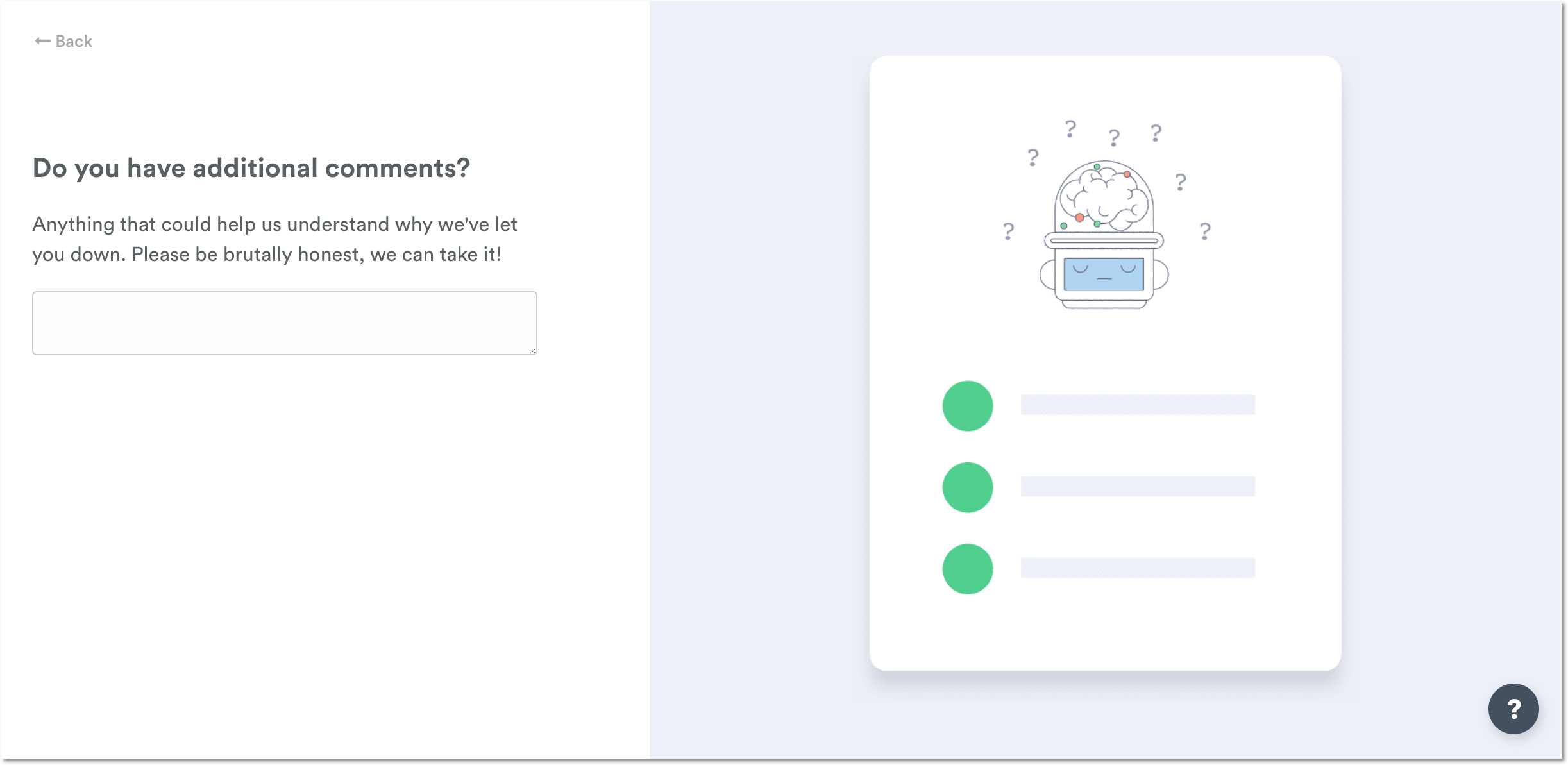
Once you start the process to delete your workspace, you’ll be prompted to complete a brief exit survey. Your feedback really helps us improve and we really appreciate you taking the time to complete the survey:

Once you’ve deleted your workspace, you’ll still be able to sign in with the same username and password, but your email will no longer be linked to a Timely workspace.
When you choose to delete your workspace, your workspace data is erased from Timely. If you ever need to come back to Timely you can sign in with your username and password and create a new workspace.
Deleting your personal data
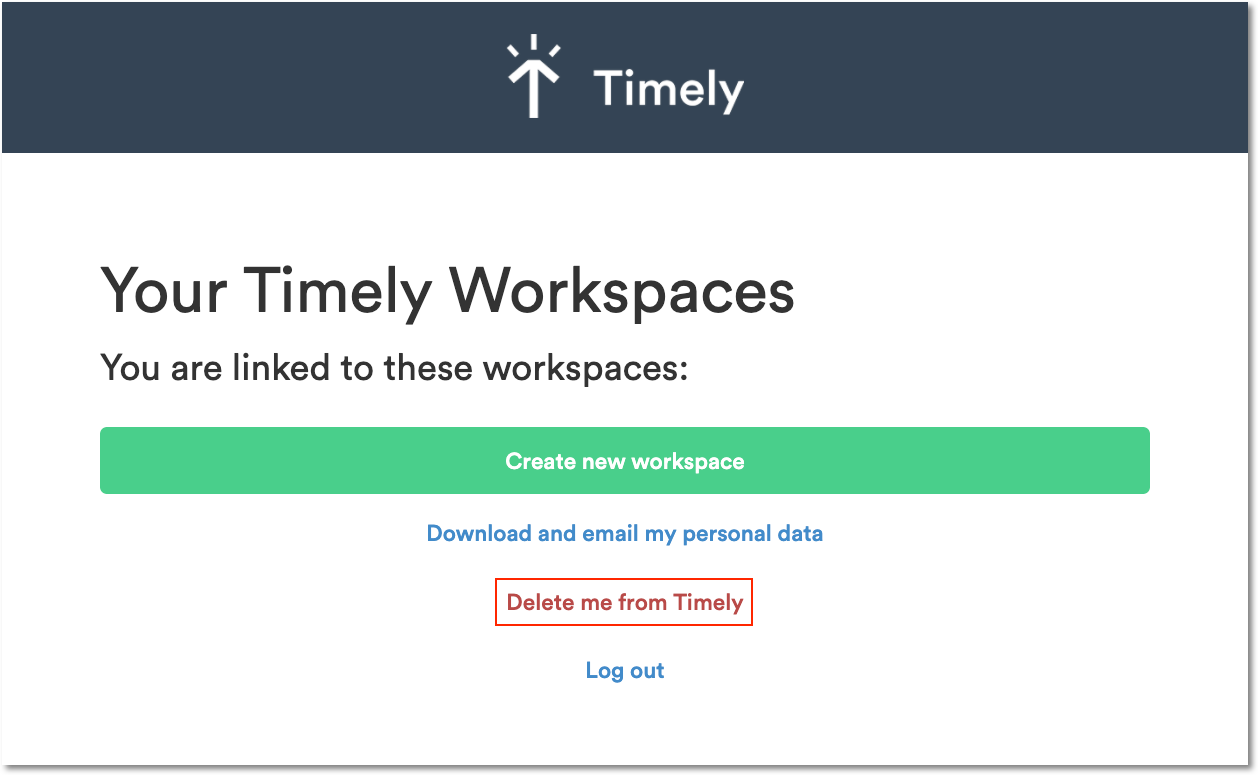
Once your workspace is deleted, you can then opt to delete your user information as well. You also have the option to download the personal data linked to that email account:
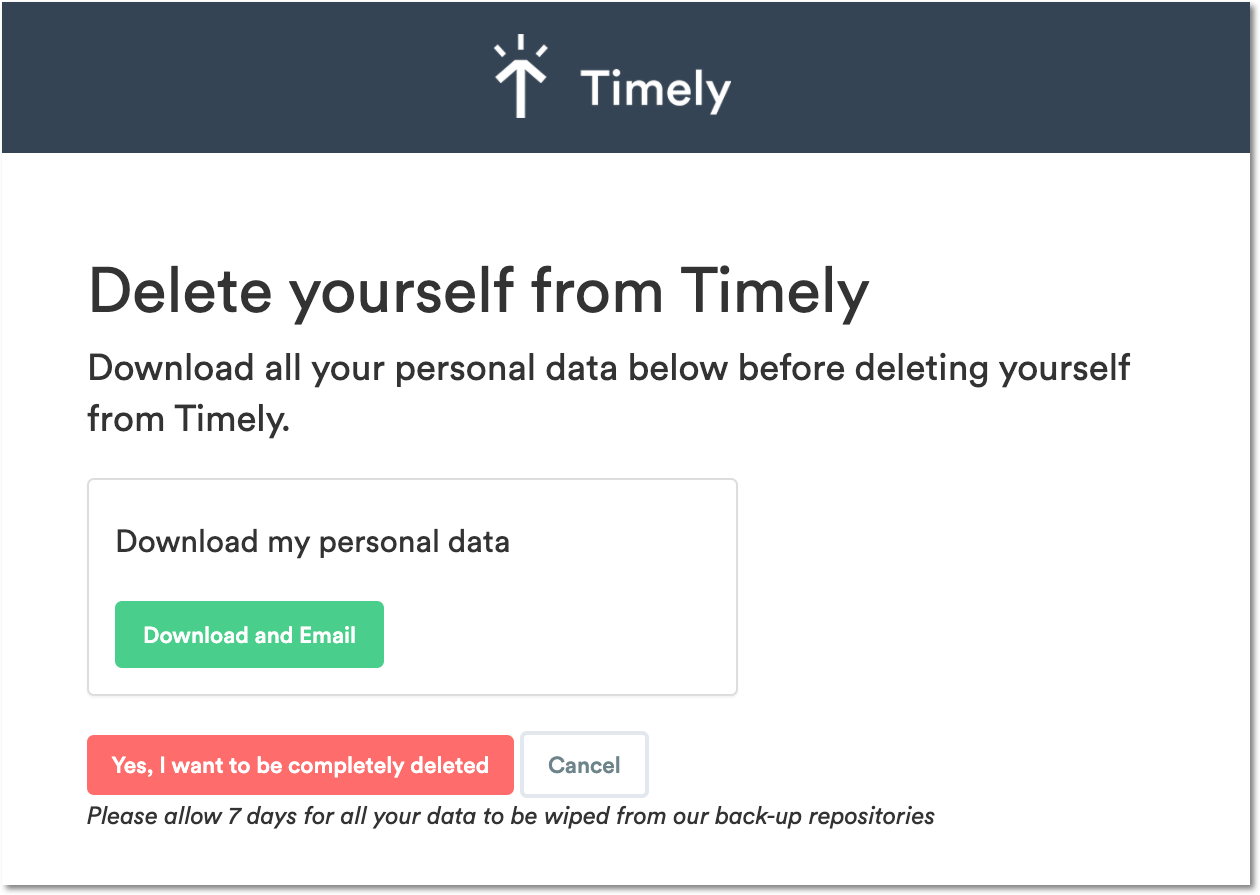
Once you’re ready, confirm your password and click the red button. Your personal data will be wiped from Timely within 7 days.
Additionally, if you’re not currently using another Memory product, like Dewo, you can also uninstall Memory from your Mac or Windows PC.
Last updated April 1, 2026
Have feedback for this article or need more help? Contact us now.