
Classic: AI Time Tracking
Time Tracking: ClassicHandbookStreamline your time tracking with Timely's AI Timesheet Assistant that learns your habits and suggests accurate time entries.Overview
Timely’s Timesheet Assistant takes the hassle out of time tracking by learning how you work. As it picks up on your habits and patterns, it gets smarter—suggesting time entries that fit seamlessly into your workflow. To get the most out of it, make sure you have the Memory app installed or a Memory integration set up—this gives the assistant the data it needs to learn from your activities.
Once your hours are ready to be logged, the Timesheet Assistant button turns green, signaling that it’s good to go. With just one click, it automatically assigns your time to the right projects, complete with relevant tags and notes. And now, it does even more—transforming raw memory titles into clear, professional summaries so your entry notes are instantly polished and client-ready.
You’re always in control—you can review and fine-tune entries before they’re finalized to ensure everything is accurate and aligned with your needs.
Getting Started with the Timesheet Assistant
Before getting started, make sure you’ve installed the Memory app on your device, as it works alongside Timely integrations to provide the AI with the data it needs for generating suggestions. From there, follow these steps:
- Activate the Assistant – From the Hours Dashboard, click the Options dropdown along the top, and then select “AI Timesheet Creation”.
- Choose Your Style – Select the specific style of AI suggestions you’d prefer, based on your logging patterns:
- Exact: Provides minute-by-minute accuracy for those who need precision
- Efficient: The default setting, which merges nearby activities for a balanced and clean timesheet
- Concise: Groups activities more aggressively, creating a simplified overview of your day
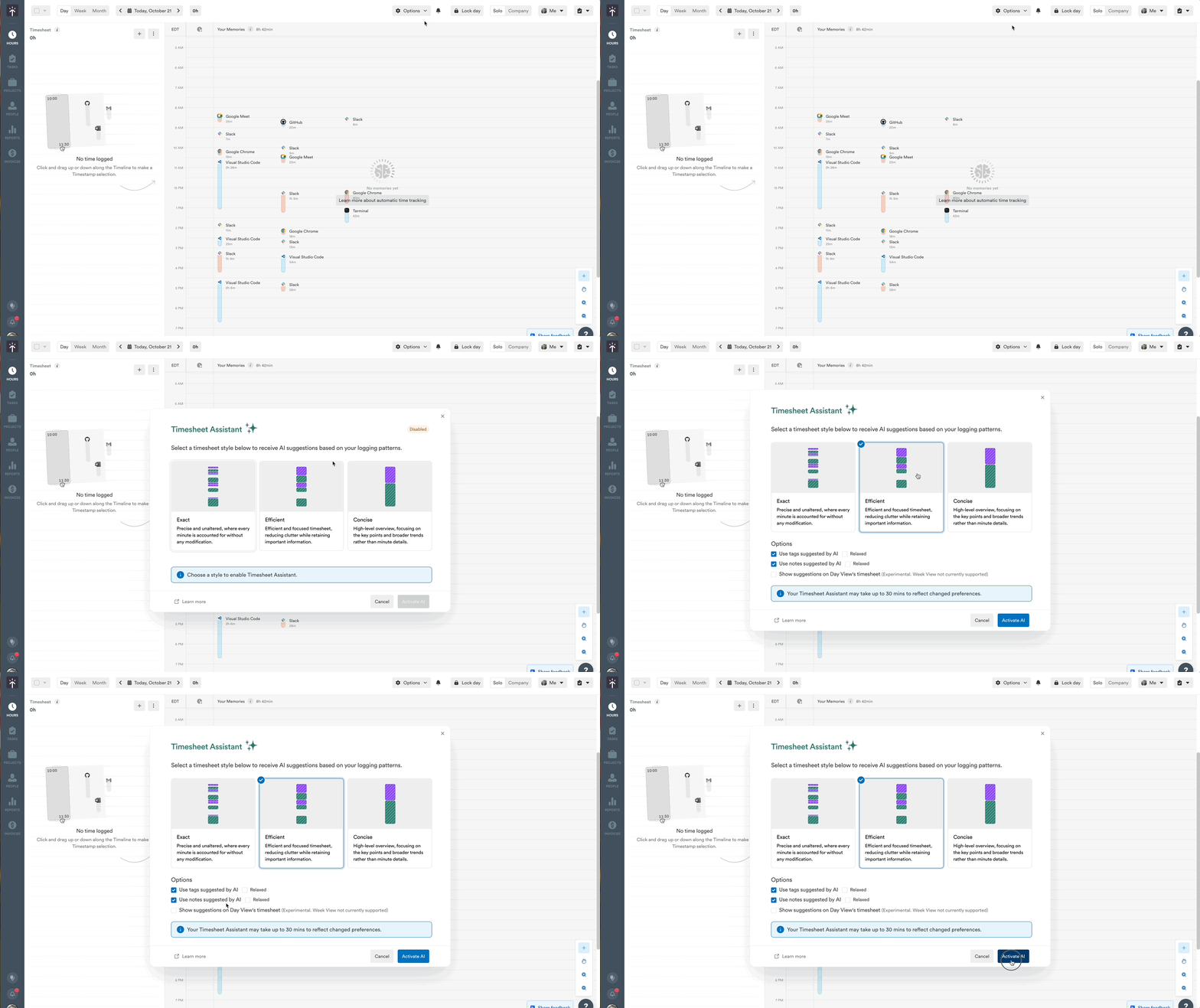
- Configure additional options under the “Options” section:
- Use tags suggested by AI: The Timesheet Assistant will automatically assign suggested tags to generated entries based on your habits
- Use notes suggested by AI: The Timesheet Assistant will include notes in generated entries, based on the contents of the memories included in that time period
- Relaxed: When enabled, AI-generated suggestions can merge with existing time entries, as long as there are no overlapping conflicts
- Once you’ve made your selections and are ready to go, simply click the Activate AI button. It can take up to 30 minutes for your selections, or updates to these settings, to be processed by the Timesheet Assistant.
How the Timesheet Assistant Works
Once activated, the Timesheet Assistant continuously learns how you log time. It observes the projects, tags, and notes you assign to your tracked activities and begins making suggestions based on this information.
Over time, the assistant becomes smarter, offering you highly relevant suggestions that are ready to log with minimal adjustment. If AI-generated notes are enabled, the Assistant will also transform your raw memory titles into clear, professional summaries.
These suggestions will appear in a separate column on your timesheet, allowing you to review them before logging:
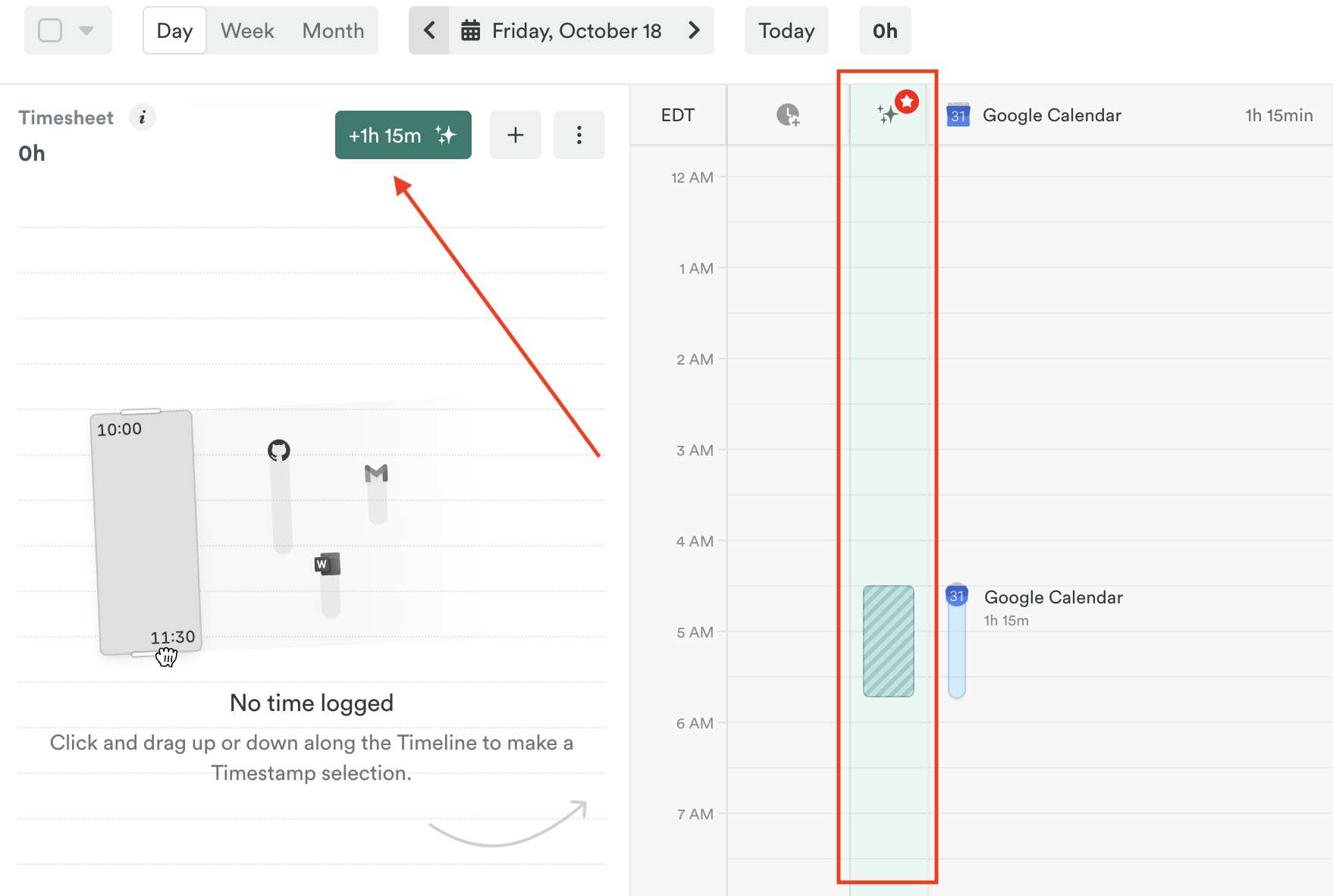
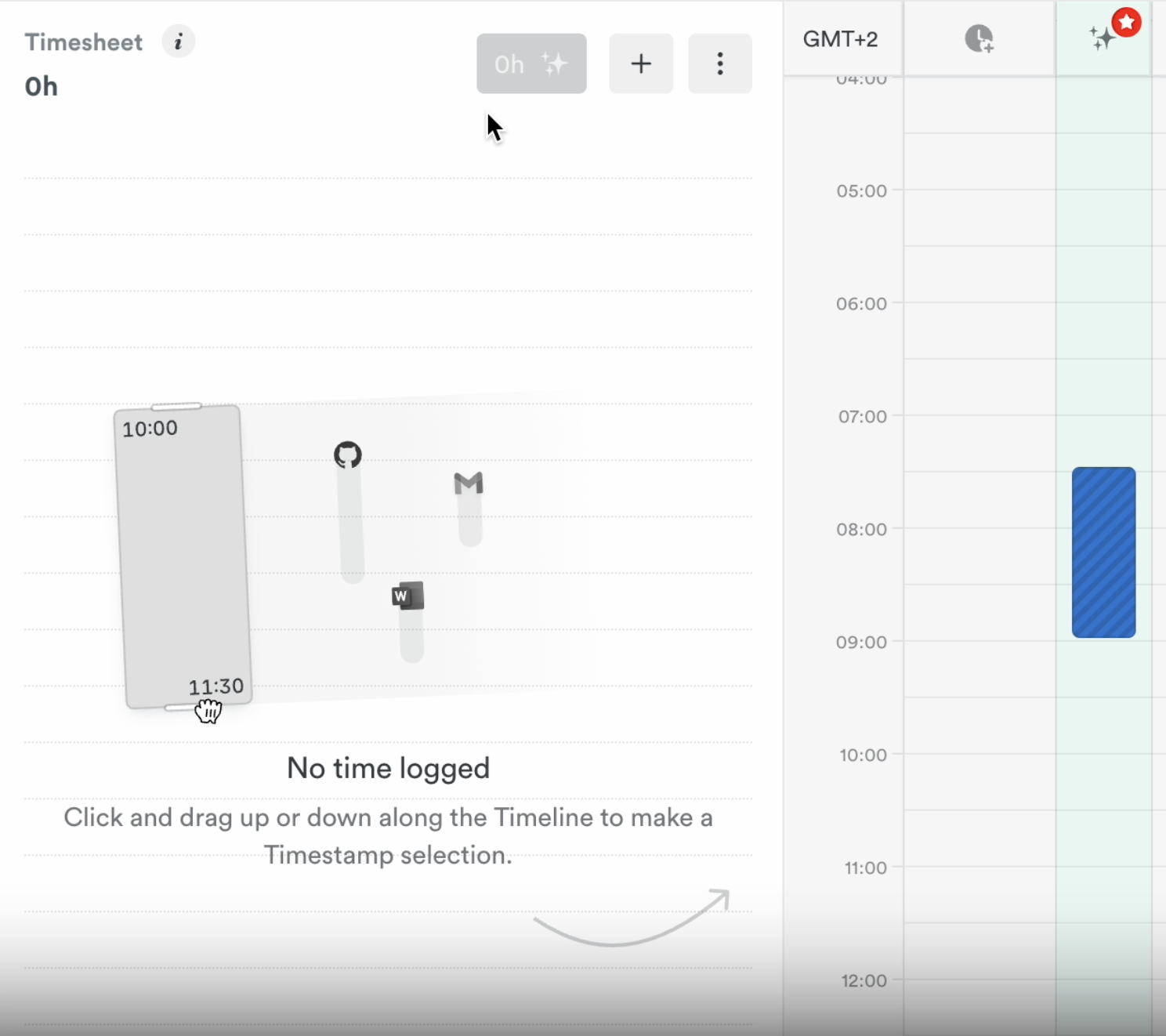
If the assistant is confident that the suggestions are ready, the Timesheet Assistant button will turn from grey to green, indicating that a single click will log all that time for you:
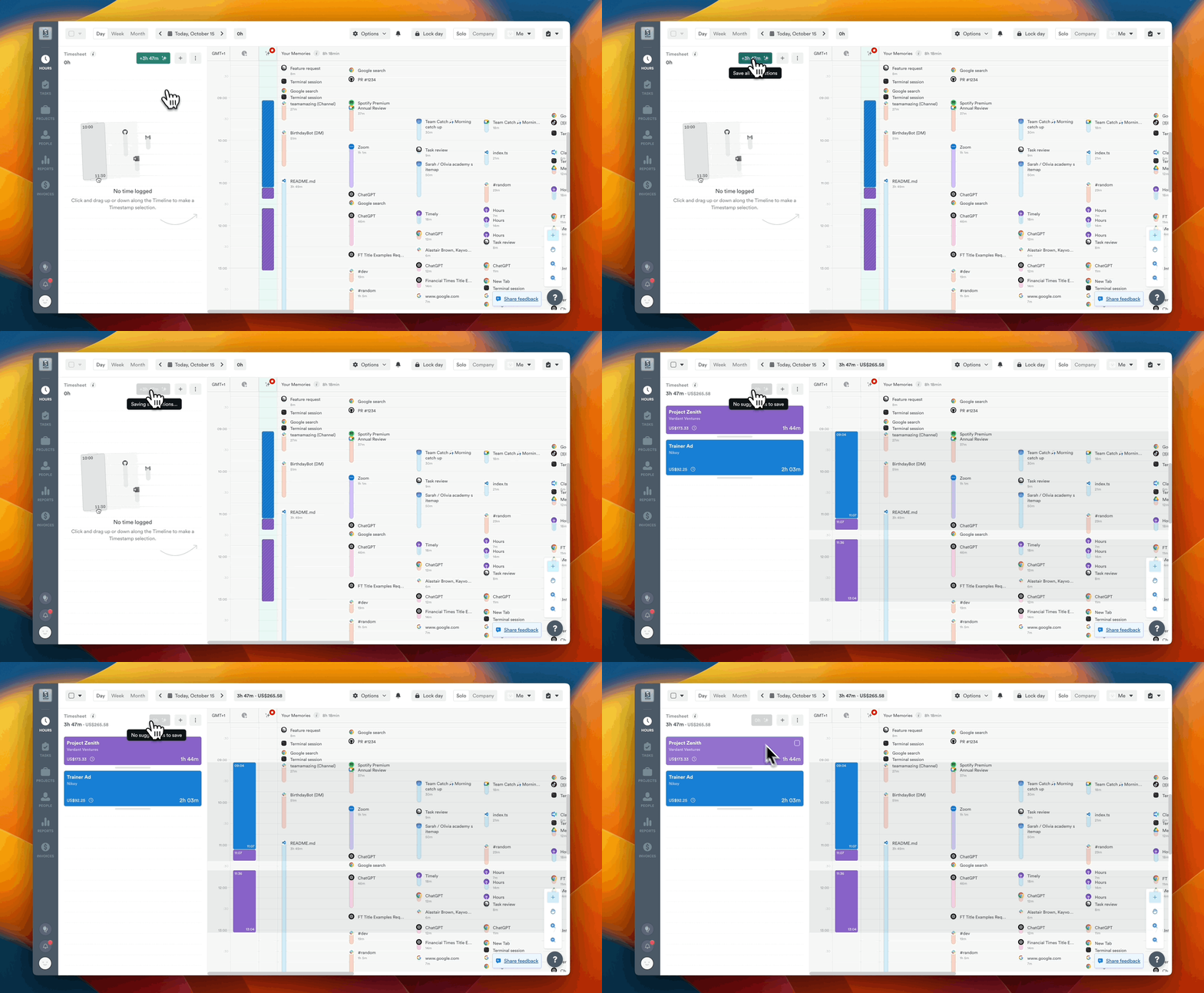
If the button is greyed out, it means there aren’t enough AI predictions ready for logging, so you may need to log some activities manually for now.
Adjusting, Finalizing and Rejecting AI Suggestions
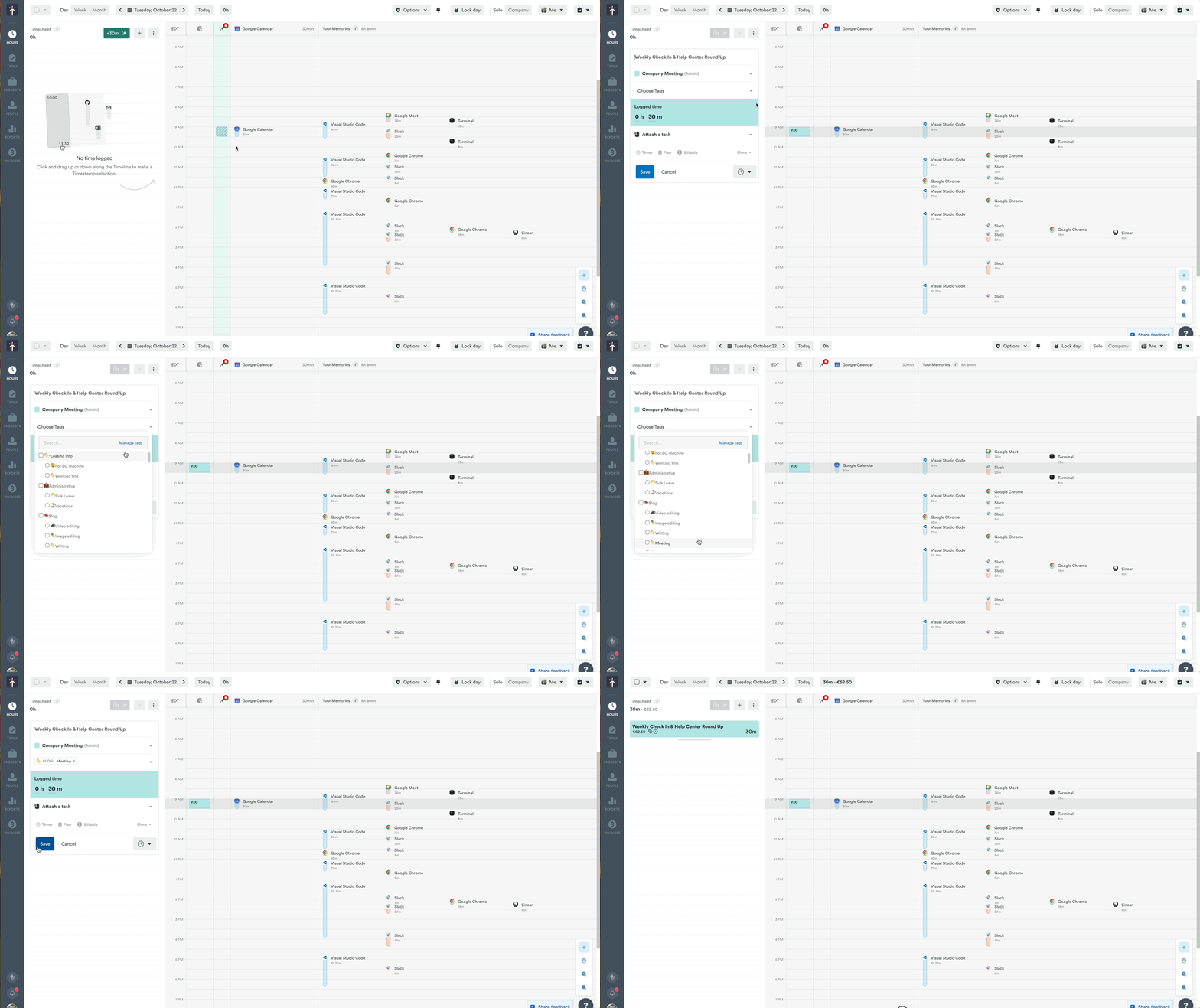
It’s important to regularly review the AI-generated suggestions to ensure accuracy. You have full control over editing these entries—whether it’s adjusting project assignments, adding tags, or adjusting the AI-generated notes.
Once created, you can edit the AI-generated time entries just like you would any other. You can also adjust generated entries before finalizing by clicking the entry in question from the AI column, making changes as needed, and then clicking “Save”:
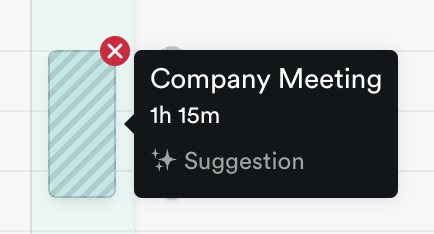
To completely reject an entry, simply hover over the suggestion and click the ❌:
Assistant-Generated Notes for Time Entries
Instead of just dropping in raw memory titles, Timely’s Timesheet Assistant now transforms them into clear, polished summaries—so your notes are client-ready without the extra effort.
How It Works
When you create or edit a time entry using associated Memory activities, the Timesheet Assistant will:
- Convert technical or cryptic memory titles (e.g., URLs or document references) into readable descriptions
- Group related activities into logical, easy-to-follow summaries
- Ensure a professional, client-friendly tone without losing key details
- Keep your notes concise while preserving important context
You still have full control over your notes! If you ever need to switch back to the raw memory titles, you can toggle between the AI-enhanced version and the original data. Plus, you can manually edit AI-generated notes just like any other time entry.
Example:
Before (Raw Memory Titles):
- github.com/repo/PR-1234
- Meeting notes - 2025-03-11
- Drafted client proposal - v3
After (Assistant-Generated Summary): “Reviewed a pull request for the payment integration, attended a strategy meeting, and finalized the third version of a client proposal.”
Getting the Best Out of Timely’s Timesheet Assistant
The more you use it, the smarter it gets. Fine-tune a little at the start, and soon it’ll be suggesting your time entries like it’s known you forever.
FAQs
What if the Timesheet Assistant Button is greyed out?
It means Timely AI doesn’t have enough information to log an entire entry automatically. You may need to log additional activities normally until the AI has enough information to begin making further suggestions.
Can I change the Timesheet Assistant style after I’ve started using it?
Yes, you can switch between Exact, Efficient, and Concise styles anytime by heading to the Options dropdown. Keep in mind that it may take up to 30 minutes for the change to apply, and any AI suggestions you’ve already accepted will remain unchanged.
Can I manually adjust time entries after using the Timesheet Assistant Button?
Absolutely! You have full control over all entries and can edit them as needed.
What happens if a project is archived or unlinked?
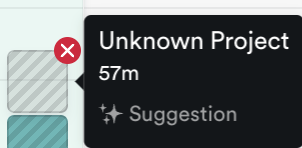
If a project has been archived or unlinked, the timesheet suggestion will appear as “Unknown Project,” and you’ll need to reassign it to an active project before finalizing:
Will time entries created by the Timesheet Assistant contain Tags or Notes?
Yes, time entries created by the Timesheet Assistant can include tags and notes if you’ve enabled those options. The assistant will automatically assign tags based on your habits and include notes from your Memories if the settings are activated.
Will the Timesheet Assistant work without Memory?
No, the assistant requires Memories from either the Memory app or integrations to generate suggestions. Make sure you have one of these set up to use the feature.
Last updated April 16, 2026
Have feedback for this article or need more help? Contact us now.