
Compliance Dashboard (Beta)
ReportingHandbookTrack and manage time tracking compliance across your team.Plans: Everyone · Permissions: Everyone
The Compliance dashboard gives admins a quick way to understand how consistently people are tracking and submitting their time in Timely.
Instead of checking individual timesheets, you can use the dashboard to see who is caught up, identify people who may need attention, and understand how different time tracking features are being used across your workspace.
Note: The Compliance dashboard is currently in beta. You may notice changes as we continue to develop and improve the experience.
Instead of checking individual timesheets, you can use the dashboard to see who is caught up, identify people who may need attention, and understand how different time tracking features are being used across your workspace.
Accessing the Compliance dashboard
To open the dashboard:
- Head to People in Timely.
- Select the Compliance tab.
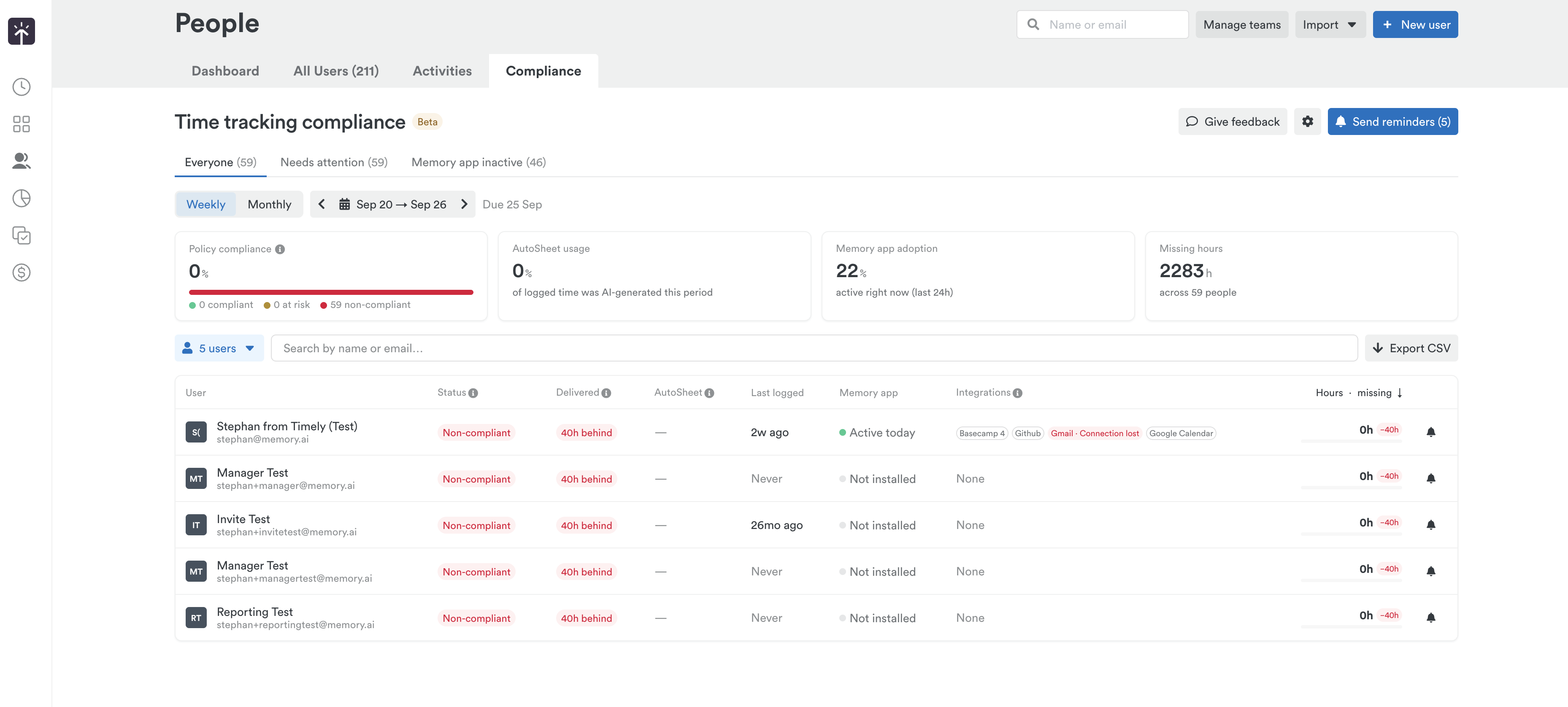
You’ll see an overview of time tracking compliance across your workspace for the selected reporting period.
Understanding compliance
The Compliance dashboard looks at whether people are keeping up with several important parts of your workspace’s time tracking expectations:
- Whether their timesheet was delivered on time.
- Whether they reported enough hours based on their expected capacity.
- If they have critical components, such as the Memory app and Integrations connected and in-use.
Capacity can be configured at either the individual user or workspace level.
You can switch between weekly and monthly periods to review compliance based on how your team tracks and submits time and use the date picker to select specific date ranges.
For closed periods, the dashboard shows the applicable due date and makes it easy to see who is caught up and who may still need attention.
Reviewing your team’s compliance
The dashboard brings your team’s compliance information together in one place.
Use the different views to quickly focus on specific groups, including people who need attention, rather than working through individual timesheets one at a time.
You’ll also find KPI cards at the top of the dashboard that provide an at-a-glance overview of compliance across the selected period.

Understanding time tracking activity
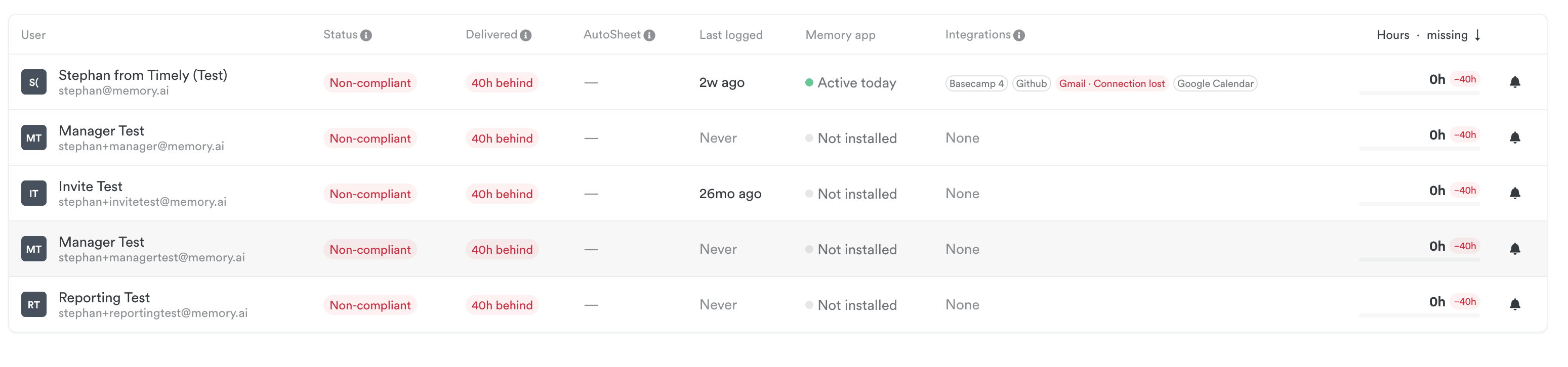
Alongside timesheet compliance, the dashboard gives you additional context about how each person is tracking their time.
For each person, you can see information including:
- The proportion of their submitted time entries that were created using AutoSheet.
- When they last logged time.
- Their recent Memory app activity.
- Whether they appear to be using the Memory app at all.
You can also switch between the available tabs to focus on different types of activity, such as people who need attention or those with recent Memory app activity.
This additional context can help you understand not just whether someone is caught up, but how they’re using Timely to track their time.
Filtering and finding people
For larger teams, you don’t need to scroll through the entire workspace to find the information you need.
You can:
- Search by name to find a specific person.
- Filter by user to narrow the dashboard to individual team members.
- Filter by team to review compliance for a particular group.
- Switch between the available dashboard tabs to focus on people matching a particular status.
Filters can be especially useful for managers who only need to review compliance for a specific team or group of people.
Setting a Compliance policy
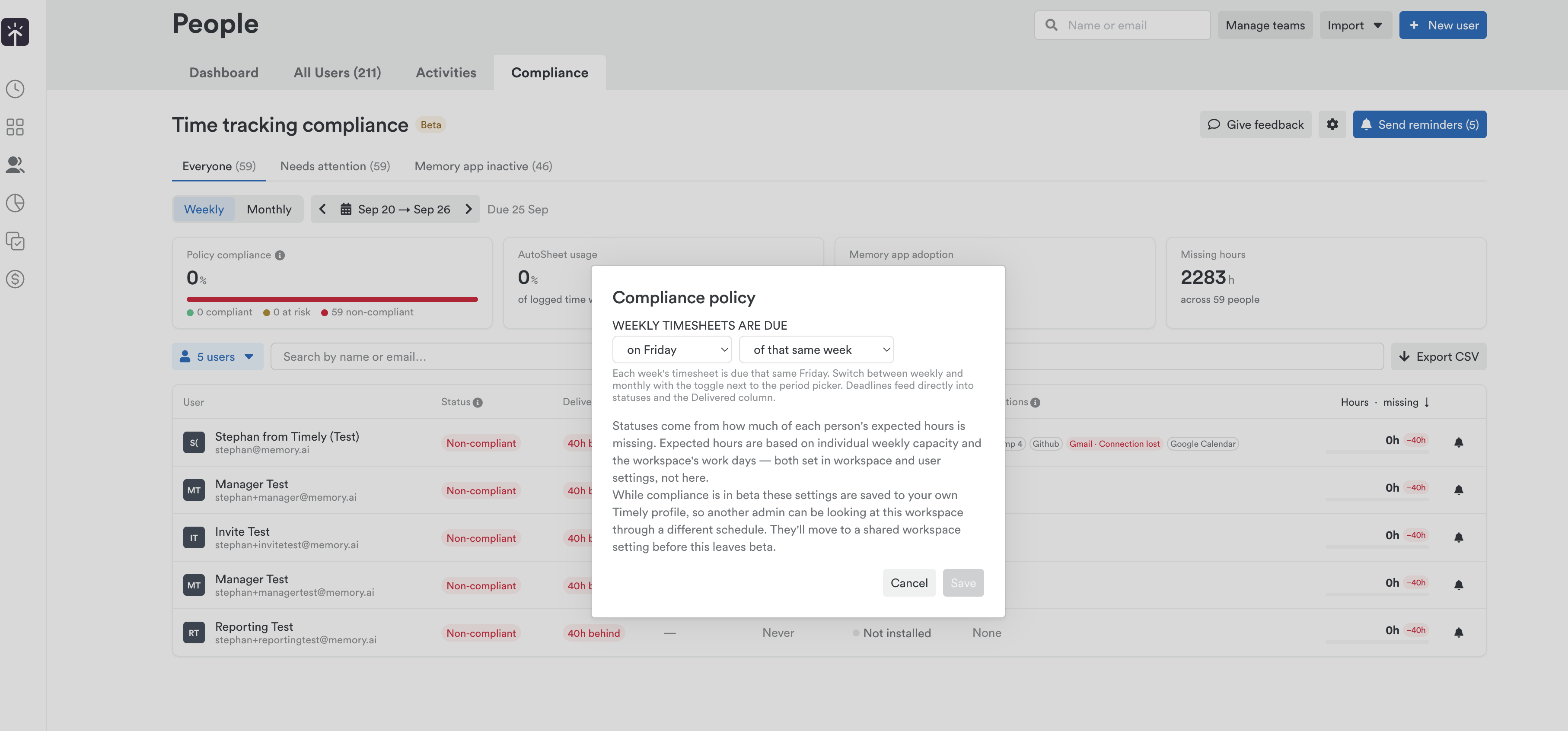
Your Compliance policy determines when timesheets are due and is used by the dashboard to determine whether people have delivered their timesheets on time.
To configure your policy:
- Head to People > Compliance.
- Click the gear-shaped Settings icon in the top-right corner of the dashboard.
- Under Compliance policy, choose when timesheets are due.
- Select Save to apply your changes.
For example, if your policy is set to Friday of that same week, each weekly timesheet will be due that Friday.
When switching between Weekly and Monthly views, the applicable deadline is shown alongside the selected period. These deadlines also feed directly into the compliance statuses and the Delivered column.
**Note:** The number of hours someone is expected to report isn’t configured here. Expected hours are calculated using each person’s weekly capacity and the workspace’s configured work days, including any individual overrides configured in workspace and user settings.
Frequently asked questions
Why does someone’s compliance need attention?
The dashboard considers whether their timesheet was delivered on time and whether they reported enough hours according to their configured capacity. If those requirements haven’t been met for the period you’re reviewing, they may appear as needing attention.
Where does the expected number of hours come from?
The dashboard uses the capacity configured for the user or workspace to determine the expected number of reported hours.
Can I see whether someone is using AutoSheet?
Yes. The dashboard shows how much of a person’s delivered time was created using AutoSheet.
Can I see whether someone is using the Memory app?
Yes. The dashboard provides information about recent Memory app activity and can help identify people who aren’t currently using it.
Can I review a specific team?
Yes. Use the team filter to narrow the dashboard to the group you want to review.
Why is the Compliance dashboard marked as beta?
The Compliance dashboard is still being developed and refined. While it’s in beta, you may notice changes to the experience as we continue improving the feature.
Have feedback for this article or need more help? Contact us now.