
How do I set or edit a user's hourly rate?
People & Team ManagementHandbookSet a user's default rate and their project rates in one go.Setting hourly rates allows you to see how much money you make with each hour logged to a project.
Set hourly user rates per project from the Project page
- Head to the Project section (make sure you’re using the web browser version of Timely, or the Mac or Windows app!)
- Click on the project you want to edit
- Click on the “Edit Project” button in the top-right corner of the screen to land on the project settings page, and go to the People and Hourly Rates section
- You have two options for setting an hourly project rate: “Same for everyone” or “Individual rates”.
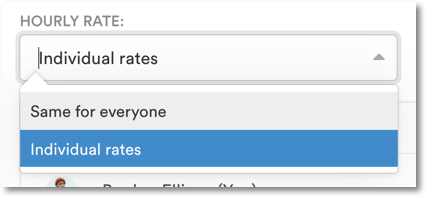
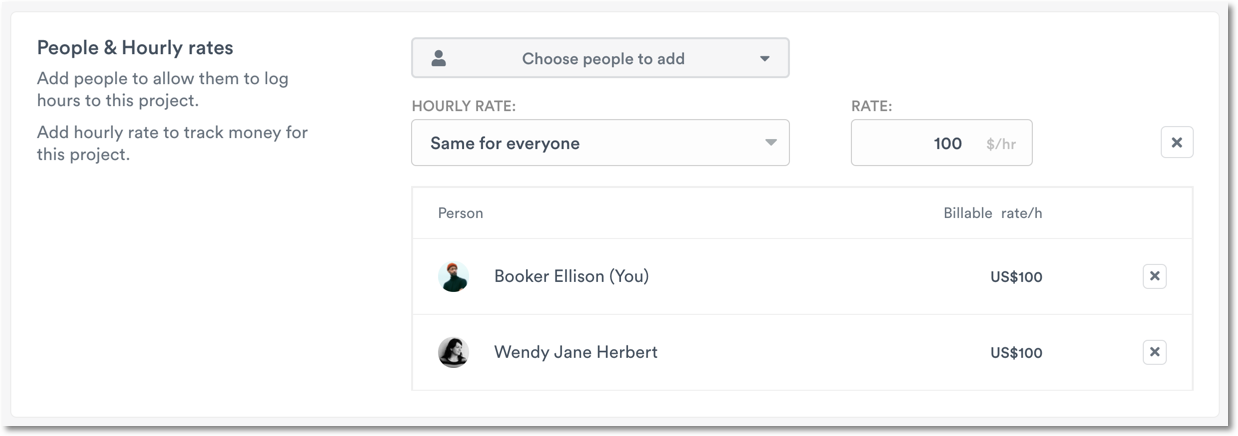
A) To set the “Same for everyone” rate on the project
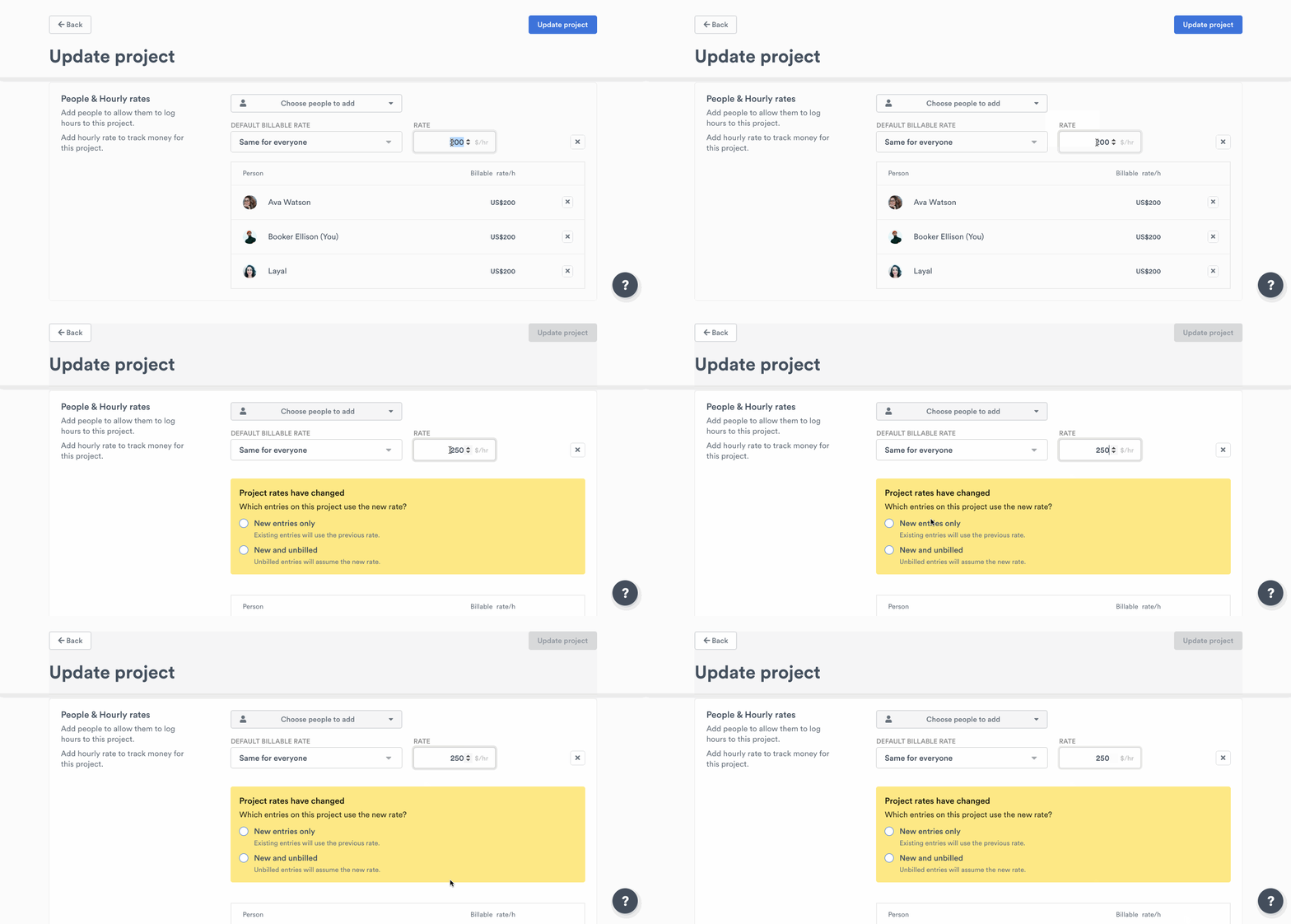
Enter the hourly rate that you’d like to apply to everyone on the project. Once added, you’ll see this rate auto-populate against each person’s name:
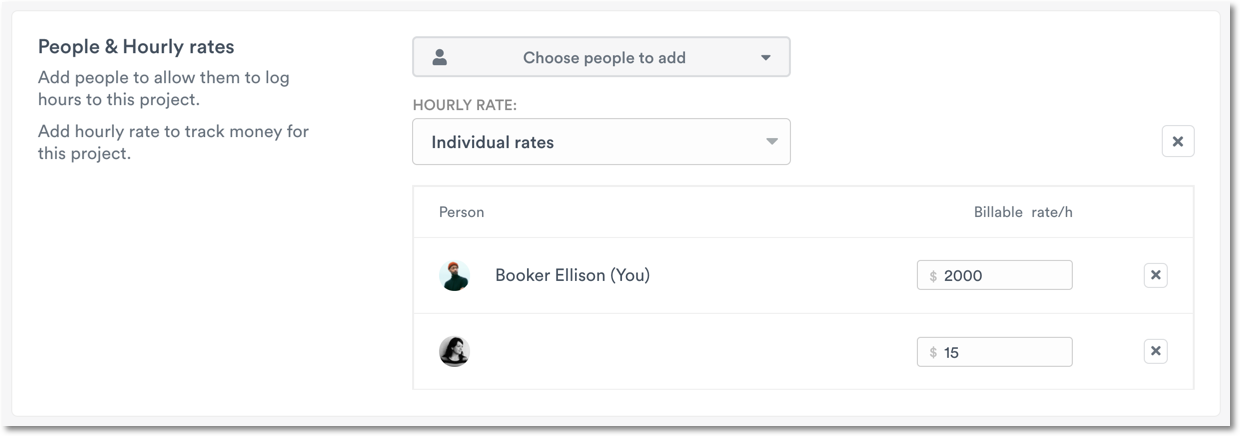
B) To set “Individual rates”
Select the box next to a user to give them access to the project. Next, enter the specific hourly rate you want to assign to them:
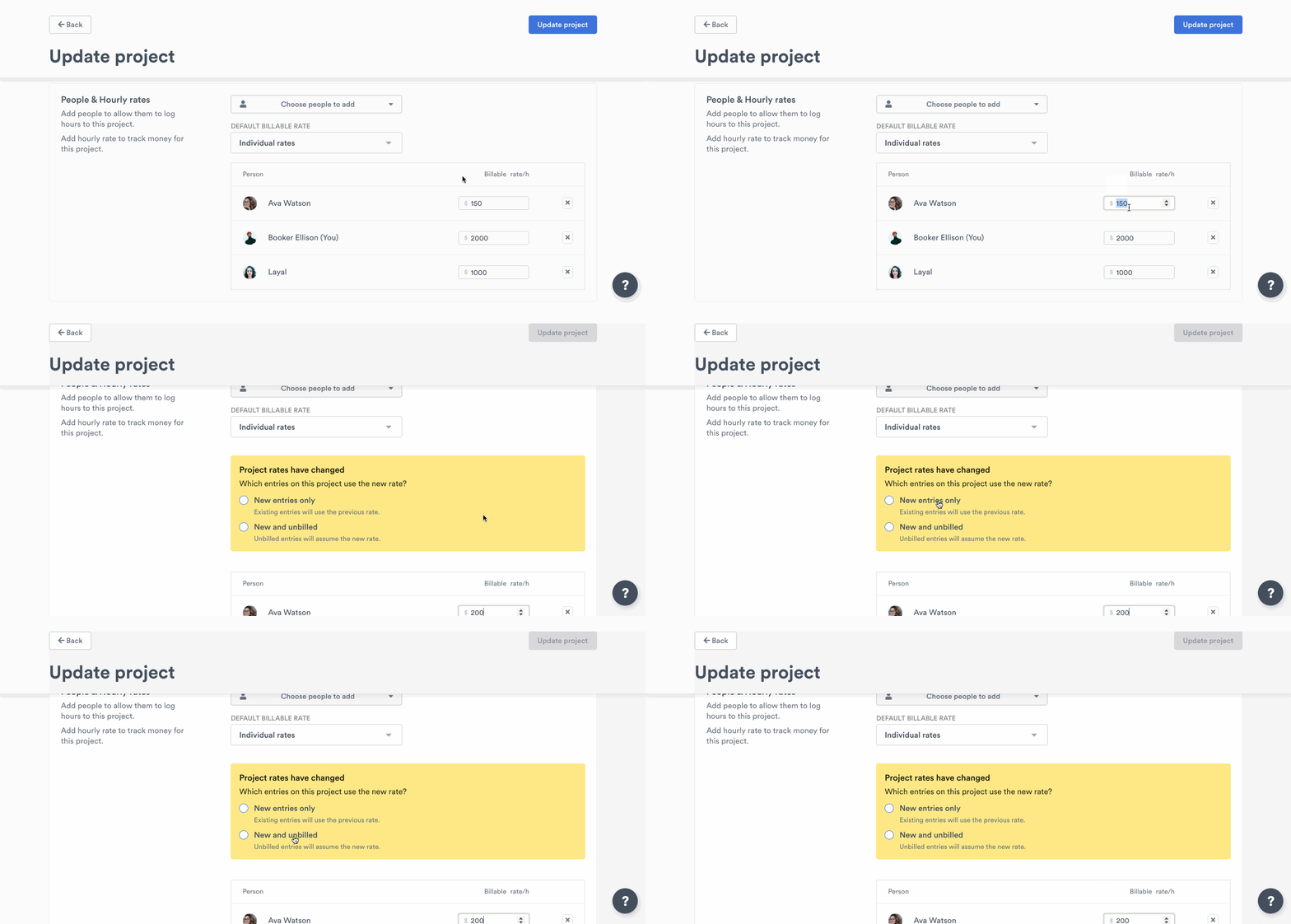
C) To make a project non-billable
Simply don’t add an hourly rate option to the project — once saved, it will become non-billable. There’s nothing more to do!
Set a user’s project rate on their Permissions page
Adjust individual project rates for projects that don’t have “Same for everyone” rate attached to them.
Individual hourly rates per project
- Head to the People page
- Click the user you want to edit
- Select “Edit User” in the upper-right hand corner
- Go to the Projects and Hourly Rates Section
Here you’ll be able to add or remove the user from Projects and adjust their hourly rate for projects with the “Individual Rates” setting:
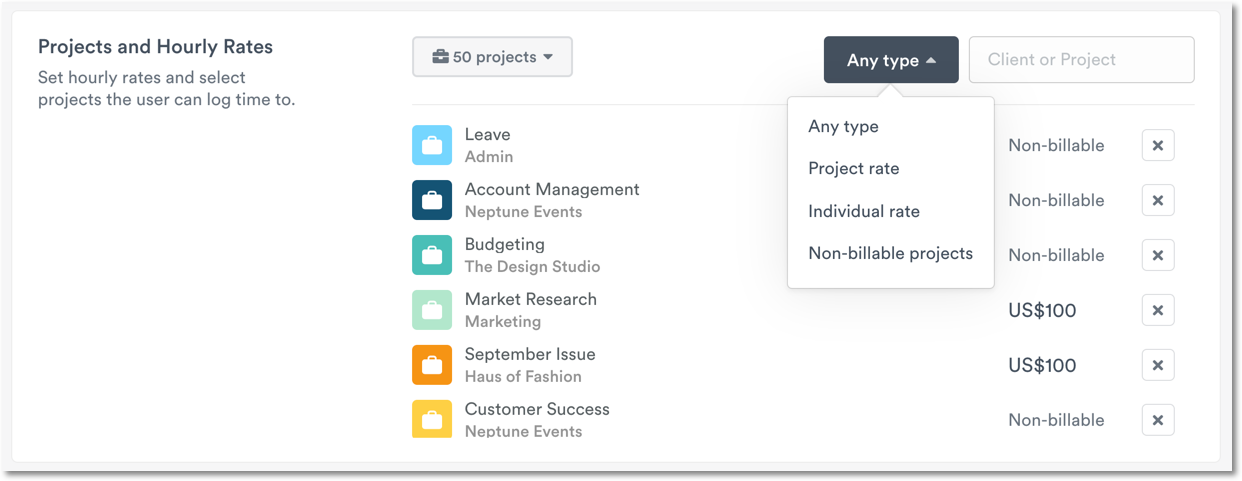
- Projects using “Same for everyone” rates are grayed out and can’t be edited
- Non-billable projects will state “Non-billable”
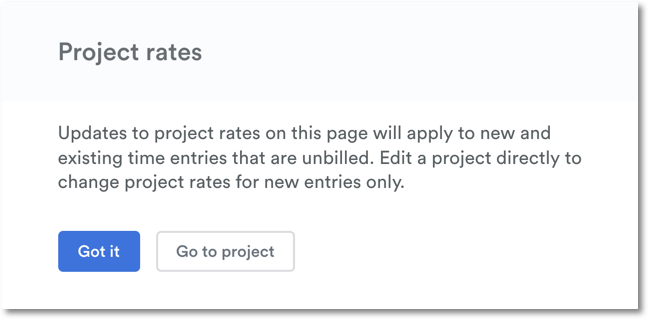
Set a default rate for the user
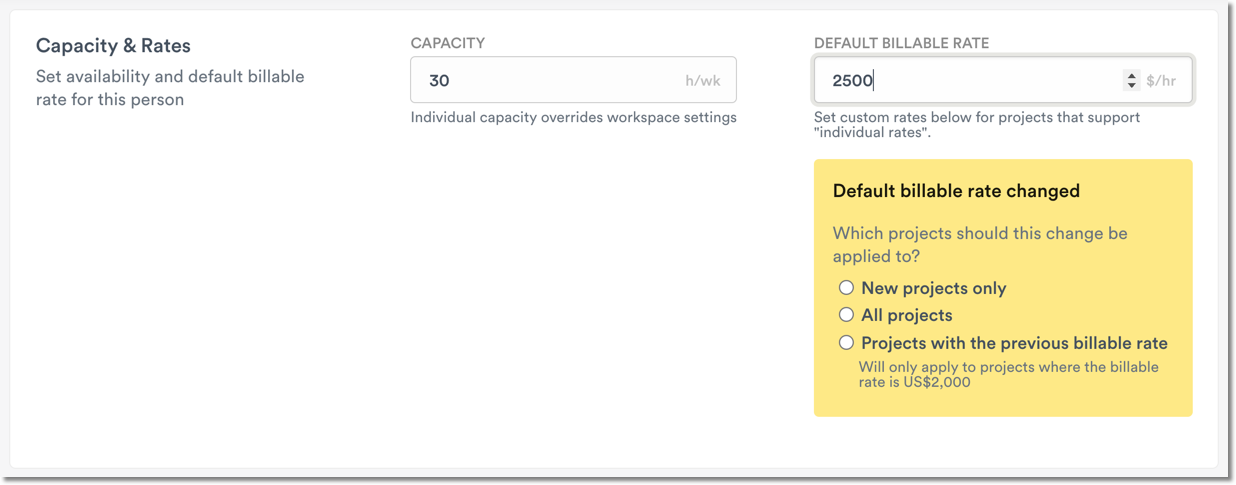
Setting a default rate for a user will auto-populate the user rate for all projects with “Individual Rates” setting. You can always adjust an individual rate for a user per project; the default rate is designed to save you time.
- Head to the People page
- Click on the username you want to edit
- Select “Edit User” in the upper-right hand corner
- Go to the Capacity & Rates section:

Limit a default rate change to entries from a specific date
If you choose All projects – all entries or Projects with the previous billable rate, you can optionally pick an Apply from date. Only entries dated on or after that date are repriced; earlier entries keep their existing rate. Leave it empty to reprice all matching entries.
The date isn’t a rate schedule: an entry added later but dated before the chosen date will still get the new rate. The billing rate date is set separately from the cost rate date, and rate changes made from the project page don’t have a date option.
Last updated October 7, 2026
Have feedback for this article or need more help? Contact us now.