
Gmail
IntegrationsAI Time Tracking SourcesHandbookConnect your Gmail accounts to capture the time you spend on email.Want to know exactly how much time you spend on email each day? By connecting Timely to a Gmail account, all the emails you send each day will automatically appear in your private Memory Timeline.
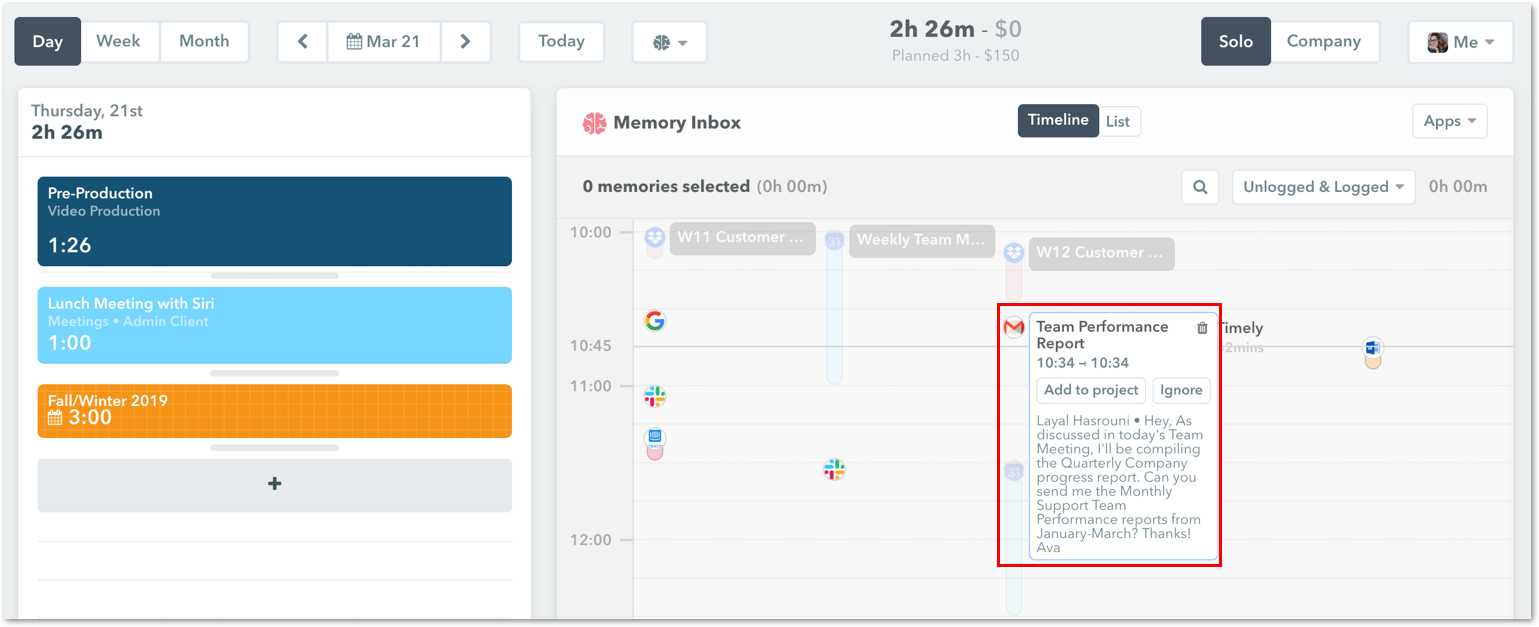
What you see in Timely
- All the people you email in a day
- The subject field of each email sent
- The time each email was sent
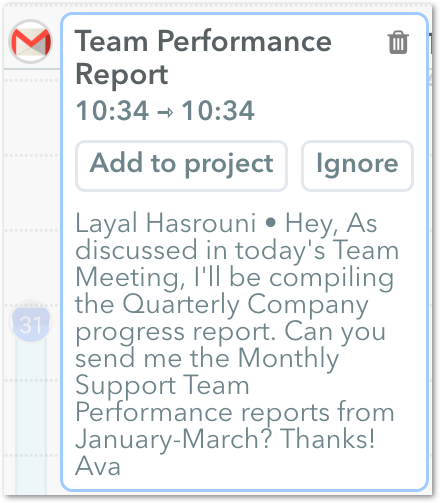
Hover over the Gmail icon to view its content.
Integrating Gmail with Timely
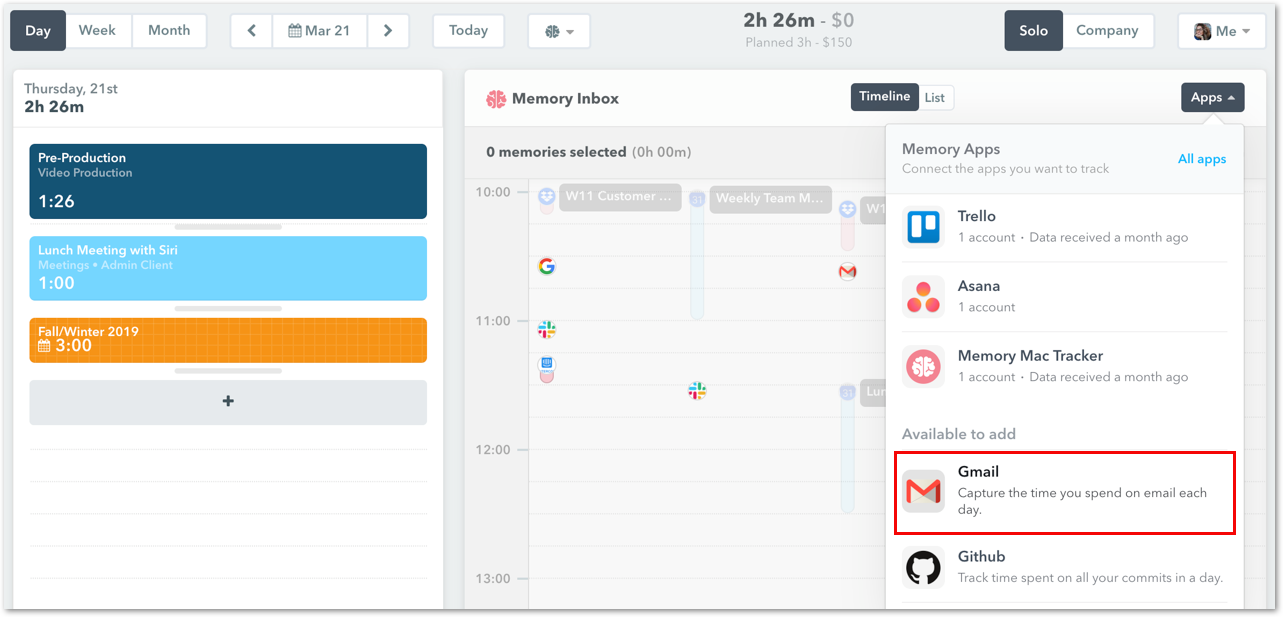
Option 1 — Connect from the “Apps” dropdown on Hours > Day view
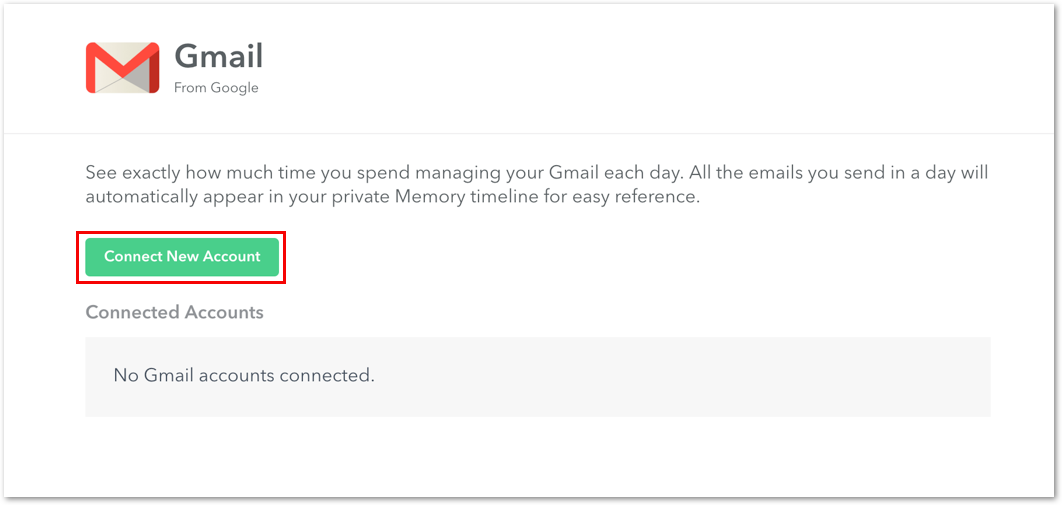
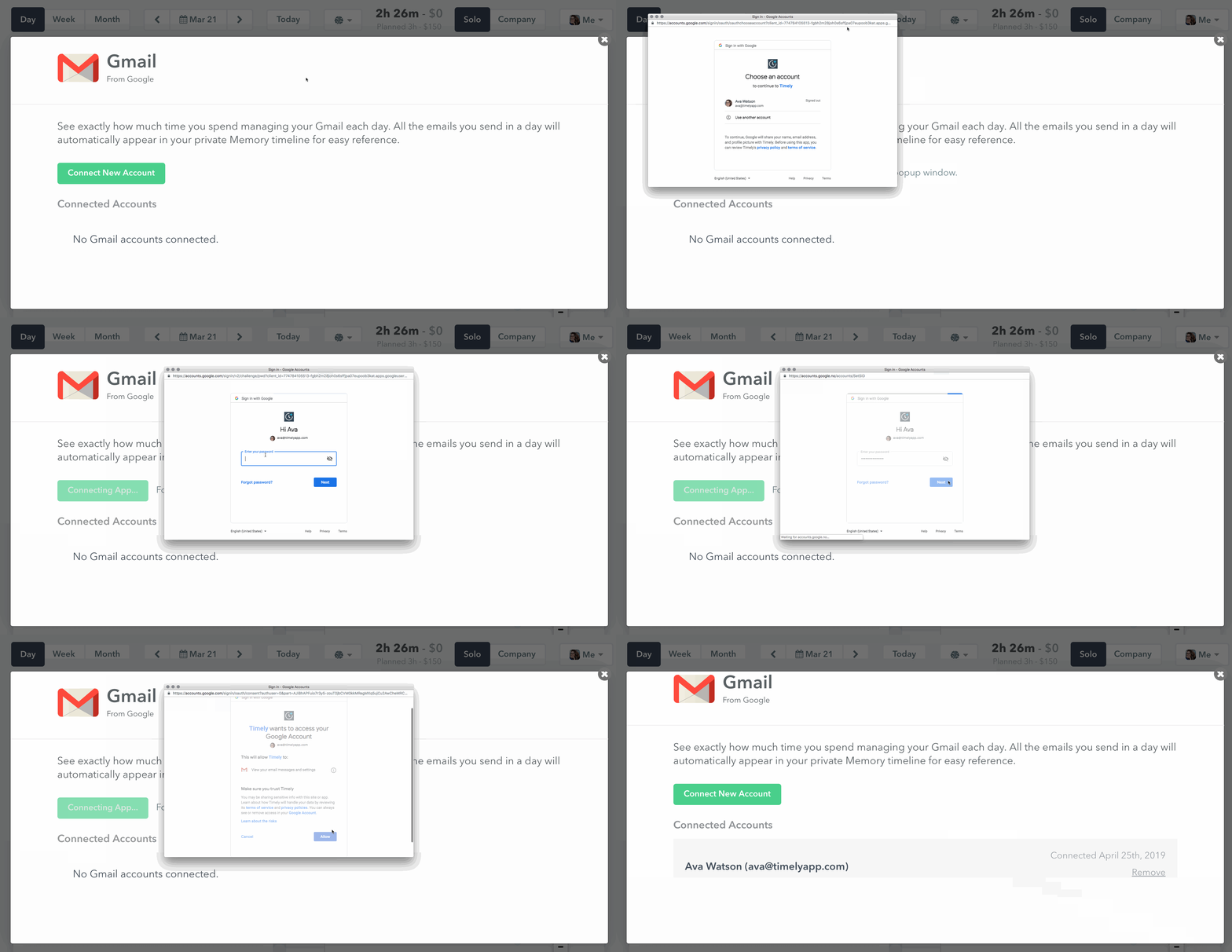
Click “Connect New Account”:
Enter your email address and password, then hit “Allow” to grant Timely access:
Option 2 — Connect from the “Apps” page in Settings
You can also access the Gmail integration from the Apps page in Settings, where all integrations are managed:
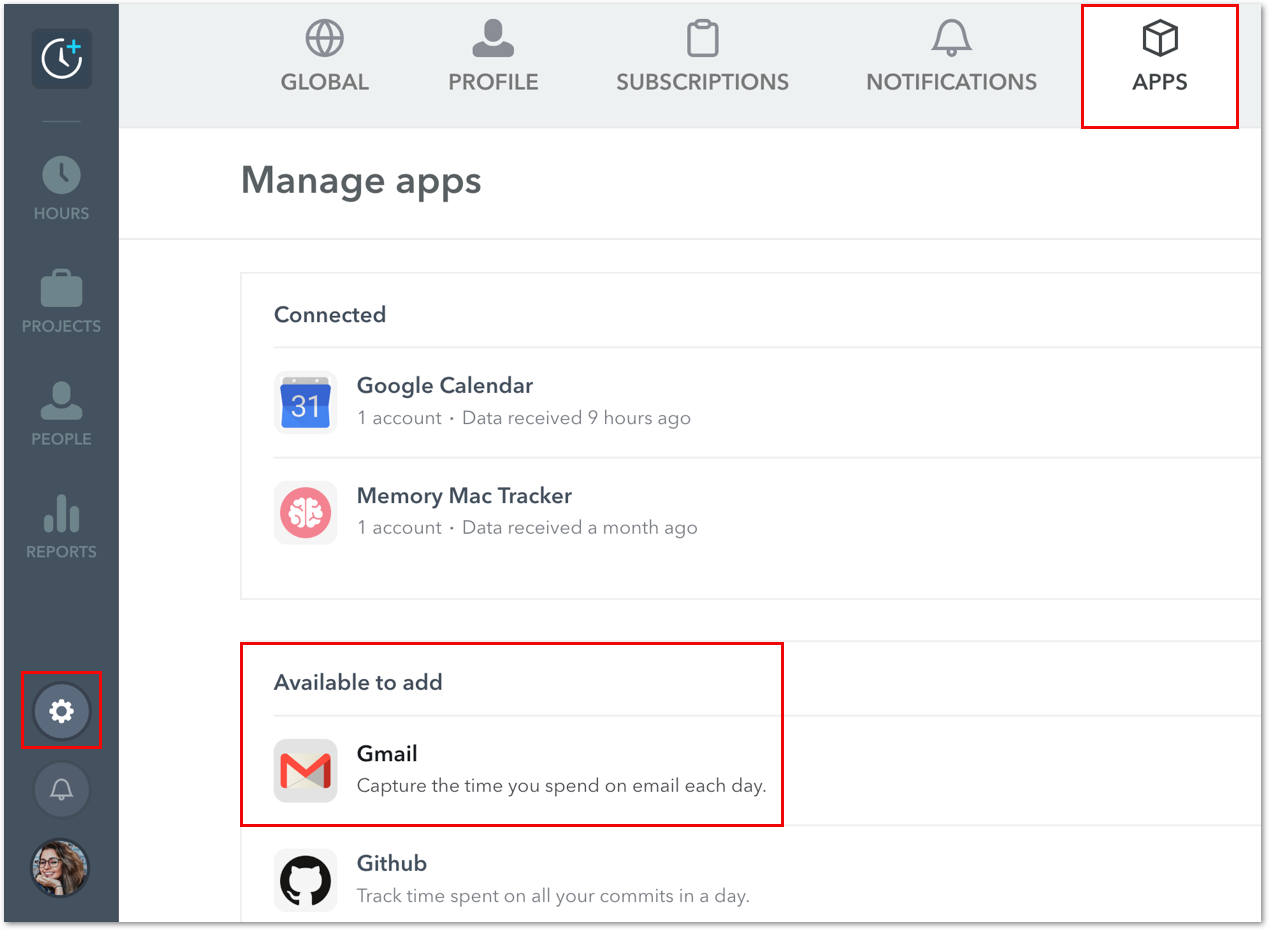
Click on the Gmail option and follow the same “Connect New Account” steps above.
Removing the Gmail integration
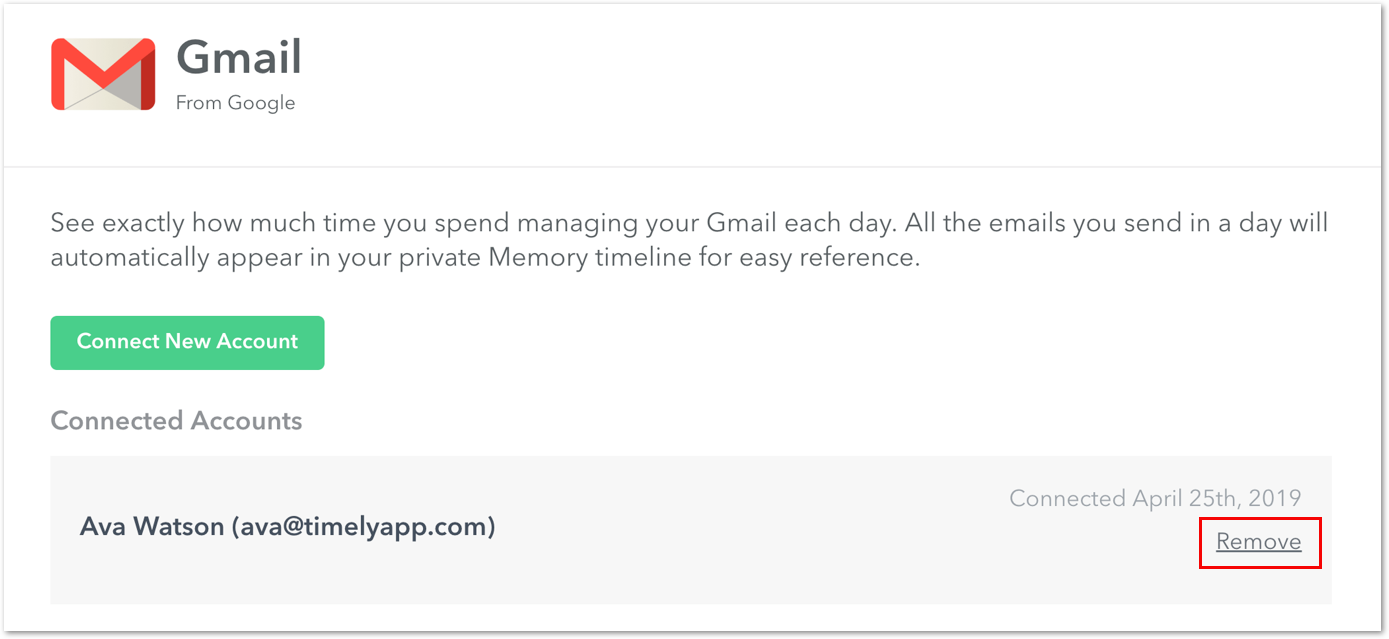
Go back to your Apps settings page, select Gmail, and hit “Remove”:
Can I create an entry from a Gmail Memory?
You cannot directly create an entry from a Gmail memory, but you can use the information as a basis for your entry’s notes.
Last updated April 1, 2026
Have feedback for this article or need more help? Contact us now.