
Editing users
People & Team ManagementHandbookUpdate user access levels, hourly rates and project assignments.Timely’s user permissions pages allow you to change a user’s access level, update their hourly rate and add/delete them from teams from one place. You can also add or delete them from all the projects at once, which saves you the effort of editing each project related to the user when their hourly rates or assignments change.
How to find a user’s permissions page
Head on over to the People tab and click on the user you want to edit. You’ll see Edit User in the upper right-hand corner — click on that!
Alternatively, you can also edit a user by clicking the ”…” at the end of their name and selecting Edit from the drop-down menu.
Here’s what the permissions page looks like:
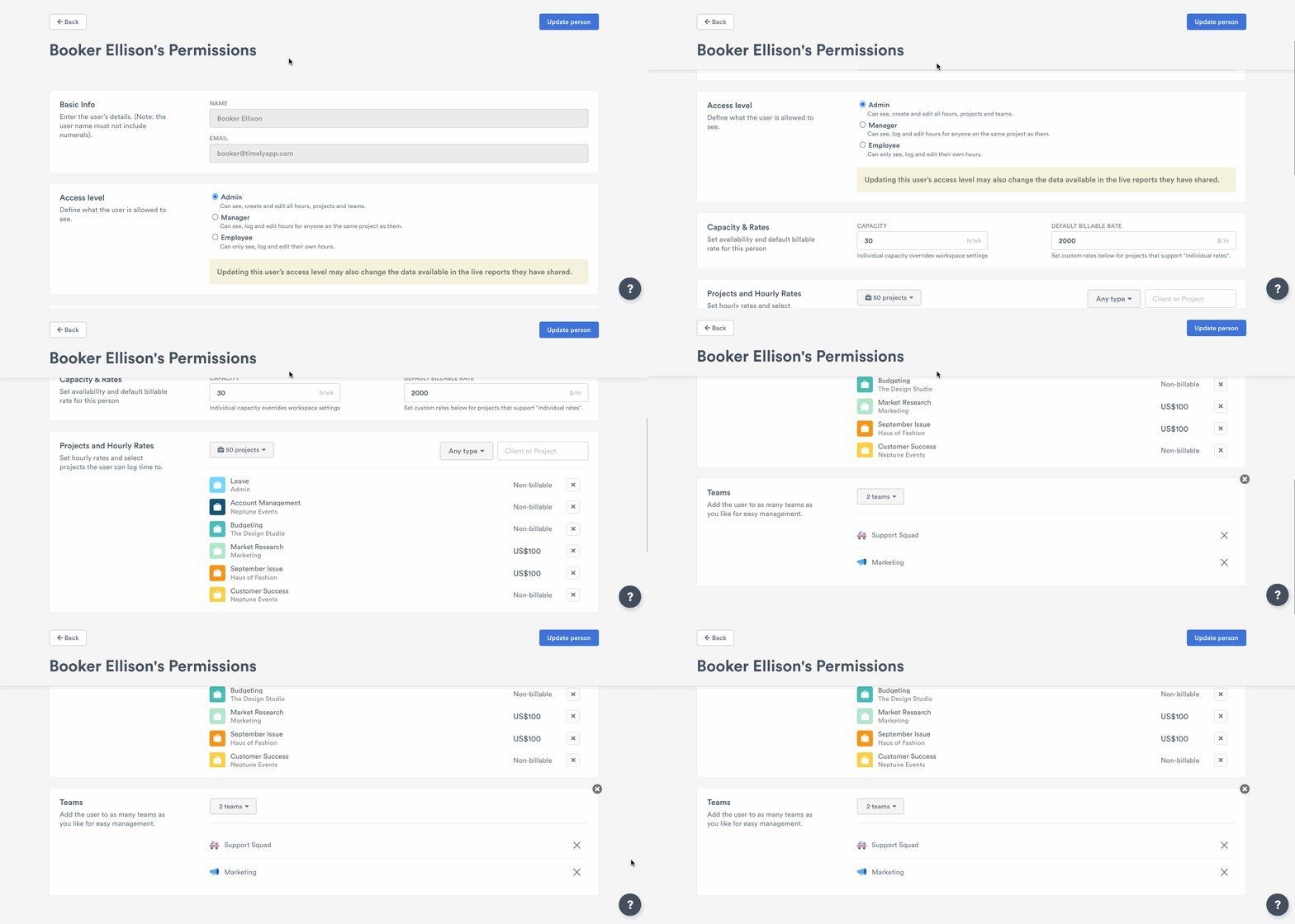
If you need to change a user’s hourly rate, you can do so while specifying how the rate change is applied:
- The new rate will only be applied to new projects the user is added to
- The new rate is applied to all projects, meaning that previously entered hours will be updated to reflect the rate change
- The new rate will only be applied to projects with the previously set billable rate
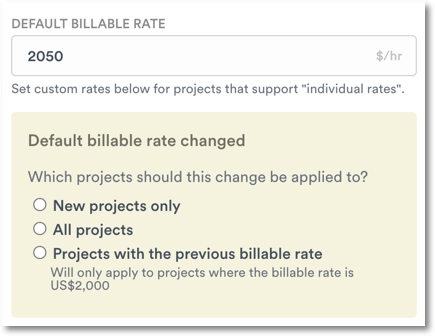
When a billing or cost rate change updates existing entries, you can also pick an Apply from date so only entries dated on or after it are repriced. See setting a user’s hourly rate and setting a user’s cost rate for details.
Granting project creation to an Employee
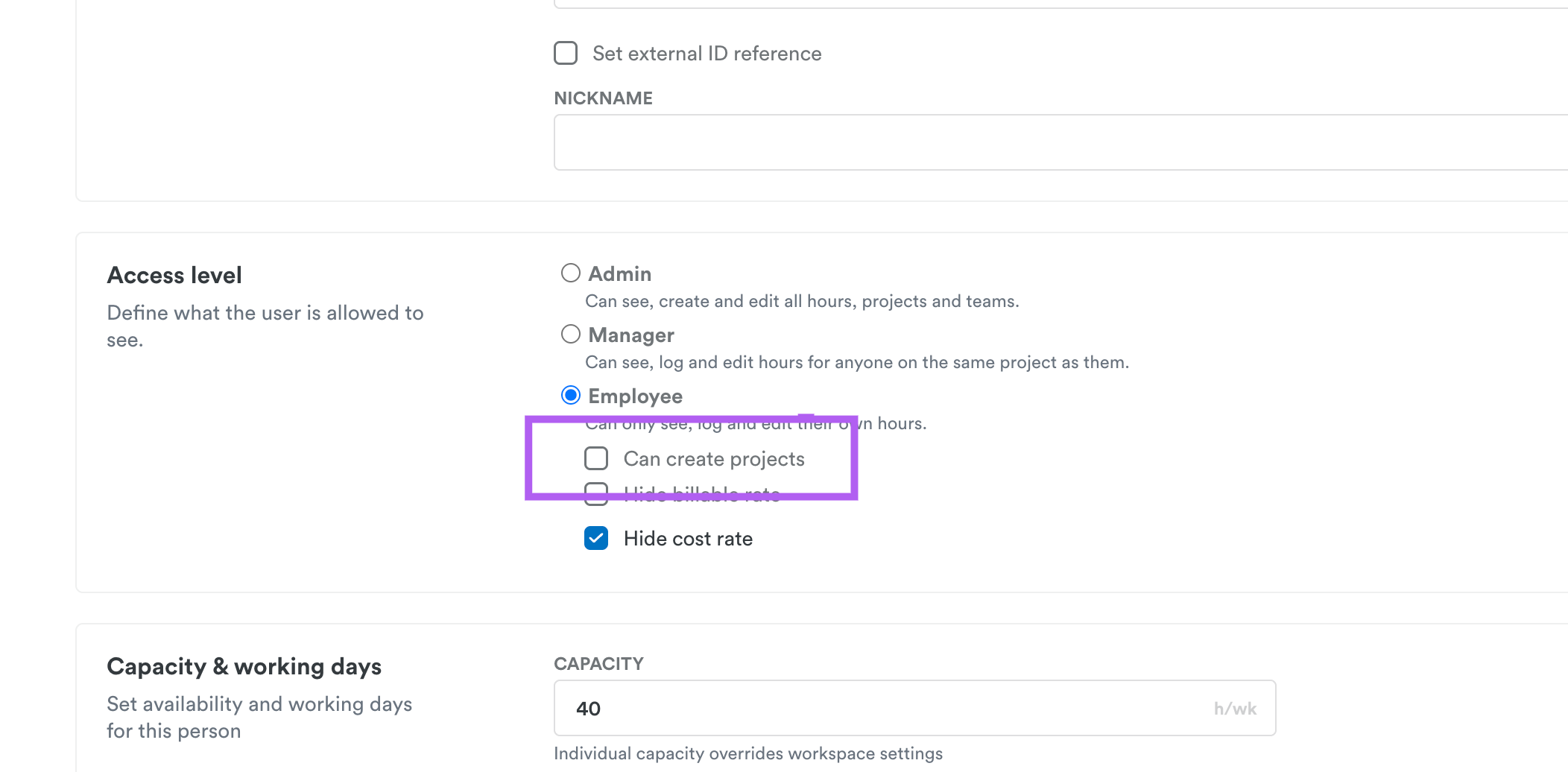
By default, only Managers and Admins can create projects. If you want an Employee to be able to create and manage their own projects without promoting them to Manager, you can enable the Can create projects checkbox on their edit page. This permission is available only for Employee-level users and can only be changed by an Admin.
When this permission is on, the Employee can:
- Create new projects and edit the name, description, client and tags on projects they created
- Add existing workspace members to their projects
- Create a new client when setting up a project
The Employee’s access to the rest of Timely is unchanged — they still see only their own hours and agent sessions, and financial settings and rates on their projects are preserved and cannot be altered by them. The permission is off by default for all users, including newly invited Employees.
Letting an Employee create projects
When an Employee is selected under Access level, you’ll see a Can create projects toggle below the role description. It’s off by default, which matches the standard Employee behavior — only Admins and Managers create projects. Turn it on for an individual Employee to let them create their own projects without changing their access level. Everything else about the Employee role is unchanged: they still can’t invite users, see other people’s rates, or edit projects they don’t own.
Last updated October 15, 2026
Have feedback for this article or need more help? Contact us now.