
Install Timely as a web app on Mac
Getting StartedHandbookAdd Timely to your Dock as a standalone desktop web app using Safari on macOS.If you use Timely throughout the day, you can add it to your Dock as a standalone web app. It opens in its own window — without browser tabs or an address bar — and behaves like a native Mac app, so Timely is always one click away.
Add Timely to your Dock
- Open Safari and go to app.timelyapp.com, then sign in to your workspace.
- Navigate to the page you want Timely to open on every time you launch it — for most people that’s the week or day view. Edit the address bar so it ends at that page, with no date on the end, then press Return to load it. The URL should look like:
- Week view:
https://app.timelyapp.com/{workspaceID}/calendar/week - Day view:
https://app.timelyapp.com/{workspaceID}/calendar/day
- Week view:
- In the menu bar, choose File → Add to Dock… (you can also click the Share button in the toolbar and select Add to Dock).
- A dialog appears where you can confirm the name (it defaults to Timely) and icon. Check that the URL still ends at your start page with no date, then click Add.
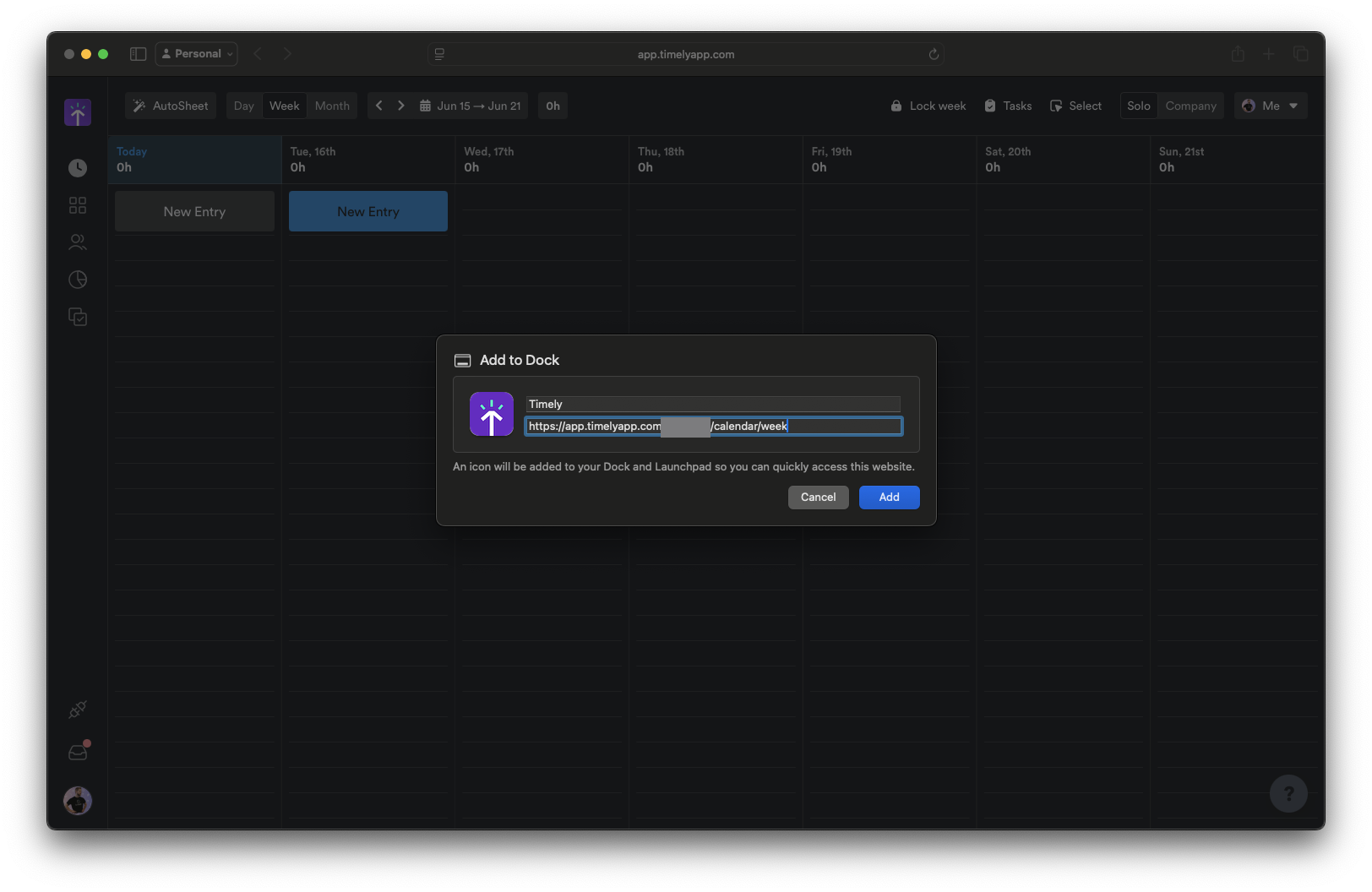
- Timely is added to your Dock and opens in its own focused window.
Launch and manage the web app
- Open Timely anytime by clicking its icon in the Dock, or find it in Launchpad and the Applications folder.
- Keep it handy — right-click the Dock icon and choose Options → Keep in Dock so it stays put after you quit.
- Adjust settings — right-click the Dock icon and choose Settings to control notifications and whether the navigation bar is shown.
The web app keeps its own login, so you stay signed in independently of Safari.
Last updated June 15, 2026
Have feedback for this article or need more help? Contact us now.