
Managing your profile
Billing & Workspace ManagementWorkspace managementHandbookUpdating and managing your personal details within Timely.Editing your profile in Timely isn’t solely about making sure your info is correct and up-to-date. We also offer options to make your Timely experience as intuitive as possible, whether it’s adjusting date formats that appear on reports, choosing a 12 vs. 24-hour clock or changing how you sign into your account. Basic as those changes may be, they make logging and managing your hours a much smoother ride!
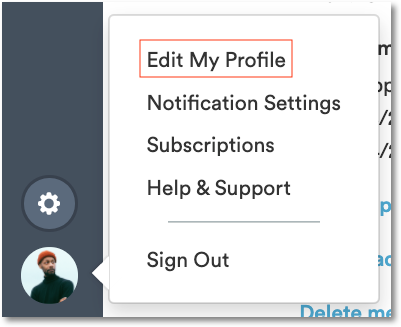
Click your profile picture icon in the lower-left corner of Timely and select “Edit My Profile”. This will take you to a page where you can edit everything listed below.
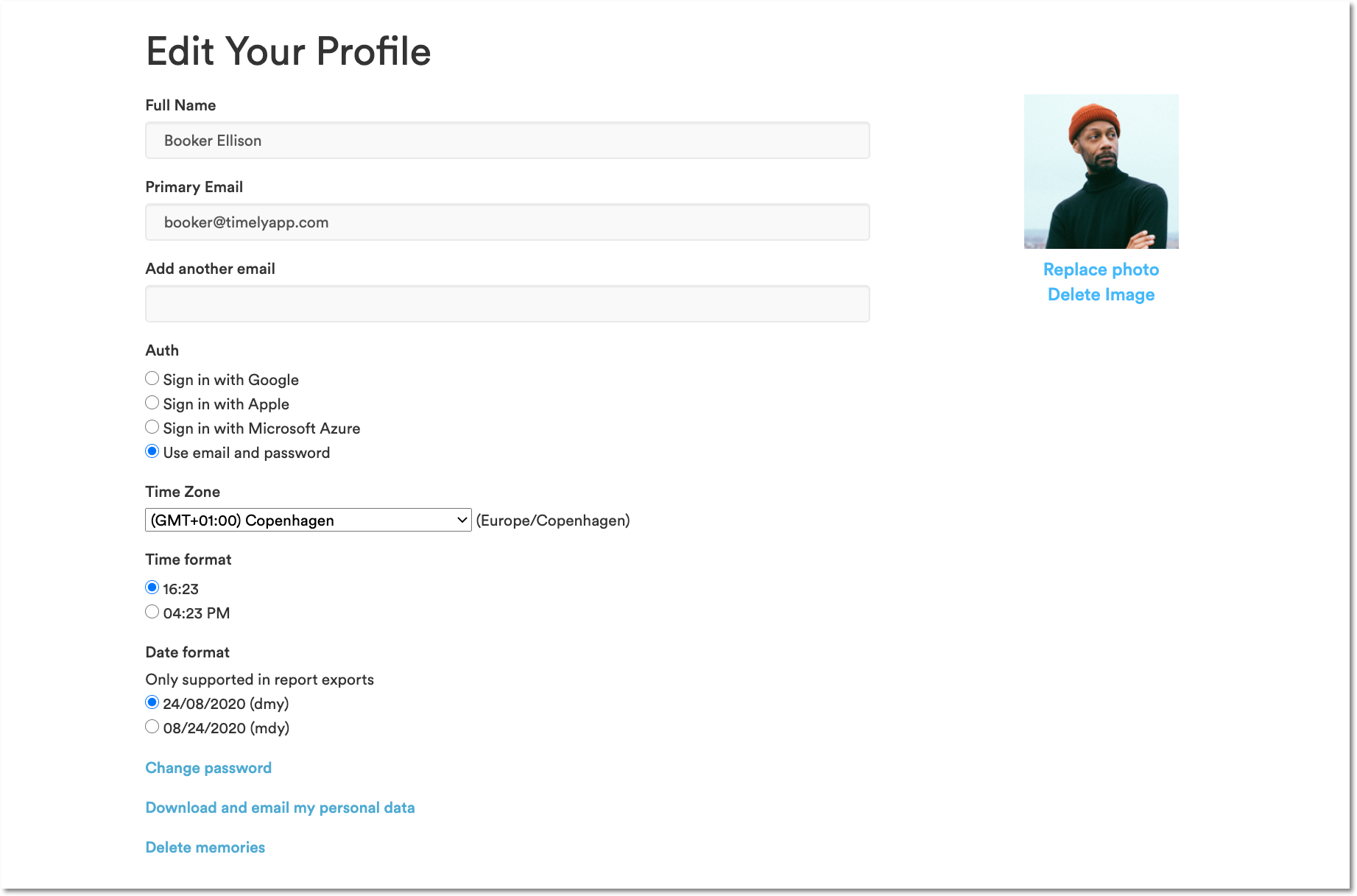
Changing your profile pic
This will be the picture your team sees in Timely. You can add or edit an existing profile picture by clicking your avatar image on the right-hand side of the page. If you already added a profile pic, you can Replace or Delete from here too.
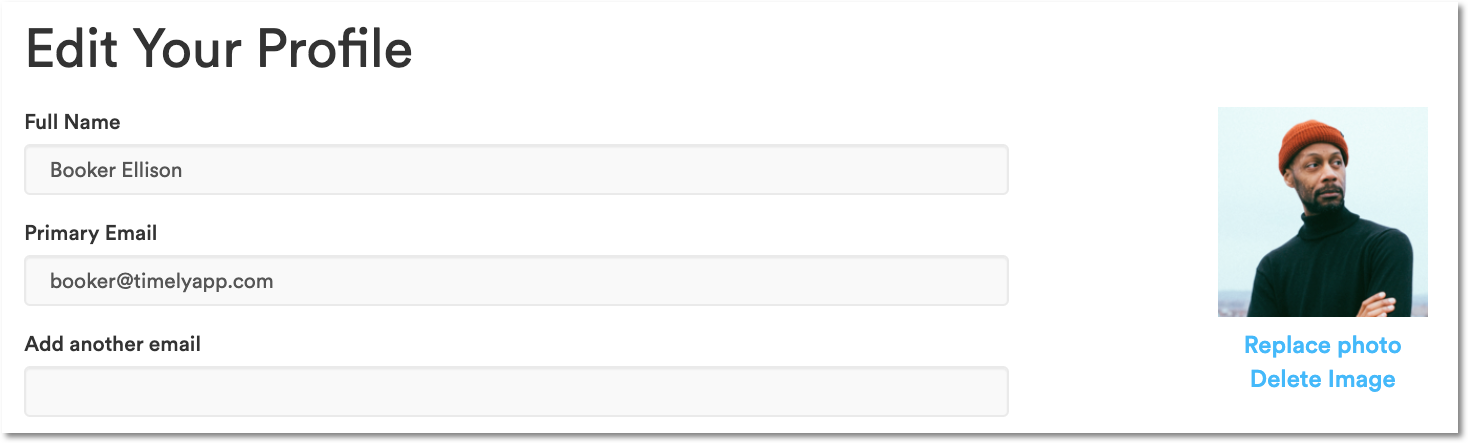
Managing email addresses
Simply enter your new email address in the “Primary Email” field and click “Update User”. For certain integrations like Zoom or Jira, you need to make sure the email address on those accounts and Timely match. If your Timely email address is different from your Zoom or Jira account email, no worries! You can “Add another email” in the field below your Timely email address so that we can link to that if need be.
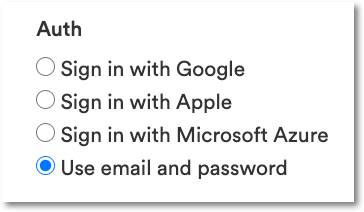
Managing authorization options
In addition to signing in with your email address and password, we also offer options to sign in using Google, Apple or, if your workspace admin has it set up, Microsoft.
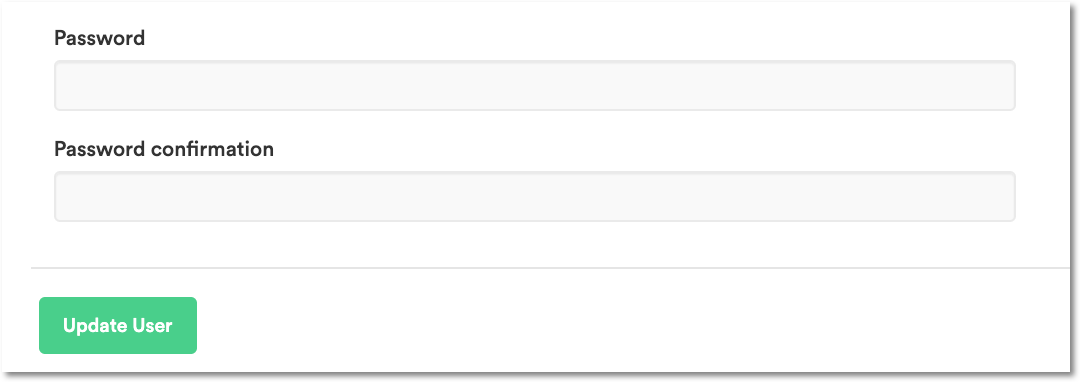
Changing your password
It’s good practice to change your password regularly. The “Change password” link will prompt you to enter and repeat a new password, then confirm the change with your current password.
Changing your time zone
If you travel often for work, it’s a great idea to make sure the time zone in your profile matches your current location. Something to keep in mind is that changing your time zone will affect your timestamps, Memory AI suggestions, and the time and day on your Memory timeline.
Changing your time and date formats
Timely has you covered regardless of the clock you use, be it 12 or 24-hour! Select whichever format you’re most comfortable with and you’re all set with your preferred time format when you go to set the From > To time when logging your hours in Timely.
Timely’s default date format on exported reports follows the international standard of day/month/year. Timely users in the U.S. and those with North American clients can change their preference on a personal account basis to month/day/year.
Download and email your personal data
You can have your Timely personal data downloaded and emailed to you at any time. Just click the link, and wait to receive the email. The size of your file will affect how long it takes for you to receive the email.
Deleting memories
While it will severely limit the value you get from automatic time tracking, you also have the option to quickly delete whole chunks of your Memory history. Even though Memory data is completely private to you, we want to help you manage your memories however you want.
Last updated April 1, 2026
Have feedback for this article or need more help? Contact us now.