
Legacy AI Time Tracking
Time Tracking: ClassicLegacy versionHandbookUnlocking the automated potential of Memory — how Timely AI drafts timesheets for you.Having an automatic digital memory of your working day is valuable for a ton of reasons, but even more so is the ability to quickly transform that data into billable or logged hours. Though you can log time in Timely manually or with a timer, the real power of our tool lies with automated time tracking powered by a feature we call Timely AI Tools.
- How does the Timely AI work?
- How do I get AI drafts?
- Teach your AI
- FAQs
- Ask the experts: All about Timely AI
How does the Timely AI tools work?
Timely AI essentially takes all the activities collected by the Memory app, assigns them to the right project and drafts a time entry for you. It does this by using your time logging patterns to learn how to group your tracked activities. Every time you log a time entry using tracked memories on your timeline, Timely AI learns associations between your projects and activities. The more hours you log using tracked memories, the more accurate Timely AI’s draft entries will become! Before you know it, the Hours tab will be filled with automatically constructed entries.
How do I get AI drafts?
By default, Timely AI is enabled for each new user as they are invited or sign up for Timely.
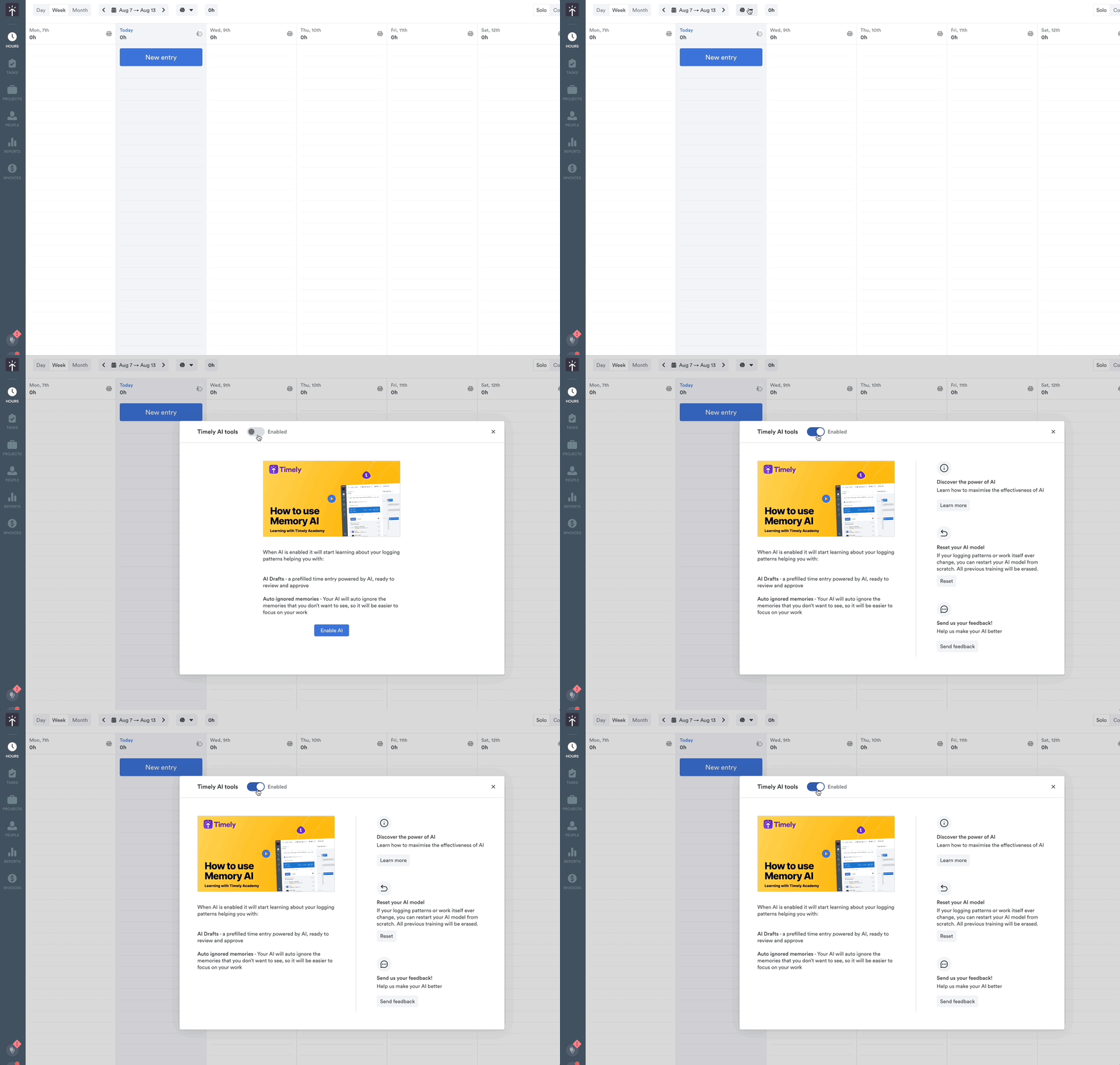
You can enable or disable this feature by clicking the brain shaped icon at the top of your timeline in the “Hours” section. Simply click the toggle button to switch this feature on or off.
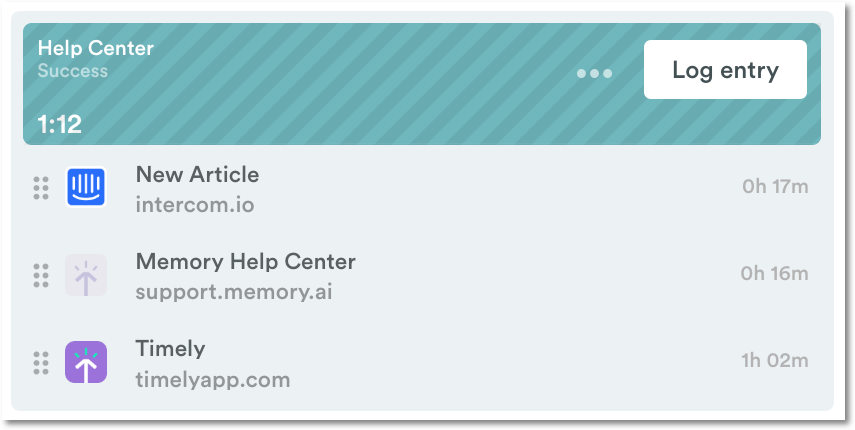
Draft time entries will shortly start appearing alongside logged and planned time entries in the Hours tab. You can recognize them by their diagonal stripes. The draft entry color relates to the project Timely AI thinks your grouped activities belong to:
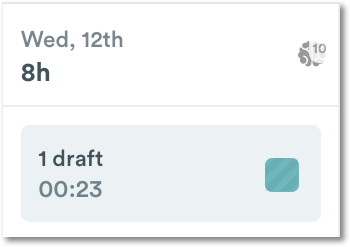
From Week view, you’ll see a card at the top of each day letting you know how many drafts you have to review:
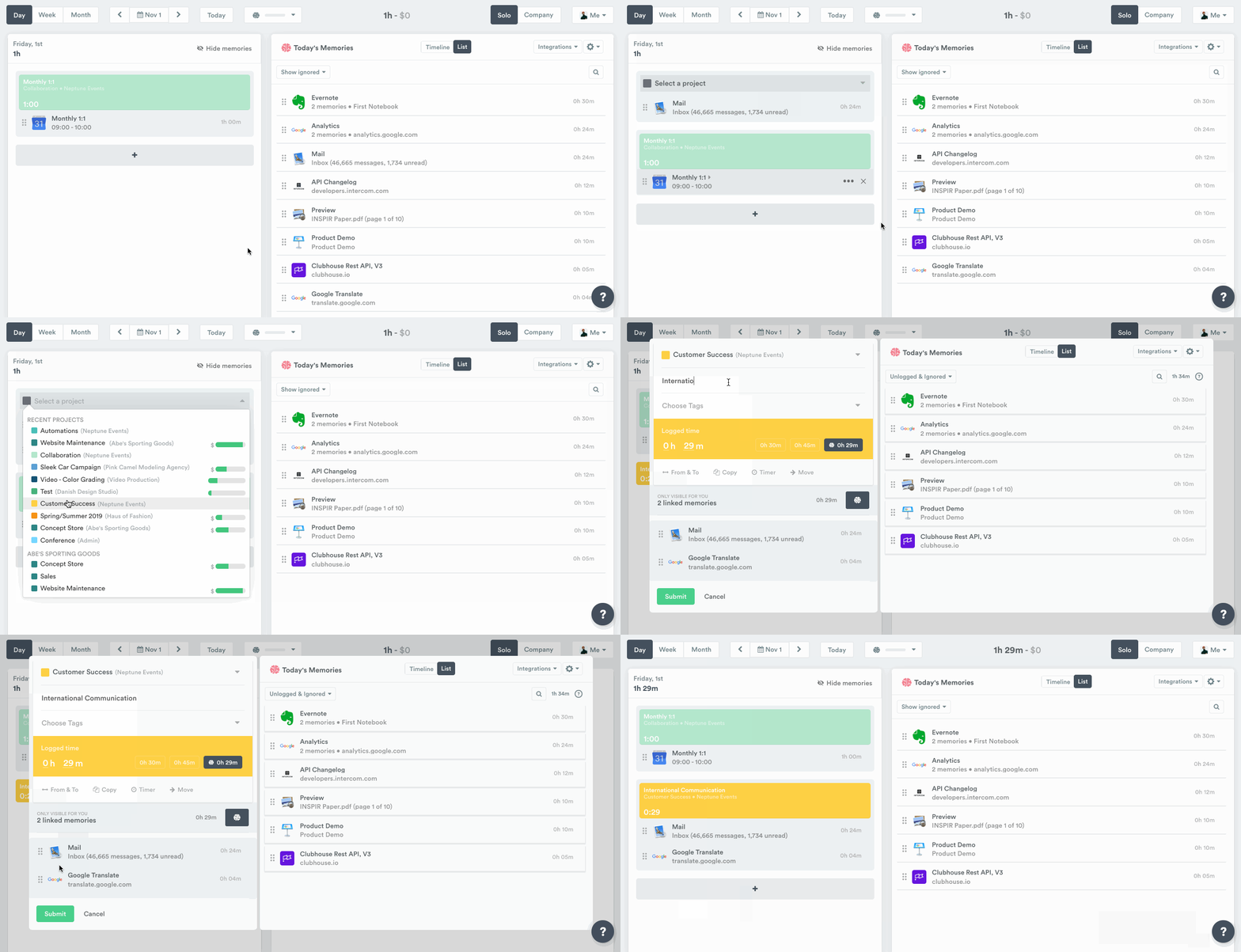
If an AI draft contains memories which don’t belong to the project indicated — or if it’s missing any memories — you can drag and drop memories between your timeline and your entry to correct it. Once correct, hit “Log entry”. You can then add notes and tags, and click “Accept” to save the entry:
We’ve heard from folks that really want to push the envelope and streamline their timelines as much as possible. With that in mind, we’ve released an update to the Timely AI features to now take Tags into consideration as well.
Timely AI will begin to learn from those time entries that contain a single Tag, alongside entries created without any Tags as before. The resulting AI drafts that are created will also contain a single Tag for your review. We certainly see this feature growing and evolving over time, so stay tuned for more exciting updates to come!
For those new to Timely or who have just enabled the AI features, you might not receive drafts right away or on a regular basis. If this is the case, ensure you are logging your hours from your timeline. When drafts do arrive, remember to adjust, accept or reject them as appropriate. By doing these two things, you are helping your AI to learn and serve you better.
Teach your AI
You can train the AI at any point just by reviewing memories on your timeline and making sure they’re associated with the correct projects. You can create new projects, search through all of your active projects, ignore memories or skip the memories you don’t want your AI to include.
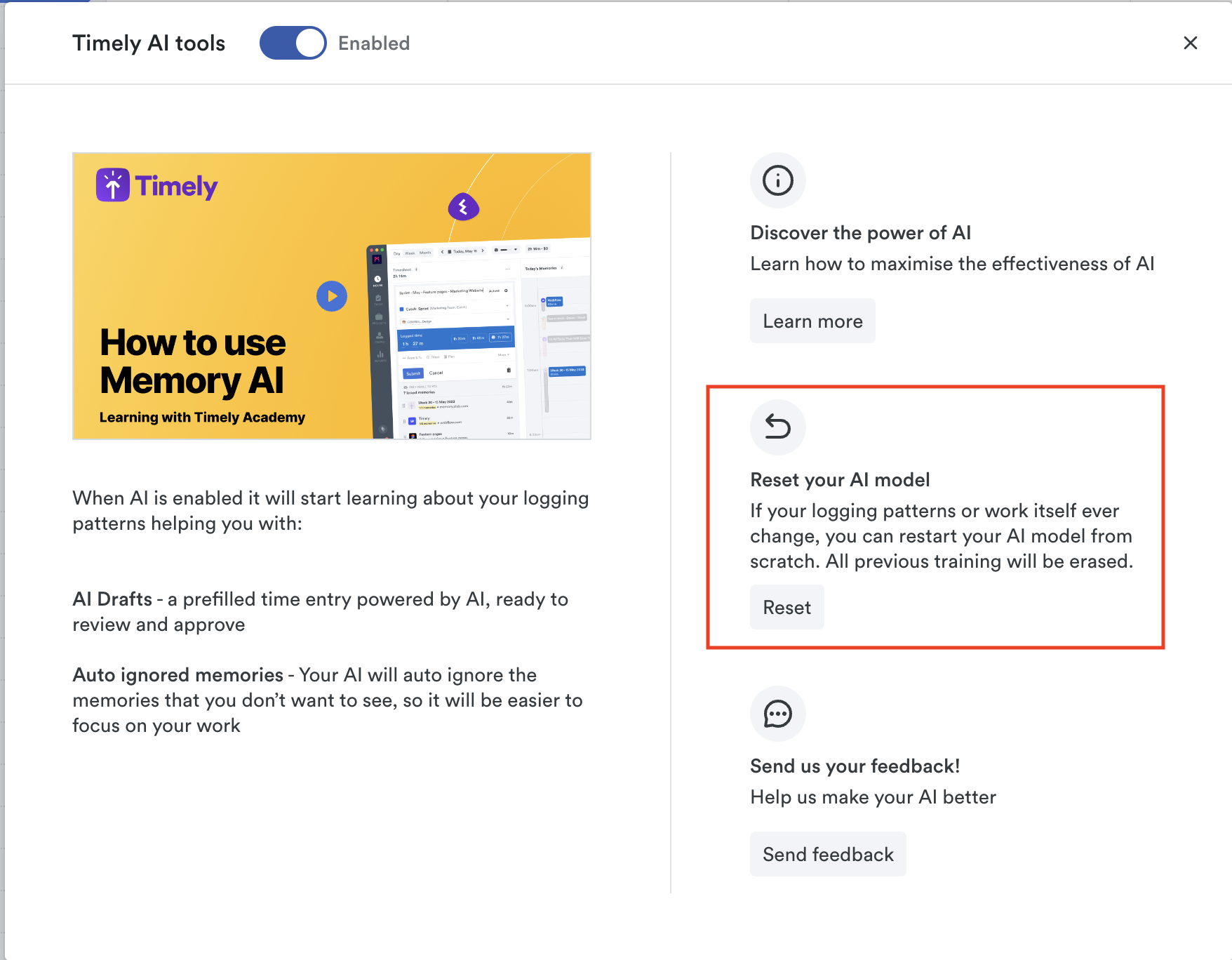
If your logging patterns or the way you use Timely ever change, you also have the option to reset your AI model from scratch. After clicking the Memory icon you can click the “Reset” button, then confirm “Reset Training” to remove any learned behaviors and restart your AI’s training afresh.
FAQs
Why am I not receiving AI drafts?
Before receiving AI drafts, first make sure you have Memory installed (Mac and Windows) and that you’re receiving memories. If you’re having trouble, here’s a helpful article to get you started.
Also, keep in mind that Timely AI needs to be trained before it can start drafting your time entries accurately. As you log entries, Timely AI will learn your logging patterns and project classifications. With this knowledge, it can start to create drafts for you. Then all you need to do is review your drafts, make any edits and approve!
Where can I learn more about Timely AI?
This guide now combines the product overview with extra answers from our engineering team. Jump to the Ask the experts: All about Timely AI section below for deeper FAQs and practical guidance.
What additional data points can Timely AI infer?
As of our latest update, the Timely AI can now consider how you Tag your time entries when building your AI model and suggesting AI drafts. For now, Timely AI will only consider time entries with a single specific Tag assigned. AI drafts will begin to appear with suggested Tags as Memory learns from your habits over time.
Ask the experts: All about Timely AI
Curious to know more about how Memory AI works in the background? Below you’ll find answers to some of the questions we get asked the most by users interested in how the AI works.
How do I train Memory AI?
Once you’ve installed Memory and connected any apps you want with Timely, you can start training the AI by logging time with Memory using either the timeline or the list view. The AI will start learning from your very first logged entry.
Why do I need to log from Memory to get the AI working?
Even though all of the data is available in Timely, Memory AI needs input from you to get started. That input comes in the form of the hours you log from Memory, which tells the AI what projects you want those memories to be associated with. For those who leverage Timely’s Tags feature for additional specificity, Memory AI will learn from how you tag your time entries over time and suggest a specific Tag in your AI drafts.
The results of that input are suggestions made by Memory AI that you can adjust then approve or reject. What really helps train the AI is not only the input you provide from Memory but also adjusting and approving the suggestions the AI makes so it can improve and make more accurate suggestions going forward.
How long does it take Memory AI to work?
There is no set amount of time before Memory AI starts working. Memory AI will start learning your logging behavior as soon as you’ve logged your memories for the first time. The more you log, the faster you will receive suggestions. If you know that Excel file always belongs to your “Accounting” project — log it and log it often! When it comes to logging memories, our AI developers say: “quality over quantity, but really, both!”
Does Memory AI work the same for everyone?
Memory AI is unique to every account and every user. For instance, if you have a personal Timely workspace and one you use with your team, each workspace will have its own unique Memory AI.
What should I do if a memory is logged to the wrong project?
First, un-log the memory from the project it’s not supposed to be logged a part of, then log it to the right project — easy peasy! Very straightforward but don’t ignore that memory as that can throw off the AI when it tries to match that memory to the right project going forward.
What happens when the suggested Tag doesn’t match the memories?
Go ahead and update the AI draft to remove the incorrect Tag and assign what you feel works best. Keep in mind that, for now, Memory AI can only learn from those time entries you create that contain a single specific Tag. It will then do its best to suggest a relevant Tag in the resulting AI drafts.
As you continue to correct your AI drafts and log your time normally, Memory AI will continue to learn from you and those suggestions will improve over time.
Do I need to tag my time entries in order for Memory AI to learn from them?
No — Memory AI will continue to take your un-tagged time entries into consideration, alongside any time entries that contain a single specific tag. Tagging is always optional!
What happens if I’m logging memories properly and things still don’t change?
If you notice that Memory AI is still offering suggestions that aren’t right, there are a few things you can do. One option is to go back using your timeline and make sure memories are logged to the right projects, fixing any memories that might have been mis-logged along the way.
Another option is to continue logging memories to their projects going forward and Memory AI will catch up eventually. Since every user’s Memory AI is unique, we can’t say for sure how long this method will take so the option you pick will ultimately depend on how many memories need to be fixed in the past.
Does Memory recognize my file names when making suggestions?
If the title of the browser window/tab or app window matches a project you’ve logged similar memories to previously, Memory AI will notice that while making suggestions. Keep in mind that Memory AI won’t make that connection unless it has been trained first. Though not an exhaustive list, this will also happen with things like email addresses, domain names, URLs and file paths, for example.
What won’t Memory recognize?
Raw data from Memory doesn’t contain anything other than details from the active browser window/tab or app window. As a result, Memory AI isn’t able to draw connections between your logging patterns and anything that isn’t uploaded to Memory, such as content from emails, files, websites or your computer.
Feel free to check out this article if you want to know more about what data Memory captures.
Can Memory read notes in Timely entries?
Notes in your logged or planned time entries in Timely do not influence Memory AI.
What happens if I delete memories?
Deleting memories doesn’t influence Memory AI. If you delete a memory from your timeline or list view, it just goes away — that’s it!
Should I ignore memories? Is it good for Memory AI?
Ignoring memories can be good for Memory AI but it is something we advise you to be careful with. It’s another form of input for Memory AI and it can also help you keep a clean timeline but if there’s any opportunity at all to log a memory to a project, we recommend that instead of ignoring the memory altogether. Once a memory is ignored, Memory will continue to ignore this memory unless you restore it.
What should I do for memories that are non-work related?
Sometimes there’s no avoiding that funny cat video or digging for the perfect meme that sums up your mood. With these memories that you won’t need to log to a project, you can either ignore them or delete them in order to clean up your timeline.
Can I disable Memory AI?
You can disable Memory AI by going to the Hours tab and clicking the brain icon near the top of the screen. From the prompt, use the “Timely AI tools” toggle to switch this feature on or off.
Why isn’t Memory AI logging my time for me?
Instead of logging your time for you, Memory AI drafts time entries using your activity and logging patterns. They need your approval to appear on your public time sheet.
Last updated April 16, 2026
Have feedback for this article or need more help? Contact us now.