
Creating and managing tags
Projects & TagsTagsHandbookAdd, edit and remove tags to manage project tasks and phases in Timely.Tags are great organizational tools and can be used in many different ways. We mainly use them to track different project phases, tasks and sub-projects.
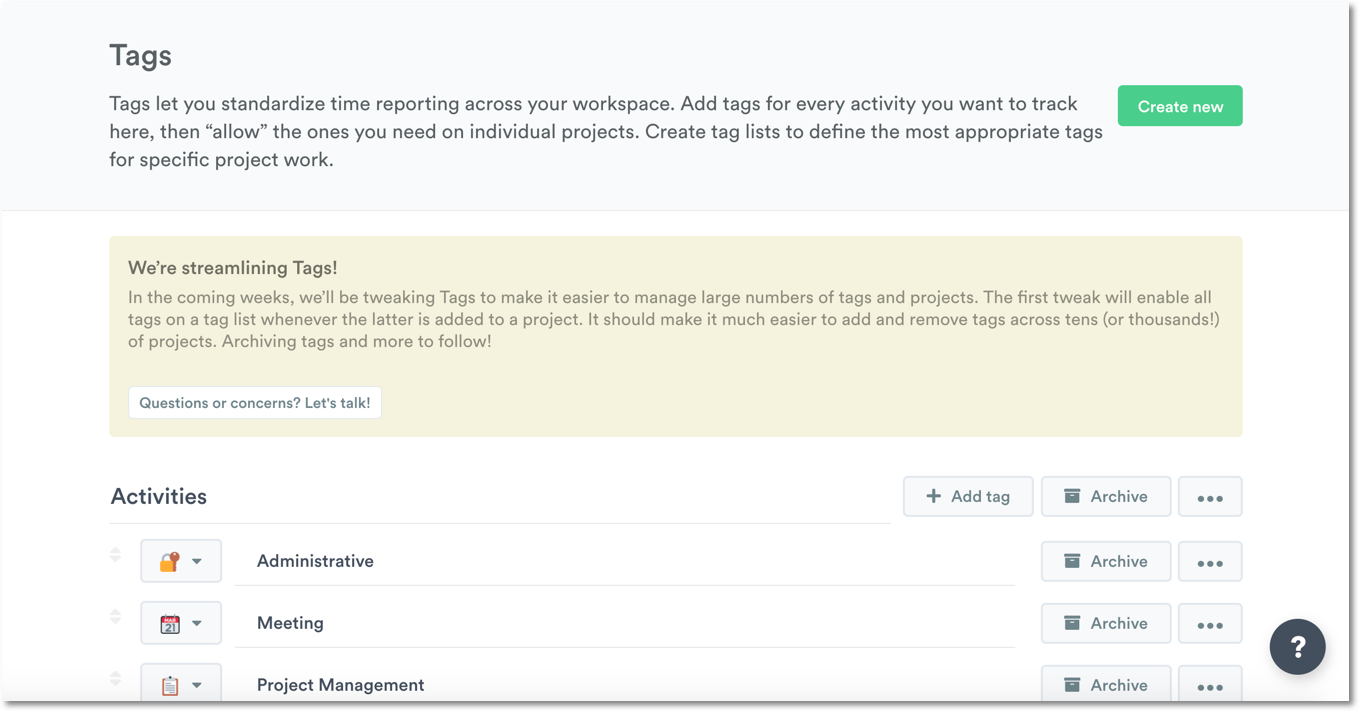
Admins can manage tag lists and tags by going to Settings > Tags:
Create a new tag list
Tag lists are great ways to standardize reporting across your projects and see how long different project phases take (e.g. the tag “Bugs” under the tag list “Programming”, or the tag “Prototyping” under the tag list “Design”).
Follow these steps to add the tags your team will need to attach to their time entries:
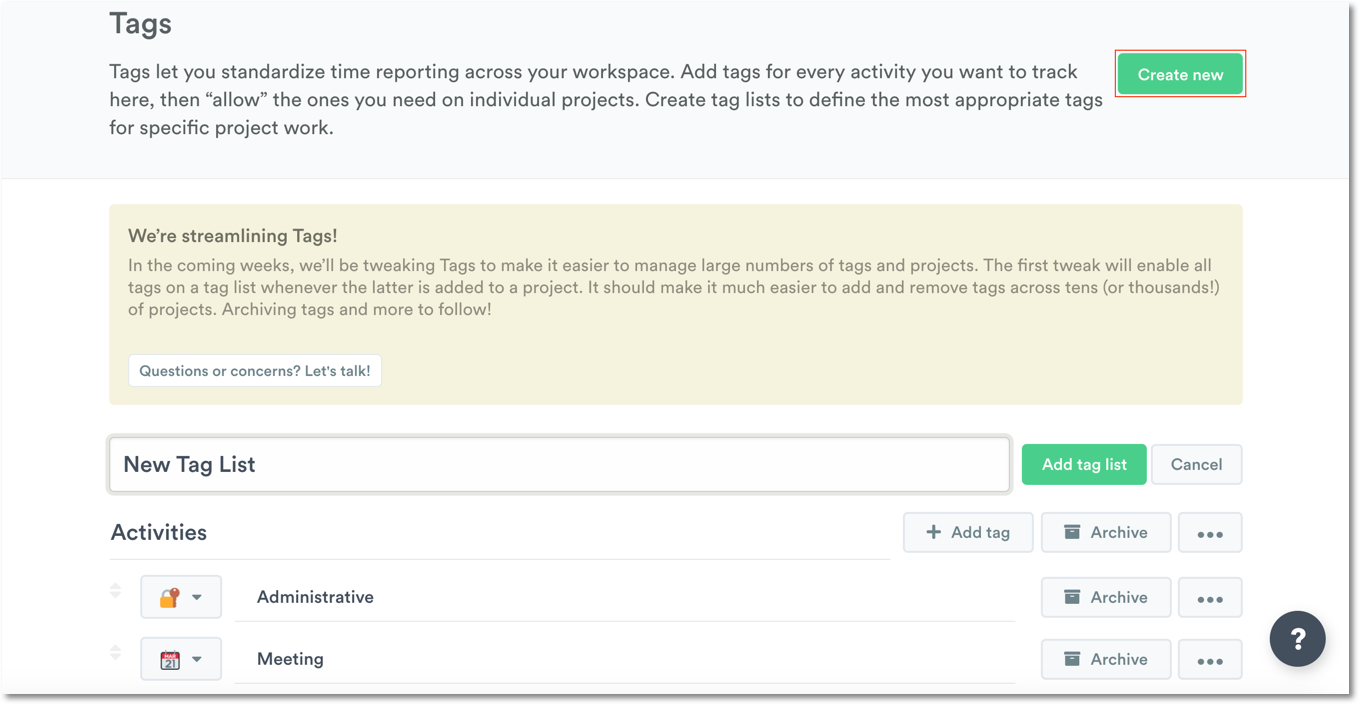
- Hit the “Create New” button to create a new tag list
- Give your list a name
- Click the “Add Tag List” button to add the tag list or cancel if you change your mind
Since you can’t add an empty tag list to a project, you’ll need to add tags to your tag list.
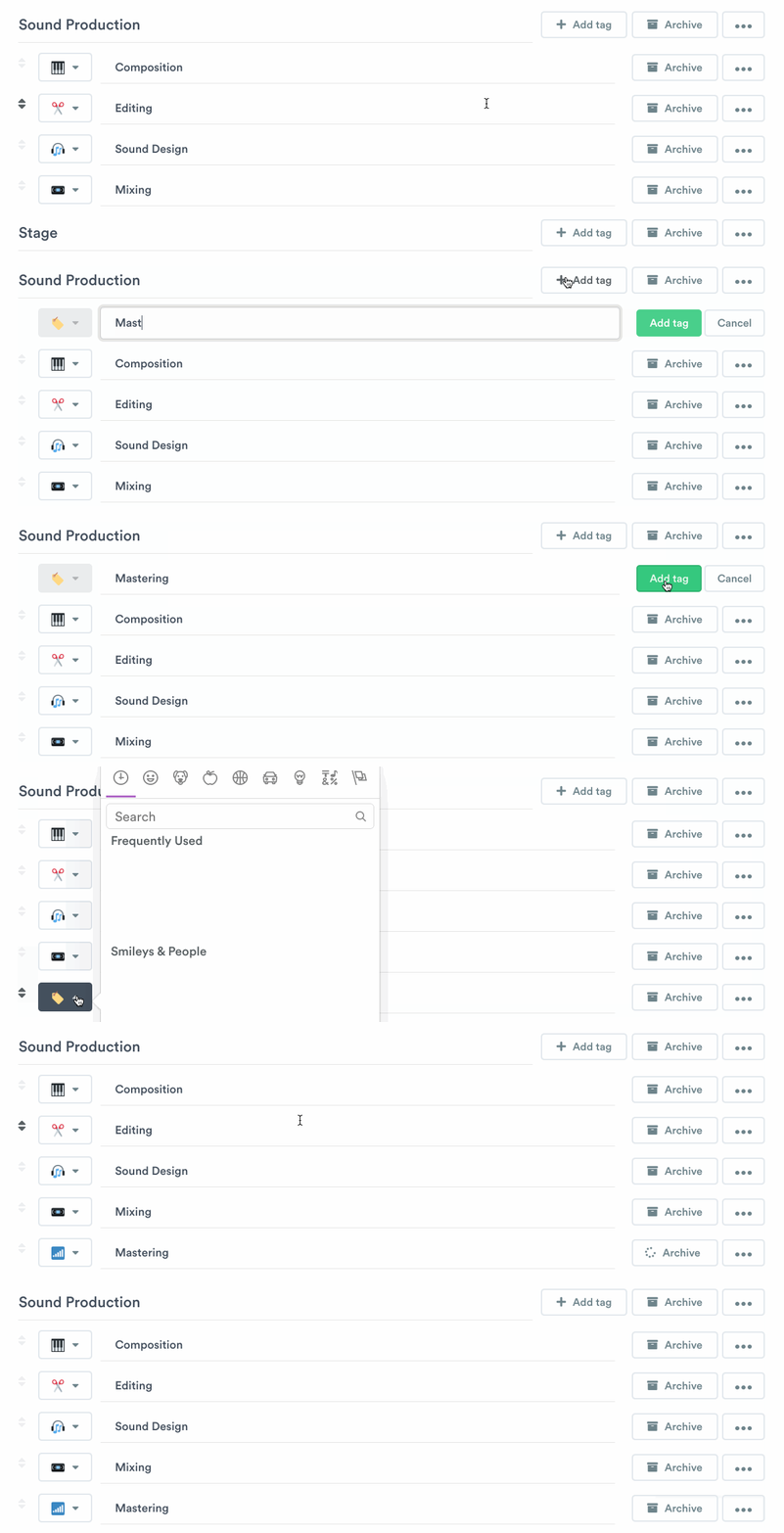
- Click the ”+ Add Tag” button to create a new tag
- Give your tag a name
- Click the “Add Tag” button to add the tag to the list
- Select an emoji (great for quickly identifying the tag you’re using)
Manage tags
On this page you’ll also be able to add, edit and delete as many tags as you need to.
Edit tag lists and tags
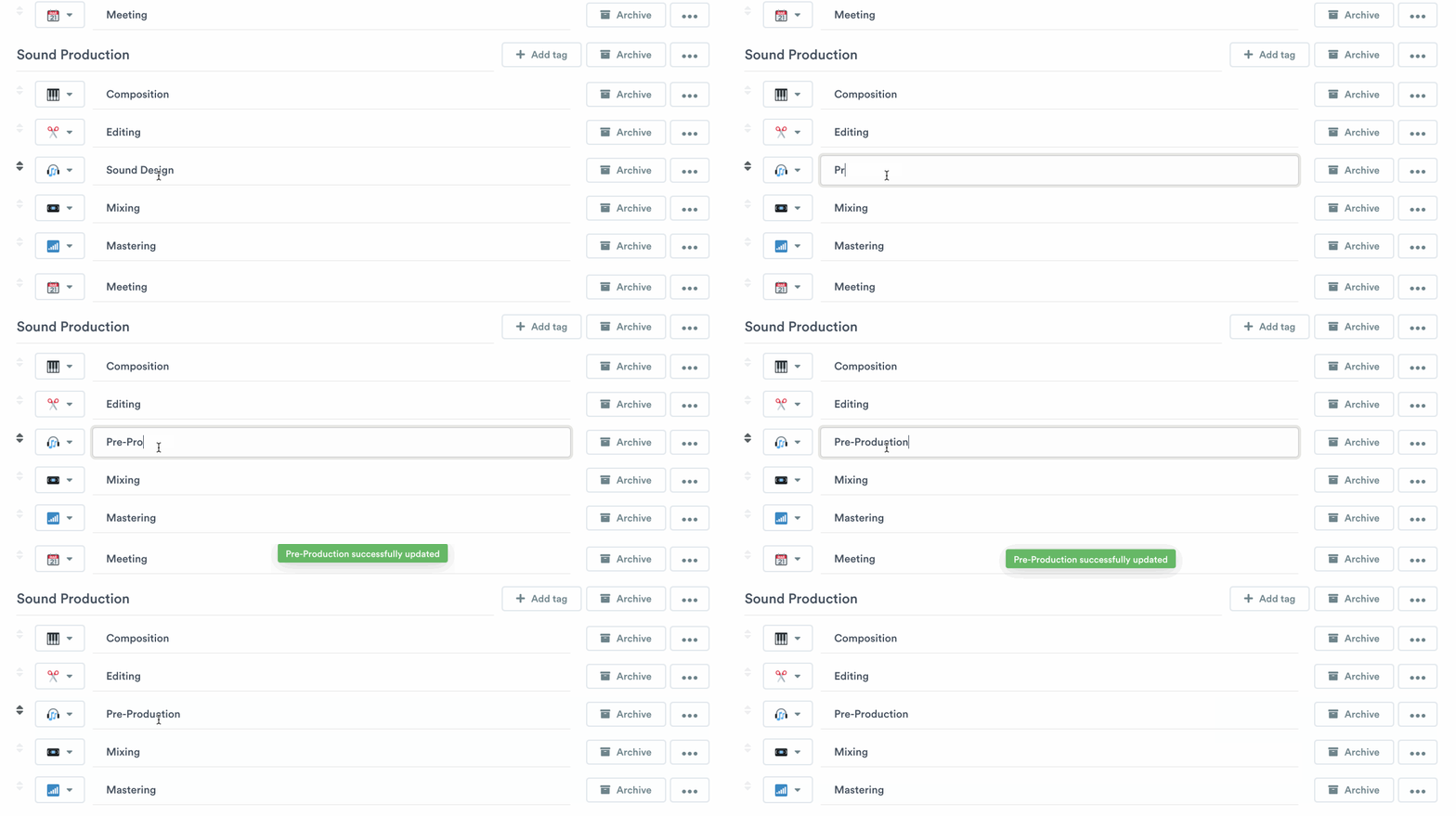
To edit a tag or tag list, just click on the name and you’ll be presented with a free text box. Type your new name and hit Enter:
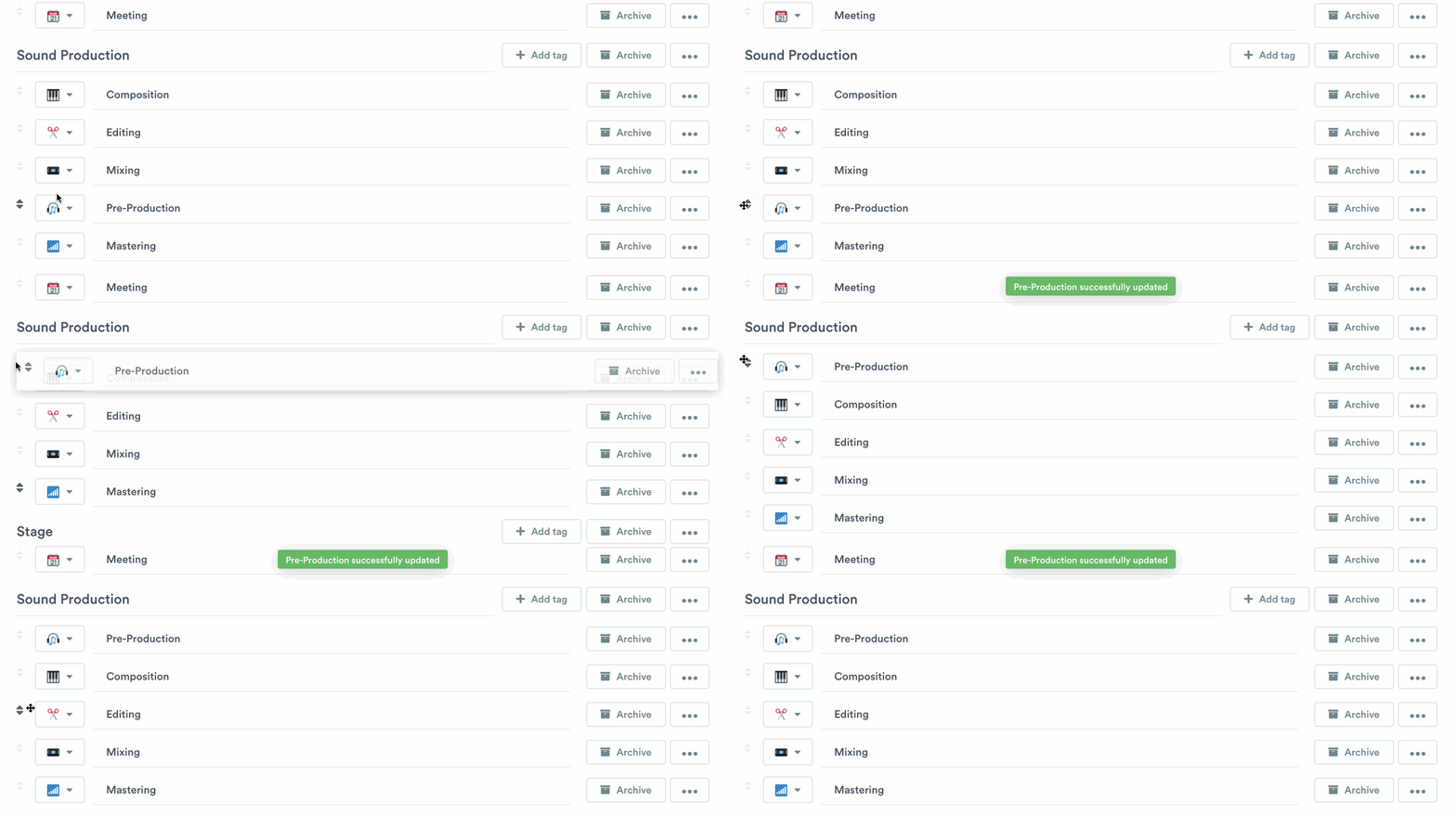
Tags can also be rearranged within tag lists. Just click a tag using the arrow buttons and drag to rearrange:
Single tag restrictions
For projects with tag lists, admins can configure whether users are allowed to select only one tag per time entry. This “Allow only one tag” setting is available in project settings for Unlimited and Enterprise plan subscribers. Users on other plans will not see this option.
Delete tags
We recommend archiving tags if you don’t plan to apply them to entries going forward. That way, you’re able to hold on to past tag data while keeping your tag lists clean. However, if you have no use for a tag or reporting on it will create errors and confusion, you can click the ”…” next to any tag list or tag to delete it:
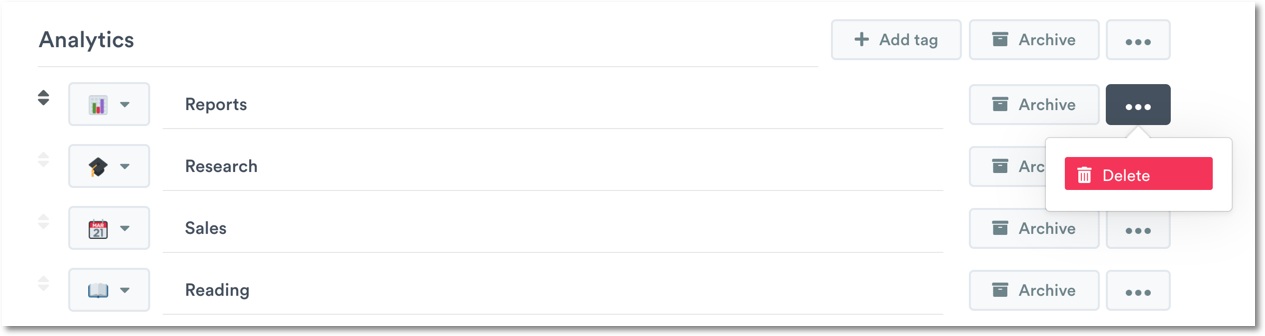
Once a tag has been deleted, it will be removed from any entry that it’s been applied to. If the tag you deleted was the only tag applied to an entry, it will appear under “Untagged” when you run reports for those logged hours.
Last updated June 9, 2026
Have feedback for this article or need more help? Contact us now.