
Classic: The List View
Time Tracking: ClassicHandbookExplore Timely's Classic List View experience, designed for a structured, organized way to review your logged activity grouped by app and file name.Logging hours on the Classic List view
The List View groups related memories together under the same app and file name. This provides a clearer, more structured way to review your work, helping you focus on content rather than sequencing.
Here’s what you can expect:
- Structured grouping – Memories are nested under their parent app, with sub-memories aggregated beneath them
- Duration-based sorting – The longest memory groups appear at the top, making it easy to see where most of your time was spent
- No start & end times – Since memories in List View combine multiple tracked moments, only the total duration is displayed
- Logged section – Once memories are logged, they move to a dedicated bottom section
- Separate from Timeline View – Any setting changes you make in Timeline View won’t affect List View, and vice versa
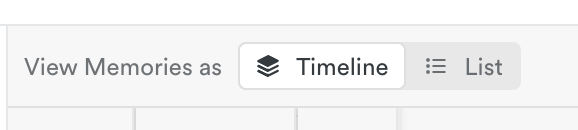
You can switch between the Classic Timeline View and Classic List View anytime from the Day area in the Hours Dashboard or while creating a new time entry, using the toggle at the top.
How Memories Are Organized in List View
- Memories are grouped by app name and file title, with related activities nested underneath
- Sub-memories are created by aggregating memories that share the same source and file name
- Each group is sorted by duration, from longest to shortest
Example of Memory Grouping:
Google Docs – “Client Proposal” (Total time: 1h 30m)
- 10:00 AM – 10:15 AM
- 11:00 AM – 11:30 AM
- 12:00 PM – 12:45 PM
Since these interactions happened at different times, List View combines them into one grouped entry with a total duration of 1h 30m.
How Logging Hours Works in List View
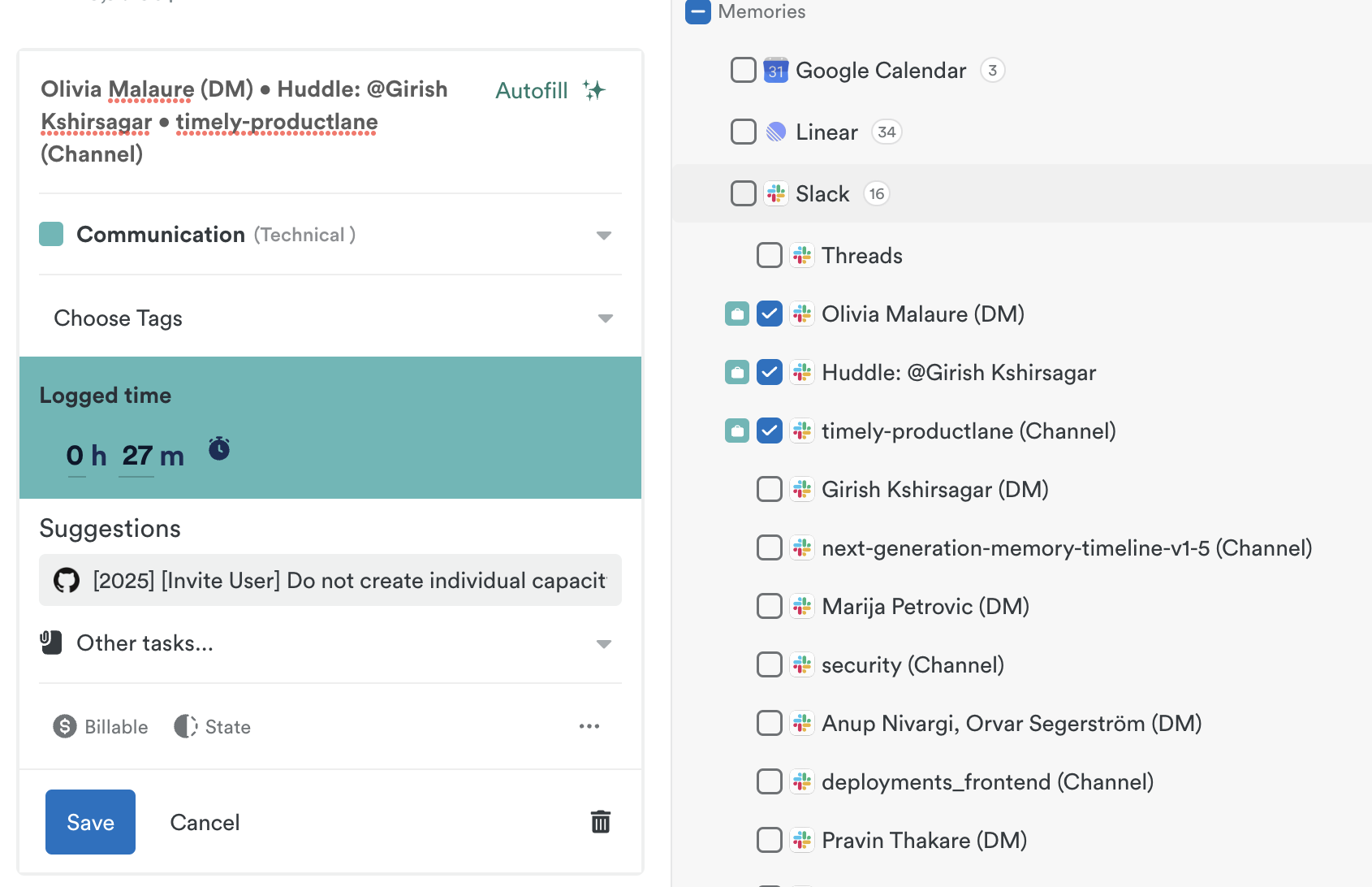
Logging time from List View functions a little differently than in Timeline View:
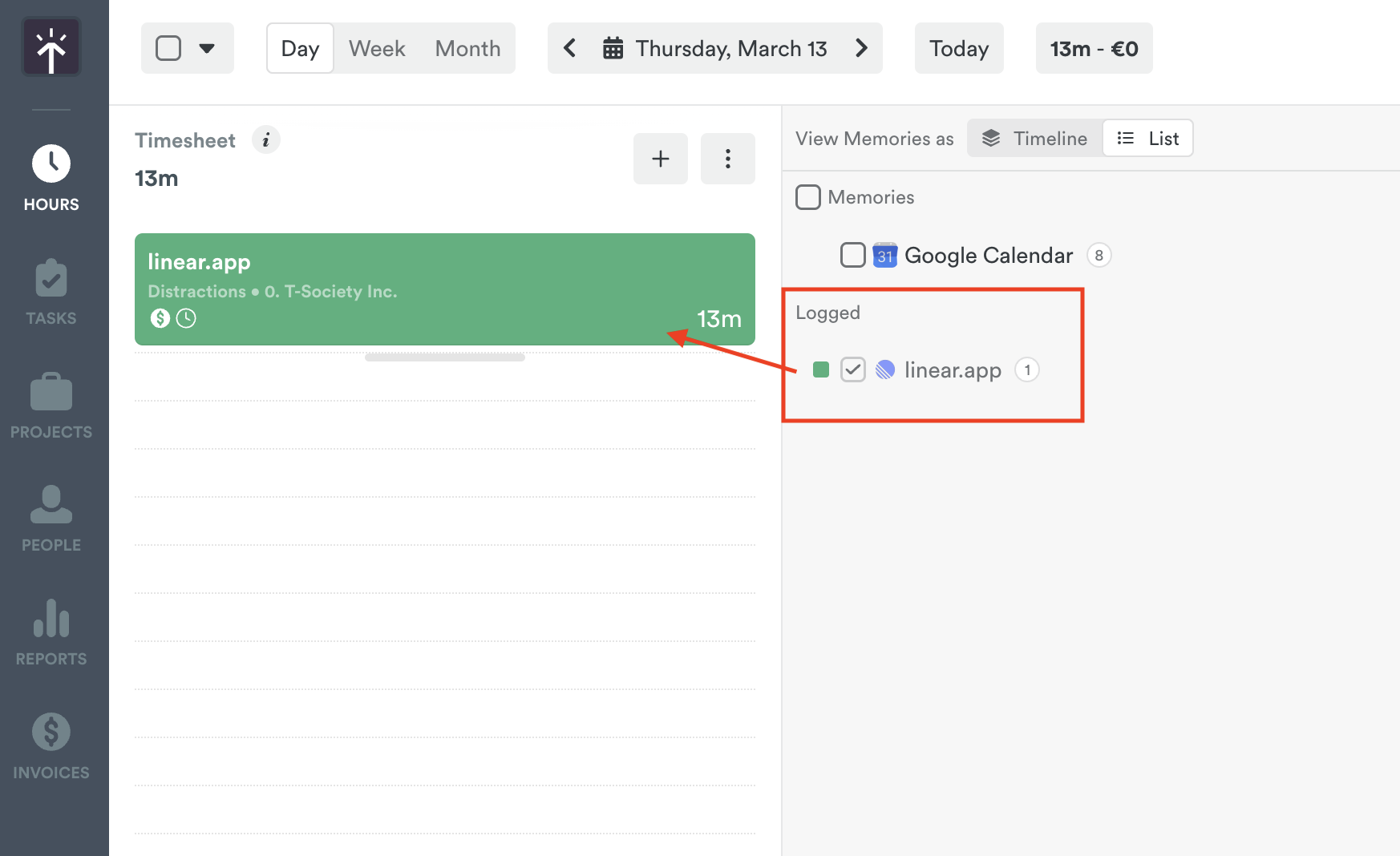
- Logged memories move to a separate “Logged” section at the bottom
- Timestamps are still created for the Timeline View, even though List View doesn’t show explicit start and end times
As you log memories and create time entries, they’ll be organized in the “Logged” section at the bottom of the List View:
List View vs. Timeline View: Key Differences
Timely gives you the flexibility to switch between List View and Timeline View anytime, so you can choose the format that best fits your workflow.
| Feature | List View | Timeline View |
|---|---|---|
| Grouping Method | By app & file name | By time sequence |
| Sorting | Longest memory first | Chronological order |
| Displayed Time | Total duration only | Start & end times |
| Logged Memories | Moved to bottom section | Remain in order of logging |
| Configuration | Separate from Timeline View | Independent settings |
Switching back to the Legacy Experience
If you’d like to switch back to the Classic Timeline experience, see our Timeline View guide, and if you’d prefer to opt-out entirely back to the Legacy Timeline/List Experience, you can do so at any time as well.
Before you go, we’d love your feedback! Click the “Share feedback” button to let us know what worked well—or what didn’t—so we can continue improving.
To switch back, head to the Day area in the Hours section, click the “Options” dropdown, and select “Switch back to Legacy Timely.”
FAQs
What’s different about List View compared to Timeline View?
List View organizes your memories by app and file name rather than time, making it easier to see what you worked on rather than when you worked on it. It’s sorted by total duration, with the longest memory groups at the top.
Can I switch between List View and Timeline View?
Yes! You can switch between List View and Timeline View anytime from the Day area in the Hours Dashboard or when creating a new time entry. Since each view uses a different logic for organizing time, your memories may look slightly different in each view.
If I log time in List View, will it affect my Timeline View?
Yes, but only in specific ways. Logged memories in List View still create timestamps for the Timeline View, but because memories are grouped differently in List View, they may appear differently when you switch back.
Why don’t memories in List View have exact start and end times?
List View groups multiple small memories together, so instead of showing start and end times, it displays the total duration of all related activities. This makes it easier to focus on how much time was spent on a particular task.
Will switching between views change my logged time?
No, your logged time remains the same. However, since each view displays memories differently, logged entries may look different when switching between List View and Timeline View.
Can I keep using the Legacy Timeline & List Experience?
Yes! The Legacy Timeline & List Experience is still available, and there are no current plans to remove it. If you’re using the Classic List View and want to switch back, go to the Day area in the Hours Dashboard, click “Options,” and select “Switch back to Legacy Timely.”
Last updated April 16, 2026
Have feedback for this article or need more help? Contact us now.