
How do I delete a project?
Projects & TagsProjectsHandbookHow to permanently remove a project from your Timely account.Removing a project from Timely is quick and painless. Just remember that once a project is deleted, all of the entries, tasks and invoices based on that project will be deleted as well — meaning you can’t get that project data back!
Delete a project in Timely
Method 1
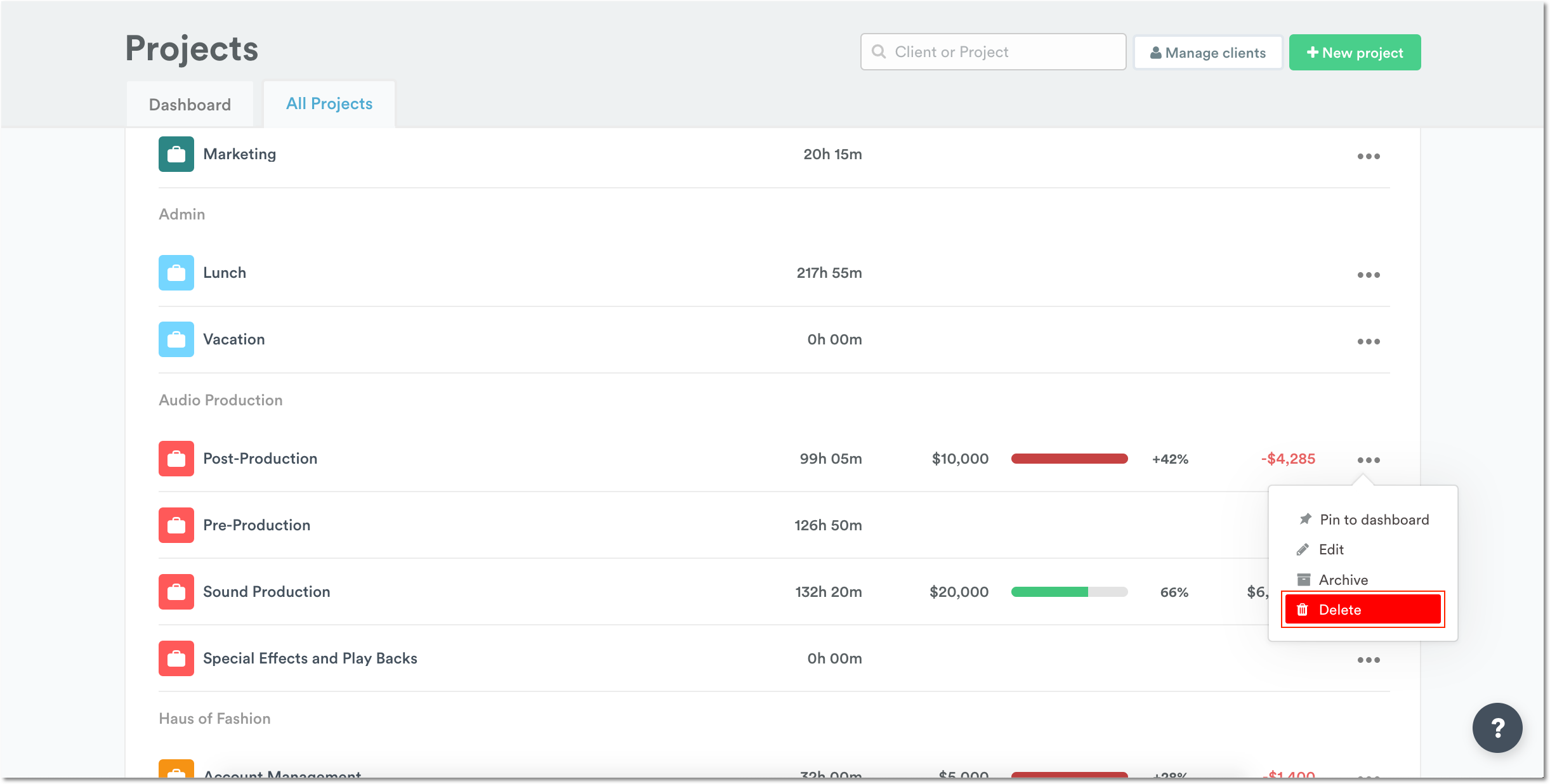
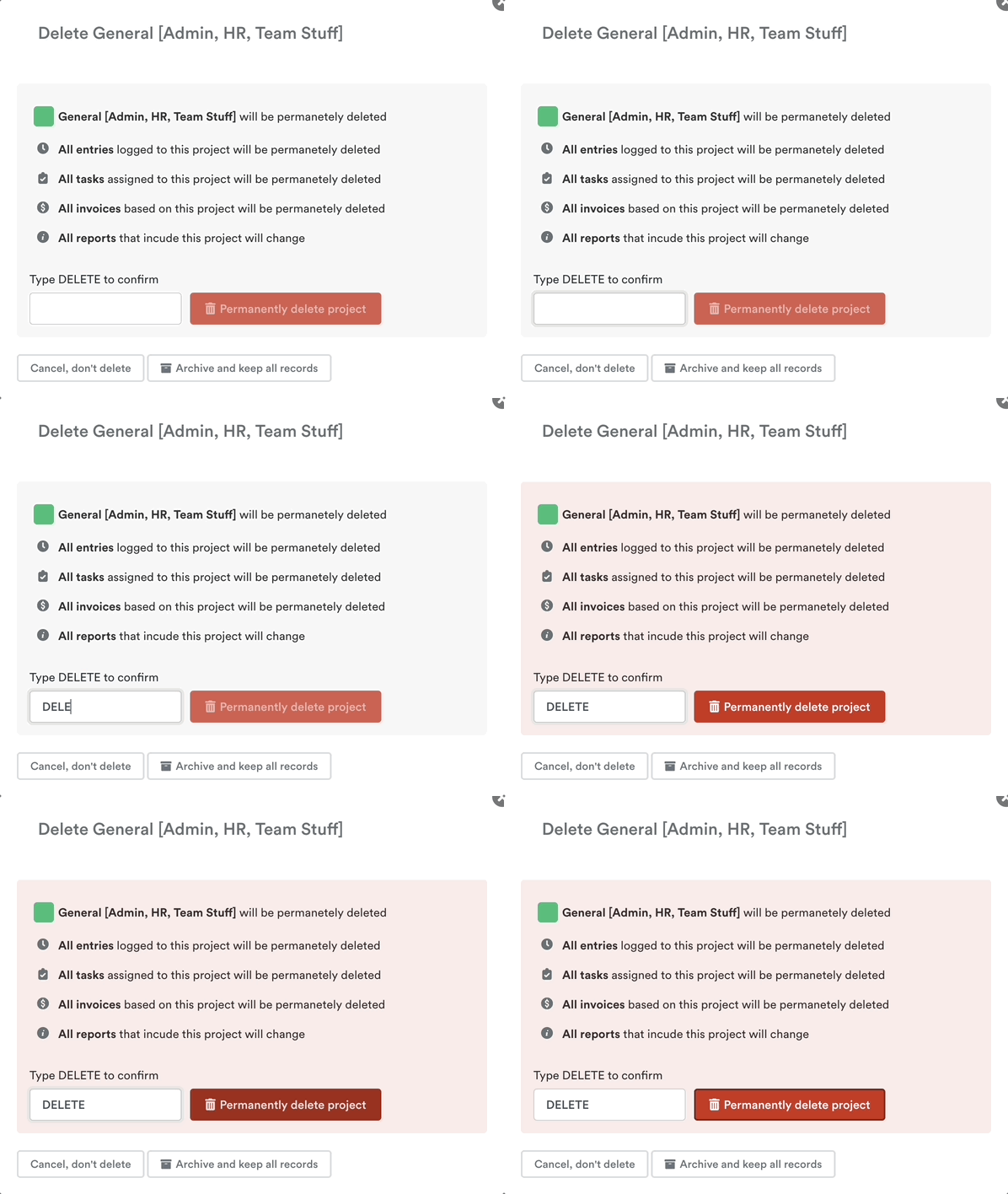
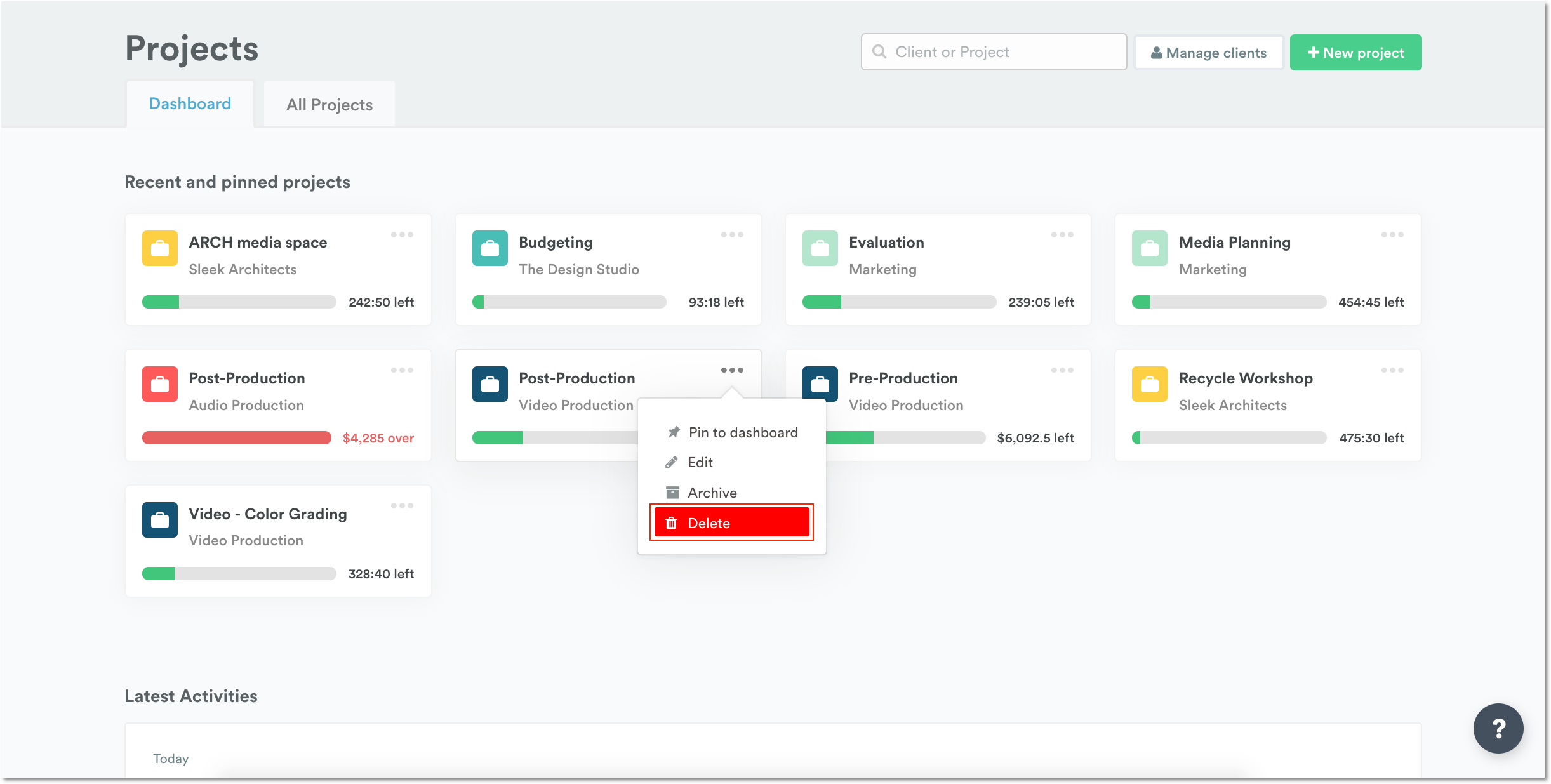
Navigate to the Project Page. Use the ”…” on the far right-hand side to open a dropdown menu for the project you want to delete. Select “Delete” and type in DELETE again to confirm — your project will be gone forever!
Method 2
If you have lots of projects on your account, use the search bar to locate the one you want to delete.
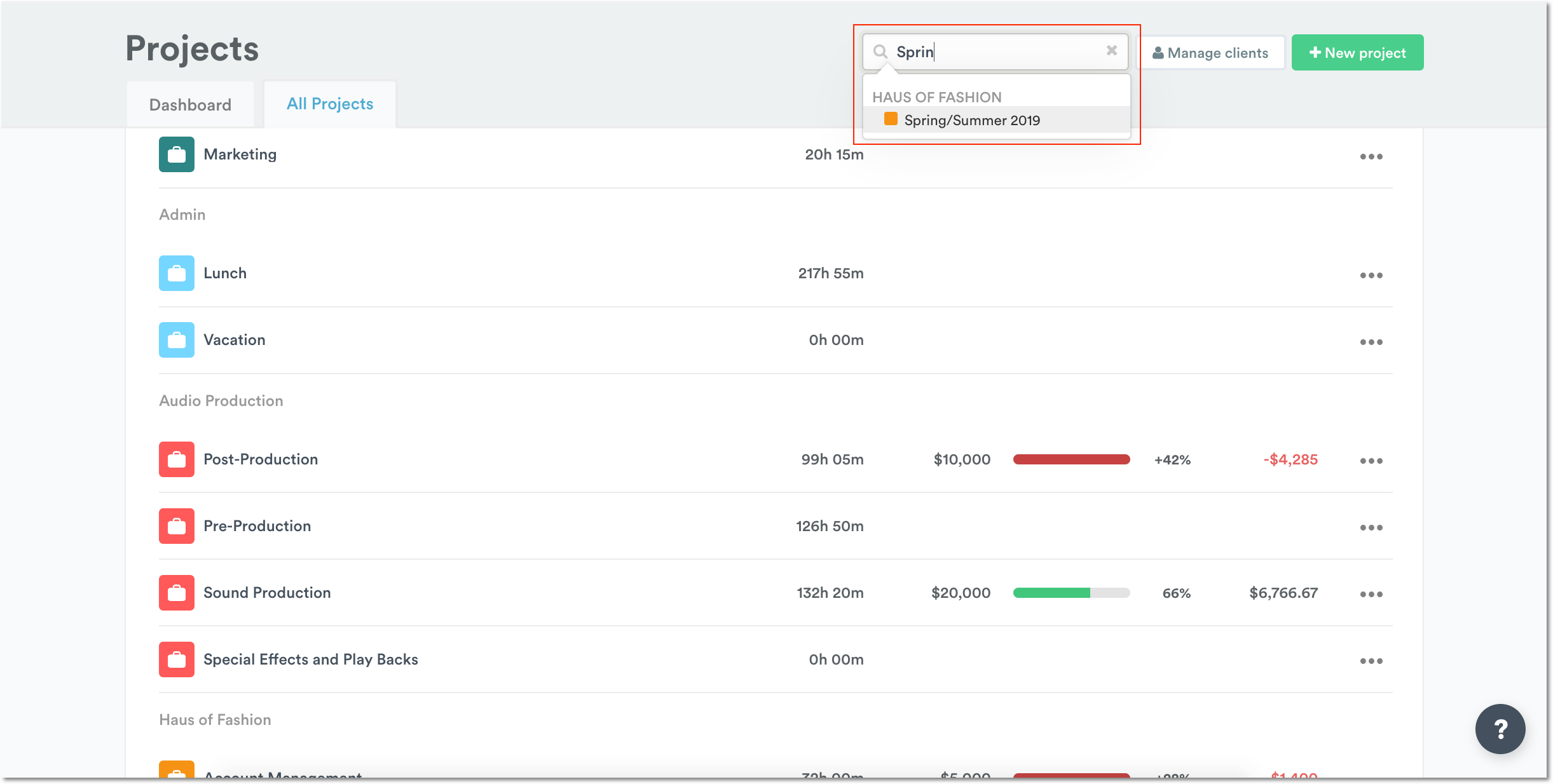
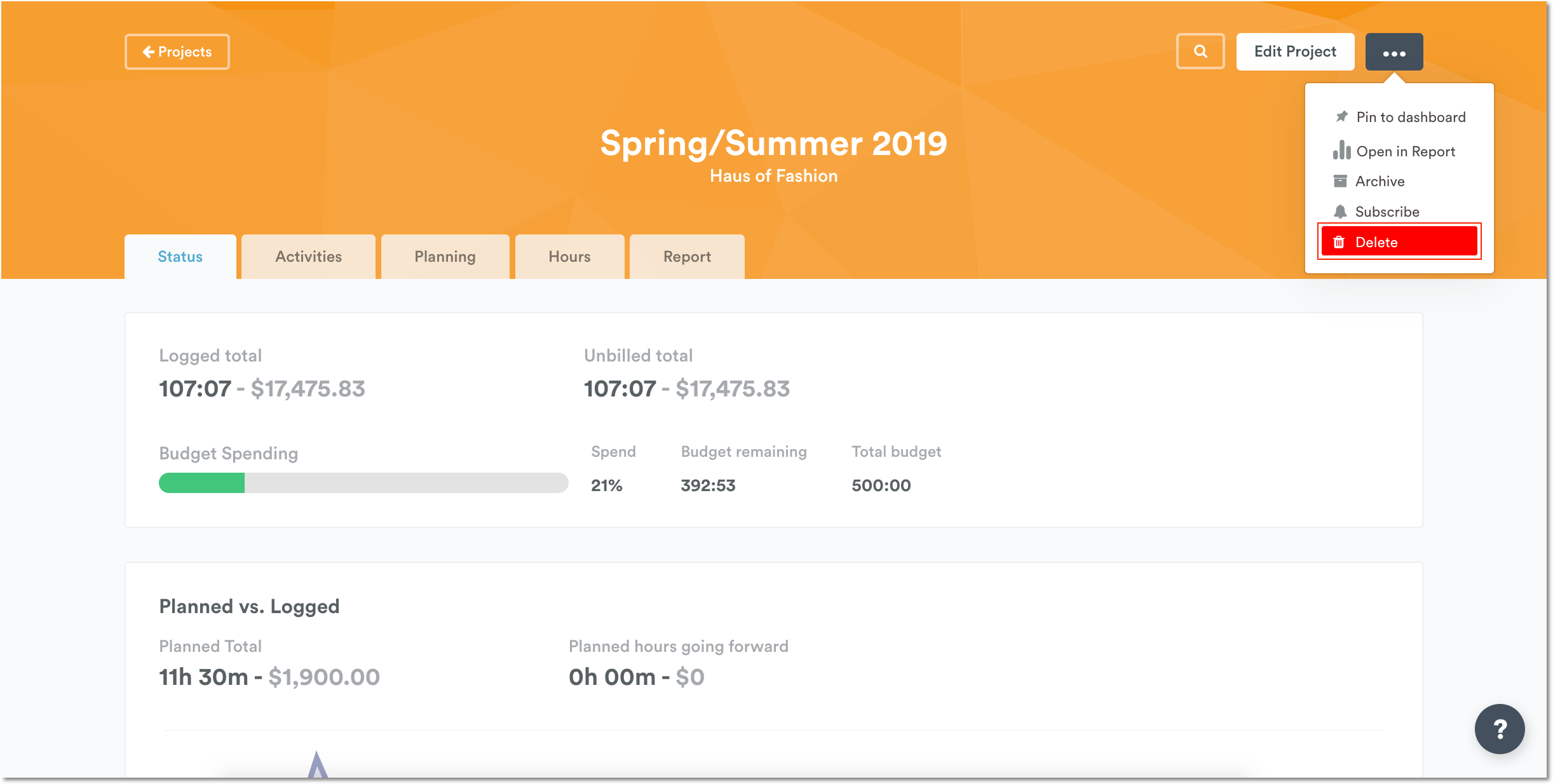
Click on the project’s name to navigate to its individual project page. Then use the ”…” to select “Delete” before typing DELETE to confirm. This will remove the project from Timely permanently.
Method 3
If you’re looking to delete a pinned project, you can remove it directly from the Project Dashboard Page. Open the drop-down on the pinned card, select delete, and type in DELETE to confirm.
Last updated April 1, 2026
Have feedback for this article or need more help? Contact us now.