
Activate your account
Getting StartedHandbookHow to access Timely once you've been invited by a colleague.Hooray! Someone on your team has invited you to start automatically tracking your time in Timely. Before you can get started, you first need to activate your account.
You’ll receive an email invitation with the subject “[Your admin’s name] has invited you to join [Your workspace’s name] in Timely”:
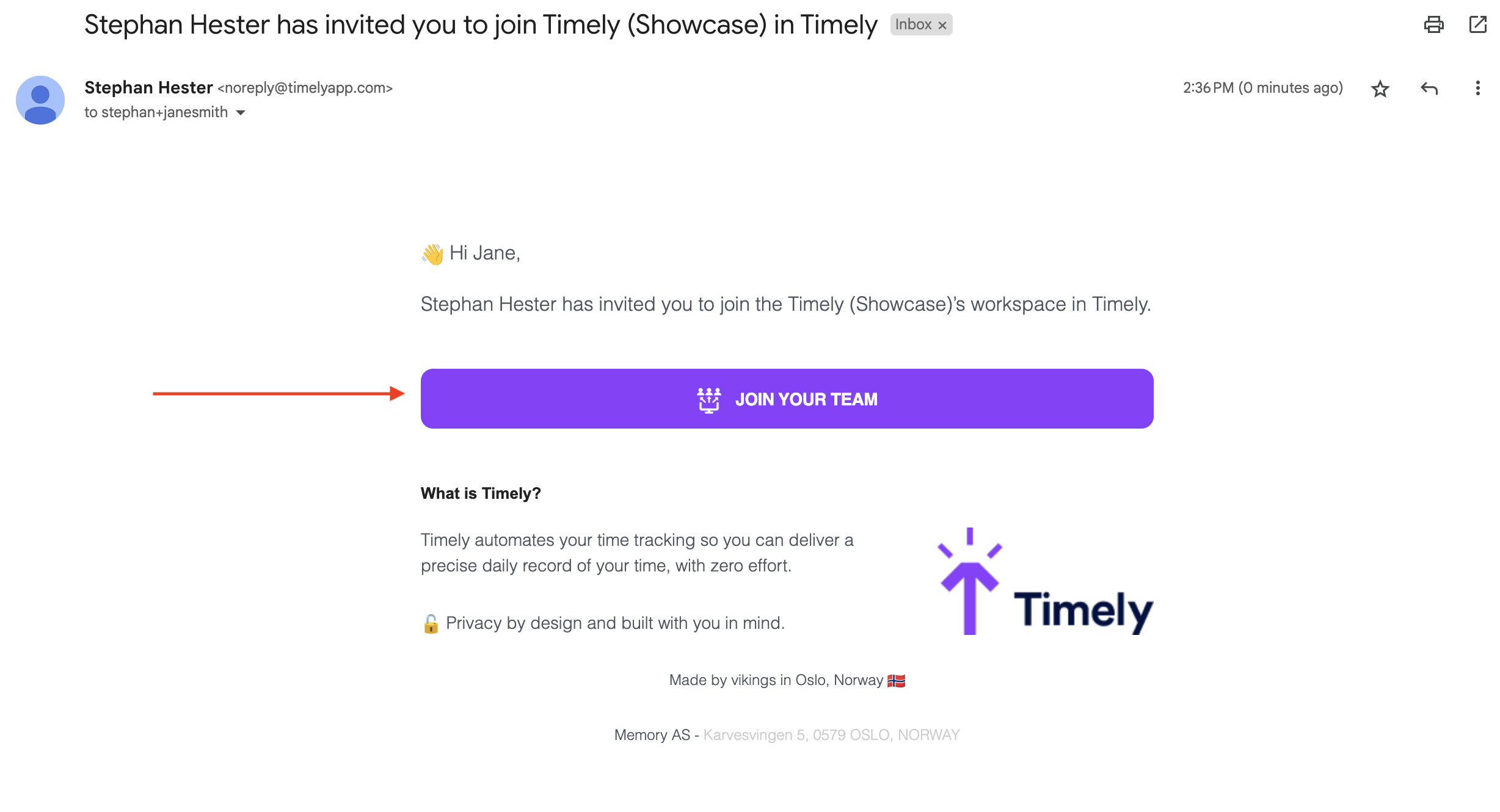
This email will be from “[email protected]”, and if you can’t find it in your main inbox, be sure to double check that it hasn’t been shuffled to your “SPAM” or “Promotions” folder by accident.
Click the purple “JOIN YOUR TEAM” button to access your unique user activation link and set up your account:
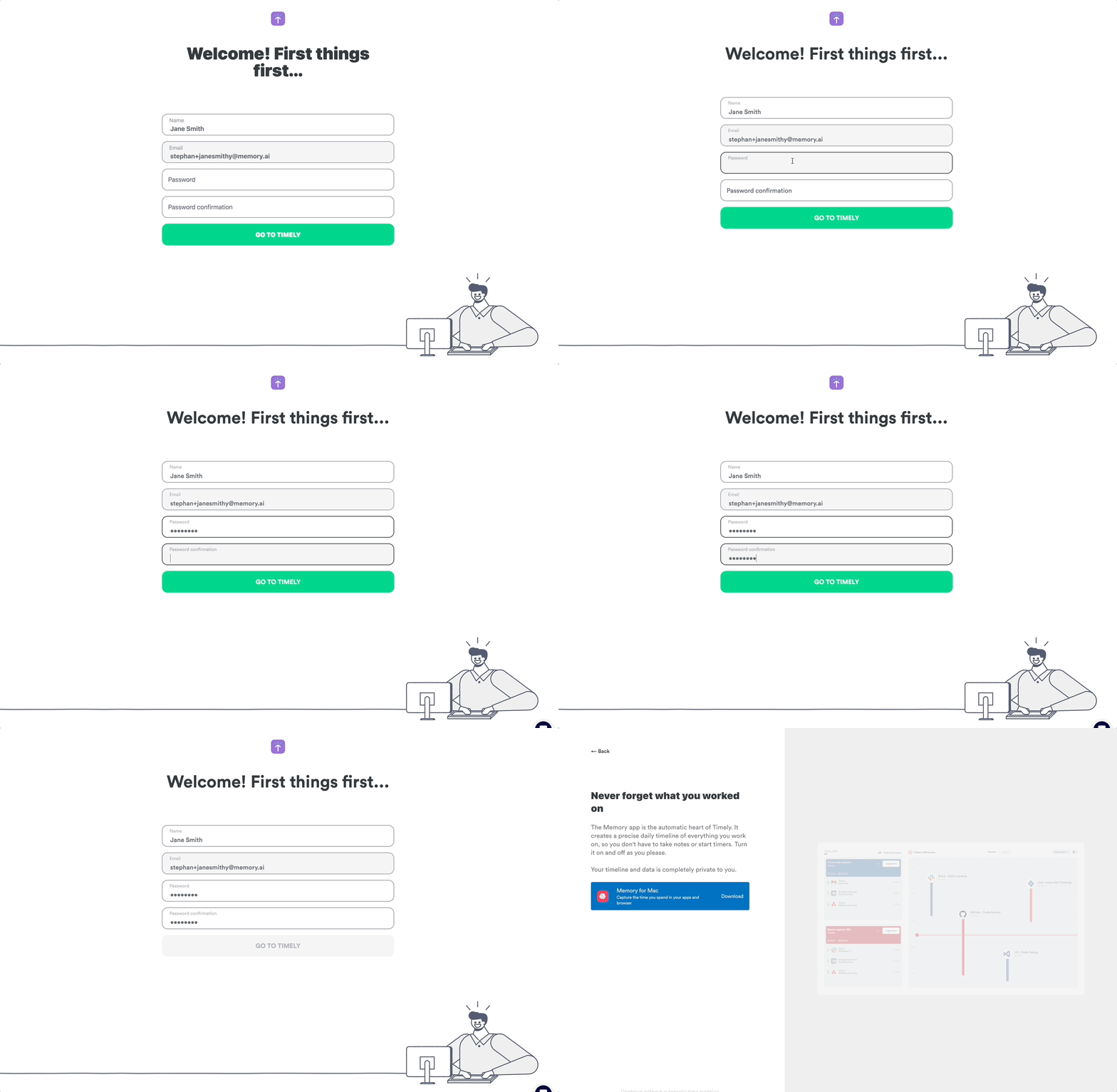
You’ll be asked to enter in or confirm your first and last name then asked to create a unique password for Timely.
You’re in! You’ve successfully activated your Timely account. Now, as you log in for the first time, you’ll be prompted with a few set up items:
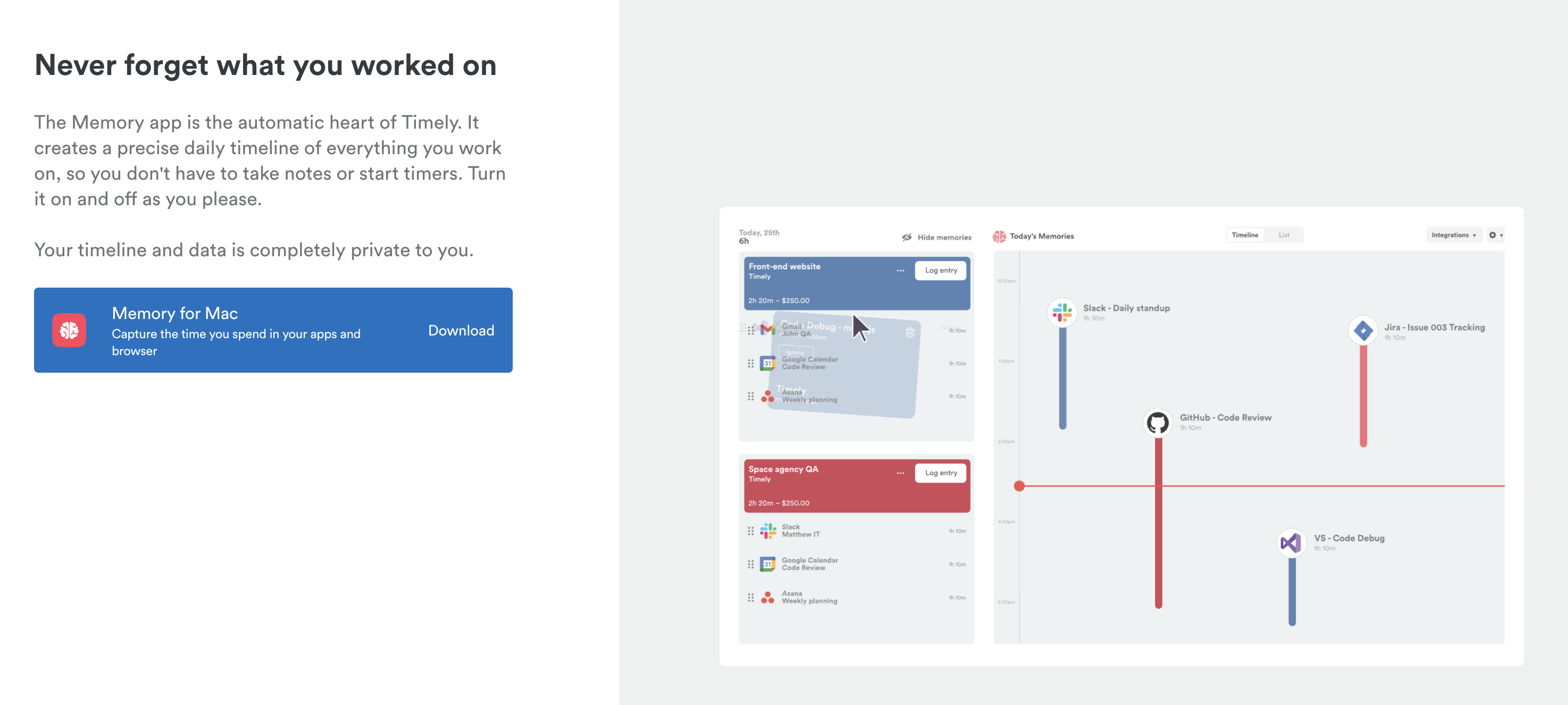
Timely works best in conjunction with Memory, our companion app that automatically captures your activity as you work. So the first time you log in you’ll be prompted to download the appropriate version of Memory for your device.
You can also move forward by clicking “Continue without automatic time tracking”, if you’d prefer not to install Memory at that time.

Finally, you’ll be shown a few of our most popular integrations that are invaluable in importing your meetings and calendar items automatically. You can click the “Connect” buttons to configure those if you’d like and then click the blue “Finish” button once complete.
Now that brief set up is out of the way, you can dive right on in and start exploring Timely!
Last updated June 15, 2026
Have feedback for this article or need more help? Contact us now.