
Microsoft Teams
IntegrationsAI Time Tracking SourcesHandbookAutomatically capture your time in Teams calls and document activity directly on your Timely timeline.Required Permissions
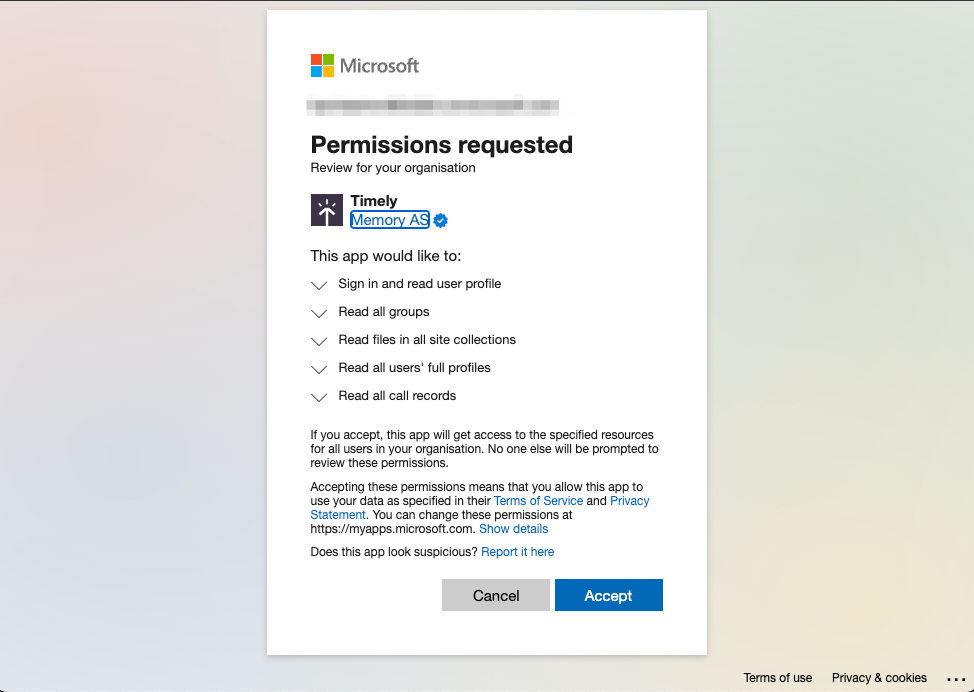
Microsoft Teams is a workspace-level integration, meaning it is enabled once and then available to all Timely users on your workspace. You must be an admin-level user in Timely to enable this feature.
Additionally, only those listed as Global Administrator within the MS Teams workspace can approve the integration. Other access levels, such as Teams Administrator, are not sufficient.
Microsoft Teams has arrived at Timely! Teams has become near ubiquitous with remote work and team communication, and we’re excited to offer this integration to help save you time and effort.
With just a few quick clicks you can enable our hassle-free integration — letting Timely automatically capture your time in Teams calls as well as a record of any Teams documents you’ve worked on.
This is a wonderful complement to our fantastic lineup of native integrations and our dedicated Memory app.
What you see in Timely
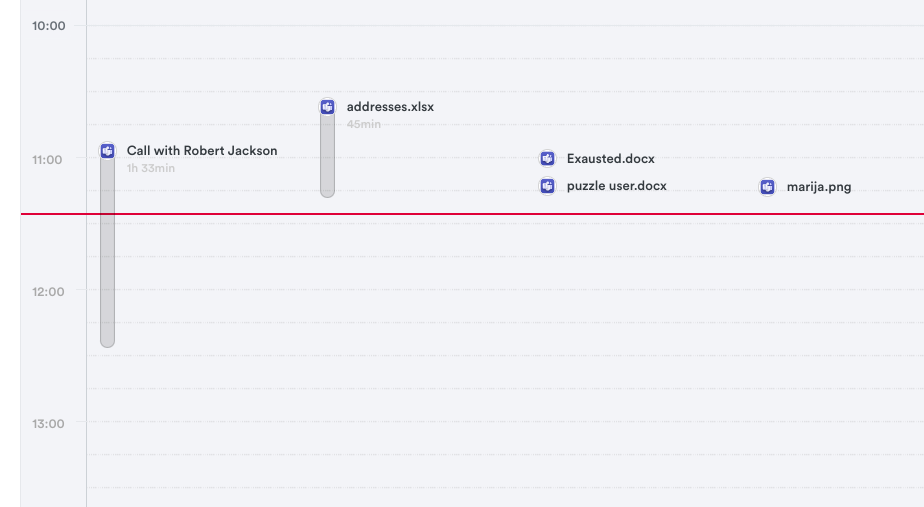
Once you’ve authorized the integration between Timely and Teams, you’ll begin to see the following items on your timeline:
- Teams calls (VoIP)
- Teams Phone calls (PSTN) — including Teams Phone Mobile, Operator Connect, Calling Plans, and Direct Routing
- Call attendees — for inbound Teams Phone Mobile (PSTN) calls, this is the external caller’s number or name, not your own
- Call duration
- Teams documents — type, title, and time accessed
Integrating Timely with Teams
Connecting your Teams account and Timely is a snap — just head over to Settings > Integrations within Timely.
- Click on the Microsoft Teams option

- Click “Connect new account”
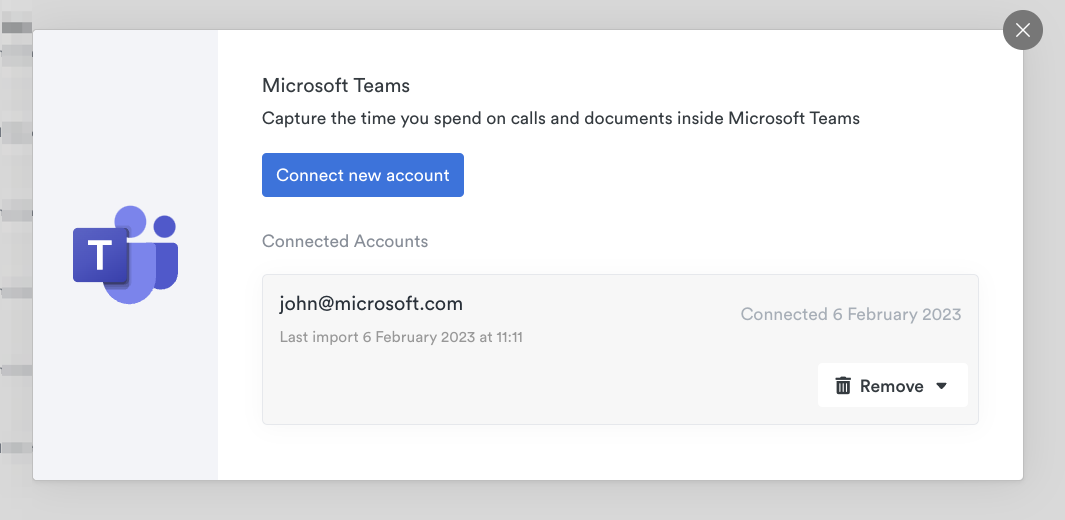
- Follow the prompts to authorize the integration
Troubleshooting
Sync delays for large Teams workspaces
If you have a large Teams workspace (thousands of users) and notice delays in activity appearing on your timeline, this is expected behavior. The sync process is optimized for reliability and efficiency, but initial syncing for large workspaces may still take some time to complete.
Duplicate sync processes
Timely includes safeguards to prevent duplicate sync operations that could slow down the integration. If you previously experienced slow syncing or noticed the same activity being processed multiple times, these issues have been resolved.
Connection issues and retries
The integration now handles temporary Microsoft Graph API issues more gracefully with improved retry logic. If you encounter brief connection interruptions, the system will automatically retry with appropriate delays rather than failing immediately.
If you continue to experience sync issues after 24 hours, please reach out to the Support Team.
FAQs
Do I need to be an admin in Teams to authorize this integration?
You must be both an admin-level user in Timely as well as a “Global Administrator” in order to enable this connection. Please see the Required Permissions section above for more context.
Can anyone with a Microsoft Teams account use this integration?
For now, the Teams integration requires a managed organization-level account in Microsoft Teams. Solo Teams users and those with individual accounts are not able to connect at this time. We do hope to expand this integration in the future — if this is of interest to you, please feel free to submit that feedback here.
Will my Teams message activity be captured?
At present, the Teams integration captures the specific activity listed above. We’re always working towards improving our integrations and that functionality may become available in subsequent updates. If this feature is important to you, feel free to share that feedback here.
Will my past Teams activity sync over as well?
Once you’ve set up the Teams integration, you’ll begin to see your activity fill up your timeline as you work throughout the day. The integration must be active for activity to appear — historical activity can’t be imported at present.
My admin just configured the Teams integration but I’m not seeing anything in Timely?
After the integration has been initially enabled, it can take some time for individual employees’ activity to begin displaying on their timeline. We’d recommend reaching out to the Support Team if you don’t see your activity on your timeline after 24 hours or so. There is no special action you need to take as an individual once your admin has set it up.
Are Teams Phone (PSTN) calls captured — for example, calls made via Teams Phone Mobile, Operator Connect, Calling Plans, or Direct Routing?
Yes. Teams Phone (PSTN) calls are automatically captured on your Timely timeline alongside regular VoIP Teams calls. No additional setup is required. Note that for PSTN calls, external parties may appear as a phone number rather than a name, as Microsoft does not include external caller names in PSTN call data.
Why does an inbound Teams Phone call show a number I don’t recognise?
For inbound Teams Phone Mobile (PSTN) calls, the call title shows the external caller’s number (or name, if available) — not your own number. If you see an unfamiliar number on an inbound call entry, that’s the person who called you.
Last updated July 14, 2026
Have feedback for this article or need more help? Contact us now.