
How do I archive a project?
Projects & TagsProjectsHandbookClean up your Project page by archiving your completed projects.Once you’ve completed a project and reported on it, we recommend you click that archive button to put it in the books and in the past! This helps keep your Project page bright, shiny and clean. Don’t worry — you can always re-activate and restore a project if need be.
Archiving Projects — three ways
Method 1
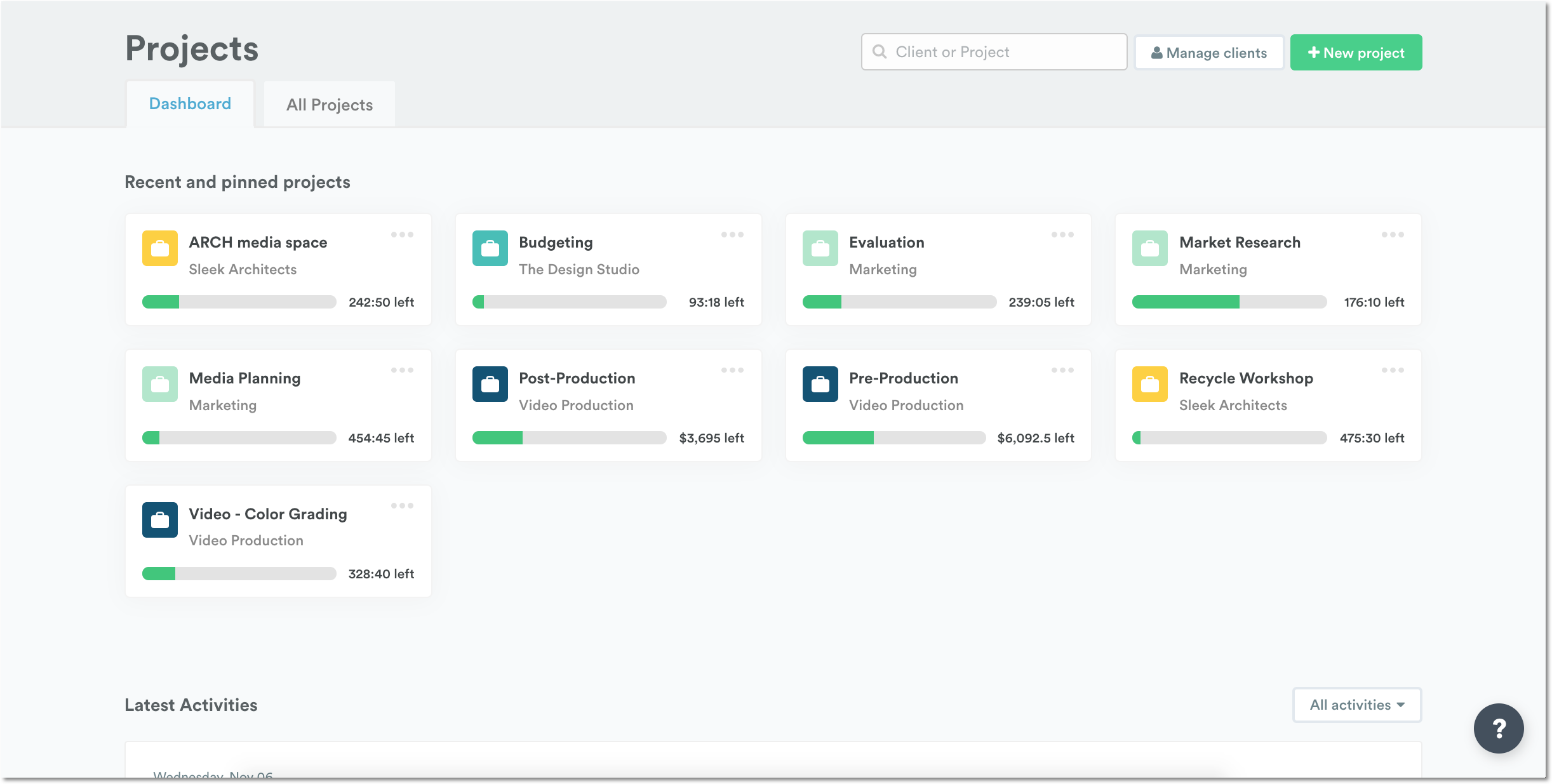
Head on over to the Project page to see your projects as pinned, most recent or all listed together.
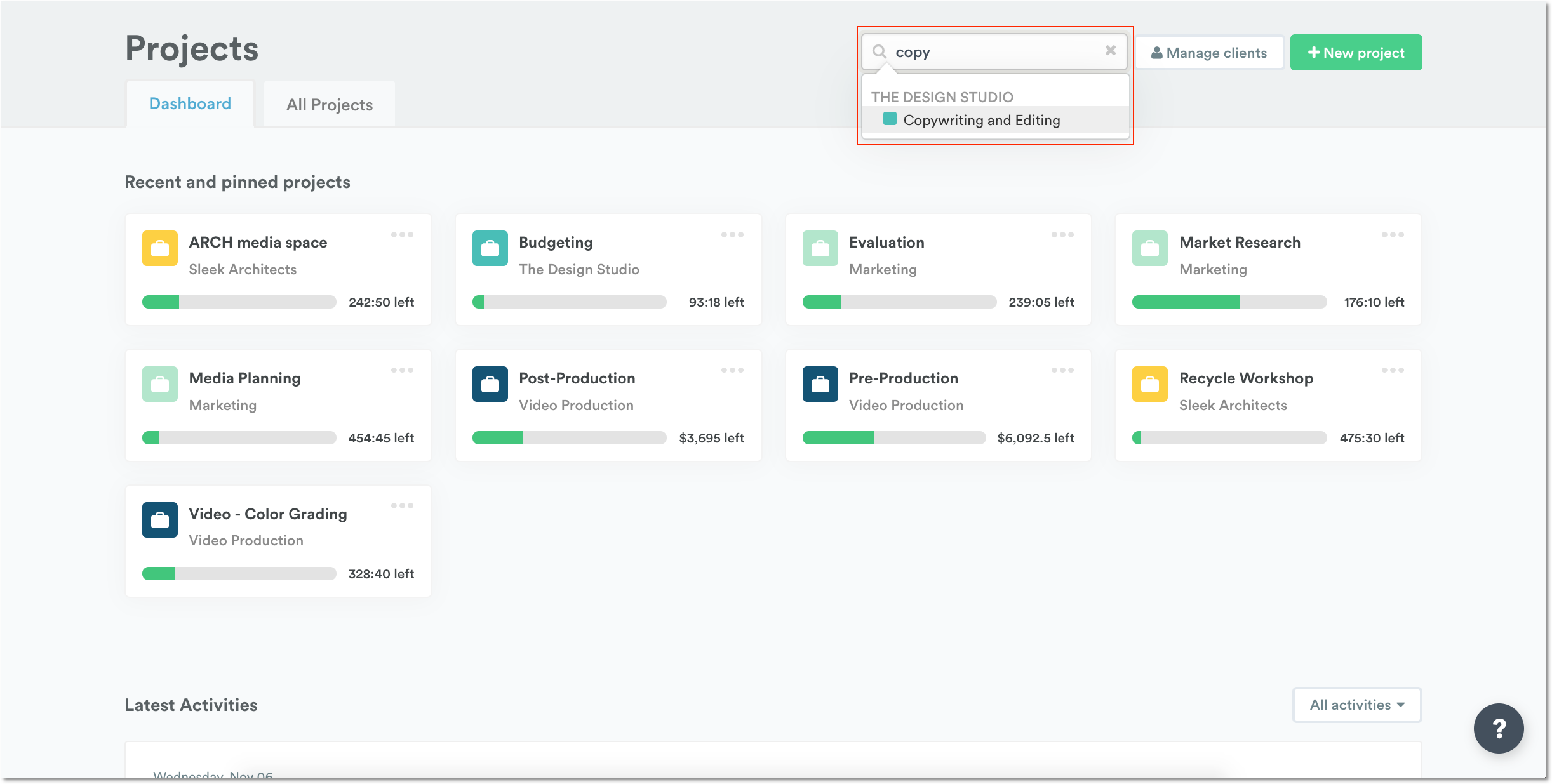
Search for the project you want to archive.
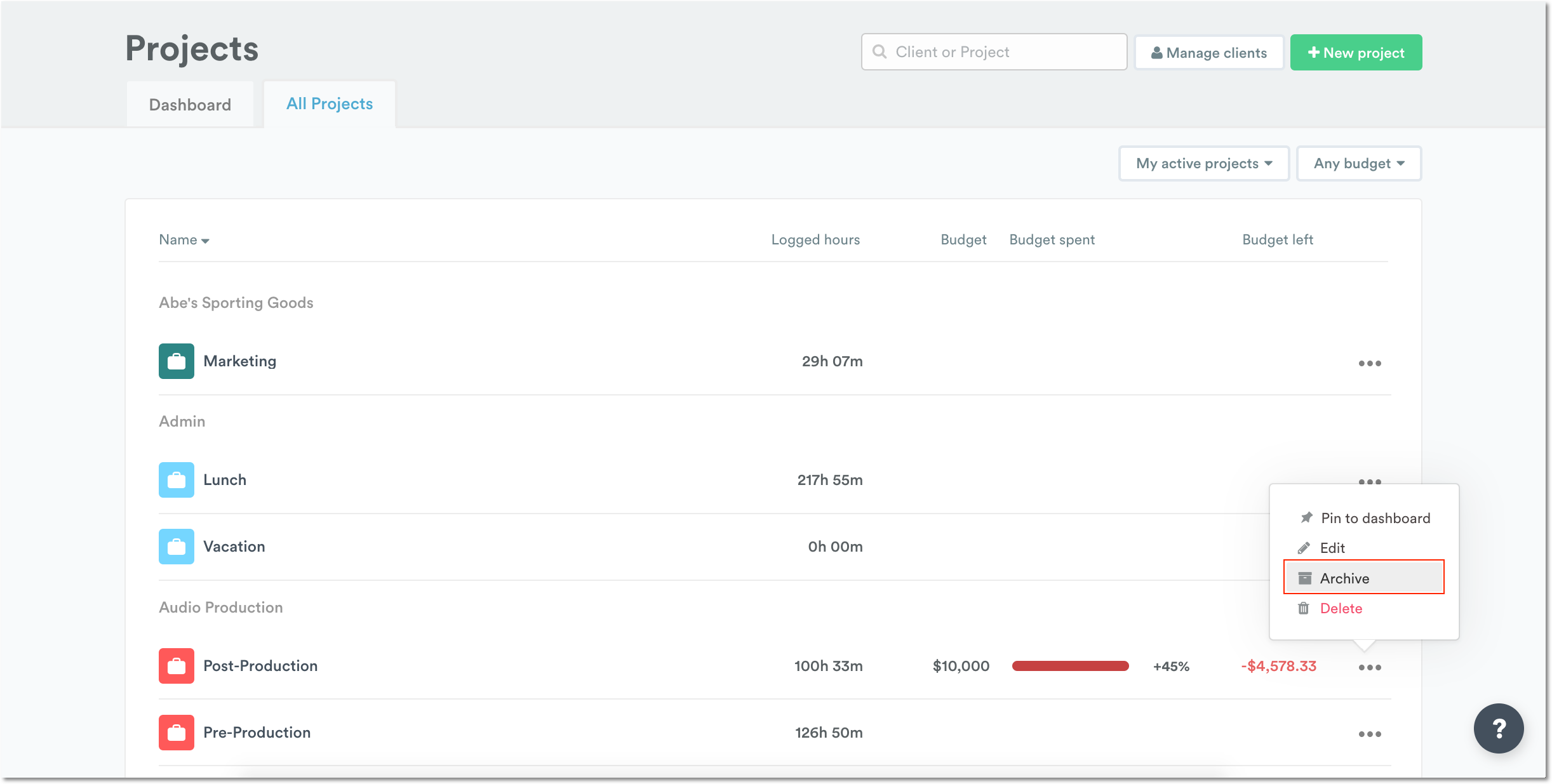
Then click on ”…” and select “Archive”.

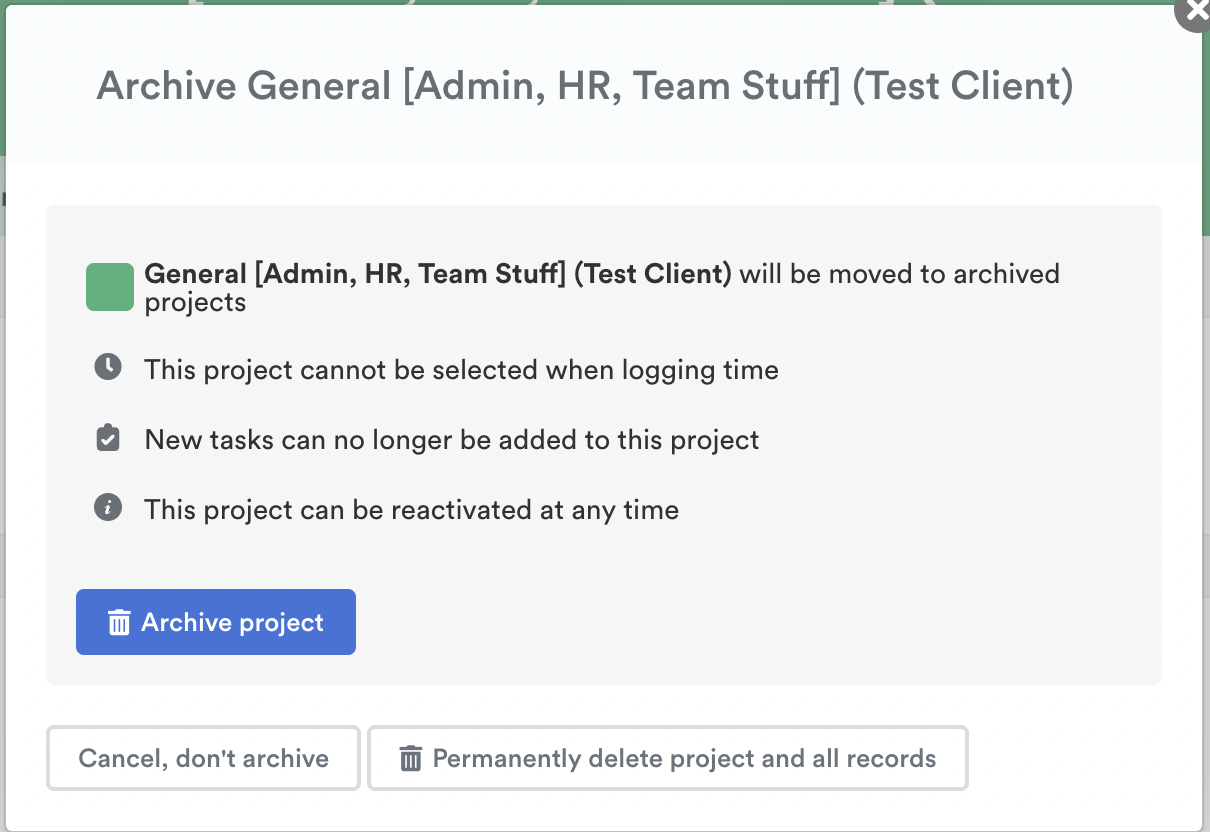
Click the “Archive project” button to confirm.
Method 2
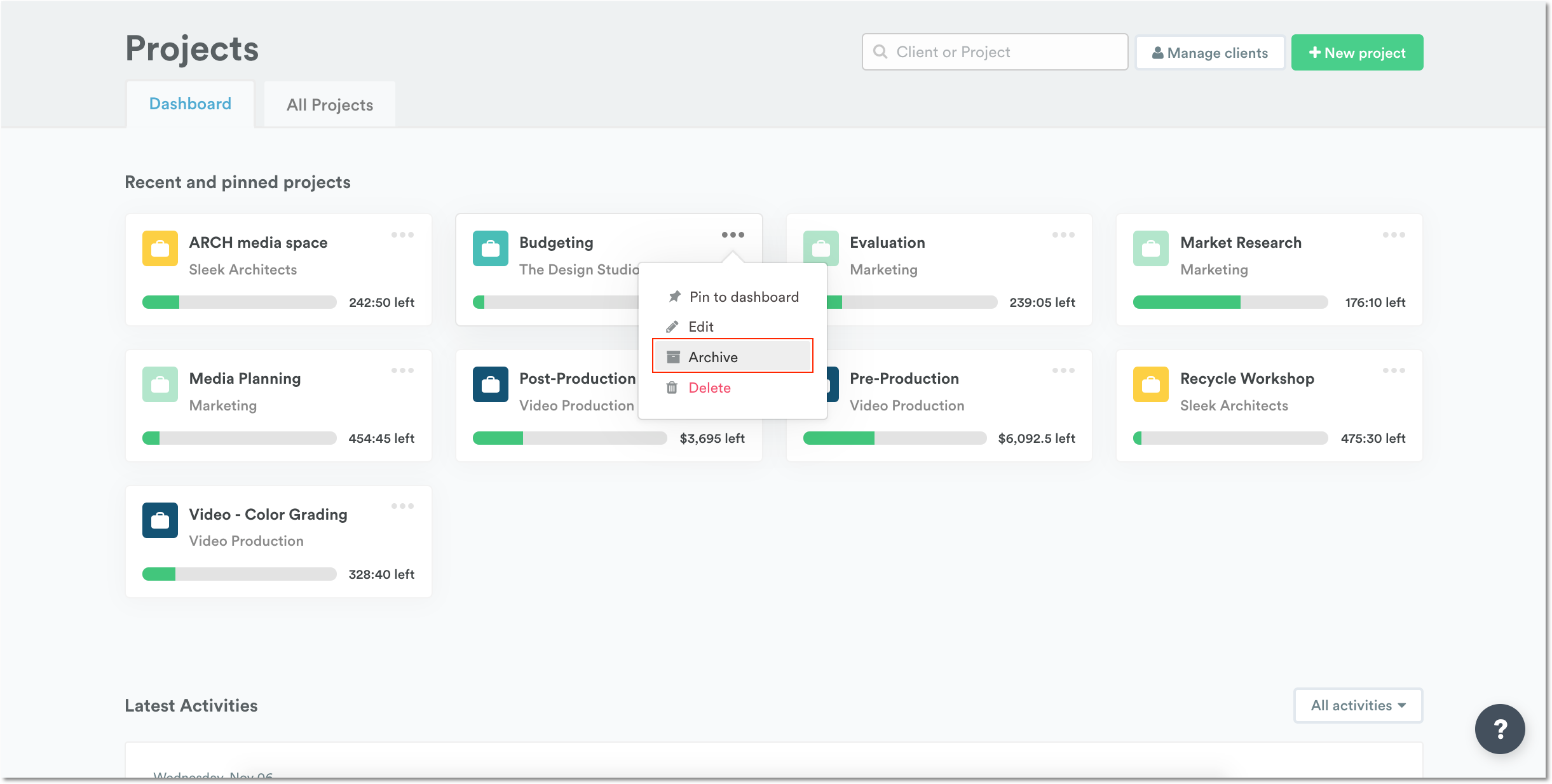
From the Project Dashboard page, click ”…” on the pinned project you want to archive and select “Archive” from the dropdown menu. Click the “Archive project” button to confirm.
Method 3
Head to the All Projects Page, click the ”…” on the far right-hand side and select “Archive”. Click the “Archive project” button to confirm.
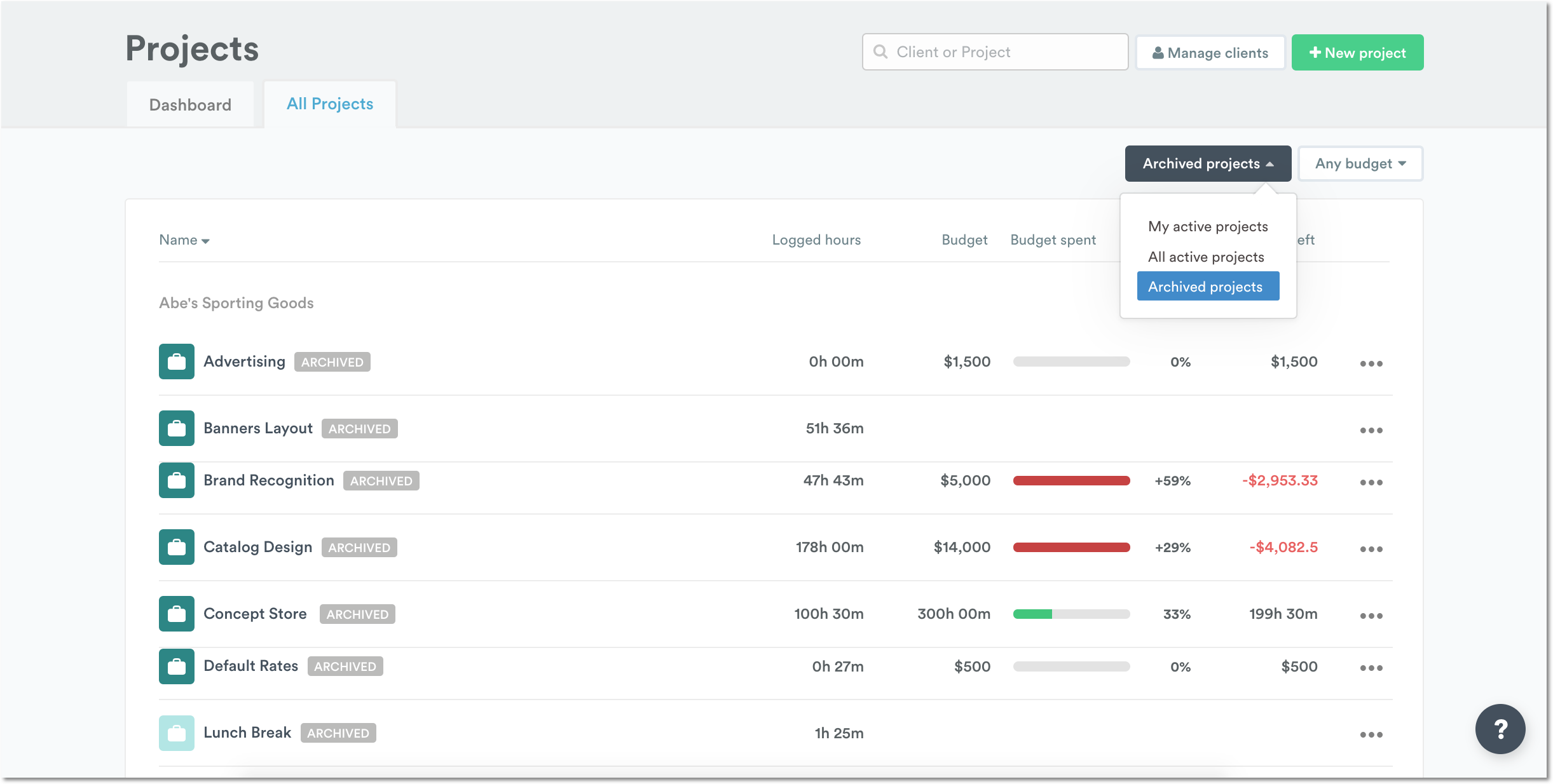
Where can I see all of my archived projects?
Just select the “Archived Projects” option from the dropdown menu at the top of the page.
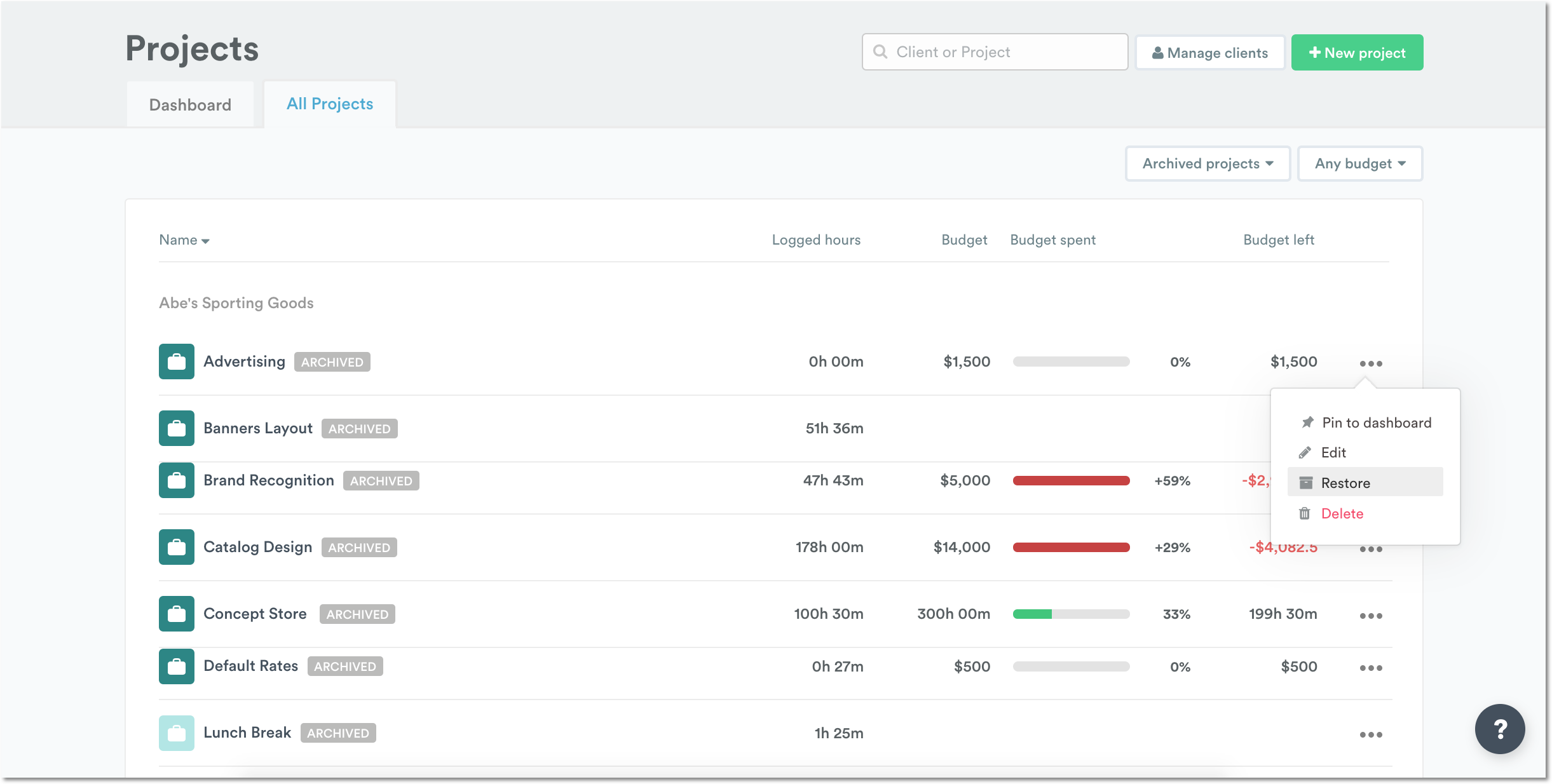
How do I restore an archived project?
To re-activate an archived project, just click ”…” in the right-hand column and select “Restore” from the dropdown menu.
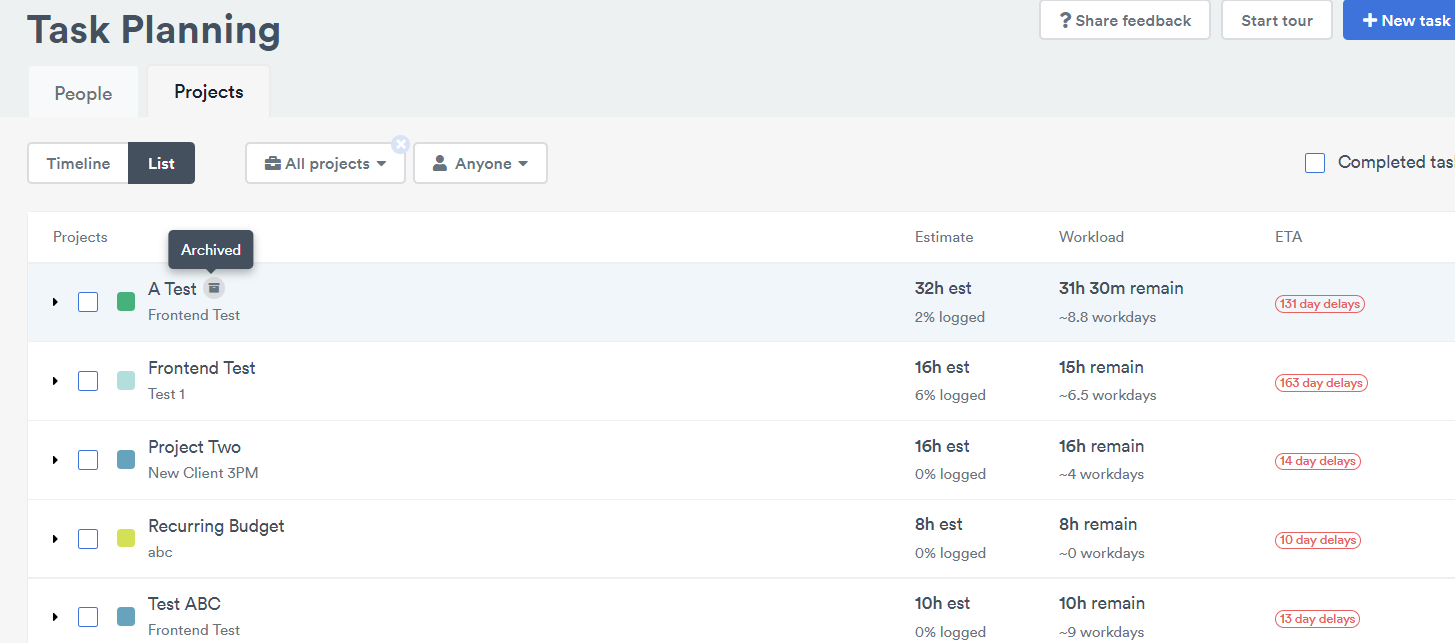
What happens to Tasks assigned to an archived project?
When a project is archived, any associated Tasks display with a special “Archived” symbol and can no longer be updated. After a project has been archived, you won’t be able to assign any new Tasks to it unless you reactivate it.
Last updated April 1, 2026
Have feedback for this article or need more help? Contact us now.