
Teaching AutoSheet
Time Tracking: AutoSheetHandbookTrain Timely AutoSheet with a few simple habits so it drafts your full timesheet for you, accurately, in one click.Video transcript
Mathias, founder of Timely here. Let me show you how to make AutoSheet perfectly track your time and create your timesheet.
So by default, the AI model is super smart, right? But depending on your project setup, you might want to teach it a couple of things before it can actually perfectly predict your timesheet. To begin with, it’s also important to note that only when you submit a timesheet and the day becomes green, that’s when the actual AI model looks at your timesheet and uses that for training.
So any day in draft mode, it will not use whatever you tell it for its next generation. So make sure to submit a timesheet.
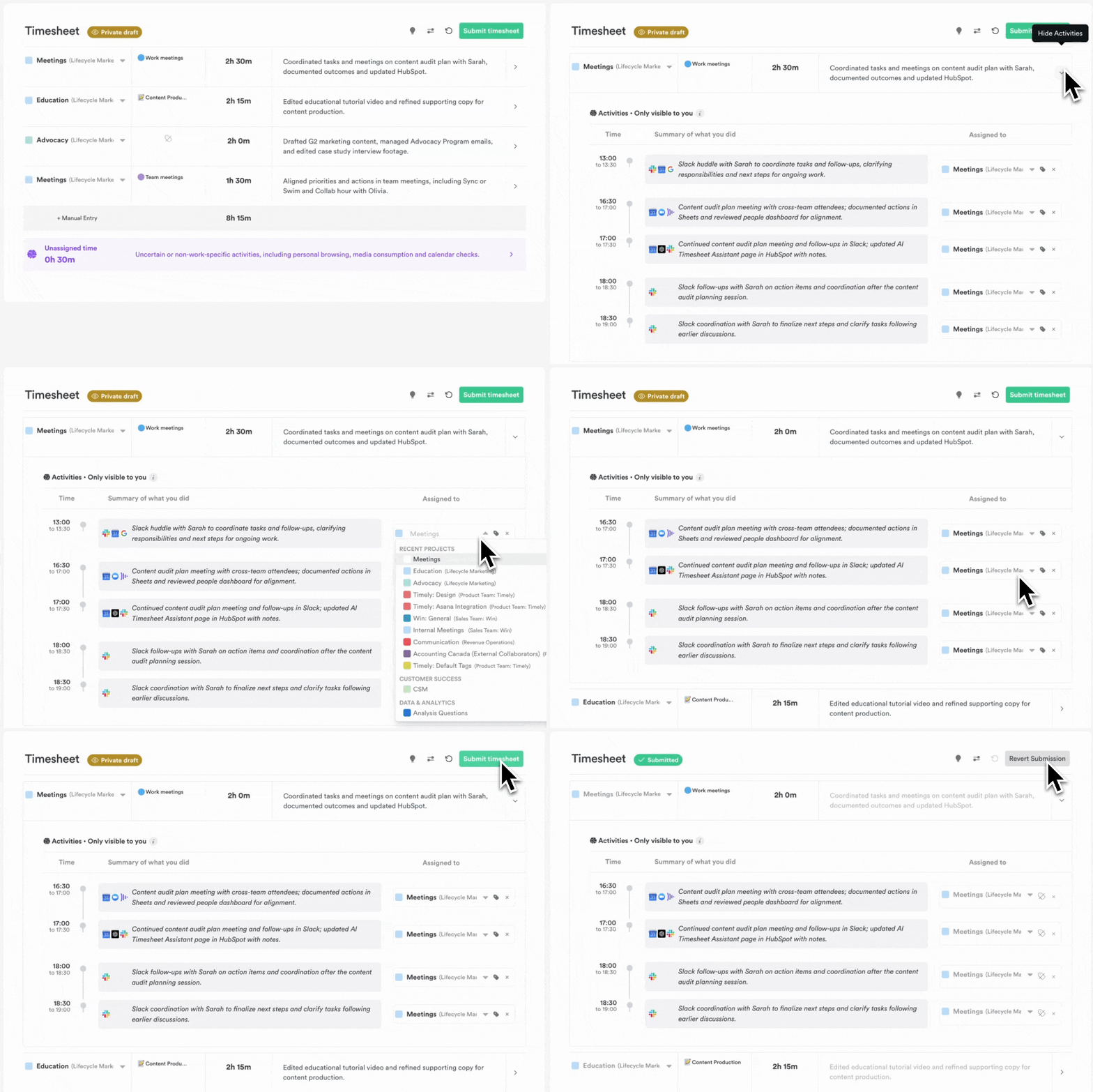
And then we suggest you just start with the unassigned bucket. That’s the stuff the model is unsure of. You just click it to open up and then you see the different things that it put there. So from 9:30 to 10, it has this review map project. So to actually tell it, oh no, this should go to a different project, you just click search project, put it in the Data and Benefit project for example — this will flash green up here.
And then you can also go into the individual projects and check it. So we for example go into the Implementation project, click show activities, and then same thing — you will see here from 13:30 to 14, I had a team chat with Swing and Sylvia. So for this one, just to reassign it to a different project, click the Implementation one, hit for example Admin Services, and now you’re teaching it all the things that are here and what you worked on — that stuff should actually go to this Data and Benefit project.
And when you have gone through that, hit submit, and now the next time the model will create a prediction for you and create a timesheet, it will take all of that learning into account. So you should only need to do this maybe once or twice or three times, all depending on your project structure.
Hope that’s helpful.
How AutoSheet learns
Timely AutoSheet uses a blend of pattern recognition, historical project mappings, and AI reasoning to generate your timesheet. Every action you take — approving a suggestion, reassigning a project, editing a summary, or creating a manual entry — feeds back into the AI and helps it improve over time. The more consistently you interact with your suggestions, the smarter AutoSheet becomes at understanding your work patterns.
It’s perfectly normal to fine-tune a few entries at first. The good news is that a few simple habits dramatically improve your results. The tips below are the same ones our most accurate users follow.
Tip 1 — Keep your workspace tidy
AutoSheet works best when it’s focused on a clear, up-to-date list of projects. If you’re assigned to dozens of old or inactive projects but only log time to a handful, the AI has to guess across a much wider range, which leads to mismatches.
For employees: If you notice stale or irrelevant projects, flag them to your admin.
For admins and managers:
- Regularly review project assignments and unassign team members from stale projects.
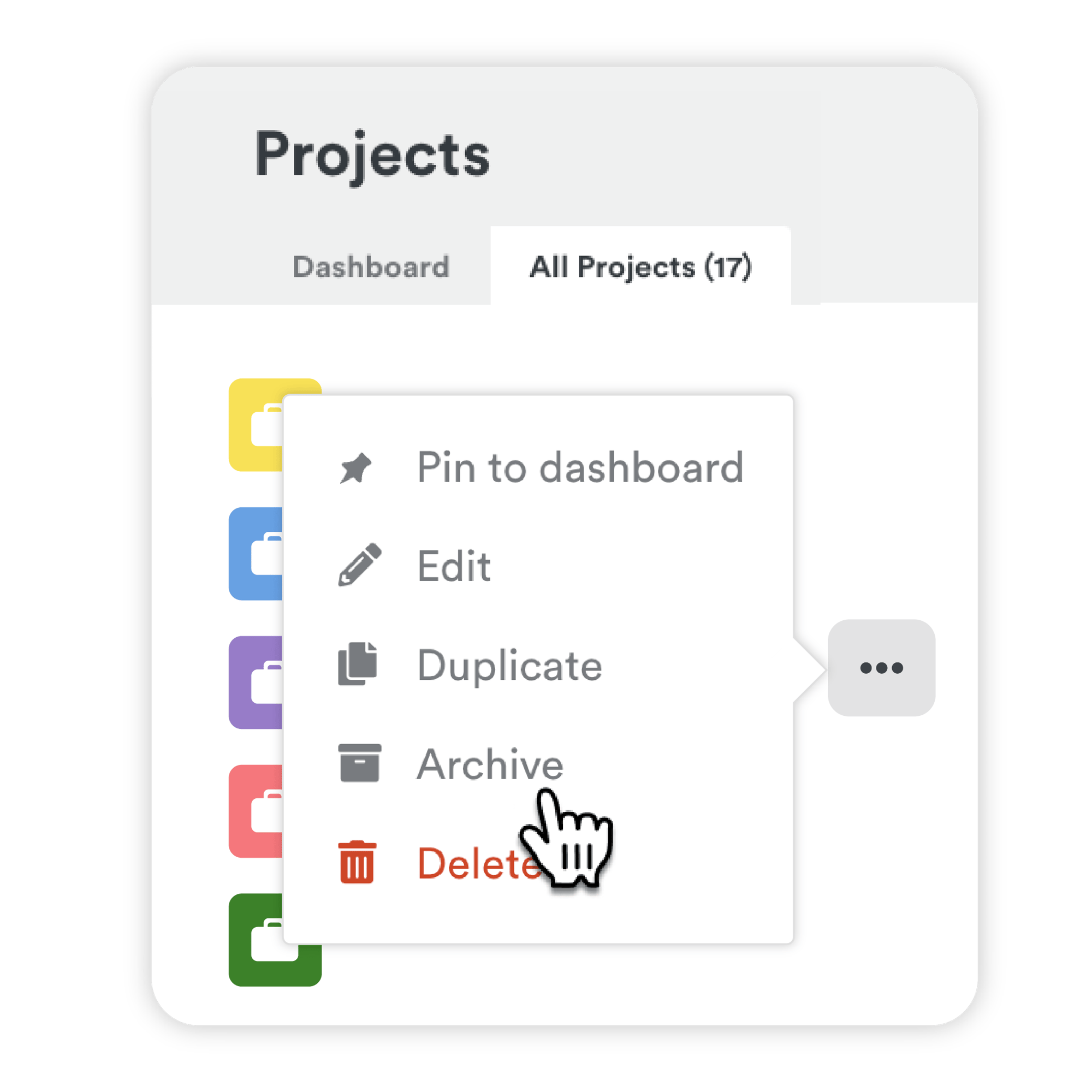
- Archive old clients or projects no longer in use.
- Encourage your team to let you know when projects should be updated or removed.
Note: Depending on your workspace settings, users may see all workspace projects available for time logging, not just assigned ones. This can expand the range of projects AutoSheet considers when making suggestions.
Avoid: Keeping every project you’ve ever touched open and active. This creates noise and confusion for both you and the AI.
Tip 2 — Better names, better suggestions
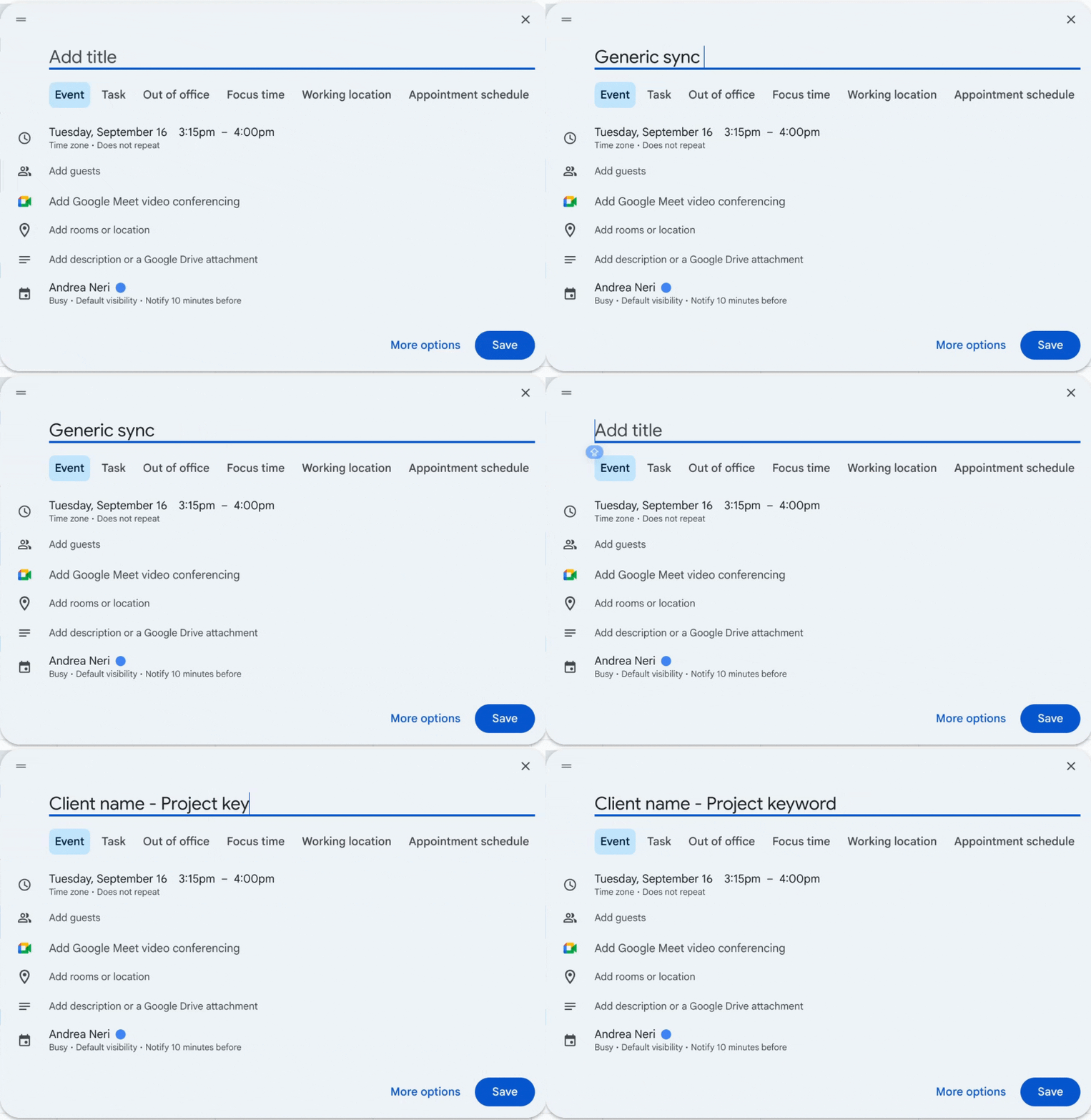
Clear, consistent naming gives AutoSheet the context it needs to match your work accurately. The AI uses clues from filenames, calendar events, meeting titles, URLs, and past behaviour. If those inputs are vague, it has less to work with — and suggestions get less accurate.
Do this:
- Name projects with both client and purpose (e.g. Client X – Website QA).
- Use meaningful, descriptive project descriptions where needed.
- Keep tag lists short and focused.
- Title meetings with project and context (e.g. Client X – Launch Review).
- Label recurring calendar events with something specific, not just Sync or Standup.
Avoid:
- Generic project names like Development or Admin used across multiple teams.
- Duplicate client names without context.
- Ambiguous recurring meetings with no identifiers.
Tip 3 — Make small corrections early
Your early reviews and corrections are the AI’s most valuable training signal. As mentioned in the video, only submitted (green) days are used for training — so reviewing thoroughly in the first week pays off for months afterwards.
Do this:
- Edit the first few timesheets carefully — work through the unassigned bucket and check each project.
- Correct wrong project assignments and tighten up summaries before submitting.
- When reassigning time blocks, select the time blocks you want to move and use the Reassign dropdown to assign them to the correct project. You’ll see a confirmation message once the reassignment is complete.
- When reassigning unassigned items to projects, AutoSheet automatically regenerates notes to preserve context, so your time entries keep their meaningful notes.
- Submit the day once you’ve validated all blocks.
- Use empty interval selection to assign time to periods where no activity was recorded but work was done.
- Create manual entries by dragging across empty timeline space, then pick a project for the block you’ve drawn.
- On a day you haven’t generated a timesheet for — including days where the Memory app recorded no activity at all — use the Add manual time link to create a 15-minute pending entry above the Generate surface. The pending row stays local until you select a project, at which point AutoSheet persists the proposal and the entry together automatically. Saving a manual entry this way switches off AI generation for that day until you reset the timesheet.
- When assigning linked work to a row that already has a project, the picker automatically narrows to tasks from that project’s integration. Use the Filter menu in the picker to adjust the scope (all integrations, same integration, or same project) and status (Open / Done) if you need to broaden or narrow the list.
Avoid: Submitting incomplete or inaccurate timesheets just to get it done — the AI will assume those entries are correct and replicate them.
Tip 4 — Daily habits beat weekly cleanups
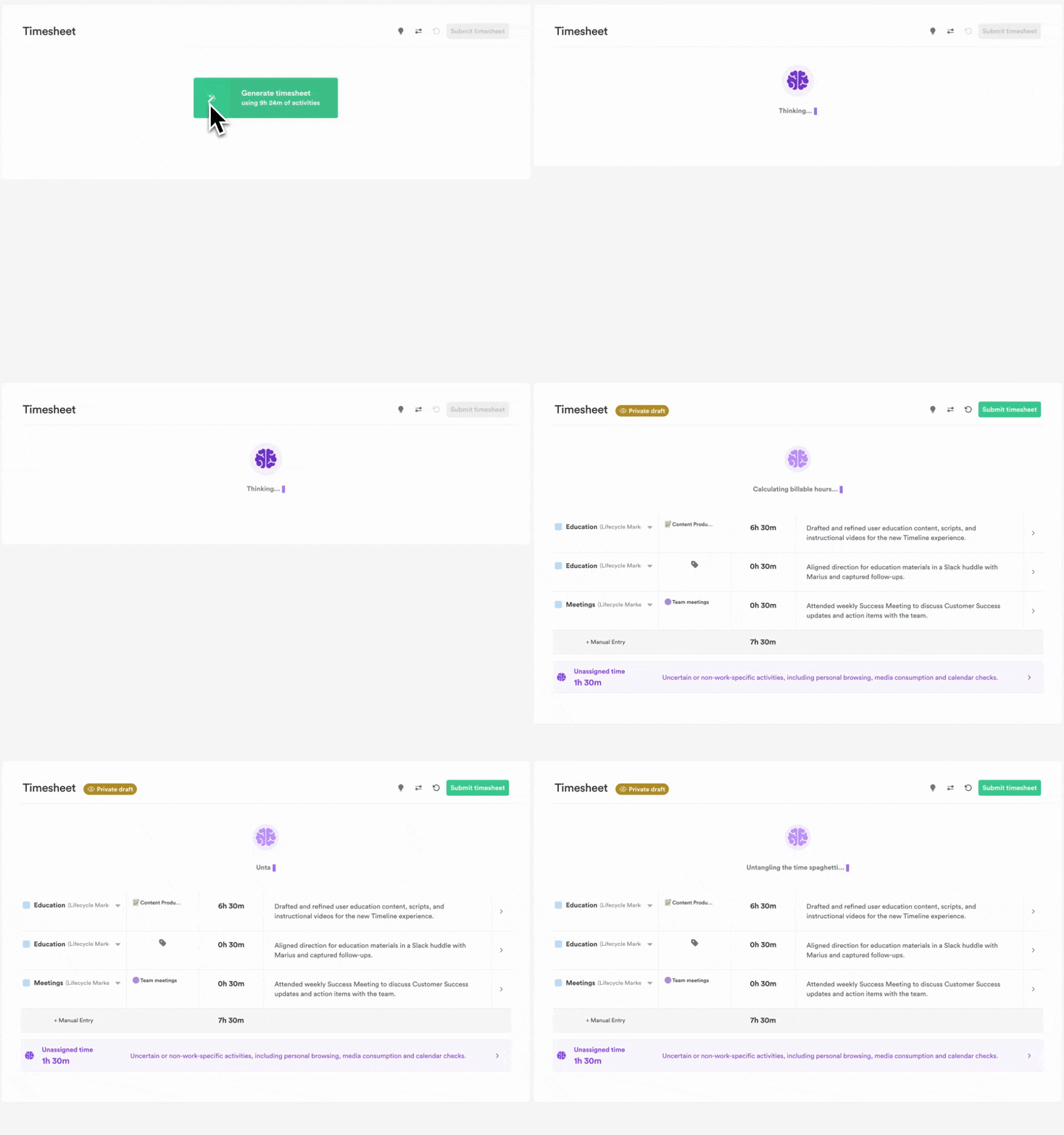
AutoSheet runs best with fresh context. The longer you wait between reviews, the more gaps and uncertainties build up. Daily reviews keep your data clean and teach the AI faster.
Do this:
- Let AutoSheet run at 8am (local time) each morning.
- Open and review your day from the previous workday.
- Use the manual Generate option if you miss a day.
- If automatic generation has been paused due to inactivity, generating and accepting one timesheet manually will re-enable automatic daily generation.
Avoid: Letting suggestions pile up for a week, then correcting a backlog all at once.
Tip 5 — Install and run the Memory app
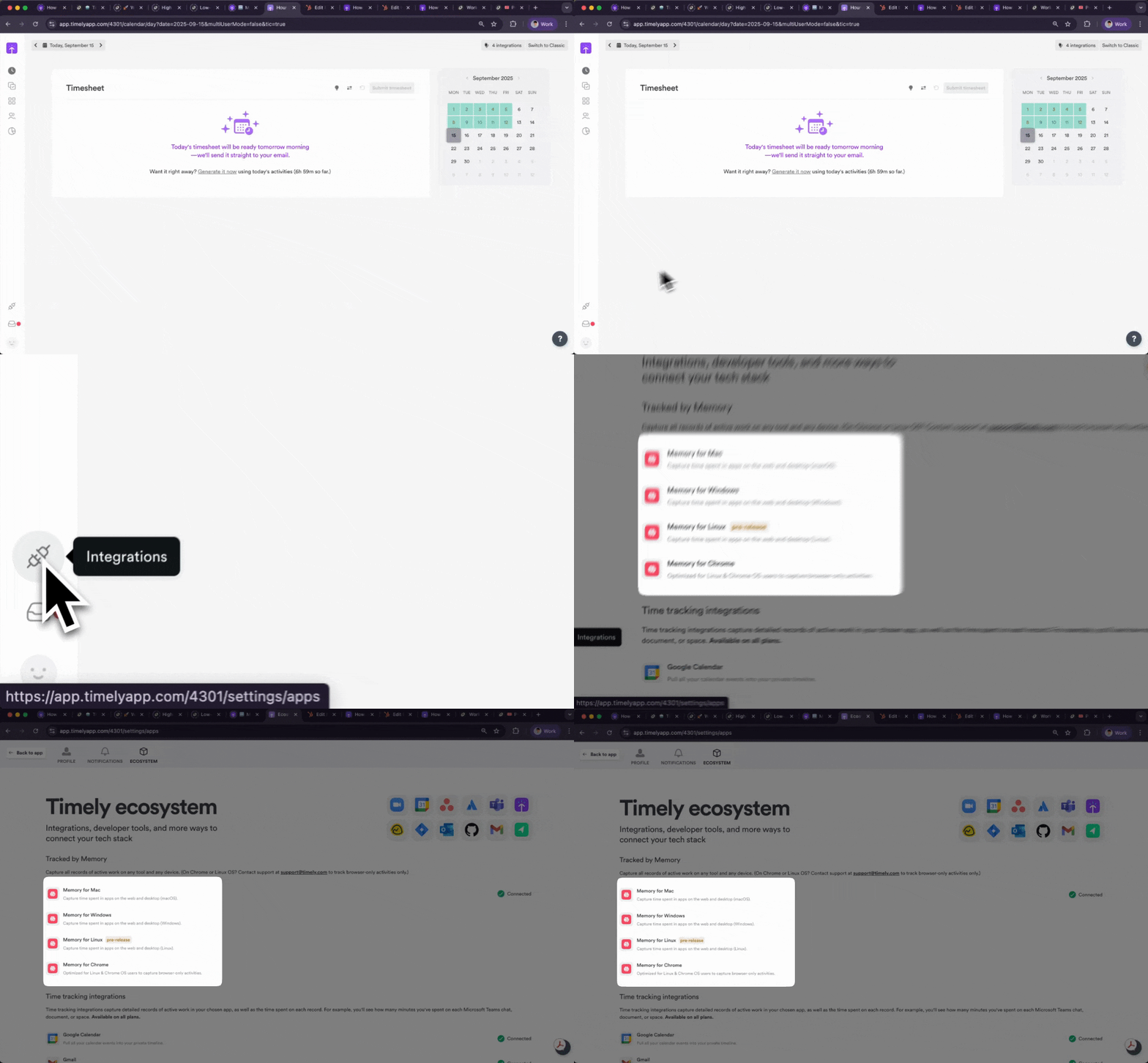
To give AutoSheet the context it needs, it has to see more than calendar events. The Memory app securely tracks the tools you use, documents you open, and websites you visit — turning that real activity into smarter, more accurate suggestions. Without Memory, AutoSheet is largely guessing from calendar entries and past logs alone.
Your raw activity data stays 100% private — only the summaries you approve in your timesheet are ever shared or included in reports. Install it on every device you work on, and you can download it here.
Do this:
- Make sure the Memory app is installed and running on every device.
- Confirm that it’s capturing activity each day.
- Keep calendar and meeting integrations (e.g. Zoom, Teams) active if relevant.
- When you notice empty intervals on the timeline, select and assign them to help AutoSheet learn about work that wasn’t automatically captured.
- On days with no captured activity, use Add manual time so that work still gets logged and contributes to AutoSheet’s training once you submit. Because this switches off AI generation for the day, save it for days that genuinely have nothing to generate from.
Avoid: Depending only on calendars or manual entries — the AI can’t see what it doesn’t record.
Tip 6 — Keep summaries short, but don’t skip them
You can edit AutoSheet’s summaries, and in some cases you should. But don’t remove them entirely or leave entries blank — summaries are part of what the AI uses to train future entries.
Do this:
- Clean up summaries when they’re unclear.
- Include key deliverables or context.
- Use action verbs and short, clear phrases (e.g. Reviewed campaign analytics, Fixed login API issue).
- Use the Generate/Regenerate note buttons (now positioned inline with entry descriptions) to refresh summaries when needed.
Avoid: Overwriting summaries with vague notes like Work or Various tasks.
Bonus — Correct, don’t delete
If a suggestion is wrong, reassign it to the right project or edit the summary — don’t just delete it. Corrections are a much stronger training signal than deletions, which simply throw away the opportunity to learn.
Do this:
- Select the time blocks you want to reassign and use the Reassign dropdown to move them to the correct project.
- Adjust summaries instead of wiping them.
- Only delete blocks if they’re truly personal or irrelevant.
- Select empty intervals and assign them to projects when they represent actual work time.
TL;DR — 5 ways to train AutoSheet faster
| What to do | Why it matters |
|---|---|
| Stay assigned to only active projects | Reduces noise and mismatch |
| Use clear, distinctive names | Improves matching accuracy |
| Review early timesheets carefully | Builds a correct baseline |
| Log daily, not weekly | Keeps AI learning up to date |
| Edit, don’t delete | Helps the system learn |
The goal of AutoSheet isn’t just faster logging — it’s smarter, more confident logging. If you’re spending more than 2 minutes fixing each day’s proposal, try applying a few of these tips. Your assistant is smart, but it learns from you.
Final thoughts — One week of training = one-click time tracking
Yes, there’s a bit of setup. But it’s light. A week of review, and suddenly your AI is drafting your whole day for you. You’re not just training an algorithm — you’re reclaiming hours of your week.
Last updated August 19, 2026
Have feedback for this article or need more help? Contact us now.