Assign project colors
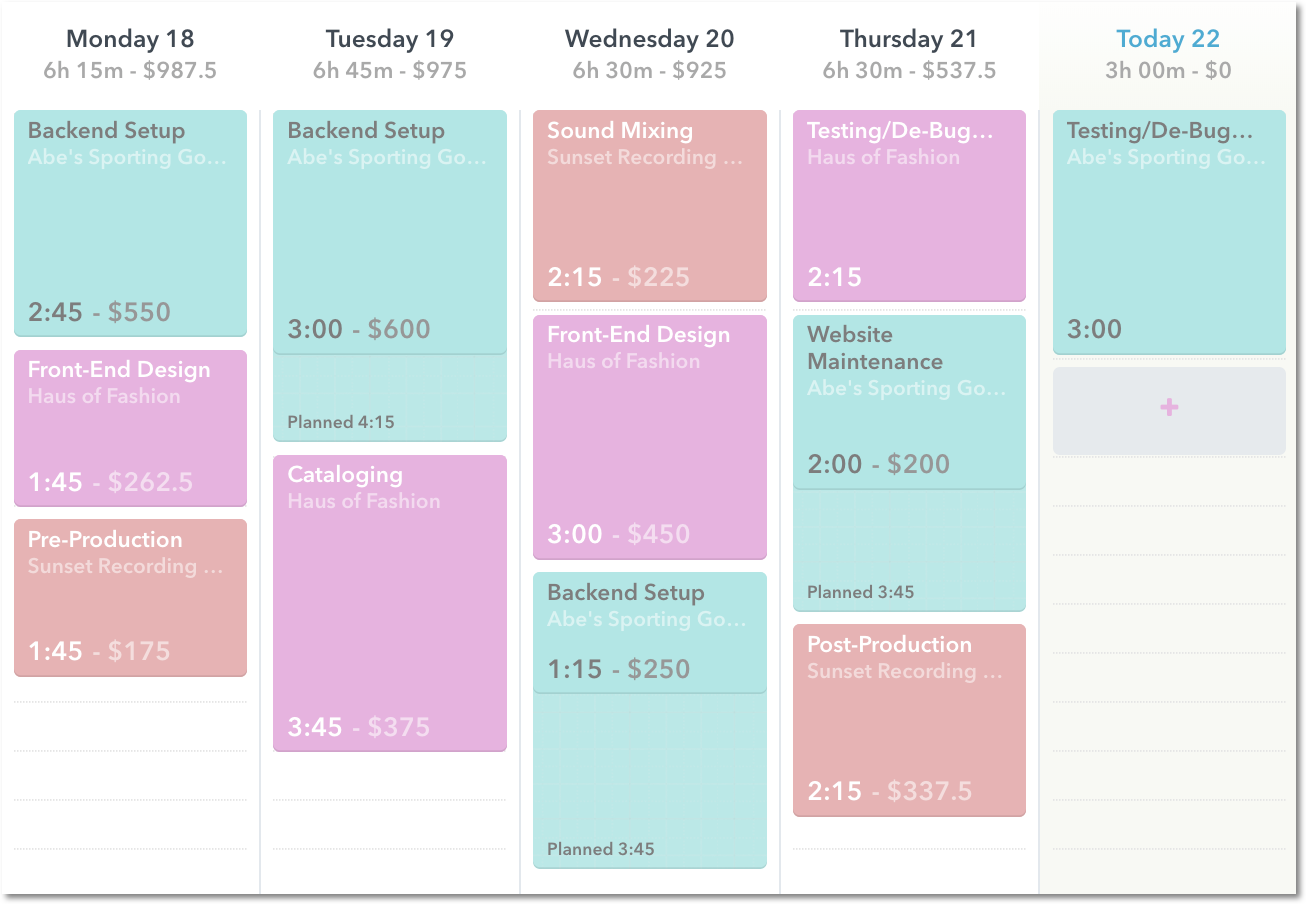
Projects & Tags Projects Handbook Color code projects to help visualize how you track your time.Project colors in Timely mean more than just turning your Week View calendar into a dazzling technicolored rainbow. Using color helps you create a visual story of your work, so you can quickly distinguish projects by client, activity type and even billable or non-billable status.
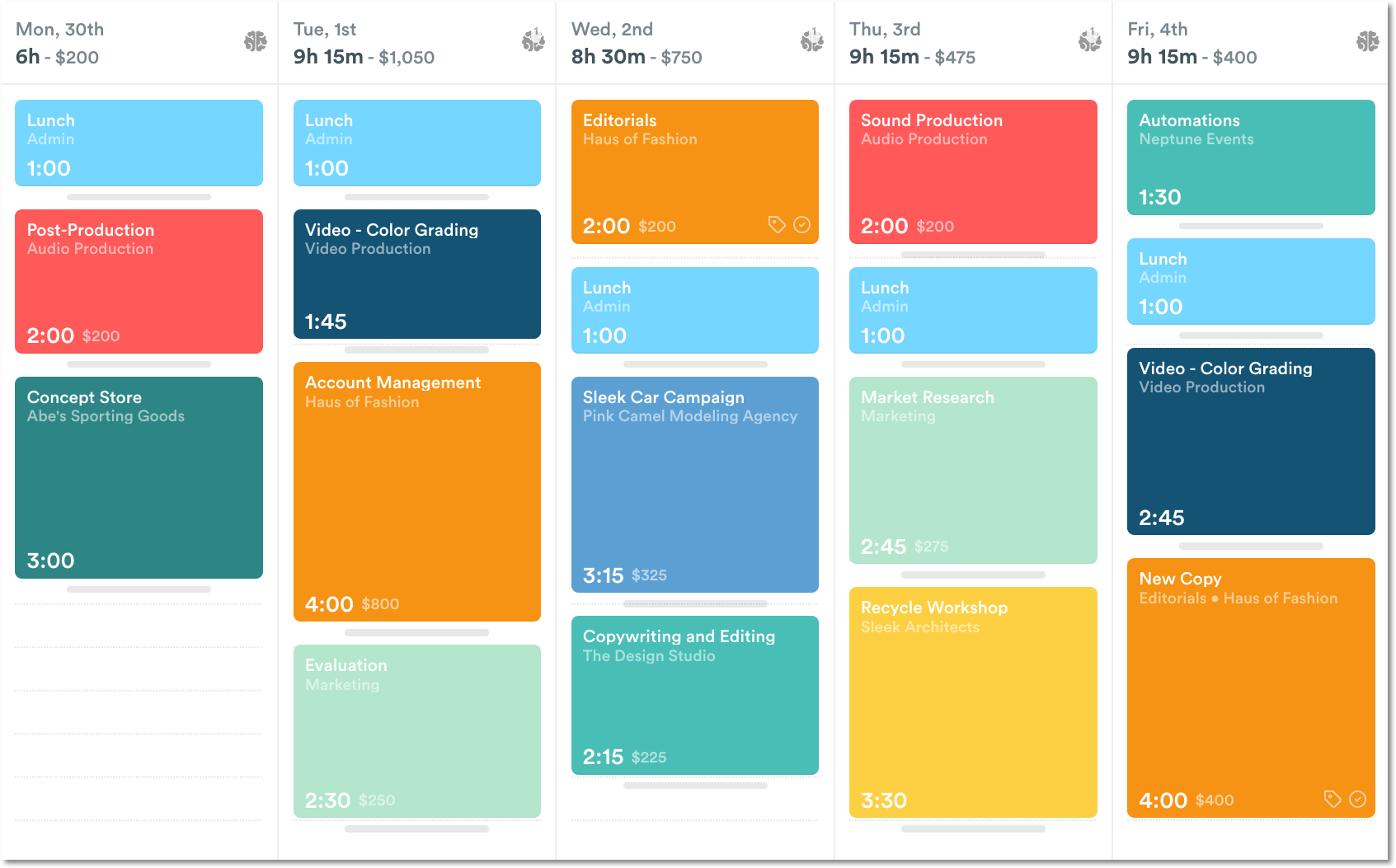
How to assign a project color
From the New or Edit Project page, click the color selection drop-down.
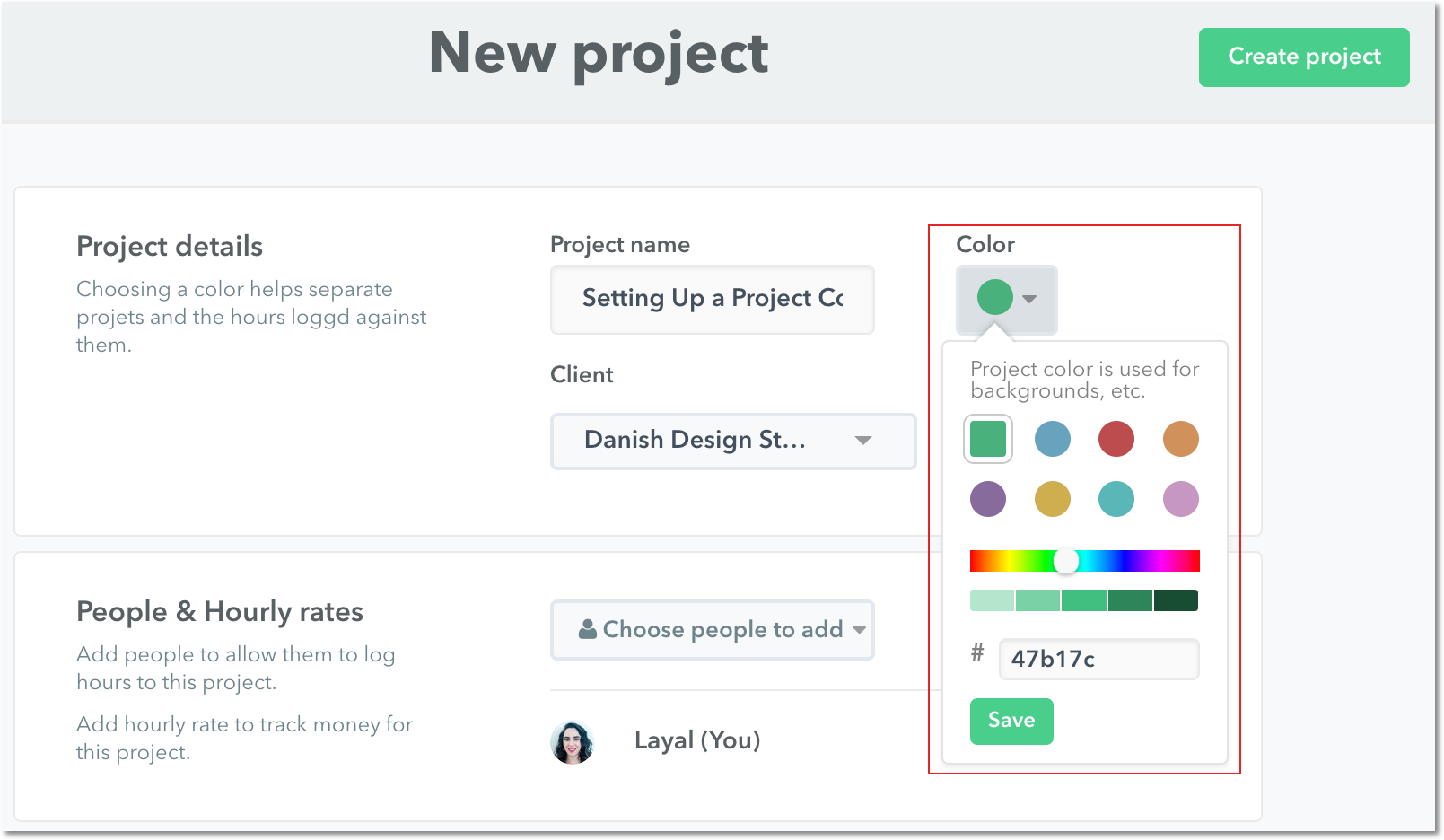
Assigning a monochromatic color scheme to all projects under a specific client helps you easily identify a project grouping. Just click a color option and choose from the gradient scale at the bottom.
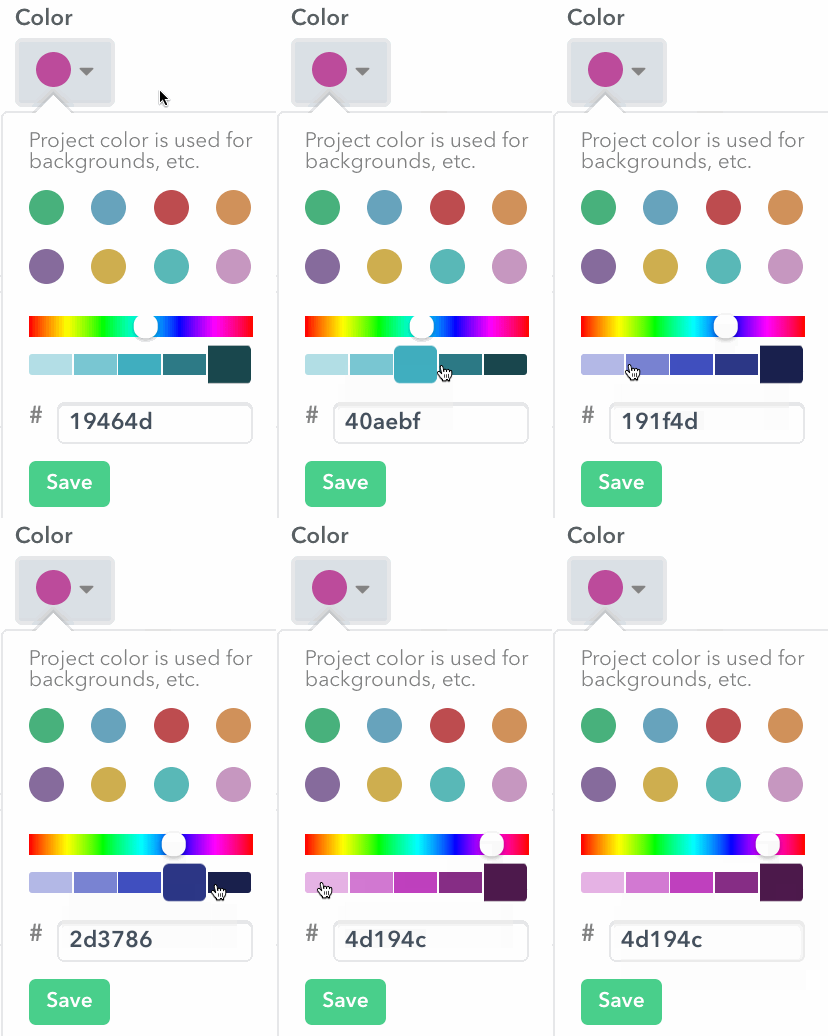
A color coding scheme can also be applied to quickly differentiate different work activities. For example, you can assign various shades of red for all activities associated with design, shades of blue for activities associated to ideation and development, and so on.
Assign colors using color codes
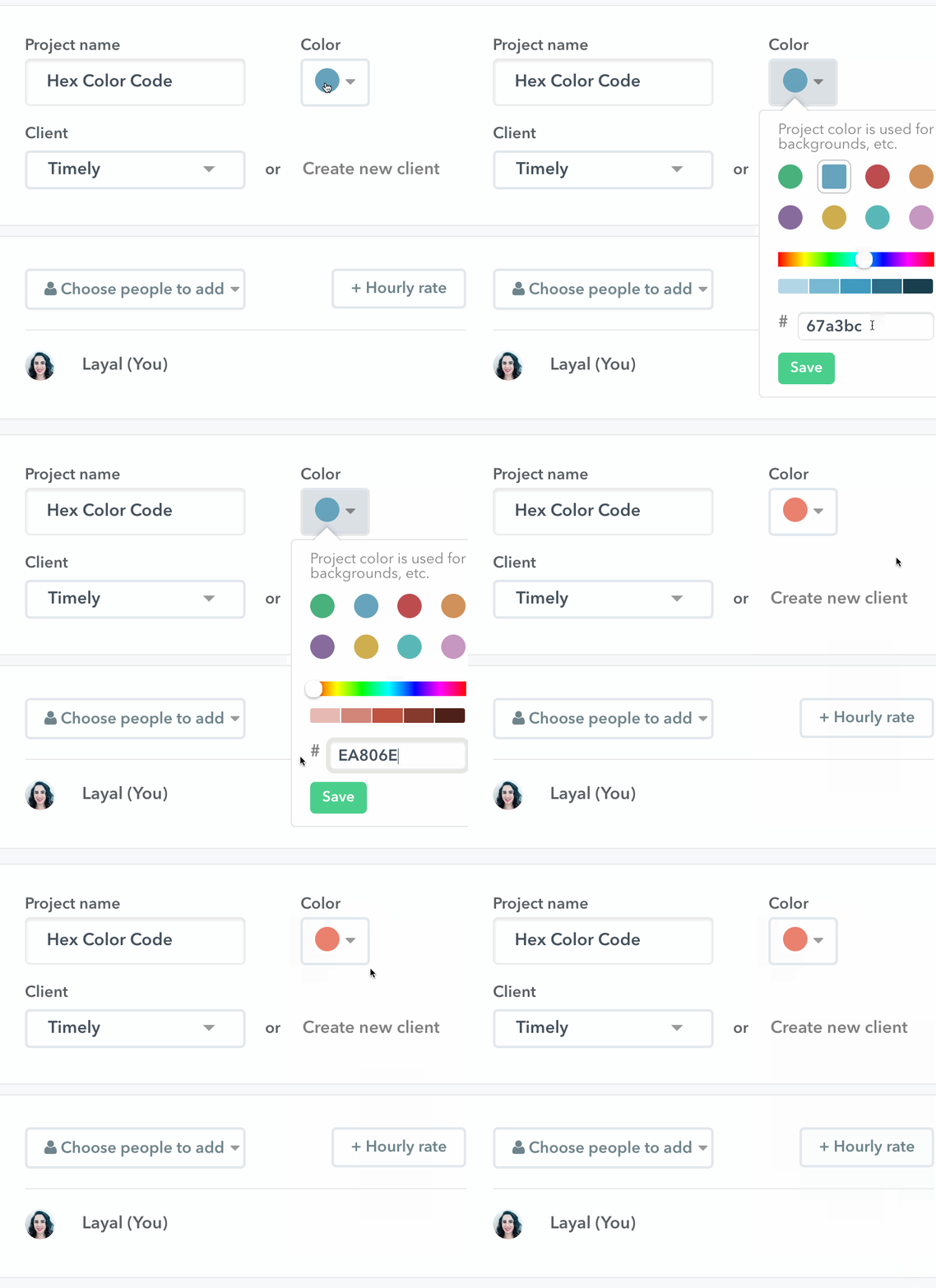
Timely offers a wide selection of default colors. If you want to use a specific color, just enter an HTML color code in the manual entry field — a great choice for branding!
Can I assign a color to a client?
Colors can only be assigned to projects, but you can assign the same color to all the projects for a specific client to easily distinguish who the work is for.
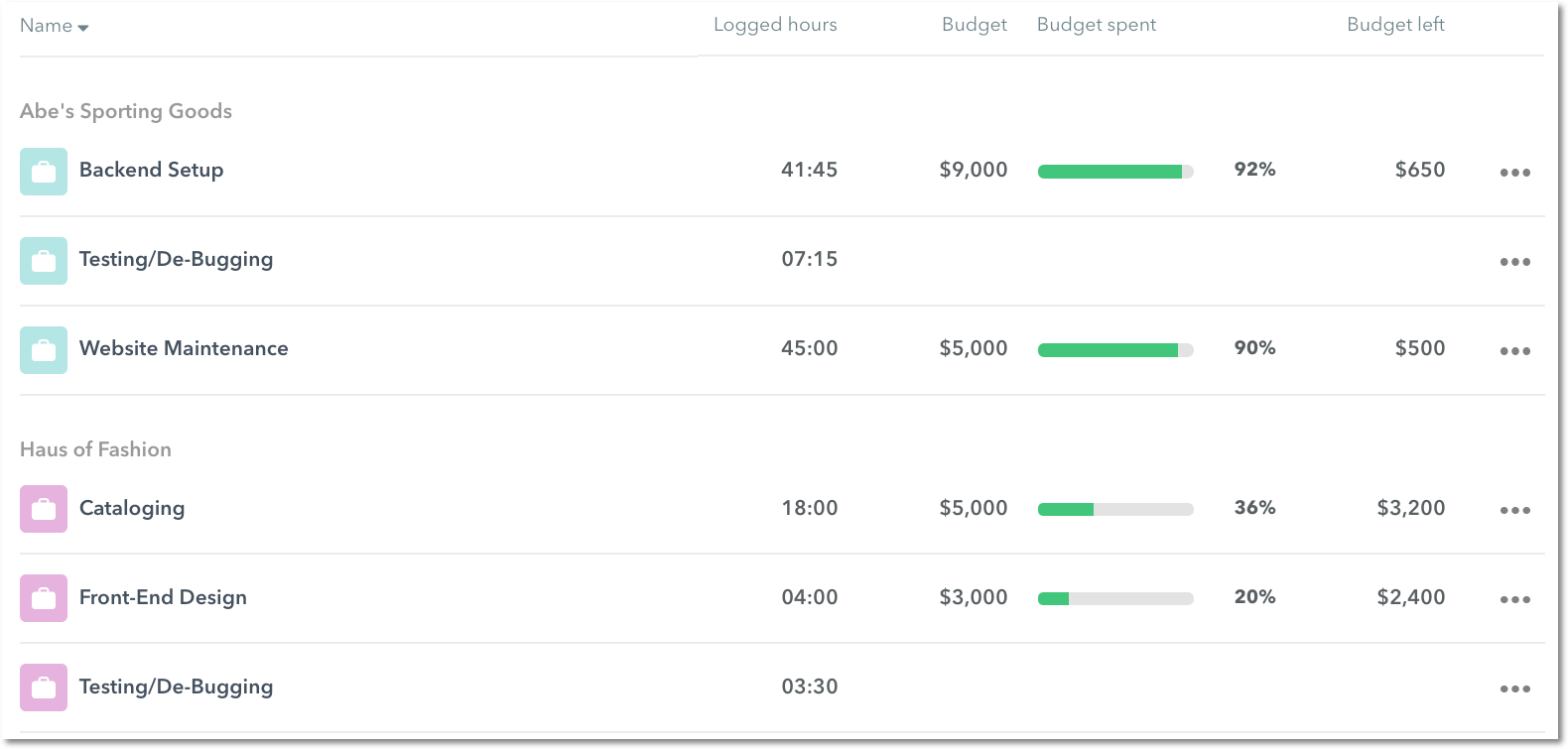
That way, it’s super easy to see which client your time entries belong to!
Last updated April 1, 2026
Have feedback for this article or need more help? Contact us now.