
The Projects page
Projects & TagsProjectsHandbookTrack and manage project health in seconds across all your clients.Think of the Projects page as your mission control center for staying on top of all of your projects. Here you get to keep track of your budgets, logged hours, and phase development.
The Projects page gives you all the tools you need to track an individual project or to juggle several at the same time. It has all the tools you need to manage your internal resources while communicating a project’s status to your clients.
The Dashboard tab
On the Projects page, you have two tabs: the Dashboard and Projects views. The Dashboard gives you a summary of all the project data that is most important to you. You can pin priority projects and scan Latest Activities for a breakdown of all essential project activities. It’s a really useful starting point for keeping track of all your projects.
Pinning projects
Each user has the flexibility to decide which projects matter most to them. Pinning a card locks the project to your personal dashboard for quick access to the most important information. To see more detailed information, click on a pinned card to access its dedicated project page.
When you first land on the Projects page, you’ll see Project cards representing your most recent projects:
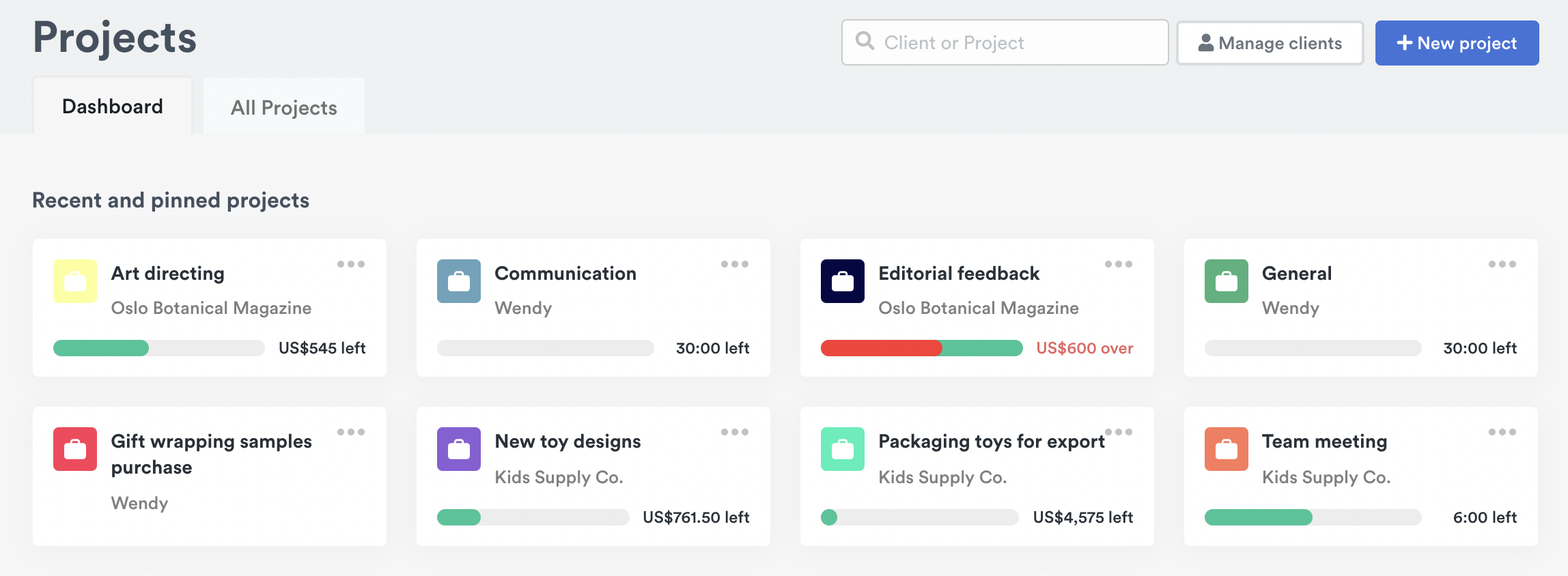
Projects are organized alphabetically. Once you start logging time or editing entries, the last nine projects you’ve interacted with will appear first. Each card includes the following info:
- Project name
- Client name
- Total budget remaining
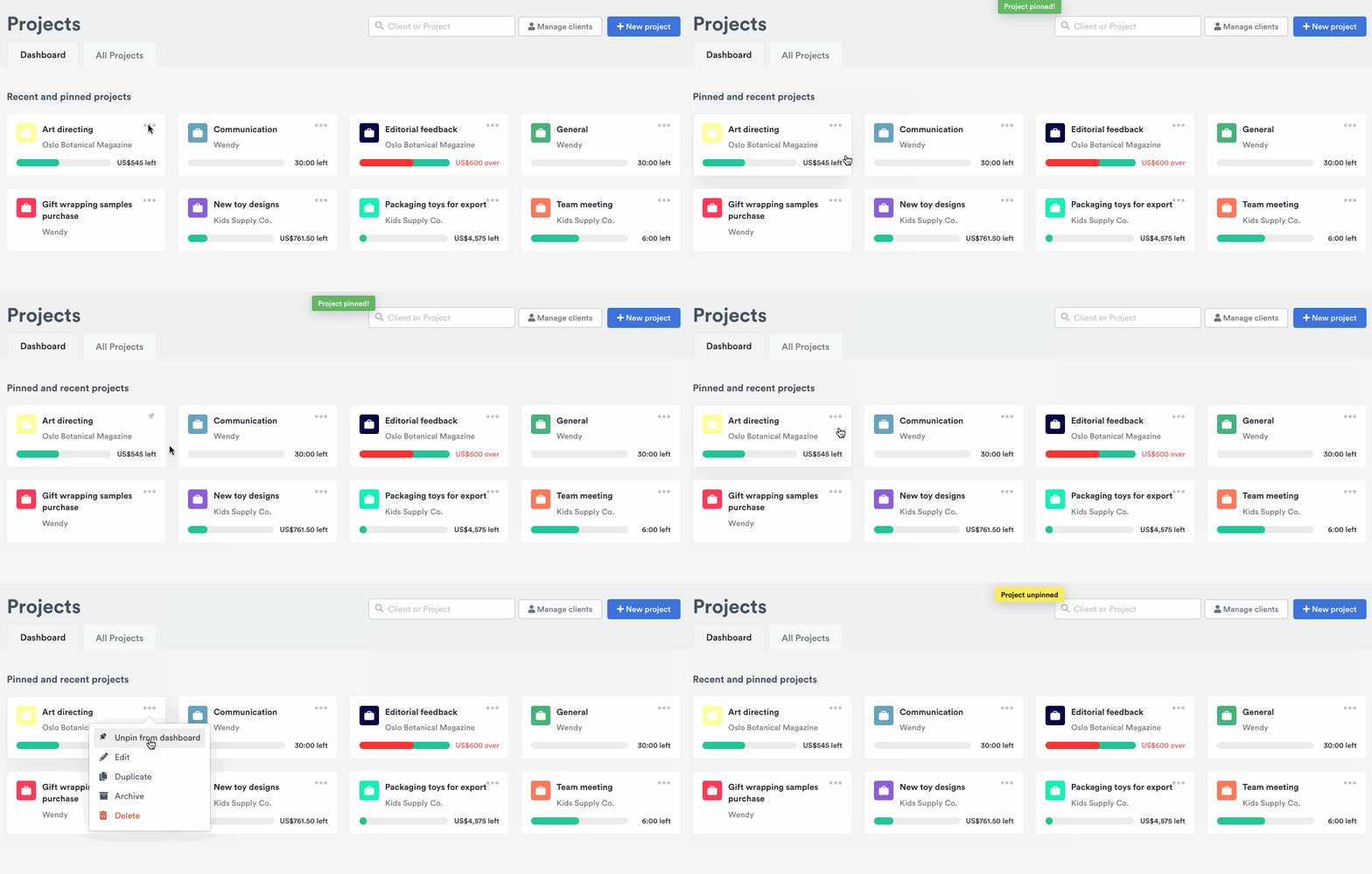
To pin a project, simply click the three-dot button ’…’ on the right-hand corner of any of your project cards, then click the Pin to dashboard button. You can also unpin a project in the same way:
Latest Activities
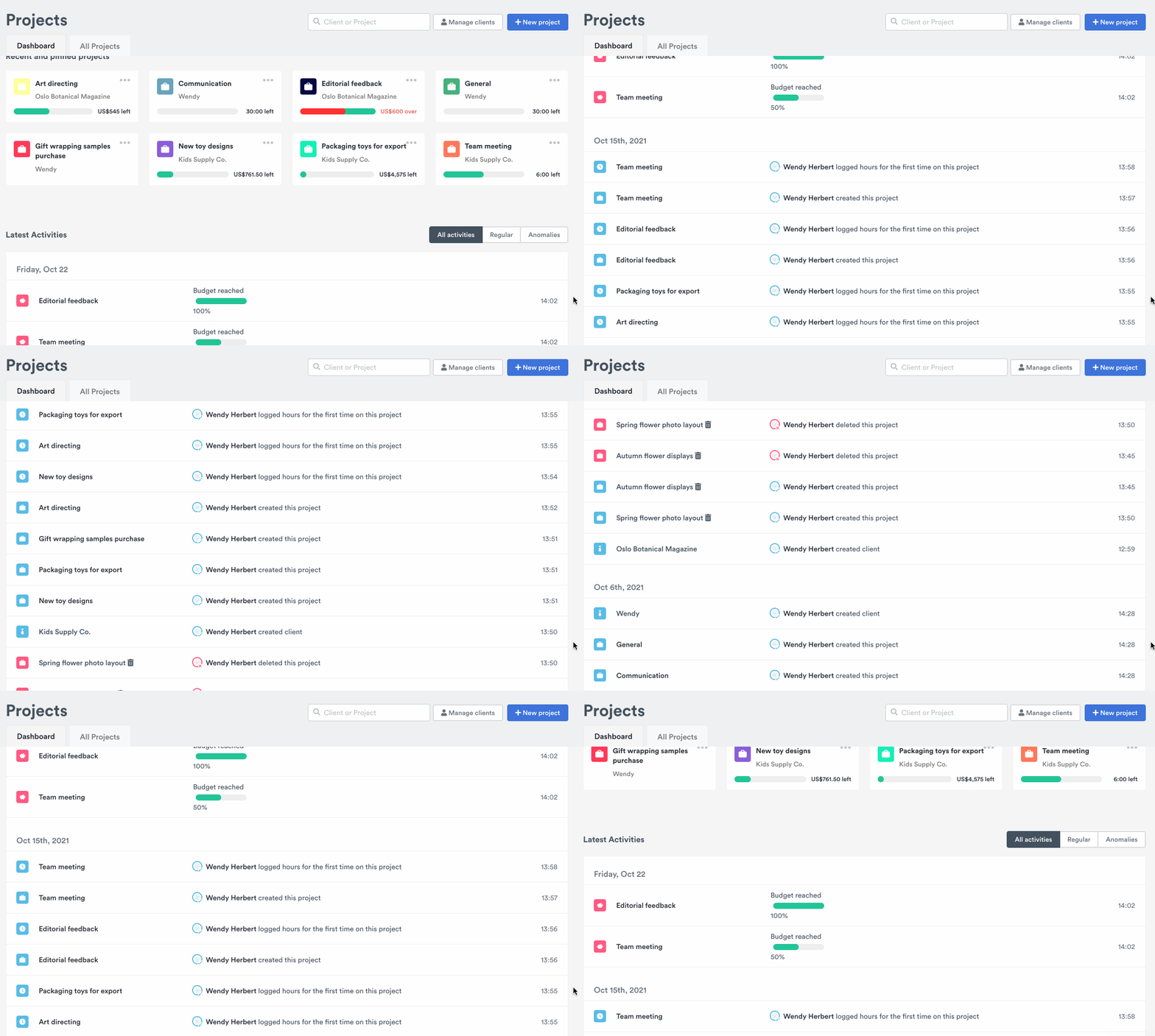
When you scroll down the Projects page you’ll see the Latest Activities tab. This is your log that details the budgets and other important activities related to your projects. This live feed is designed to keep Admin and Manager level users in the loop on project status updates as they happen.
The Projects tab
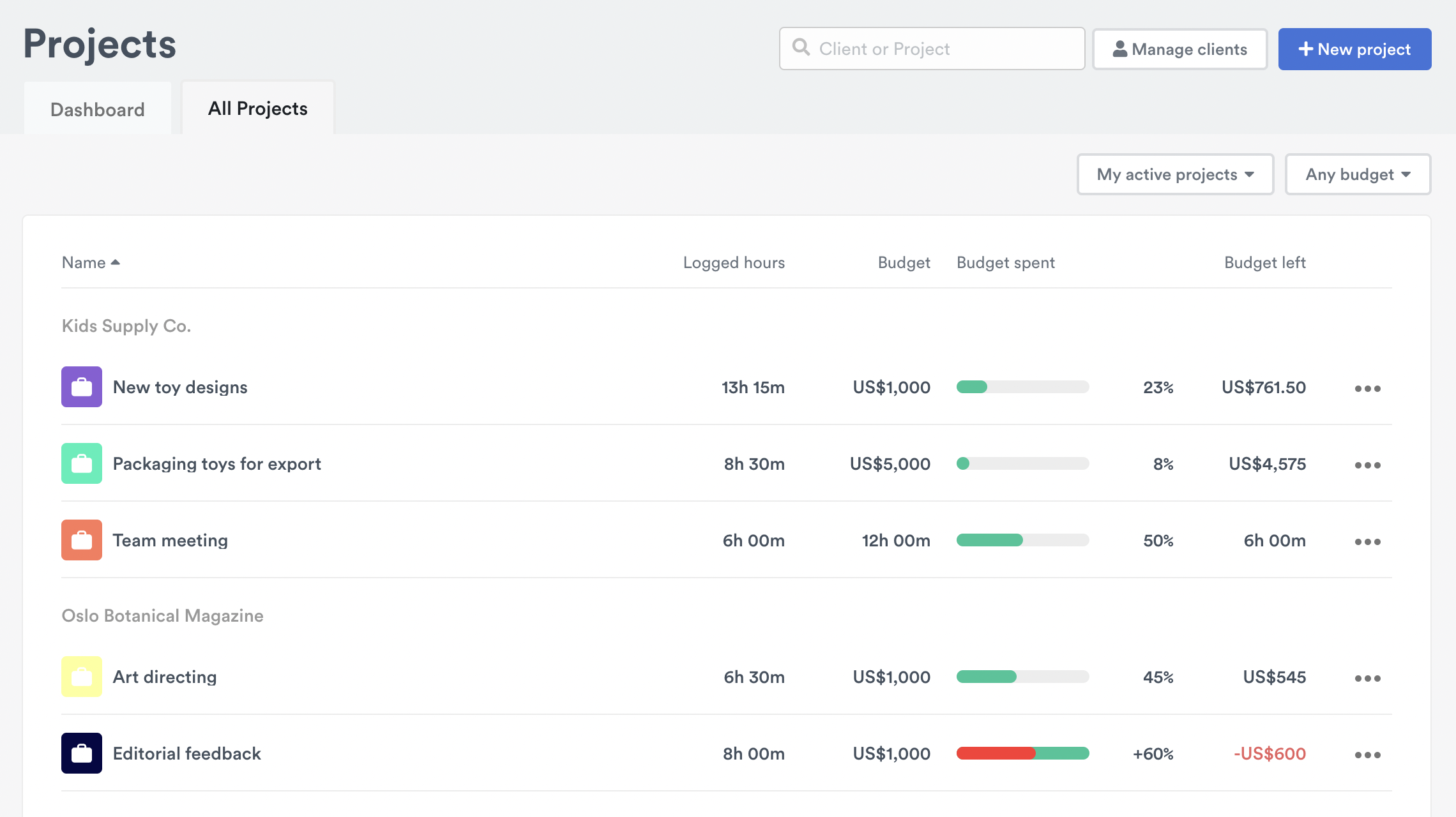
Selecting the Projects view gives you a good look at all the essential data across all your projects. It’s also where Admin and Manager level users can manage clients, add new projects, see archived projects, and edit existing projects. Employee-level users will only see projects they were added to and can’t see monetary values for budget progress.
Above the project list, next to the search field, you’ll see a Showing X of Y projects count. Y is the total number of projects matching your current filters, and X is the number shown on the current page.
Here’s a breakdown of what the Projects tab includes:
- Name – your project names. You can change if they are listed A-Z or Z-A by clicking the button next to the Name tab.
- Logged hours – the total logged hours for the life of the project
- Budget – the total budget assigned to the project (either time or money budget)
- Budget spent – a visual snapshot of what percentage of the budget is spent
- Budget left – how much of the project’s budget remains
Searching for projects by name
A quick way to get to a project you’re looking for is to simply search for it in the search field. Project names will start to auto-populate and you should find what you’re looking for in no time at all.

Filtering projects
Use the filter buttons in the toolbar to narrow down the project list by status, budget status, or your relation to a project. When a filter is active, its button appears highlighted so you can tell at a glance which filters are applied. A Clear filters button will appear alongside any active filters — click it to reset all filters at once while keeping your current sort order.
Choose what budget you see
The default view will show projects with any budget. Click the drop-down to filter for projects with a budget and those without. Projects that have been assigned a budget give you an overview of the money coming into your company or to you as a freelancer. It’s also really beneficial to see your projects that have a time budget, or no budget at all because there you get to see how much time you’re spending on administrative tasks as well.
Admins and Managers
Admins and Manager level users are able to view all active projects, company-wide. Employee-level users are only able to see the names of projects they are assigned to.
Admins and Managers can also bulk-reassign multiple projects to a different client directly from the Projects view. Select the projects you want to move using their checkboxes, then choose a client from the Update client picker in the batch actions bar that appears. See Bulk reassigning projects to another client for full details.
Individual Projects
Click a project name in either the Dashboard or Projects tabs. Once you’ve clicked the project name you’ll end up on that project’s individual project page. All the details you need about that individual project are there! You can also generate reports on whatever project-related information you need.
Last updated September 22, 2026
Have feedback for this article or need more help? Contact us now.