
Employee capacity
People & Team ManagementHandbookThe essential tool for effective team resource planning in Timely.Having an understanding of how your team is spending their time can unlock powerful insights and let managers steer the ship more effectively. Say 40% of all employee hours are spent on non-billable projects, but your company needs to log 80% to billable projects, resources may need to be reallocated to ensure everyone is on course to reach your company goals.
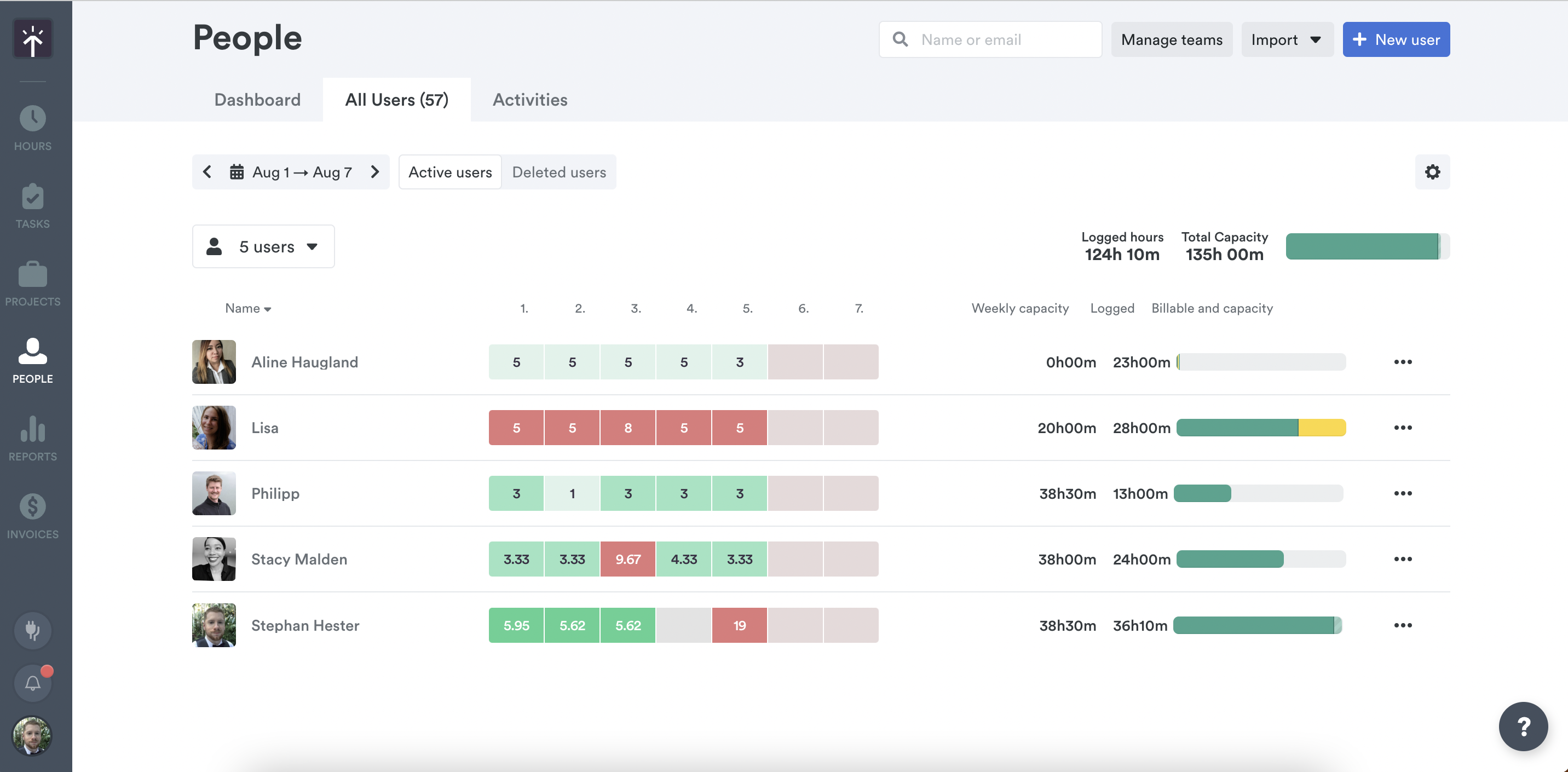
Capacity is a visualization of all the billable and non-billable projects your users worked on, against their total weekly capacity. You’ll find this feature on the People page > “All Users” tab.
Customize the Capacity feature
1: Set total weekly hours for your account
The default weekly total is set to 40 hours, but you can change it across your whole account in Settings > Workspace.
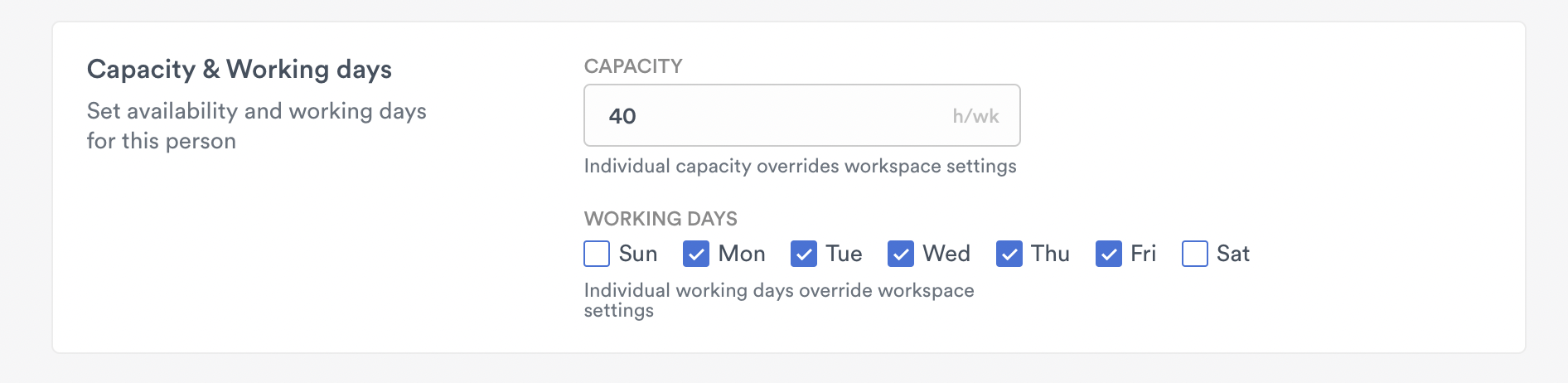
Of course, not all team members will have the same weekly capacity. If you have consultants or part-time employees, you can also set their weekly capacity individually. Just head to the People page, select the user you want to edit, click “Edit User”, and scroll down to “Capacity and working days” to set their individual capacity.
2: Select the time frame you want to see
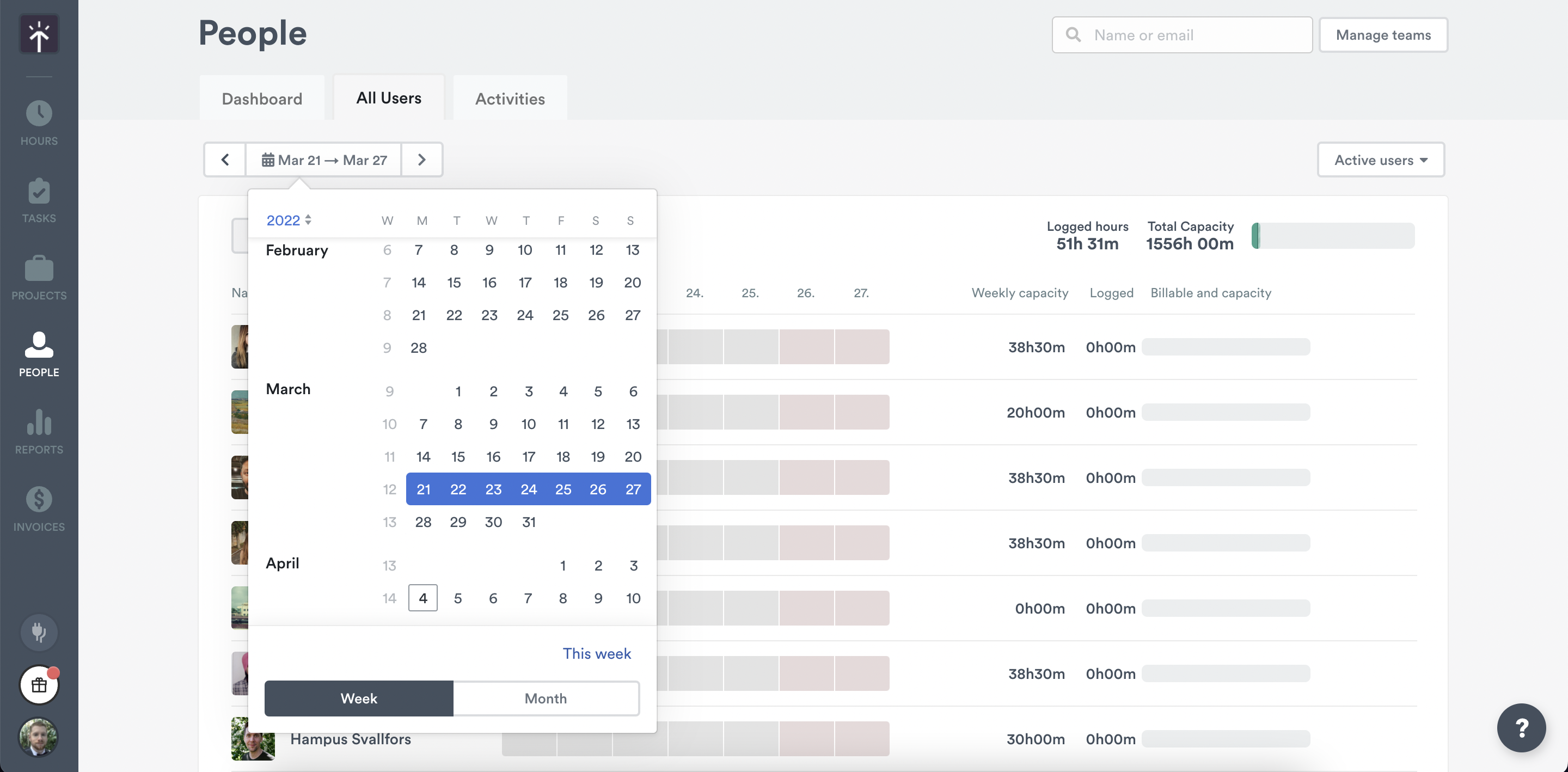
Select monthly or weekly capacity timeframe from the “All Users” tab on the People page. A weekly capacity view can help you schedule upcoming events, while the monthly view helps identify employees close to burn-out and those who aren’t consistently logging hours.
3: Select the user
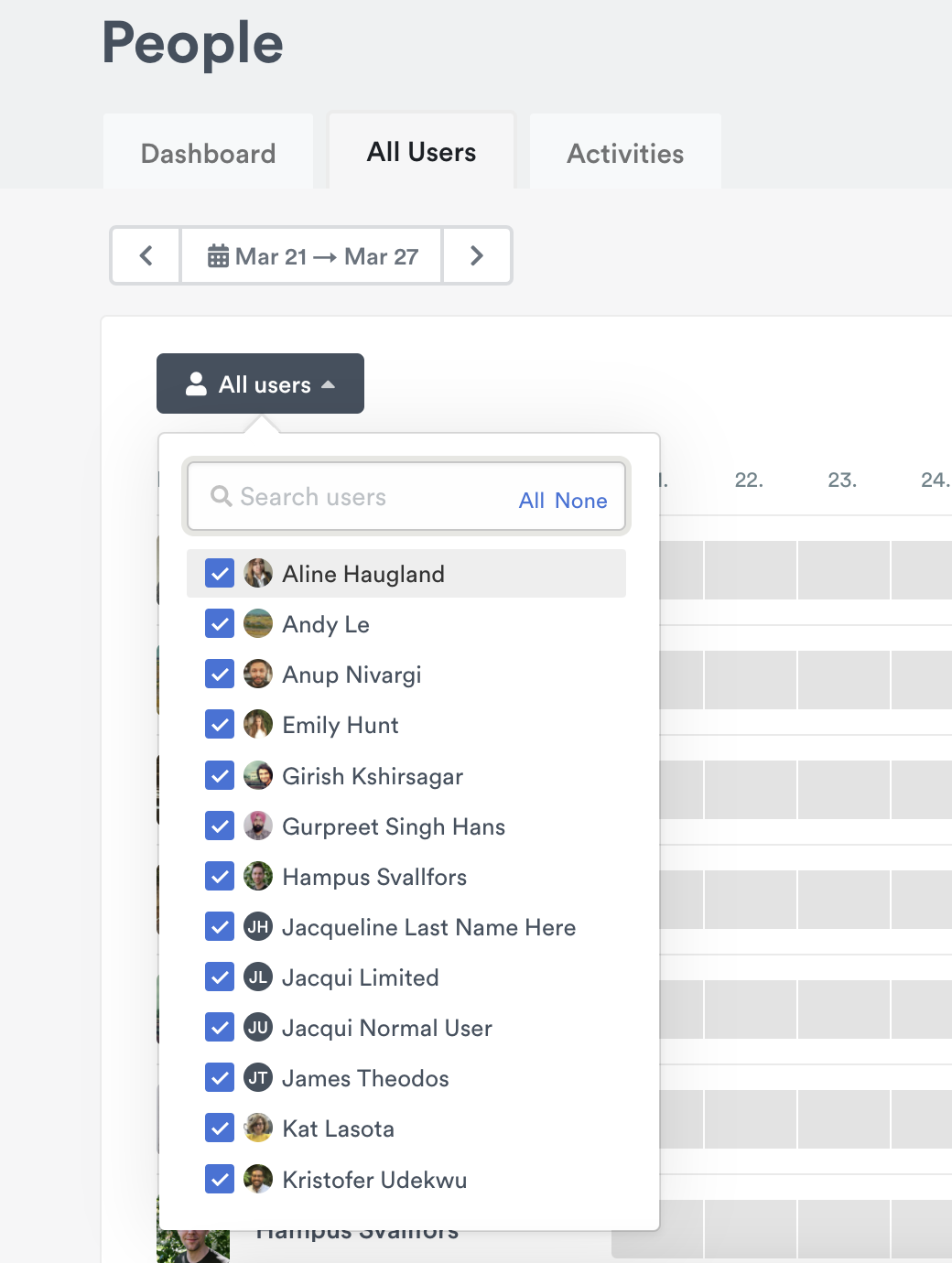
By default, all active users will be listed. To filter down by User name, click the users drop-down and select who you want to see. Entering a User in the search bar will auto-populate available selections for you.
4: Reading the results
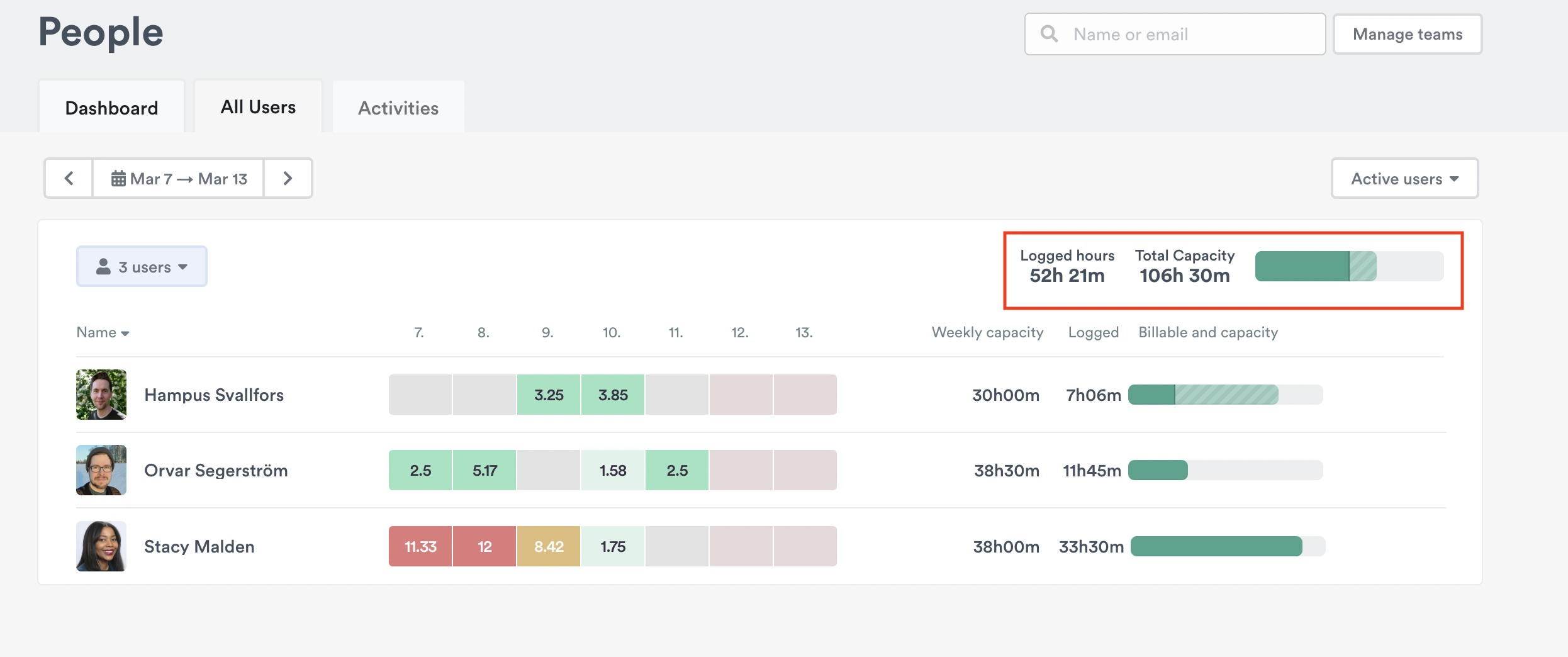
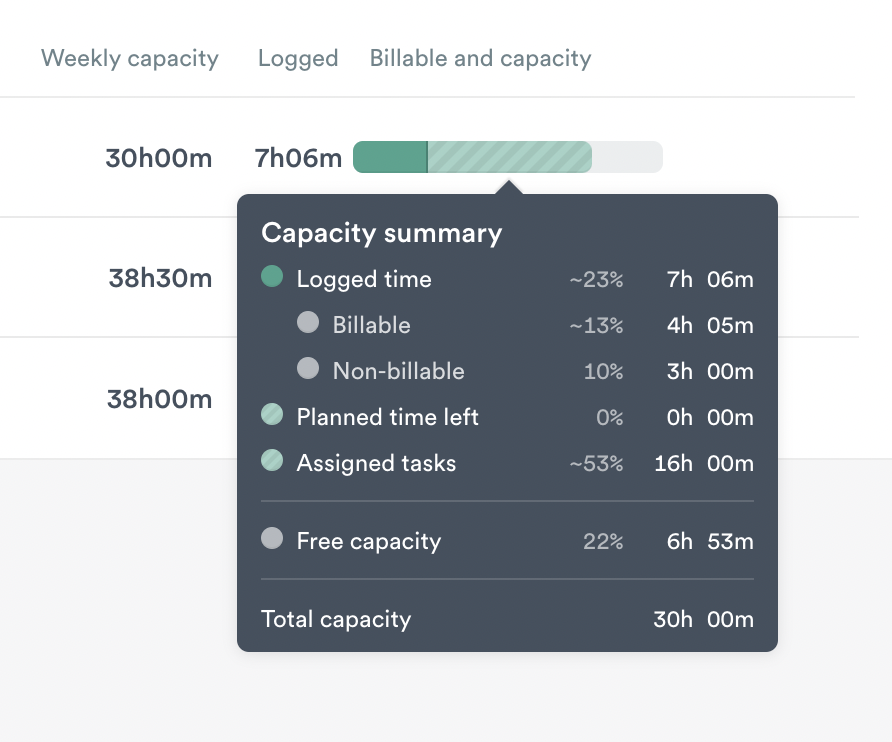
In the upper-right-hand corner of the chart, you’ll see the total logged hours and available capacity for all users on the account.
5: Plan for the future
Let’s say you’re pursuing a new client and need to understand if you have capacity for more work. You also need to give the client a realistic expectation of project delivery speed.
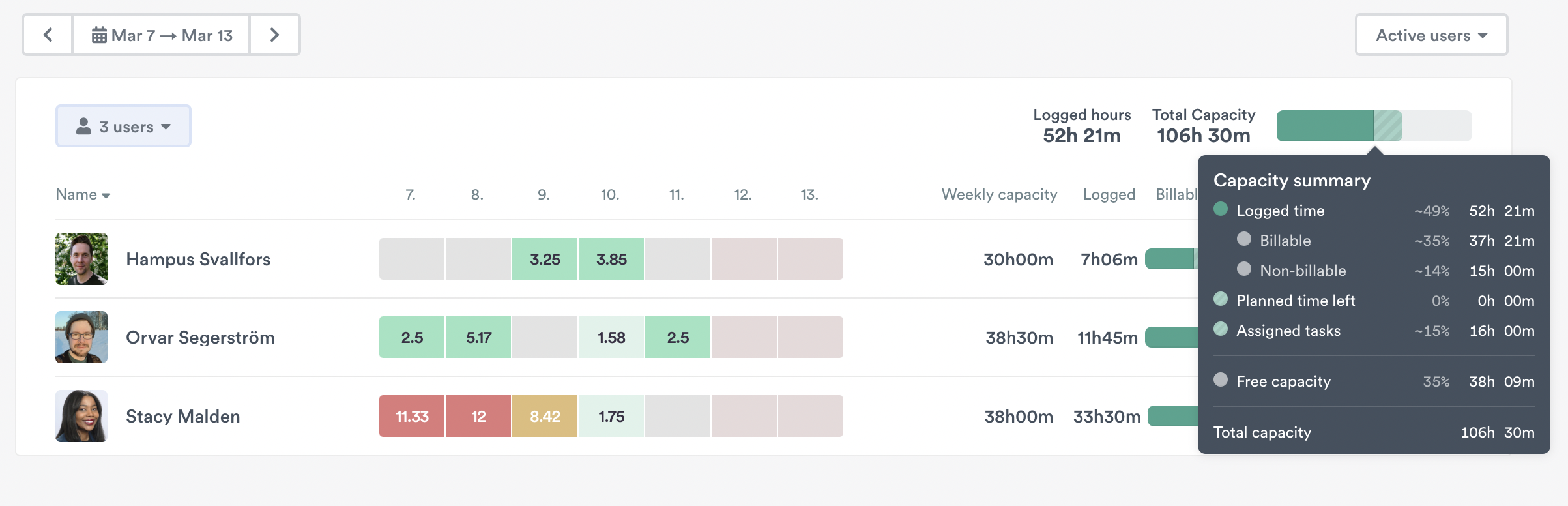
Pulling up the Capacity data from last week, you can see how your team — as a whole — logged against available weekly capacity. This data helps you identify team members who may have availability for new projects, those who spent time on training and are now ready to contribute to billable work, and more.
6: Schedule resources
Using the data from the Capacity feature, Admin and Manager level users can schedule hours for other users with Timely’s Company View feature. You can set aside hours for an incoming project, ensure a certain user will finish a particular project by its deadline, or log vacation hours for employees who are out of the office!
Reporting on employee capacity
For data-heavy super admins or folks who love a good overview — you can deep dive into your team’s capacity information with just a few clicks while creating your Custom Reports!
To get started, simply make sure you have the “People” or “Teams” data modules within your report and then click the gear shaped icon to the top right-hand side. You’ll see the “Capacity”, “Overtime”, and “Undertime” view options and can include or exclude those data points in your report as needed.
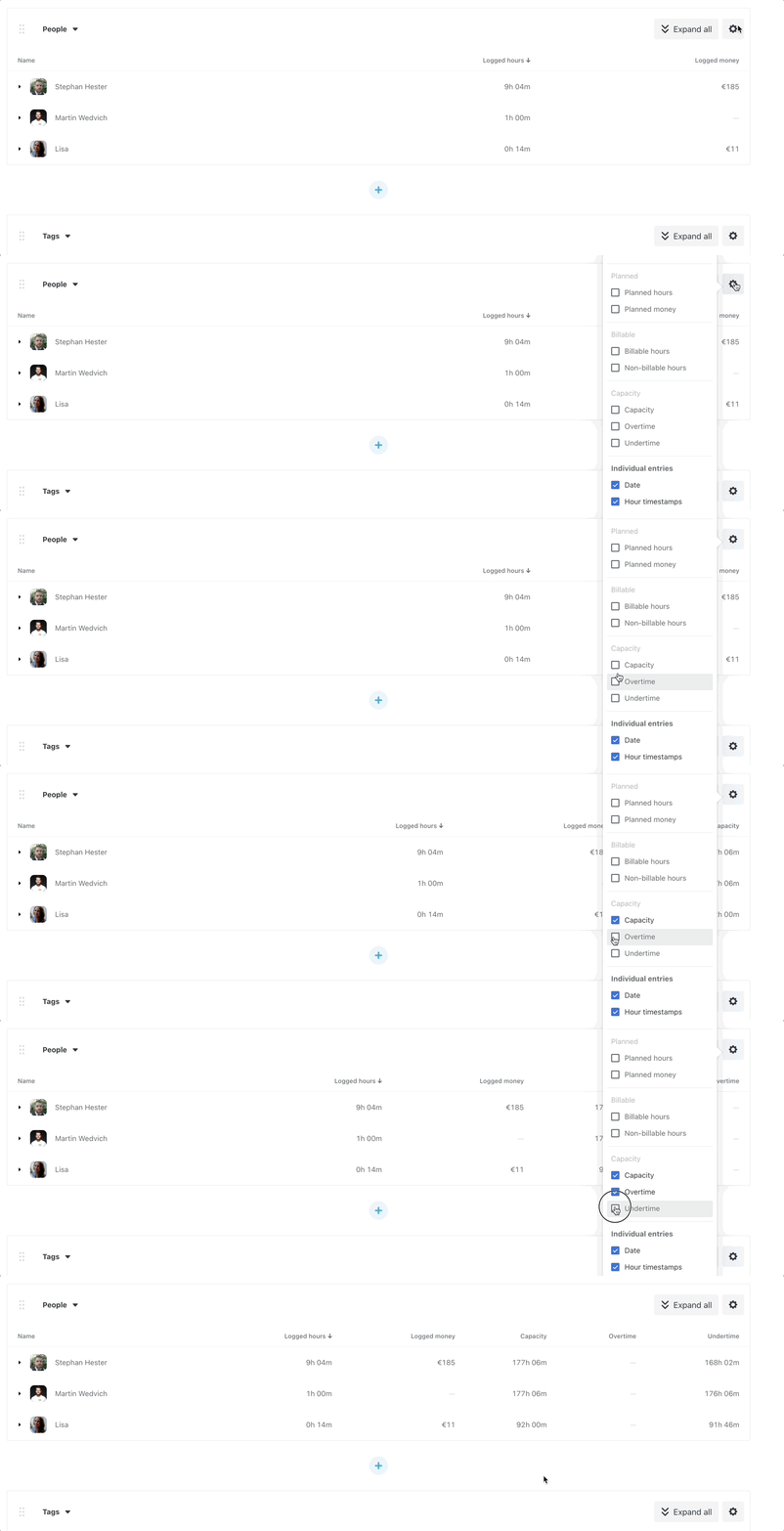
You will also see these data points as an option to include or exclude when selecting the columns for report exports.
Utilization % in report tables
People and Teams table widgets in Custom Reports can display a Utilization % column, found under the Calculated group in the column picker. This column divides each person or team’s billable hours by their capacity and shows the result as a color-coded pill, so you can see at a glance who is on track, under-utilized, or over capacity.
Pill color coding
| Pill color | What it means |
|---|---|
| Green | Utilization is at or above 80% — on target |
| Yellow | Utilization is below 80% — below target |
| Coral (with warning icon) | Utilization is above 100% — over capacity |
Hovering over any pill reveals the exact formula behind the number, for example: 30h 00m billable ÷ 40h 00m capacity. If a person or team has no capacity configured, the cell displays — instead of a pill.
How to add it to a report
- Open a Custom Report with a People or Teams table widget.
- Click the gear icon in the top-right corner of the widget.
- In the column picker, open the Calculated group and enable Utilization % (Billable hours / Capacity).
- Save the report — your column selection is remembered for next time.
Current limitations
Last updated August 28, 2026
Have feedback for this article or need more help? Contact us now.