
Using the Control feature
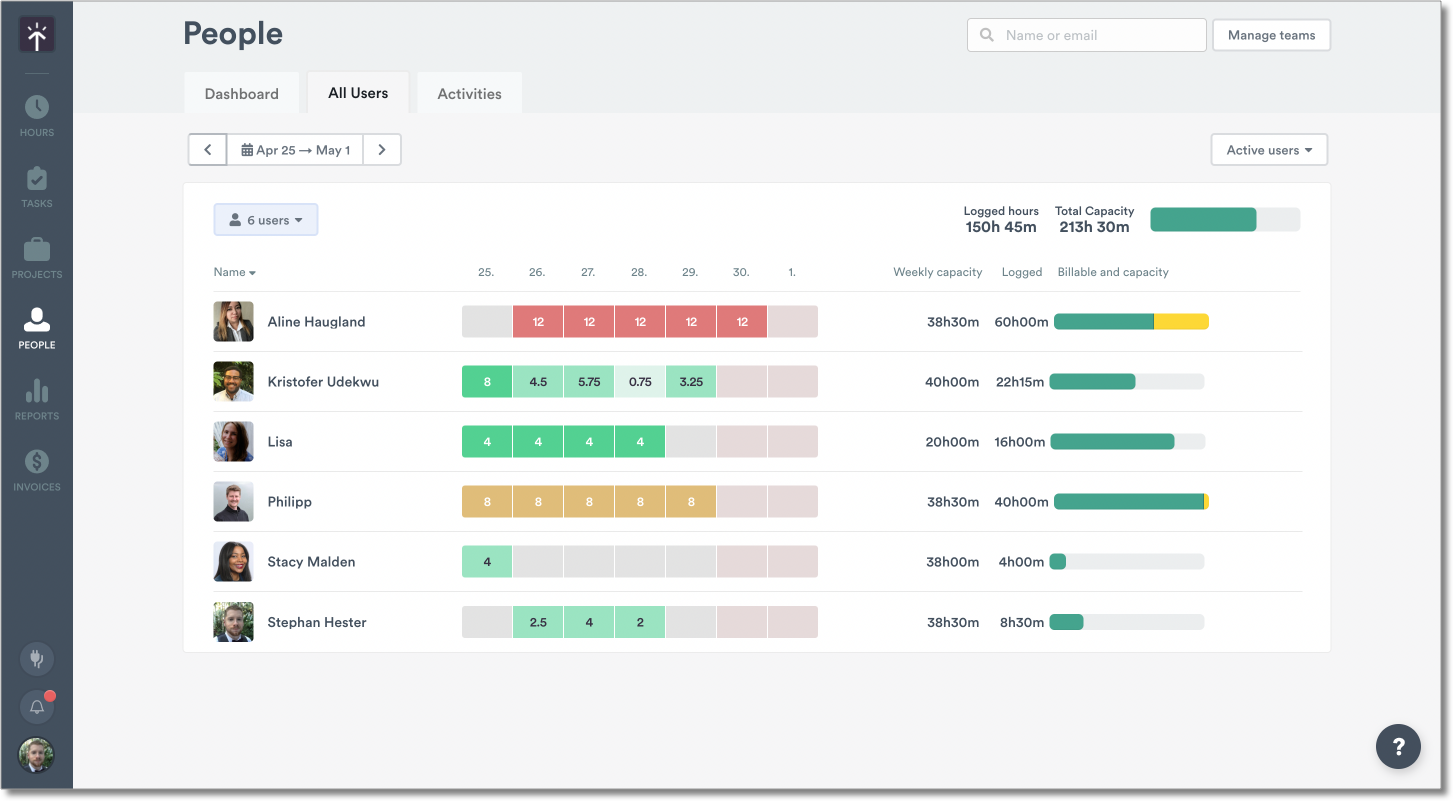
People & Team ManagementHandbookVisually track who's logging their hours from one place.The Control feature is a great place to easily and quickly see who’s been logging hours and who’s lagging behind. It helps team leads maintain control over their team and ensure everything’s running smoothly from one place. Just set a target weekly total for the hours your team needs to log and see who meets their goal on time!
Who can use the Control page?
Users with Admin and Manager access levels on the Company and Enterprise plans can see the Control feature.
How do I use it?
Set your work week capacity
Head to Settings > Global to set your weekly user capacity, which represents the total number of hours they work in a week. Timely divides this by five for you to provide their daily hours total.
All logged hours show a color status that helps you quickly see whether hours have been logged or not.
- Grey: The user has not yet logged any time.
- Light green: The user has logged time and is under their daily capacity.
- Green: The user has logged time and has met their daily capacity.
- Amber: The user has logged time and exceeded their daily capacity.
- Red: The user has logged time and significantly exceeded their daily capacity.
Choose a timeframe
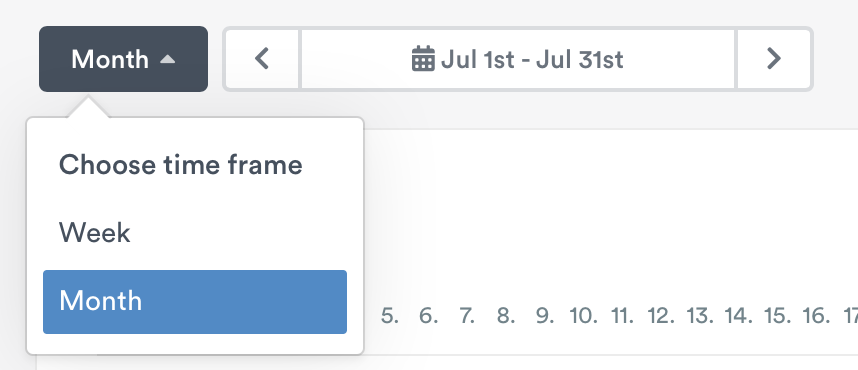
Use the drop-down to choose a Weekly or Monthly view option. Scroll to select the dates you’d like to view.
Viewing logged hours
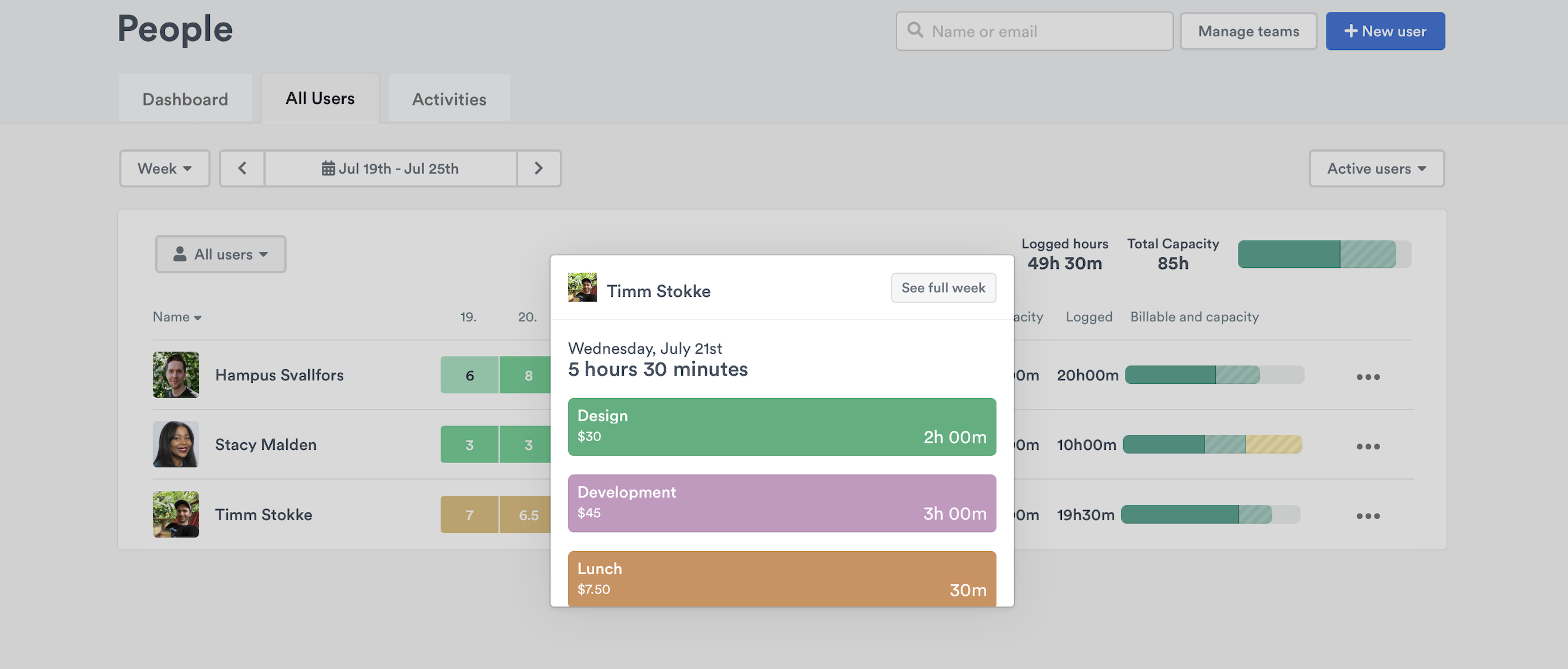
You can verify the specific projects a user is working on by clicking the coloured hours box on a given day. Select an individual logged time period to see the exact logged time entry.
You can also review a user’s weekly calendar by clicking on “See Full Week”. Here, you’ll be able to see their planned time entries as well!
Integrations column
The compliance dashboard includes an Integrations column (located after the Memory app column) that lets admins see the connected calendar, email, and other app status for each team member at a glance.
How it works
Each person’s row shows one pill per app they have connected to Timely — for example, Office 365 or Outlook Mail. If a person has not connected any apps, the column shows a muted None.
Connection lost
If Timely has lost the connection to an app, that pill appears in red and reads <App name> · Connection lost. This means Timely can no longer import activity from that app for that person, so their tracked time may be incomplete. The person can restore the connection from their own Integrations page.
Hovering over or focusing a pill shows a tooltip with the last successful import time — for example, Connection lost · last import 1w ago.
If a team member has connected the same app more than once (for example, two Google accounts), they appear as a single pill. The pill shows as Connection lost if any of those connections is broken, and the tooltip reflects the most recent import across all of them.
Sorting
Clicking the Integrations column header sorts the table so that people with a lost connection appear first, followed by people with healthy connections, and then people with no integrations.
CSV export
When you export the compliance table to CSV, the file includes an Integrations column. Each cell lists the connected apps for that person, separated by semicolons — for example, Office 365; Outlook Mail (connection lost).
Last updated September 29, 2026
Have feedback for this article or need more help? Contact us now.