
Updating entries in reports
ReportingHandbookMaking changes on the fly while reporting in Timely.Say you’re about to send out a report to a client outlining all the incredible work you and your team have done for them, but you notice one entry that’s missing some info. Potentially, you’ve been using one tag for a certain type of task but your team has made a change and now you need to update all past entries to make your hours consistent with the rest of your team’s…
It sounds daunting, but instead of having to comb back through the days and weeks to find that needle in the haystack — or identify bulk changes — Timely makes it super easy to edit entries directly from your reports! No hopping across pages to hunt down stray hours or painstakingly updating hundreds of entries; you can make those changes right there in the report in a matter of clicks.
Beyond filtering and formatting your data to visualize the hours you’ve logged in Timely, our reports also let you quickly make tweaks and changes along the way. Here are some common examples of what you can either change individually or in bulk from within a custom report.
Individual edits
Be it a description that doesn’t quite fit or a tag you forgot to add, these quick changes are a snap from within reports. Just find the entry you need to update and click on the description to pull up the “Edit entry” window. From there, you can make any changes you need.
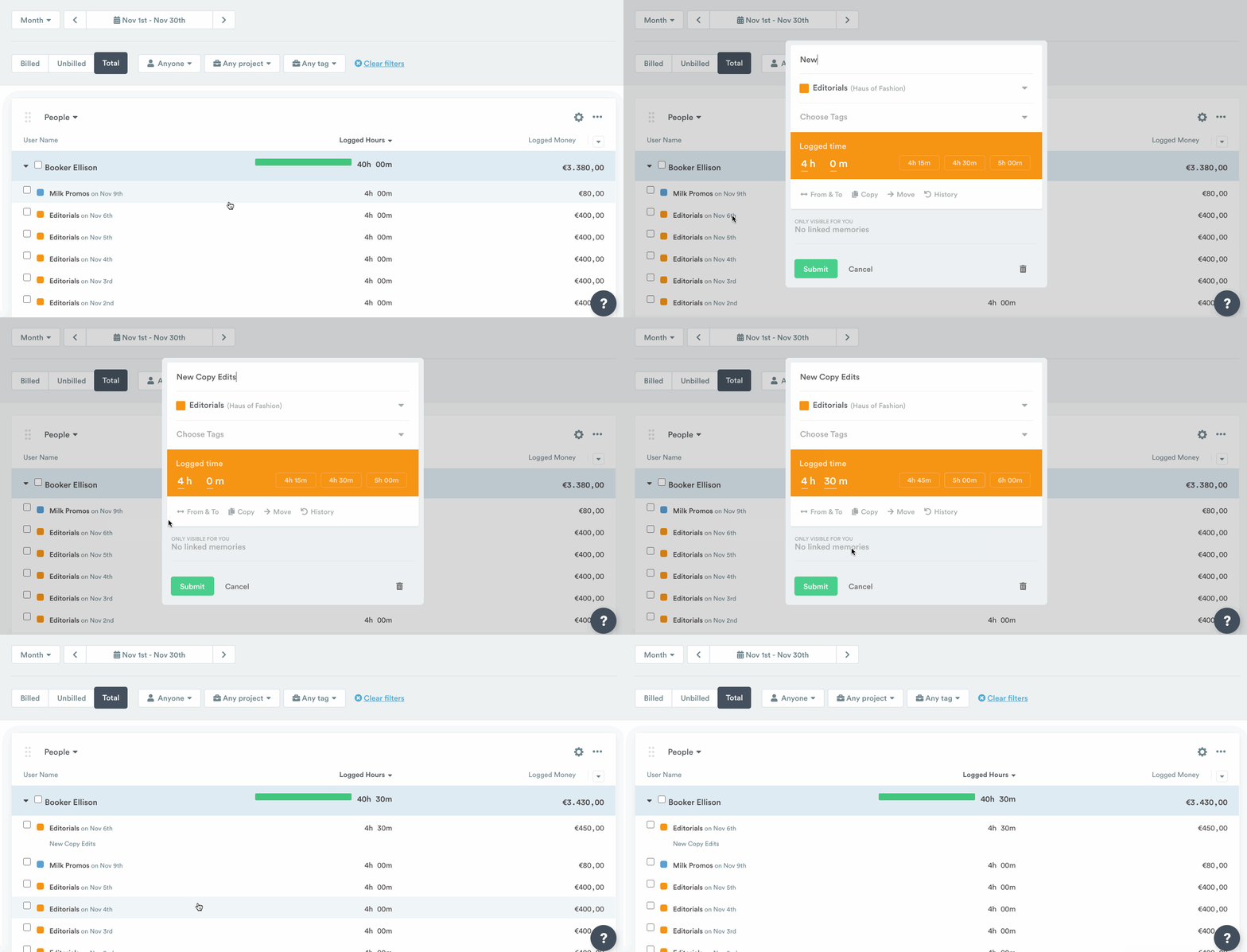
You can update any field you would normally adjust when creating an entry; your changes will only be made to the specific entry you have selected.
As an Admin or Manager user, you can also edit hours for other members of your team.
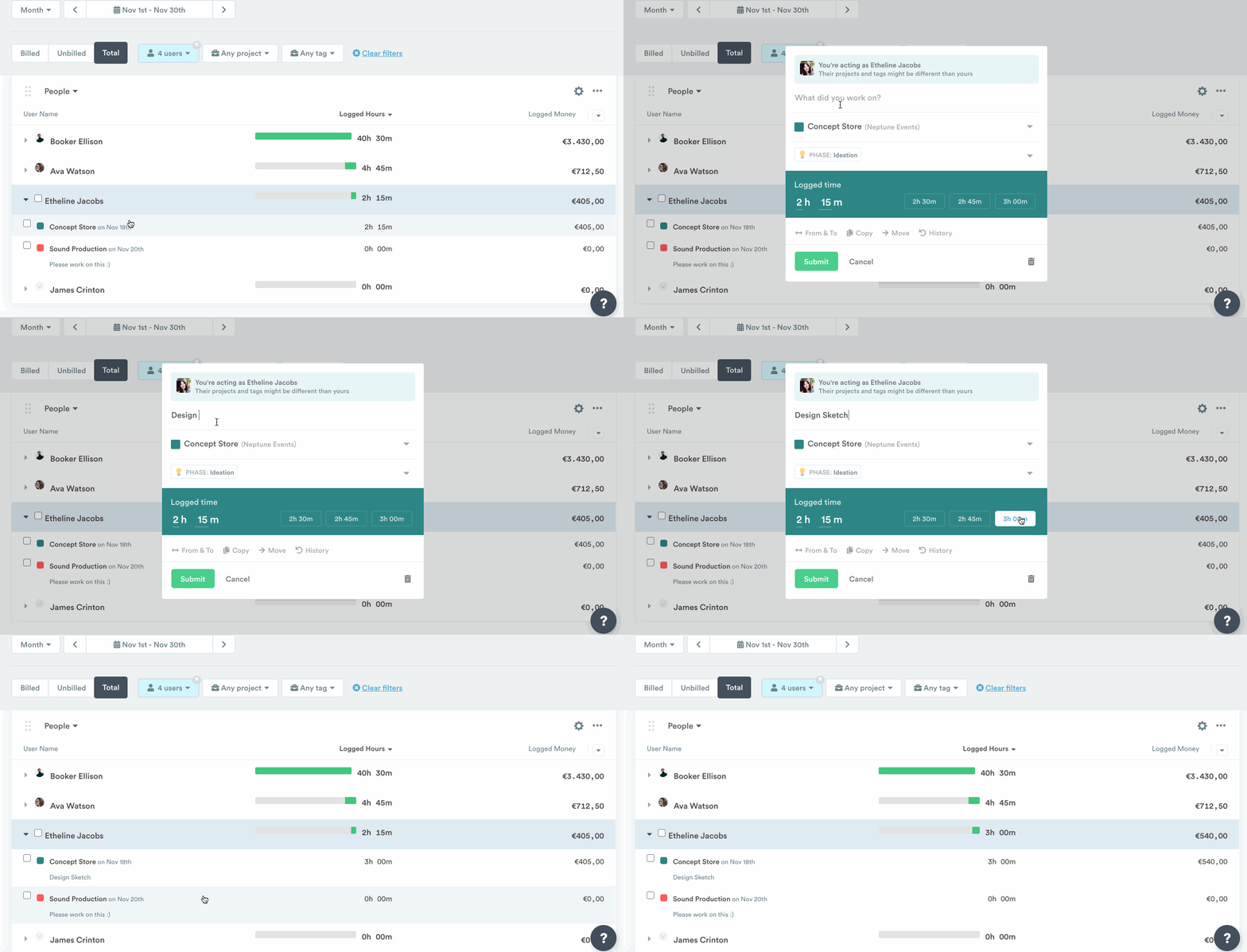
Bulk edits
You can also make bulk changes within reports, which is especially useful for updating groups of entries with incorrect or missing tags or for entries that were logged to the wrong projects. This really comes in handy if you’ve changed a process and need to update a ton of entries!
Managers and Admins can bulk-update the project on entries from multiple users in a single action — no need to repeat the process for each team member separately. When you select a target project:
- If some selected users aren’t members of that project, a confirmation popover will appear letting you choose to Add to project (using each user’s default hourly rate) or Skip entries for non-members.
- If there is also a billable setting mismatch, both the membership and billable questions are shown together in a single combined popover so nothing is silently bypassed.
- After a successful bulk project change, an Undo button appears in a toast notification for 10 seconds, allowing you to fully reverse the operation — including any project membership changes that were made.
Check out the article outlining all the bulk actions available in Timely.
Last updated June 30, 2026
Have feedback for this article or need more help? Contact us now.