
The People page
People & Team ManagementHandbookReview employee capacity, hours, overtime and availability from one smart view.The People page is your one-stop shop for managing teams. You can monitor individual capacity, see who’s logged their hours and ensure everyone’s working to your priorities. Understanding how people spend their time also helps you distribute workloads and allocate resources effectively to hit your targets, every time.
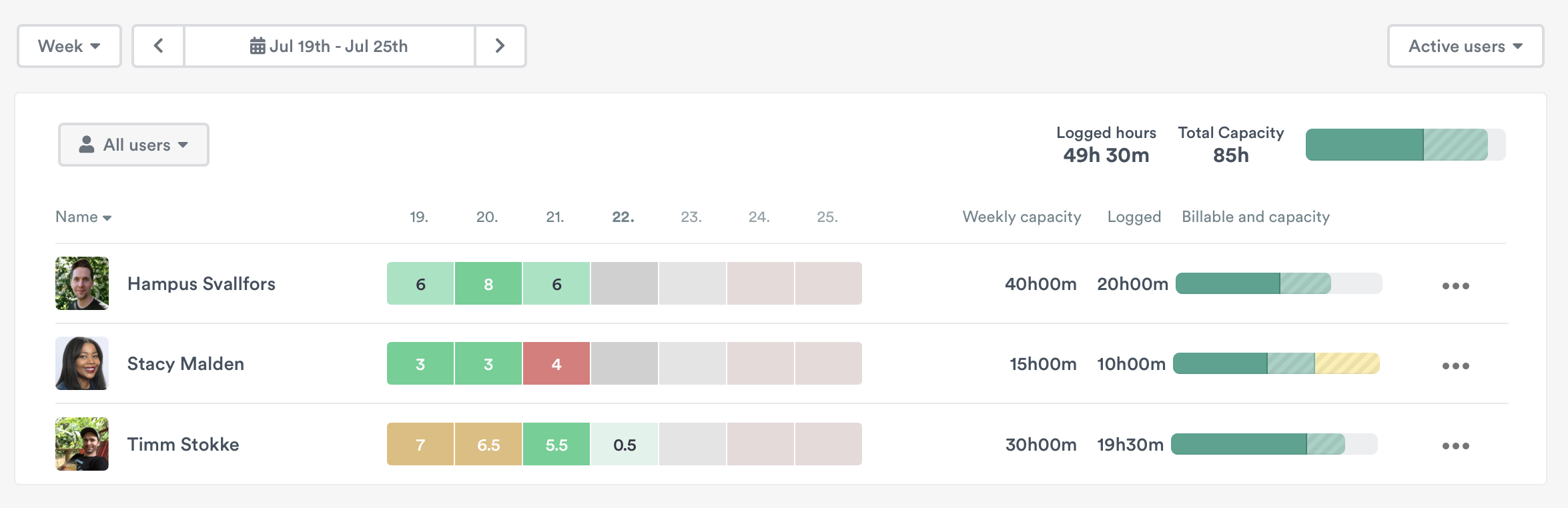
Click on a user’s name from here to access their individual user page, where you can review or report on their activities.
Learn about the Capacity feature. If you’re on the Company or Professional plan or any of our team plans, get to know the Control feature here.
Users
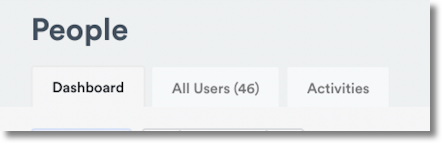
Your People page displays a list of all users on the account, including people who have been invited but haven’t activated their account yet. You’ll see a running total number of users on the account at the very top.
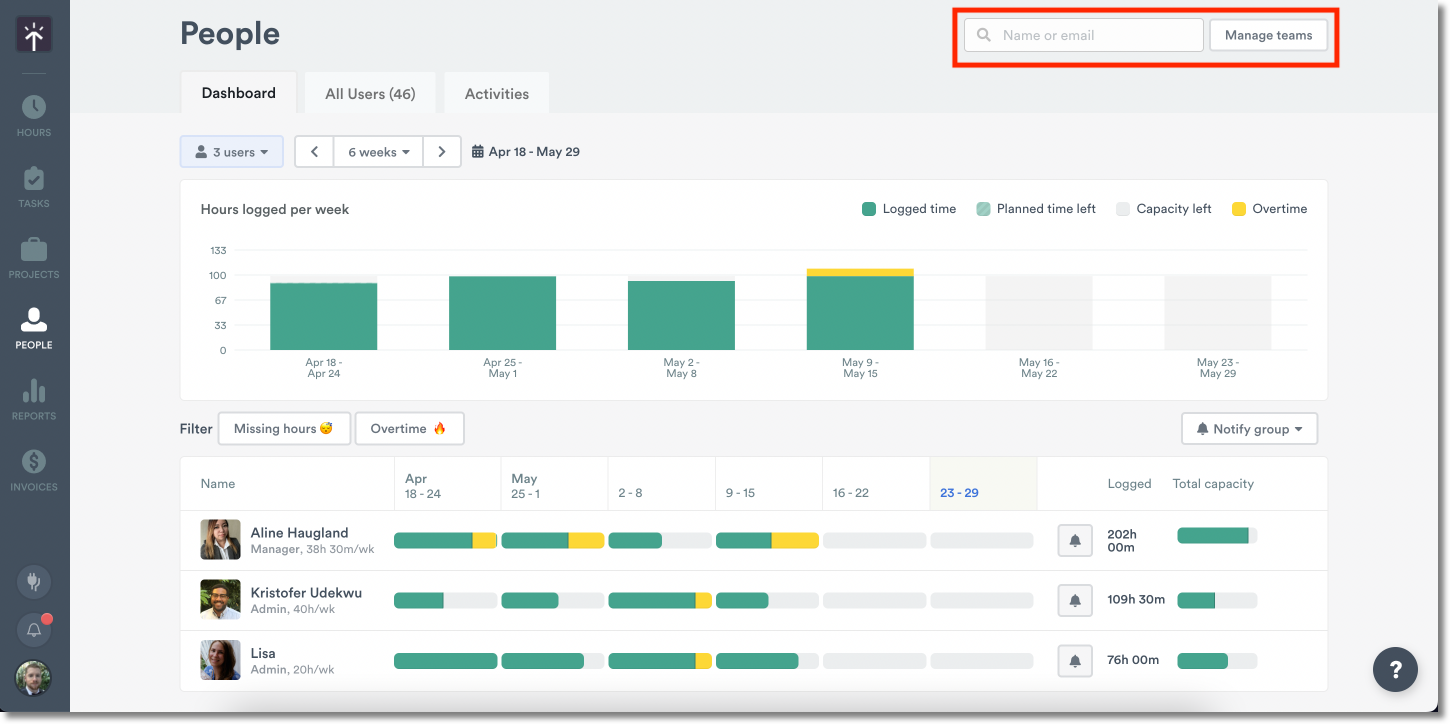
Search for users
Typing user names or email addresses into the search bar will auto-populate their names. Selecting their name automatically redirects you to their individual dashboard, where you can see their activity, review user details, edit user permissions, and create a sharable or exportable report!
Active, invited and deleted users
The Users list is split into three groups, each with its own count:
- Active users – people who have accepted their invite and activated their account
- Invited users – people whose invite is still pending
- Deleted users – people who have been removed from the account
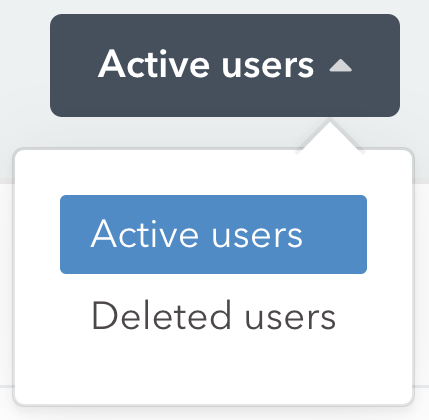
Switch between them using the options at the top of the Users list. The Active users count doesn’t include pending invites.
Can’t find an active user? They may not have accepted their invite yet, so check Invited users. If they’re not there either, they may have been deleted; check Deleted users.
Adding and deleting users
Add a user by clicking the “+New user” button in the upper right-hand corner of the People main page. This takes you to the ‘Invite New User’ page, where you can set the user access level, assign them to projects, set their rates and add them to a team.
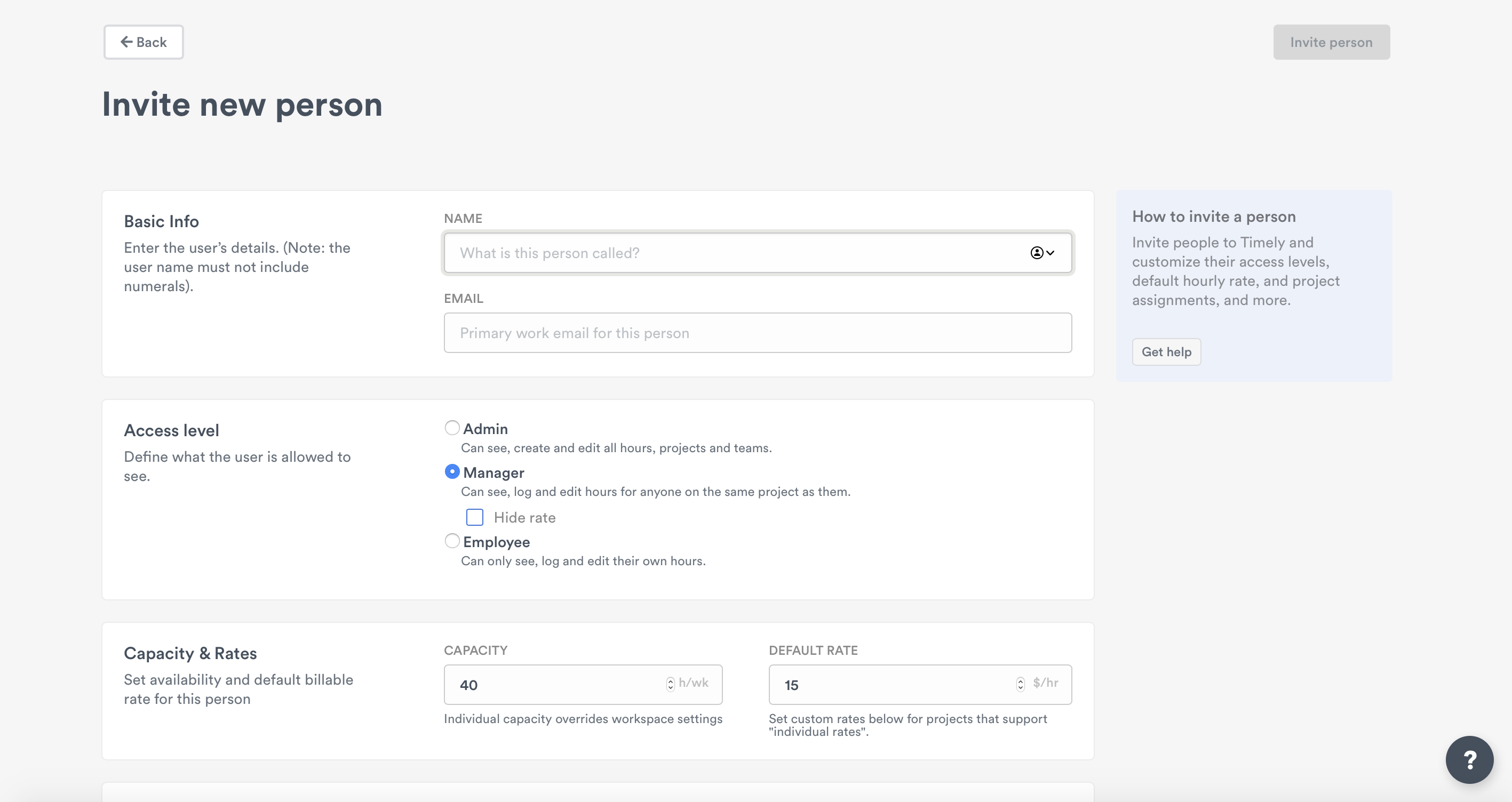
Users invited to a Timely account will receive an email to activate their account. Until they do, they’re listed under Invited users. Once they’ve activated it they’ll be tracking time and logging hours in no time!
Made a mistake? No biggie! Edit their permissions anytime from the Individual user page.
How do I delete a user?
Remove a user from an account by clicking the ”…” or quick action button. You won’t lose their data; deleted user information will remain on your account so you can generate reports for projects they’ve worked on.
Checking integration status across your team
Admins on accounts with the Compliance dashboard will see an extra Compliance tab on the People page. The Compliance dashboard is a beta feature that Timely support turns on for individual accounts; it isn’t included in any plan by default, so contact support if you’d like access.
The compliance dashboard includes an Integrations column that shows the connected calendar and email app status for each person. If someone’s connection to an app such as Office 365 or Outlook Mail has been lost, a red Connection lost pill appears in their row. This means Timely can no longer automatically import activity from that app, which may leave gaps in their tracked time.
For full details on sorting, tooltips, and the CSV export, see Using the Control feature — Integrations column.
Last updated October 7, 2026
Have feedback for this article or need more help? Contact us now.