
A brief introduction to tags
Projects & TagsTagsHandbookUnderstand time spent on tasks, projects and phases using tags in Timely.Tags are great organizational tools and can be used in many different ways. We mainly use them to track different project phases, tasks, and sub-projects.
Tag lists allow you to standardize the way you report on the hours you log. They can be used to track the phases and activities of a project:
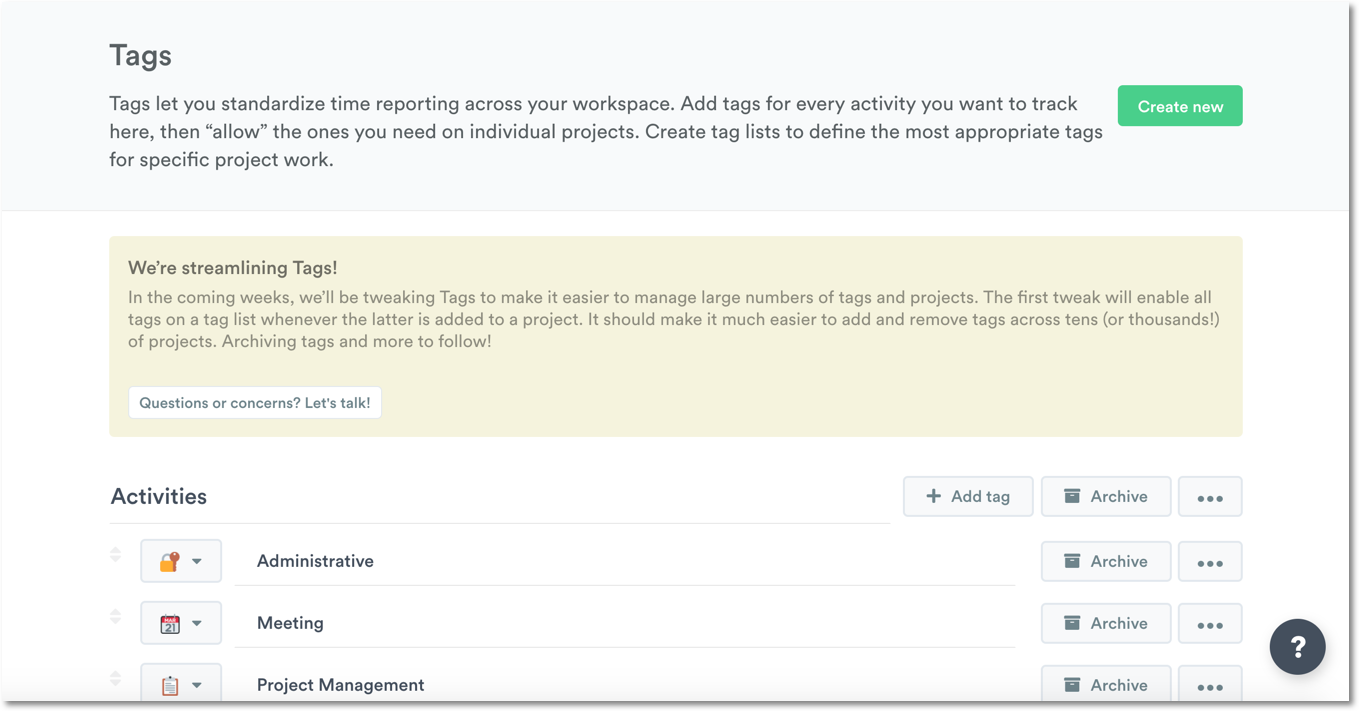
Tags
Tag lists are comprised of individual tags that allow you to track the granular detail of what you work on within a specific project phase or task.
They’re a really simple way of drilling further down to see how users spend their time:
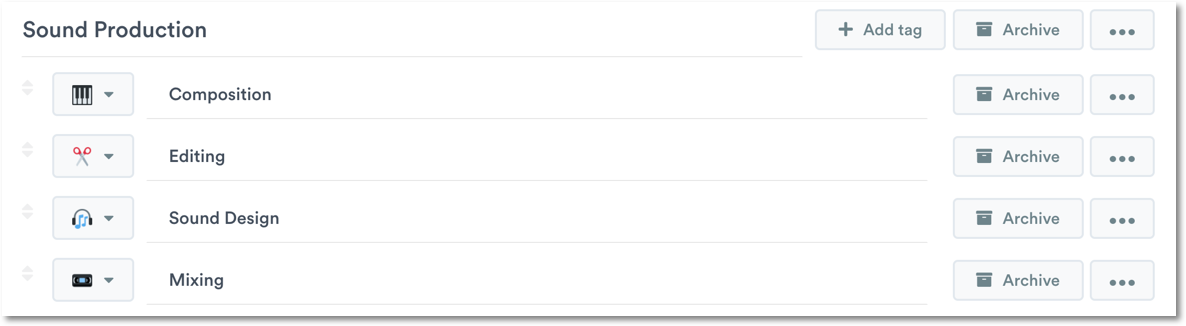
Applying tags to an entry
After creating a new tag list within your global Tag settings, you need to add it to projects so users can start applying tags to their entries. Only the tag lists you add to a project will be visible to your team when they go to log a time entry.
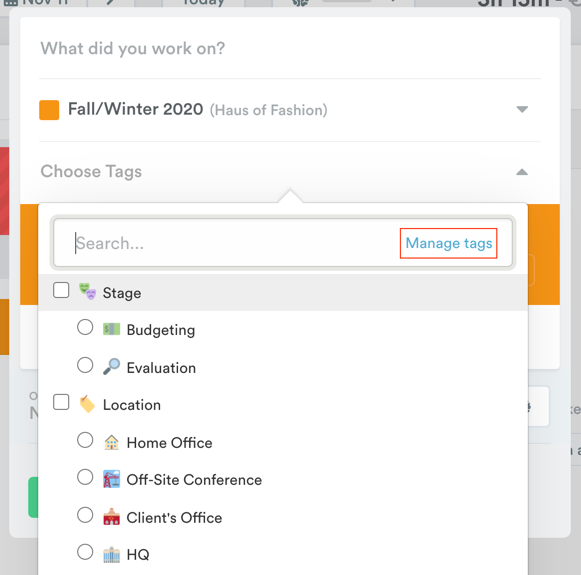
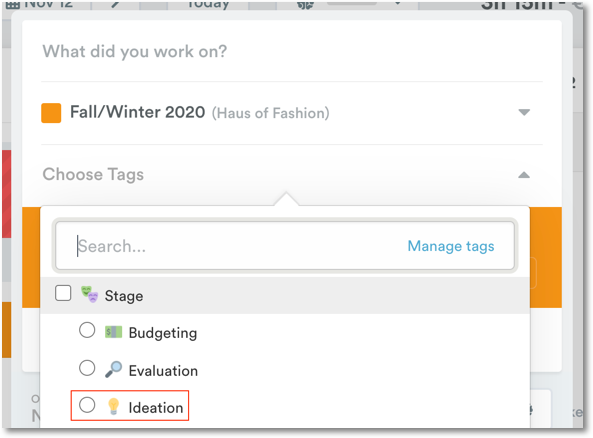
When writing a note for your entry, use the “tab” key to select an existing tag from the checkbox list. Don’t see the tag you want to use? Just click “Manage Tags” to add more (e.g. “Ideation” in the “Stage” tag list):
After adding that tag to the tag list, head to the project and update by adding the new tag to the list:
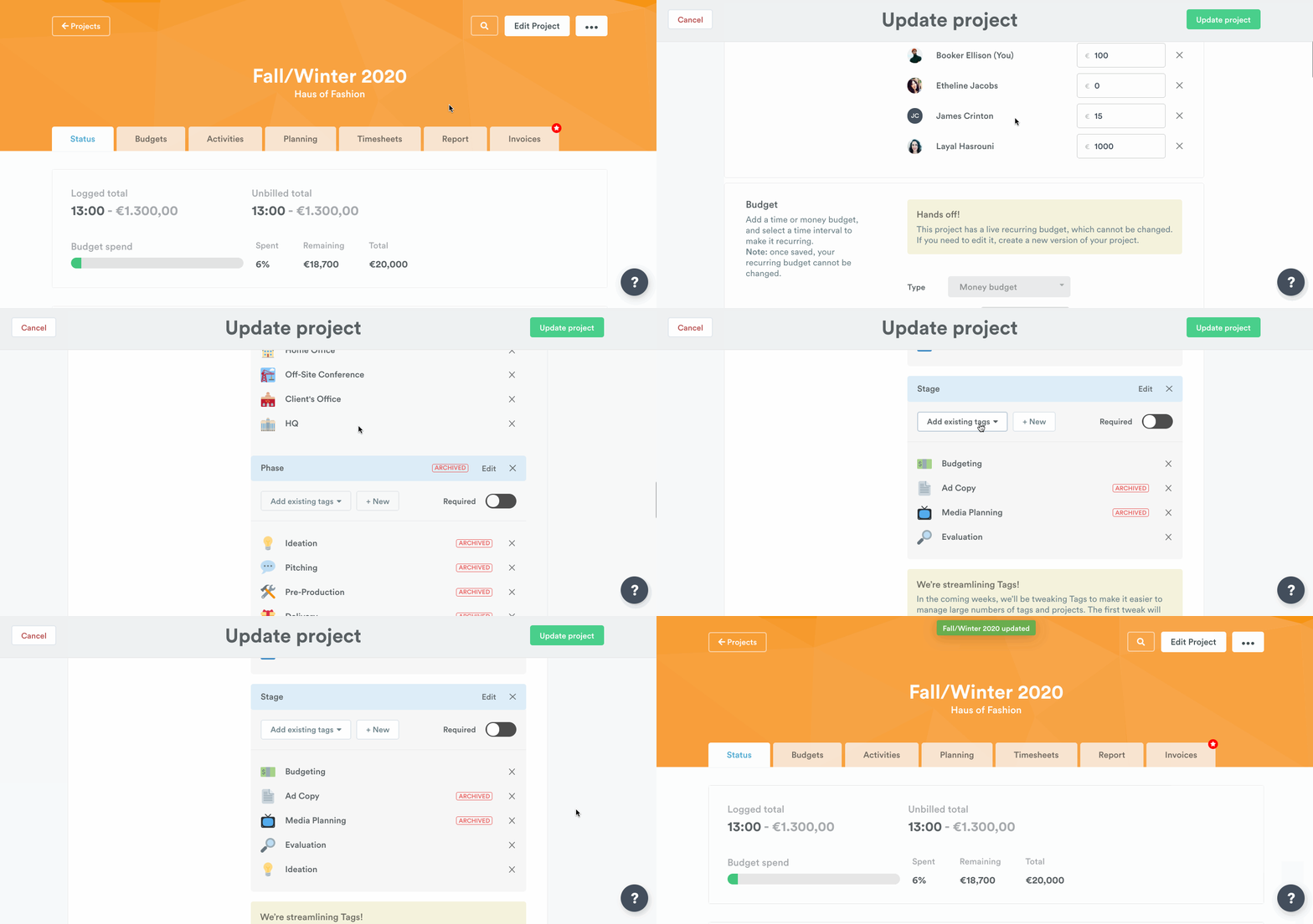
The next time you add a new entry, you’ll be able to use that tag on your project:
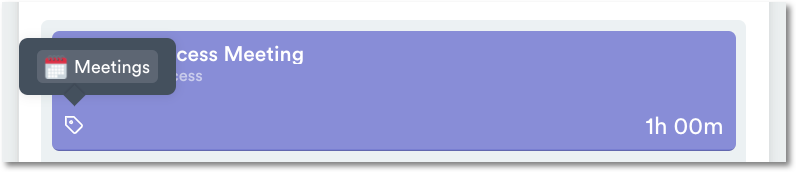
An entry can have as many tags as you want (depending what tag lists you allow on each project).
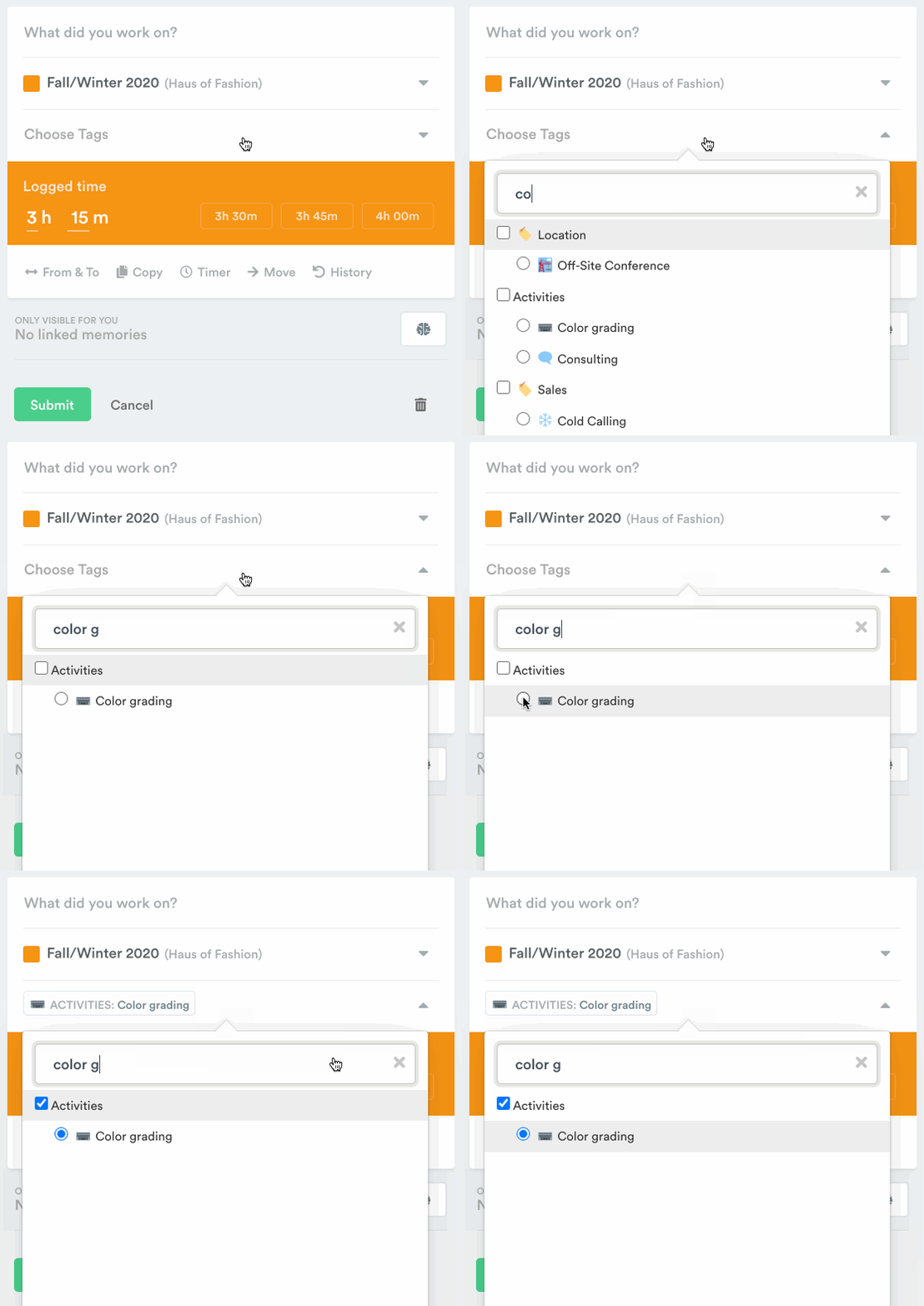
Use the tag search bar if you can’t find what you’re looking for:
Single-tag mode and exports
Some projects are configured with Allow only one tag enabled. When you select a sub-tag on one of these projects (for example, Project Management from the Tech Roadmap tag list), Timely stores both the sub-tag and its parent tag list together on the entry.
This means the tag context is consistent everywhere you look:
- The hour editor and report grid display the full combination — Tech Roadmap: Project Management
- CSV and Excel exports include both values — Tech Roadmap, Project Management
- Invoice line descriptions and other downstream uses of the entry’s tags also reflect the complete information
The one-tag rule is unchanged: selecting a sub-tag still counts as a single tag, and choosing a different sub-tag replaces the previous one rather than adding to it.
Reporting using tags
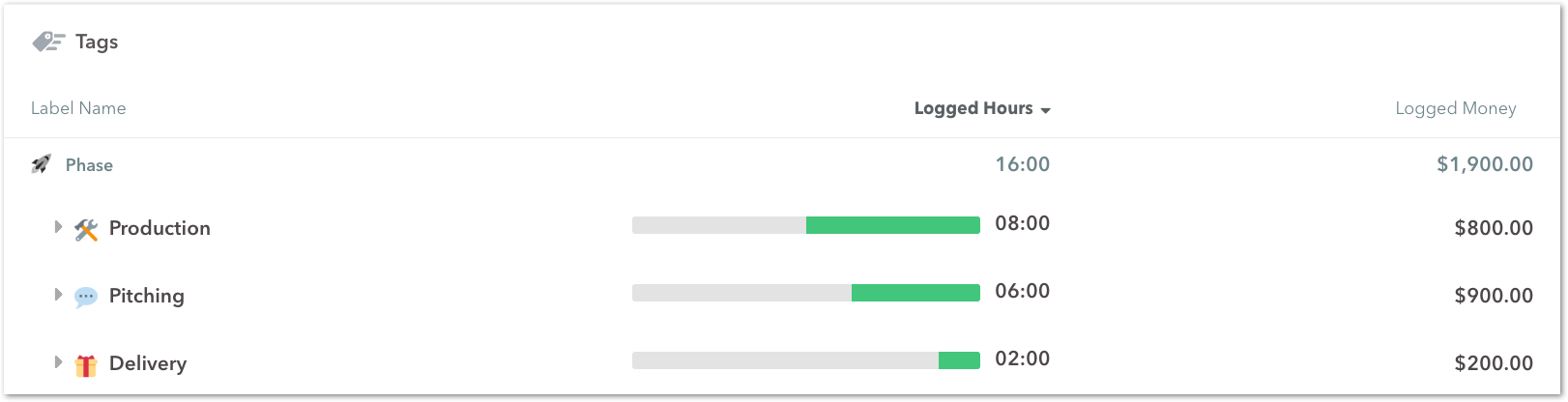
Get a visual overview of your tags from an individual project page or when creating a report:
FAQs
Can I edit tags by users within my workspace?
Right now in Timely, tags can only be managed by project or within the global tag management system in Settings.
Can I apply rates or budgets to a tag?
Rates and budgets only apply to users and projects respectively within Timely but if this is something you’d like to see in Timely, please send us a feature request for our team to consider!
Last updated September 22, 2026
Have feedback for this article or need more help? Contact us now.