
Notifications
Billing & Workspace ManagementWorkspace managementHandbookStay up-to-date with new activity in your Timely workspace.Simply having data doesn’t cut it in business these days. Where, when and how you get that information can make a huge difference between making smarter choices faster and managing bottlenecks that bring work to a screeching halt. Timely provides several notification options for new workspace activity, so that no matter where you spend the most time, you’ll always be in the know!
Timely notifications include info about projects that are created and deleted, budget milestones being reached or reminders to log hours. They exist across Timely on the web and on mobile in order to make sure you’re getting the info you need where you need it. Below, we’ll go into greater detail on these notifications and where you’ll find them.
Web feed
When using Timely on the web, you can find notifications by clicking on the bell icon in the bottom-left corner of the screen:
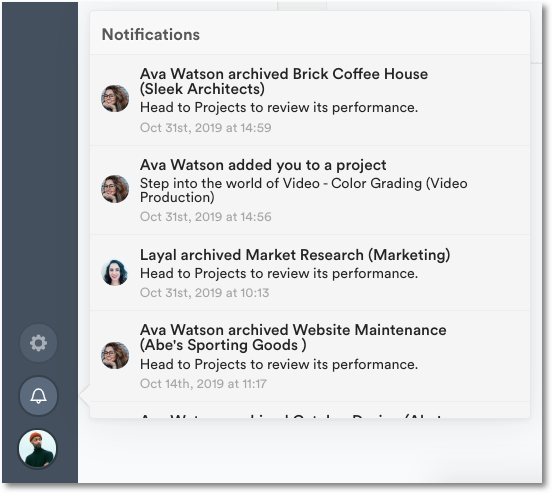
A badge will show up indicating that you have new or unread notifications to check in on.
Mobile feed
For mobile users, you’ll find this information by tapping on Profile then Notifications:
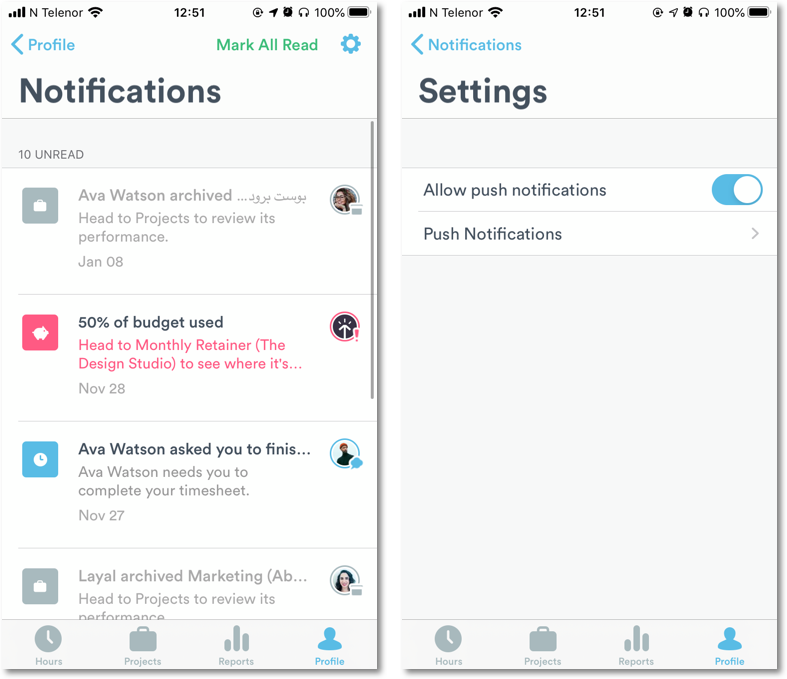
While you won’t be able to interact with any notifications that have been greyed out (i.e. archived or deleted projects), tapping on notifications in bold will reveal their details. Once you’re up to speed, tap the “Mark All Read” text to keep new notifications from getting mixed up with those you’ve already gone through.
Push notifications
Push notifications require you to install the Timely mobile app for Android or iOS.
iOS
Once installed, head to the Settings page and toggle “Allow push notifications”.
Android
Timely push notifications on Android are managed in the App section of your phone’s settings. Go to your App Preferences on Android, find Timely, then toggle “Show notifications”.
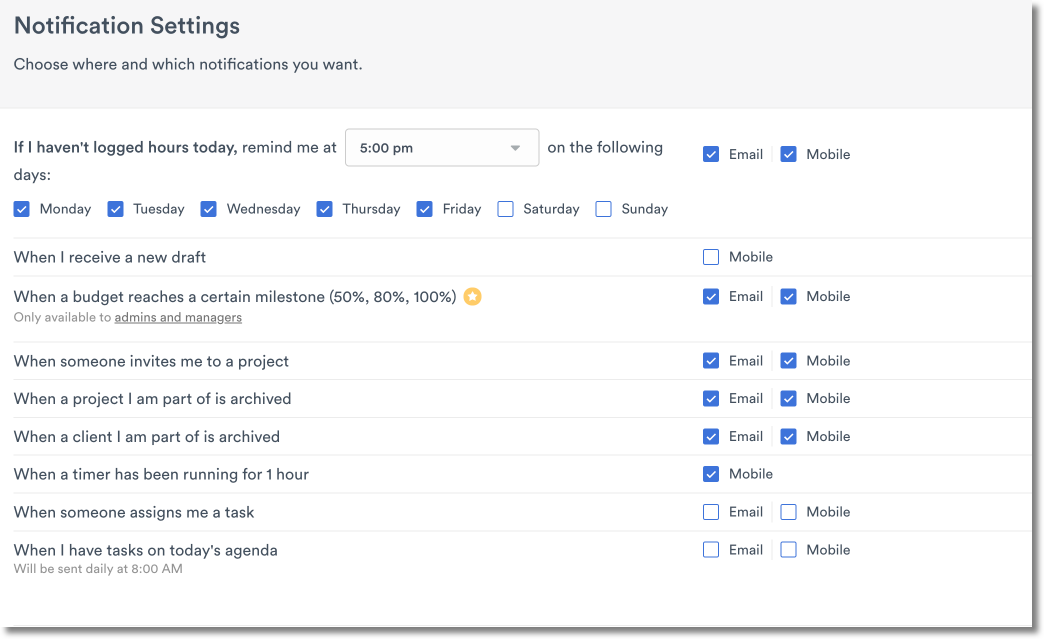
From there, open Timely in a browser or use the desktop app to head to Settings > Notifications and select the events with a “Mobile” checkbox that you want to be notified about.
Email notifications
For those who prefer email, head to Settings > Notifications to customize the reminders and updates you’d like to receive via email:
AutoSheet reminder notifications
Timely sends an AutoSheet reminder email when your daily timesheet is ready to review and submit. It’s on by default.
To stop these reminders, go to Settings > Notifications and turn off the AutoSheet reminder. See Meet Timely AutoSheet for how AutoSheet builds your daily timesheet.
Unsubscribing from the daily reminder to log hours
The daily email reminding you to log your hours has an Unsubscribe link at the bottom. It works without signing in, so you can use it even if you no longer have access to the workspace.
Unsubscribing turns the daily reminder off completely, for both email and mobile push notifications. To turn it back on, go to Settings > Notifications.
Enhanced timesheet reminder emails
Timesheet reminder emails now include a comprehensive “Breakdown of your day” section that provides a visual summary of your AutoSheet activity. These enhanced emails feature:
- Visual donut charts showing how your time was distributed across projects and tags
- Project breakdown with color-coded sections, client groupings, and duration percentages
- Tag breakdown (when entries include tags) displaying tagged time with durations and percentages
- Clear formatting that mirrors the AutoSheet summary experience from the web app
This enhanced email format makes it easier to quickly review your daily activities and understand your time distribution before diving into your full timesheet. The visual breakdown helps you spot miscategorized entries before reviewing your full timesheet. See Timely AutoSheet for more details.
Automatic timesheets paused
If AutoSheet has paused automatic timesheet generation due to inactivity (no accepted timesheets for more than 7 days in a workspace), you’ll receive both an email alert and an in-app notification titled ‘Automatic timesheets paused’. This notification explains that automatic generation has stopped and how to resume it. Clicking on the notification will take you directly to the AutoSheet page.
See Timely AutoSheet for more details on the inactivity pause and how to re-enable automatic generation.
Budget milestone notifications
Timely notifies subscribed users when a project’s budget crosses the 50%, 80%, and 100% thresholds.
For non-recurring (fixed) budgets, each threshold notification is sent once for the lifetime of the project.
For recurring budget projects (monthly or weekly intervals), threshold notifications reset with each new period. This means:
- If a project’s budget resets on the 1st of each month, and logged time crosses the 80% threshold in both March and April, you will receive an 80% notification in each of those months.
- Notifications are sent at most once per threshold per period — logging additional hours after the 80% alert in the same month will not trigger a second 80% alert for that interval.
See Recurring Budget Projects for more details on how recurring budgets work.
Timely updates
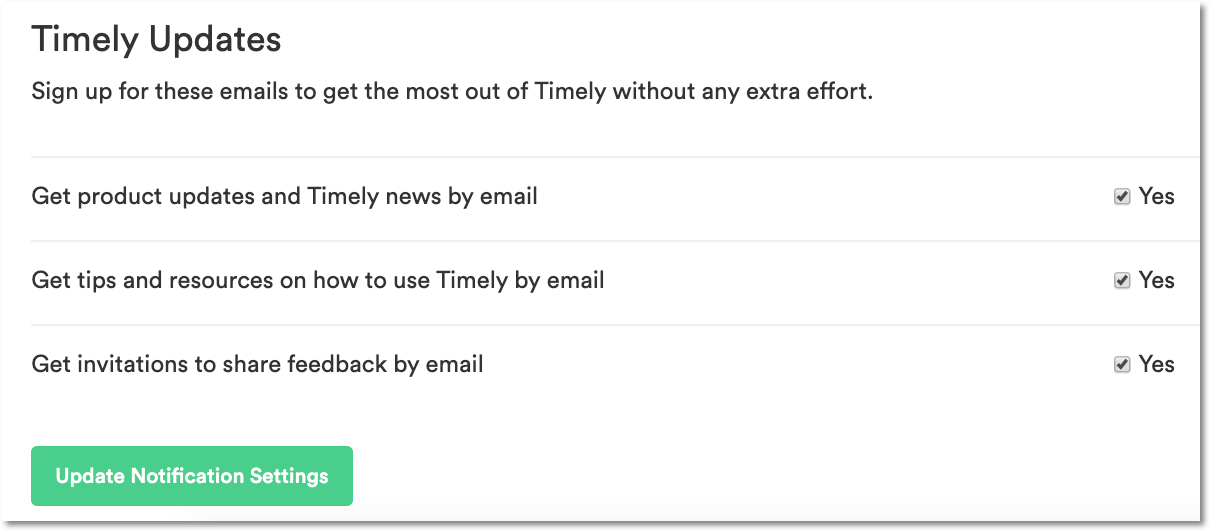
You can also opt-in to stay up-to-date on Timely’s latest features and new releases. From product updates to user feedback surveys, decide what you’d like us to inform you on:
Memory activity notifications
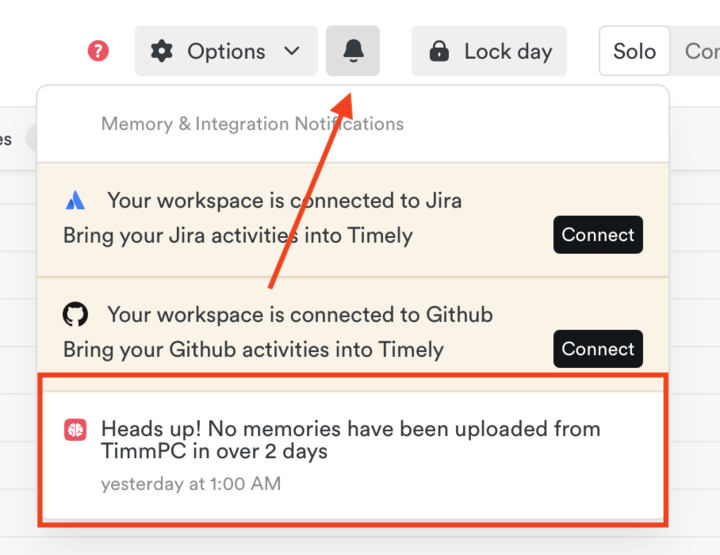
If you’re using the Classic Timeline Experience, Timely will notify you via an in-app bell icon if Memory uploads are missing for a set number of days. These notifications are designed to prompt you to check your Memory tracker and will stop after 30 days if no uploads are received. Stay on top of your timeline by ensuring your tracker is active and synced!
Last updated October 7, 2026
Have feedback for this article or need more help? Contact us now.