
Archiving tags
Projects & TagsTagsHandbookKeep your tag lists clean while preserving historical information.A neat and tidy workspace is essential to productivity both in the physical and digital sense. Simple tasks become needlessly difficult when you have to spend almost as much time getting things done as you do finding the tools you need to get started. Being able to put certain tools on the shelf when they’re no longer needed is key to getting things done, provided you can easily access it again later if needed.
At Timely, we work to maximize your digital workspace in meaningful ways. By archiving tags, you can now keep your tag lists clutter-free without losing any information relating to how those tags were previously used. It ensures you have workspace clean at your fingertips and a green light to get those hours logged!
To get started, just head to Settings > Tags, which is the best place to create and manage tags for your entire workspace. From there, you’ll be able to archive individual tags or entire tag lists by clicking “Archive”.
Archive several tags at once
If you need to clear out more than a handful of tags, you have two shortcuts instead of clicking “Archive” on each row:
- Archive all — the button at the top right of Settings > Tags archives every active tag and tag list in your workspace in one click. Reach for this when you’re starting a tag catalog over from scratch.
- Archive selected — tick the checkbox next to any tags or tag lists you want to pack away, then click “Archive selected” in the bulk-edit toolbar. See bulk-edit tags for the full list of bulk actions.
When you check a tag list’s checkbox, Timely automatically selects the list and all its child tags — the toolbar shows the total count of selected items. If you then uncheck an individual child tag, the parent list moves into a partial (indeterminate) state and is excluded from the operation, so only the remaining selected children are archived. Clicking a partially selected list selects its entire group; clicking a fully selected list clears the whole group.
Both routes archive the same way as the single-tag flow below — nothing is deleted, every historical entry keeps its tag, and you can restore items individually or in bulk whenever you need them again.
Archive and restore a single tag
Once a tag list or tag has been archived, you’ll still have the option to bring it back later by clicking “Restore”:
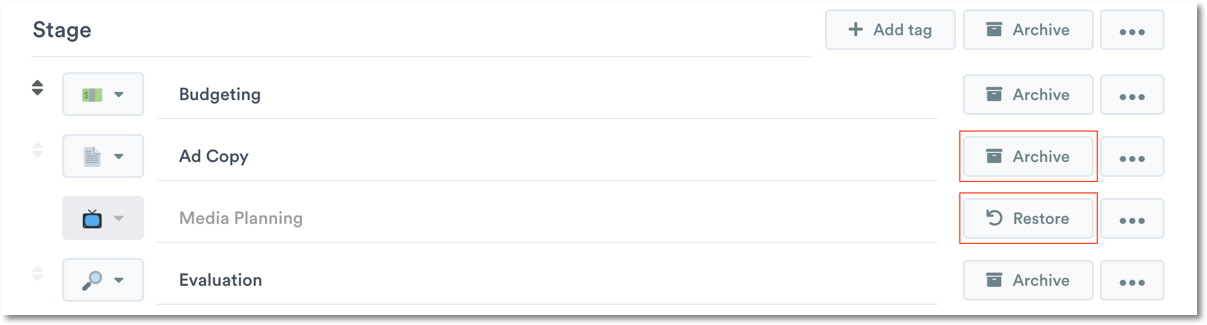
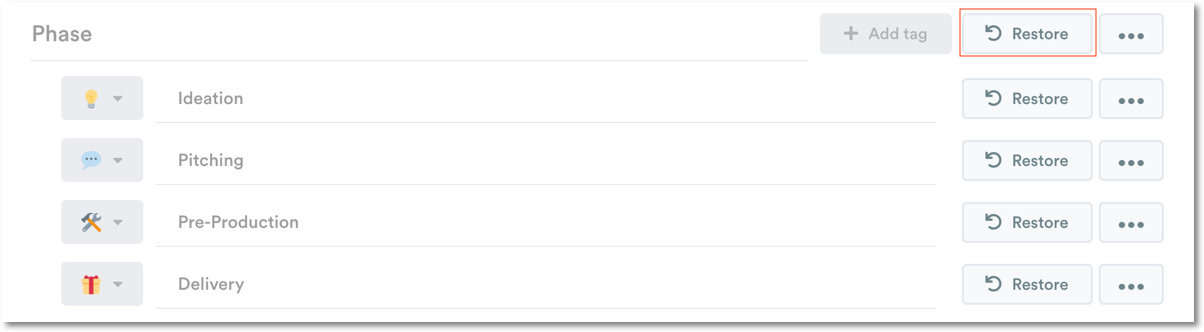
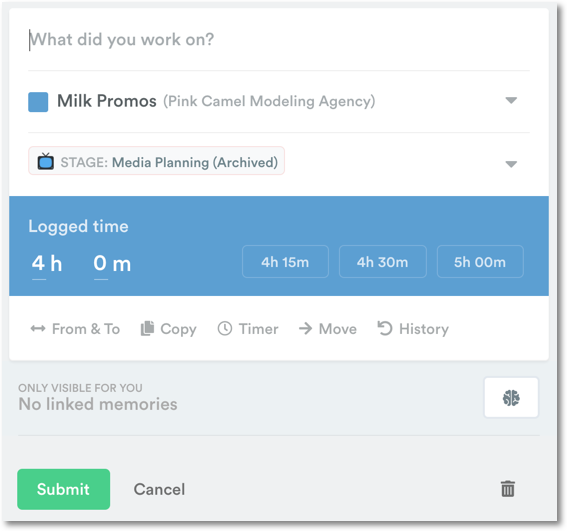
After a tag has been archived, it won’t be removed from any entries it has been added to. Instead, you’ll see a note next to the tag letting you know it’s been archived:
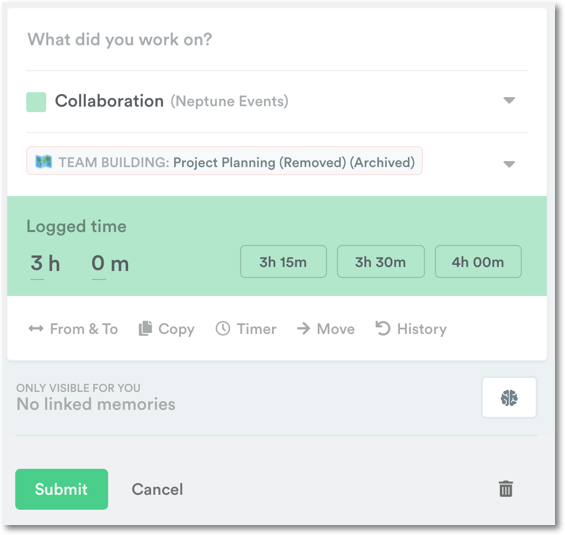
If you’ve archived a tag and no longer need it to show up as an option for a particular project, you can remove the tag by editing the tag list within the project and any previous entries with that tag will show you that the tag has been both “Archived” and “Removed”:
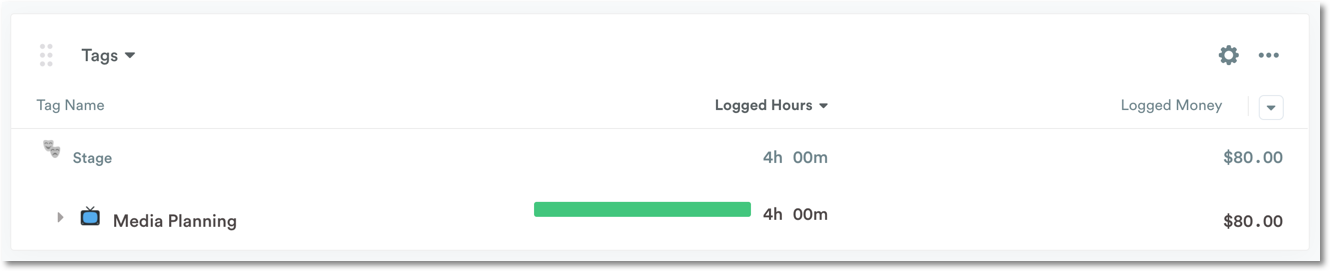
Archived tags will continue to show up on reports as well, even though they aren’t currently in use:
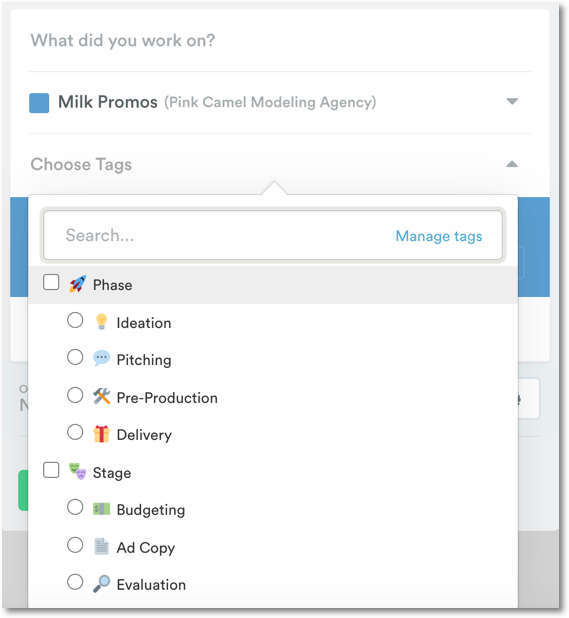
All new entries you create won’t show any archived tag lists or tags, allowing you to work with the tags you need going forward.
FAQs
Can I update an entry that already has an archived tag or tag list with other tags from the same list?
Once a tag list has been archived, any entries that use any of those tags will only show you the tag that was used:
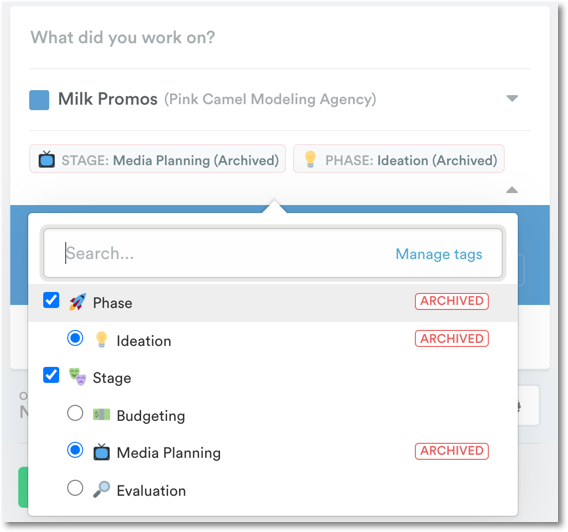
To add another tag from that list, you’ll need to restore the tag list, update the entry then archive the tag list again.
I accidentally deleted a tag instead of archiving it! Can it be brought back?
Unfortunately, once a tag has been deleted from Timely, it isn’t possible for us to recover it.
Last updated October 15, 2026
Have feedback for this article or need more help? Contact us now.