
Using Timely with AI tools (MCP)
IntegrationsAI ToolsHandbookAsk Claude, ChatGPT, and other AI tools to log time, pull reports, and manage projects in Timely, right from the chat.What if logging your morning took one sentence? Connect Timely to an AI tool like Claude or ChatGPT, and you can log time, check your timesheet, and pull reports just by asking, right where you already work.
This article is for anyone who wants to use Timely from an AI tool, no developer skills needed. You’ll learn what you can ask, how to connect, what the AI can see, and how to disconnect it.
What is the Timely MCP server?
The Model Context Protocol (MCP) is an open standard that lets AI tools use other products. The Timely MCP server gives your AI tool a set of Timely actions, so it can read and update your time data for you.
You connect once and log in with your Timely account. After that, your AI tool can work in Timely whenever you ask it to. It’s part of Timely and works with your existing seat, so there’s nothing extra to buy.
What you can ask your AI tool
Once you’re connected, just ask in your own words. Here are a few ideas to get you started.
For everyone
- Log time as you say it — “Log the two hours I spent on the pricing page this morning.” Timely creates the time entry on the right project, with the time of day, and the AI tells you what it did.
- See where your time went — “Where did my time go this week?” You’ll get your logged time by project, your tracked activity by app and day, and the gap between them.
- Review and submit your AutoSheet — “Show me yesterday’s timesheet and submit it if it looks right.” AutoSheet has already drafted the day from what Memory captured, so your AI tool reads it back and you decide when to submit.
For Managers and Admins
- Keep timesheets moving — “Who’s behind on their hours for last week?” See who has logged nothing or too little, then ask the AI to draft a reminder.
- Pull reports for billing and reviews — “Pull last month’s billable hours for Acme, by person.” Get time by client, project, person, team, or tag, ready to paste into an invoice or status update.
- Manage projects and people — “Set up a Northwind project under Acme at $140 an hour and add Maja and Jonas.” Create projects, set billable rates, assign people and teams, and archive finished work without clicking through forms.
Before you start
You’ll need:
- A Timely account. The MCP server works on every plan.
- An AI tool that supports MCP, such as Claude, ChatGPT, or Claude Code.
- The Timely MCP server URL:
https://api.timelyapp.com/mcp
Connecting Claude
- In Claude, head to Settings > Connectors.
- Click Add custom connector.
- Name it Timely and paste
https://api.timelyapp.com/mcpas the server URL. - Click Connect.
- Log in to Timely when the window opens. If you’re in more than one workspace, pick the one Claude should work in from the Account list.
- Click Authorize.
You’re all set! Try asking Claude what you worked on today. On a Claude Team or Enterprise plan, an owner of your Claude organization may need to add the connector first.
Connecting ChatGPT
- In ChatGPT, head to Settings > Connectors.
- If you don’t see Create, turn on Developer mode under Advanced.
- Click Create, name it Timely, and paste
https://api.timelyapp.com/mcpas the server URL. - Log in to Timely when asked, pick your workspace from the Account list, and click Authorize.
- In a chat, choose Timely from the tools menu in the message box.
Nice work! ChatGPT can now use Timely whenever you turn it on in a chat.
Connecting Claude Code
Prefer the terminal? No problem.
- Run this command in your terminal:
claude mcp add --transport http timely https://api.timelyapp.com/mcp - Start Claude Code and run
/mcp. - Pick timely and log in to Timely when your browser opens.
Using another AI tool
Timely works with AI tools that support remote MCP servers and an OAuth login. Point your tool at https://api.timelyapp.com/mcp, then log in to Timely the first time it connects. There are no API keys to manage. We’re testing more AI tools and will add their setup steps here once they’re confirmed.
What your AI tool can see and do
Your AI tool works as you, with your access level, in the workspace you picked when you connected. It sees the projects, people, and reports you can see in Timely, and no more.
- Admins — can manage projects, clients, teams, tags, and people, and pull reports across the whole workspace, just like in the app.
- Managers and Employees — get the same scope their access level allows in Timely.
Memory captures your work activities, and they stay private to you until you log them. Your AI tool can read your own memories to suggest what to log, but nobody else can see them through an AI tool.
Time entries your AI tool creates are ordinary Timely time entries. They show up in your timesheet and reports like any other, so nothing happens quietly. Your AI tool can archive projects, clients, and tags, but it can’t delete them.
Anything your AI tool reads from Timely is sent to the AI provider you use, under that provider’s terms. Good to know if you work with sensitive client data.
Seeing and disconnecting your AI tools
You can see every AI tool you’ve connected to a workspace, and disconnect any of them, from Timely.
- In Timely, head to Settings > Integrations.
- Scroll to AI tools and click AI tools (MCP).
- Click Disconnect next to the AI tool you want to remove.
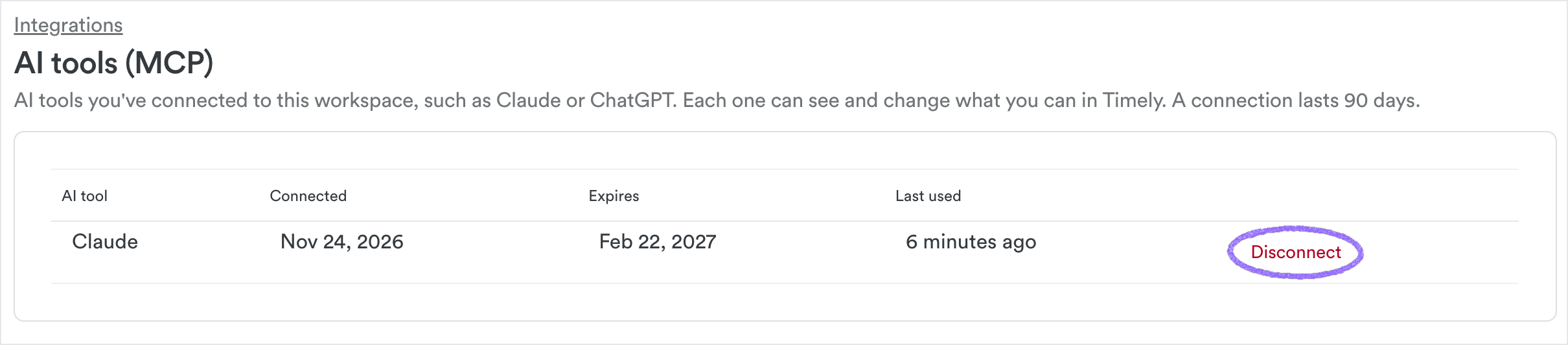
Each connected AI tool shows when it was connected, when it expires, and when it was last used.
Once disconnected, the AI tool can no longer work in that workspace. Your other workspaces aren’t affected, and any time entries it created stay in Timely.
A connection lasts 90 days. After that, your AI tool asks you to log in to Timely again.
You can also remove Timely from the AI tool itself:
- Claude — head to Settings > Connectors and remove Timely.
- Claude Code — run
claude mcp remove timely.
FAQs
Does the Timely MCP server cost extra? No. It’s part of Timely and works with your existing seat.
Can my AI tool see more than I can? No. It works with your access level, so it can only see and change what you can in Timely.
Can my AI tool work in more than one of my workspaces? Not with one connection. Each connection covers one workspace. To switch, disconnect, connect again, and pick the other workspace from the Account list.
What happens to my time entries if I disconnect an AI tool? They stay exactly as they are. Time entries an AI tool created are ordinary Timely time entries.
What happens when my connection expires? After 90 days, your AI tool asks you to log in to Timely again. Log in and approve it, and you’re back in business.
Now you can log time, check your timesheet, and pull reports without leaving the conversation. Happy chatting!
Last updated November 25, 2026
Have feedback for this article or need more help? Contact us now.