
Classic: How to Use Summary & Calendar Lanes
Time Tracking: ClassicHandbookLearn how to use Timely's Summary and Calendar lanes to cut through timeline noise and log time quickly and confidently.Most time tracking tools make you reconstruct your day from scratch. Timely takes a different approach—instead of asking you to remember what you did, it shows you exactly what you worked on and lets you log it in seconds.
The Summary Lane and Calendar Lane are two key parts of that experience. This guide walks you through how to use both, when each one shines, and how to get the most out of them as your AI gets smarter over time.
Meet the Summary Lane: Your what-you-did view
The Summary Lane simplifies your timeline by surfacing only the most active memory for each time block rather than showing every individual app switch, tab change, or file access. Instead of a wall of granular detail, you get a clean highlight reel of how your day actually played out.
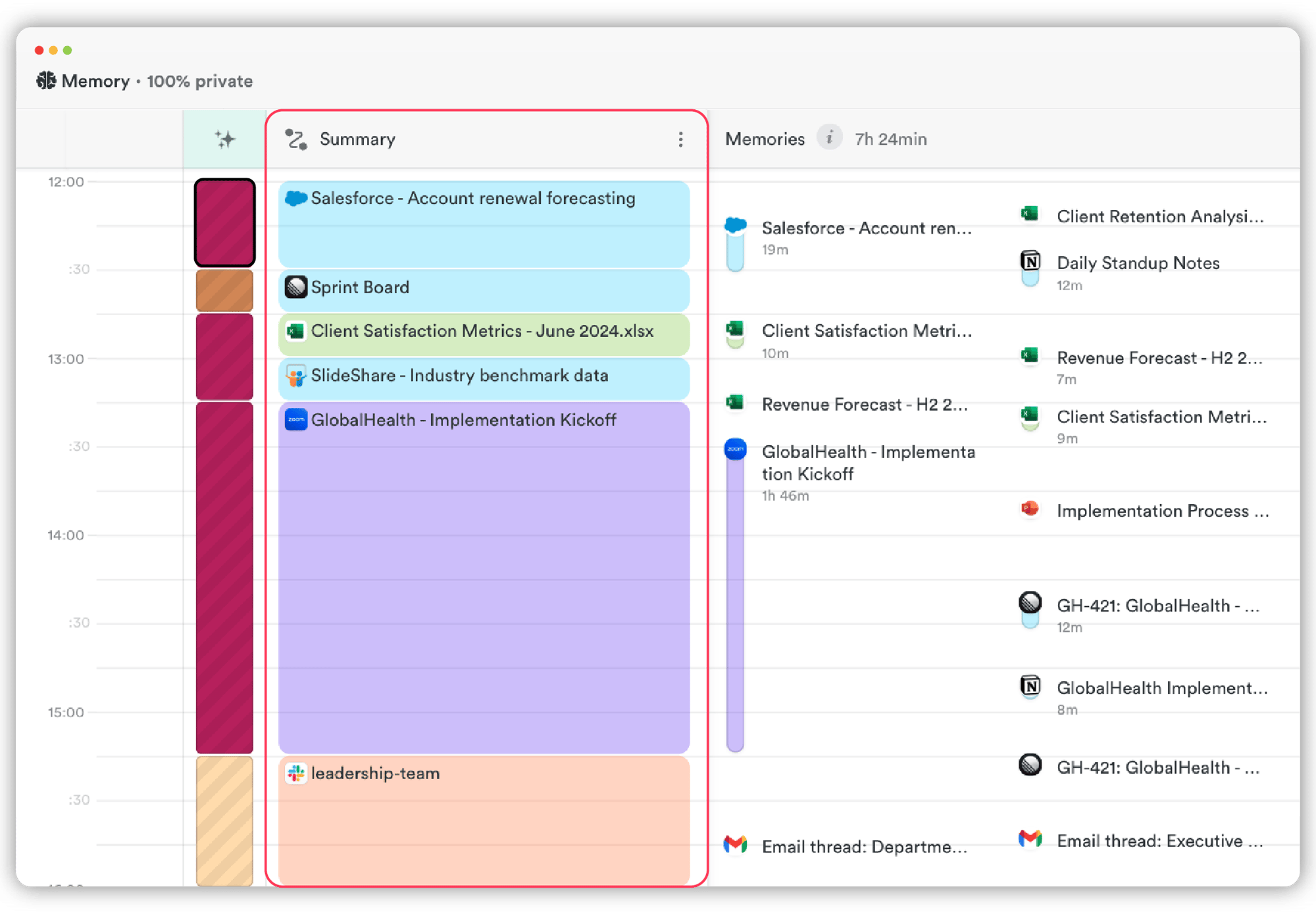
By default, each block spans 15 minutes, but you can adjust the block size to match how you work—larger blocks for focused sessions, smaller blocks for granular billing.
The Summary Lane doesn’t replace the full timeline—it complements it. You can always drop into the detailed view to see the full picture whenever you need more context.
When to use the Summary Lane
Not every workflow calls for the same level of detail. Here’s a quick guide to which block size and lane mode works best for different scenarios:
- Use 30–60 minute blocks
- Summary Lane surfaces your primary focus without distraction
- Use 10–30 minute blocks
- Skim your day and log in bulk without reviewing every memory
- Use 15–30 minute blocks
- Keeps client work clearly separated without over-granularity
- Use 30–60 minute blocks
- Groups cross-app work into meaningful time chunks
- Use 15–30 minute blocks
- Perfect starting point—easy to scan and log without being overwhelmed
- Use 5-minute blocks or switch to the full timeline view
- Gives you the granularity needed to split time accurately
- The Summary Lane is not the right tool for this—block rounding won’t give you the precision you need
- Use Timestamp Intervals instead for exact increment billing
What about meetings?
Meetings show up differently from the rest of your tracked activity—and that’s intentional. The Calendar Lane keeps your calendar events visually separate from your Memory activity, which means:
- Meetings never get buried in or confused with your work timeline
- You can log time directly against a meeting in one click—no need to drag or adjust
- Prep and follow-up time around meetings is captured as its own activity
- Client meetings are easy to identify and assign to the right project
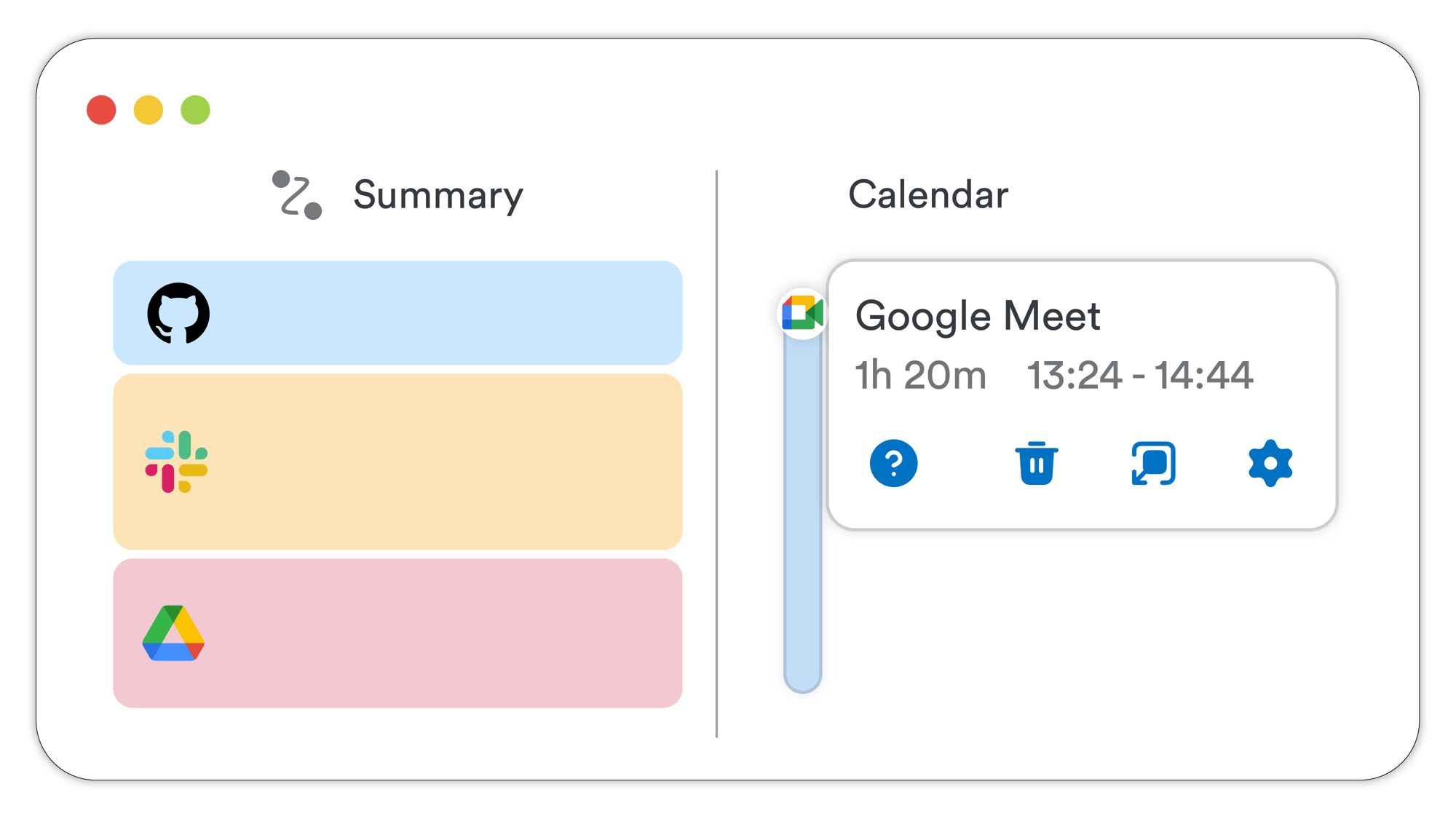
This separation keeps billing clean—especially useful when you need to report on a meeting as a distinct deliverable rather than lumping it in with surrounding work.
Train Your AI While You Log Time
Every entry you create teaches Timely’s AI how you work. The more consistently you log, the more accurately the Timesheet Assistant can anticipate your patterns and generate draft entries for you.
How it learns
The AI pays attention to:
- Which projects you assign to specific types of work
- Which tags you add to recurring activities
- How you name entries for similar memory patterns
- Time-of-day patterns—if you always log client calls in the morning, the AI starts to recognize that
Over time, this means less manual work: the assistant starts suggesting completed entries that you can accept, tweak, or reject with a single click.
Pro tips for success
- Log consistently, even imperfectly. An approximate entry today is more useful to the AI than a perfect entry made a week later.
- Use the Summary Lane for your first pass. Start with a wider block size to get an overview of your day, then drill into the detail view for anything that needs splitting.
- Let the Calendar Lane do its job. Don’t manually recreate meeting entries from the Memory timeline—use the Calendar Lane entries directly so prep and follow-up time stays distinct.
- Tune block sizes per day type. A deep-work day warrants larger blocks; a meeting-heavy day benefits from smaller ones.
- Archive old projects and tags. The leaner your project list, the smarter the AI’s suggestions will be.
What you’ll gain
Once you’re using the Summary and Calendar Lanes consistently:
- Fewer decisions per log session—the AI handles the heavy lifting
- Cleaner timesheets—meetings, focus work, and context-switching all land in the right place automatically
- More accurate billing—you’re logging against what you actually did, not a best guess from memory
- A timeline that gets better every week—the AI’s confidence grows with every entry you review and confirm
Last updated May 15, 2026
Have feedback for this article or need more help? Contact us now.