
Office 365 Calendar
IntegrationsAI Time Tracking SourcesHandbookAutomatically import your Office 365 calendar events into Timely.Integrating your Office 365 Calendar with Timely lets you automatically import calendar events directly to your Memory timeline. All scheduled events show up with event titles, so you don’t have to fill in any notes.
Calendar rules
- When you integrate your calendar(s), you’ll get 28 days of history and 14 days in the future
- Data is never sent back or changed in Office 365 — what you do in Timely, stays in Timely
- Any changes you make in your calendar will automatically update in Timely
- Events you change in Timely will be overridden by subsequent changes in Office 365
- Events marked as Private or Confidential in Outlook appear as placeholders (“Private event” or “Confidential”) on your timeline, so the underlying details aren’t shown
- Recurring events are handled reliably, with each occurrence imported separately
Privacy protection for sensitive events
When you connect your Office 365 calendar, Timely automatically protects your privacy:
- Private events appear on your timeline as “Private event” placeholders
- Confidential events appear as “Confidential” placeholders
- The event’s title and other details aren’t displayed in Timely — only the placeholder appears on your timeline
- You can still log time against these events, while the sensitive details stay private
- Normal and personal events sync with full details as usual
Connect Office 365 with Timely for individuals
- Log in to Timely
- Go to Settings > Apps
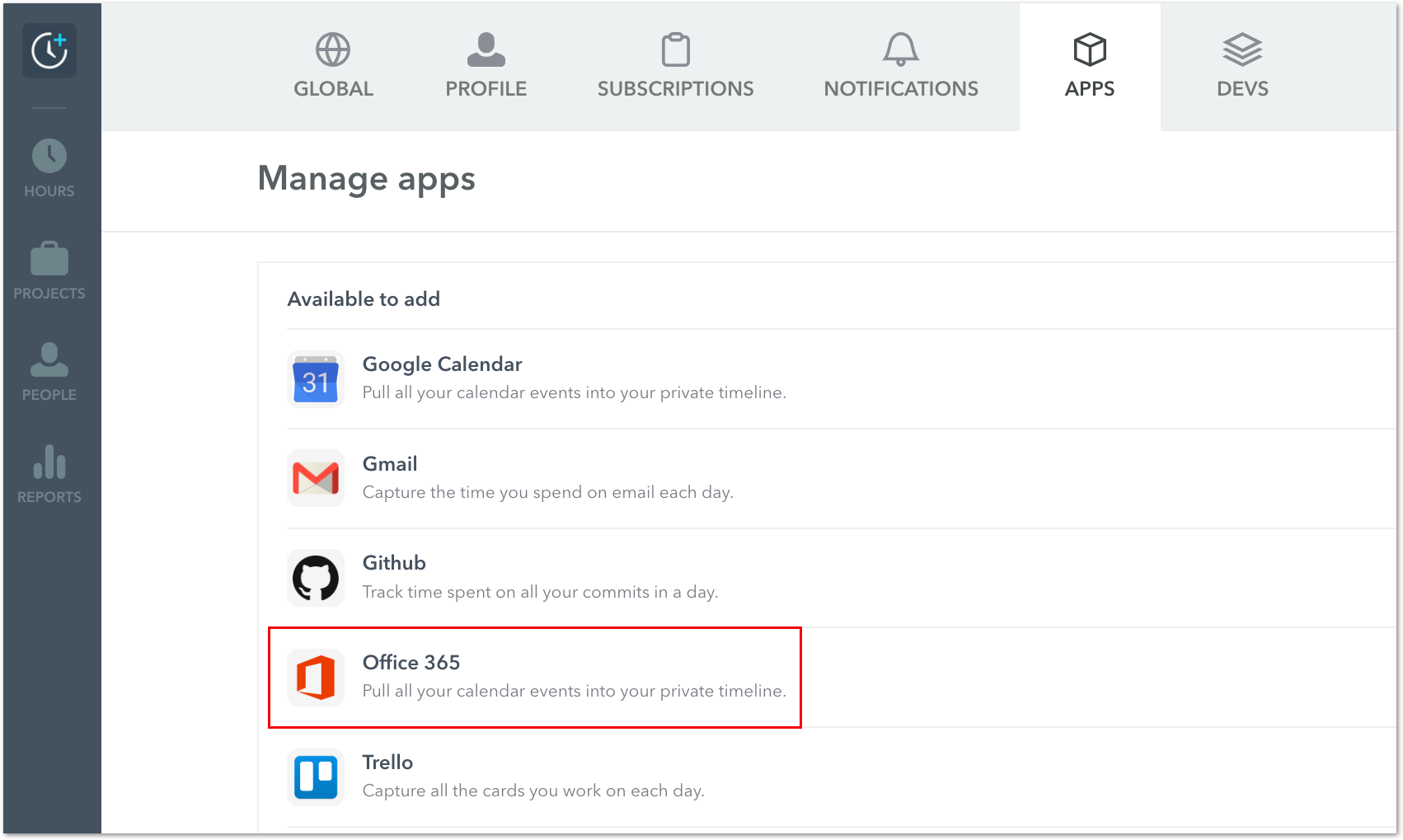
- Select Office 365
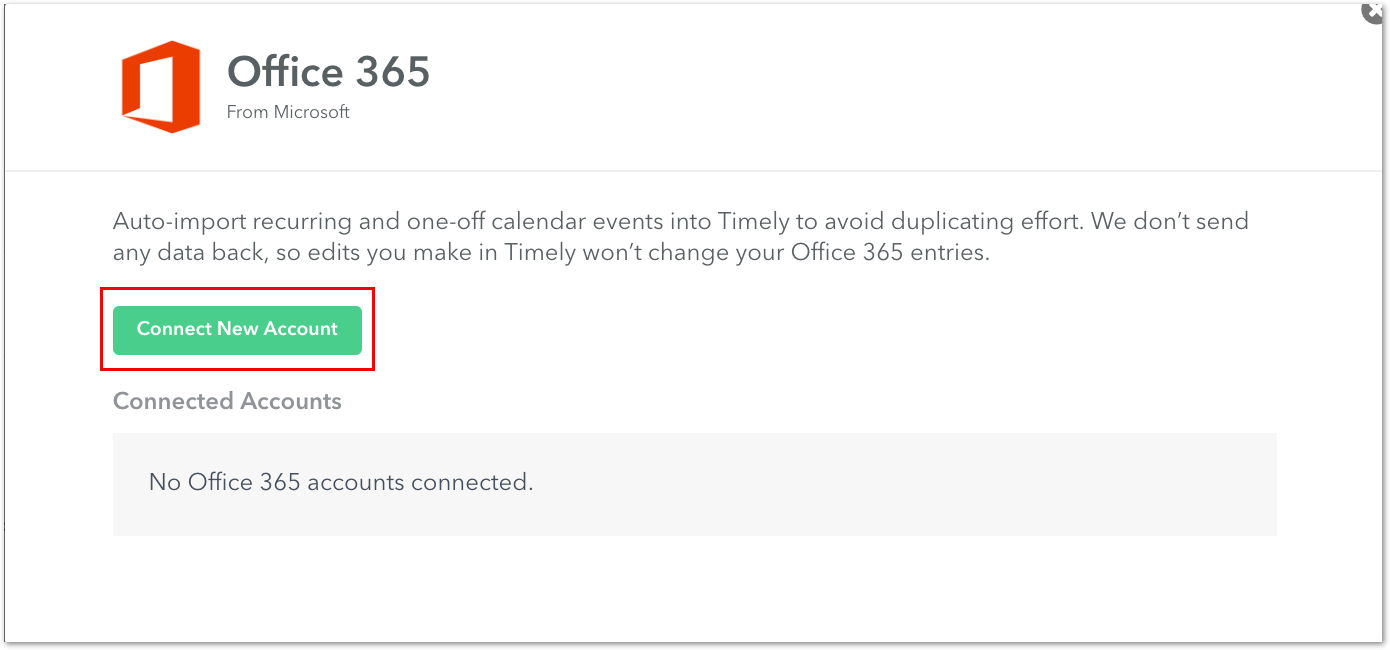
- Click “Connect New Account”, select the account you wish to connect, and enter your credentials
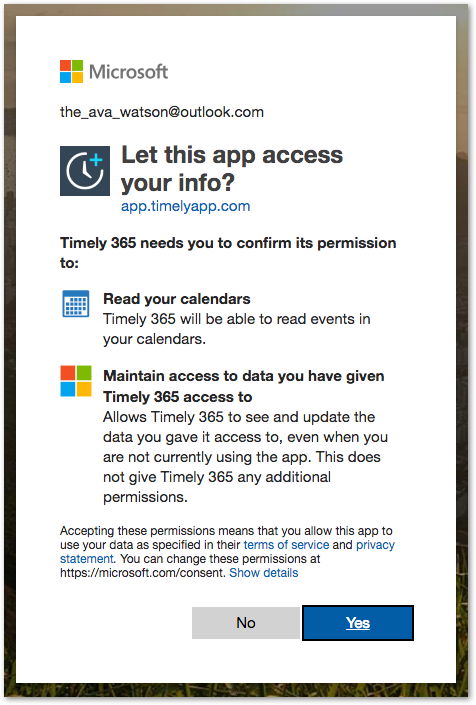
- Click “Accept” to authorize the connection
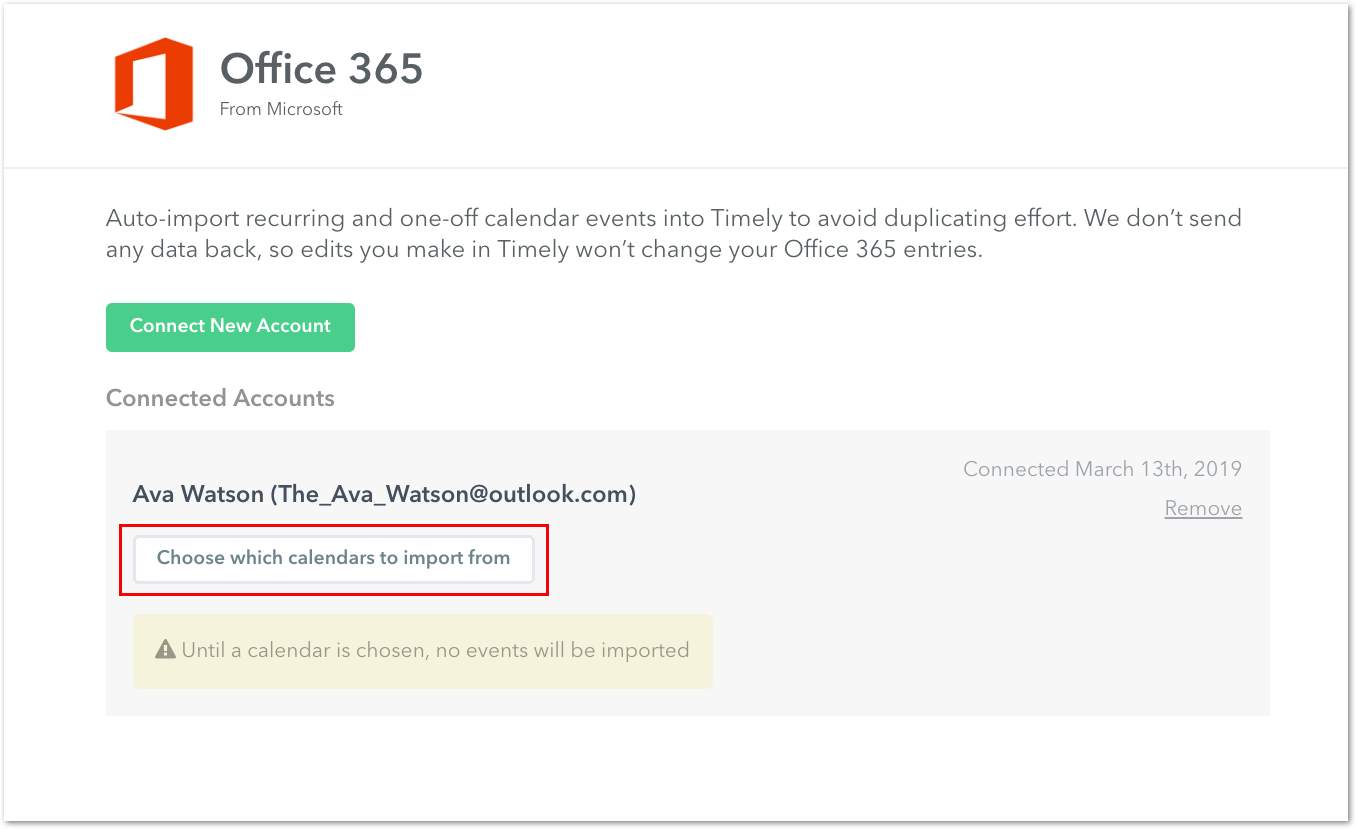
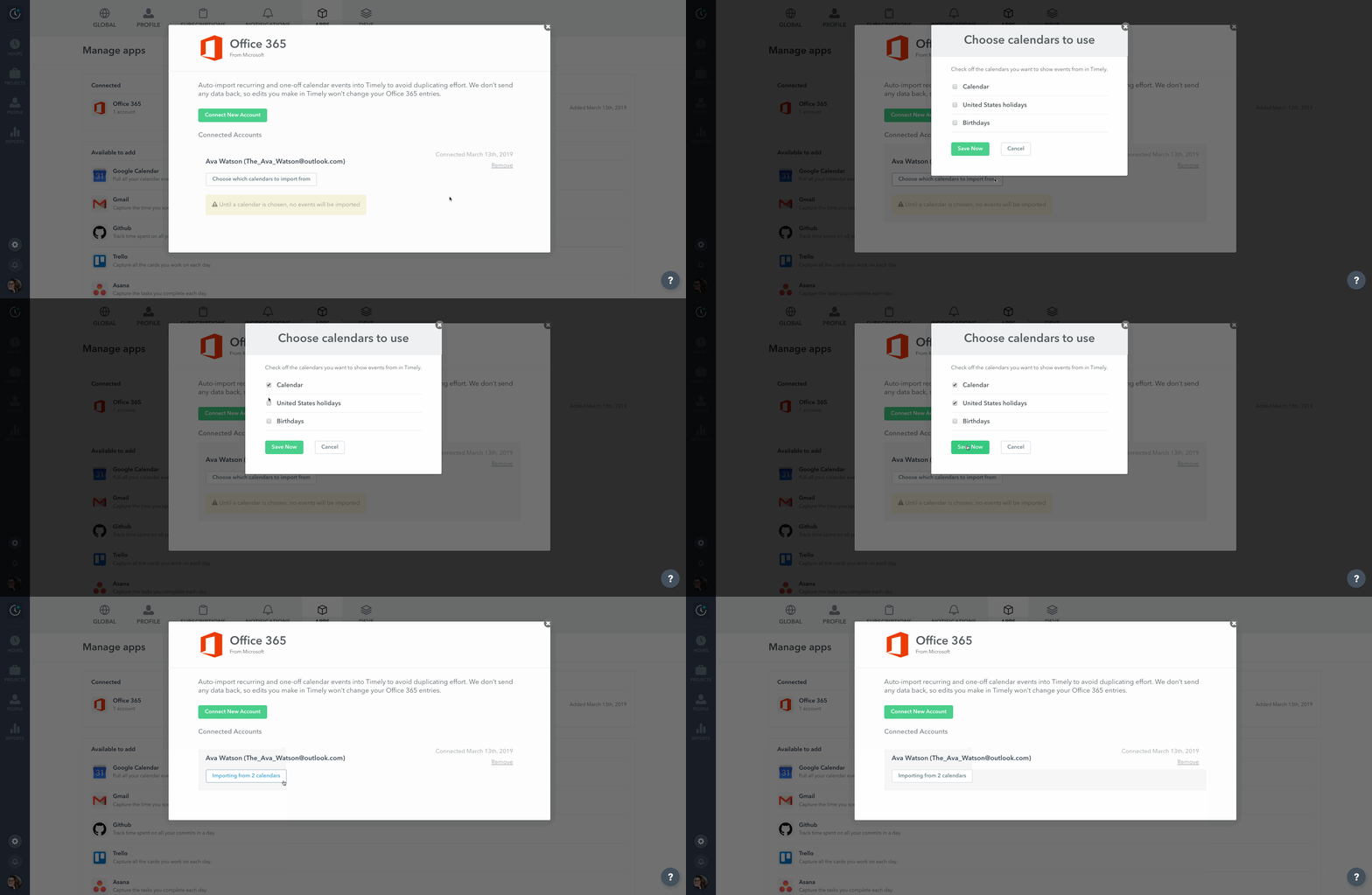
- Choose the specific calendars to import from
- Hit “Save Now” and events will be uploaded to your Memory Timeline
Connect Office 365 for MS Azure admins
If you’re an admin of a larger organization, you can give admin consent so your team can add the Office 365 integration within Timely. Once a user tries to add Timely, you’ll see the admin consent request in your O365 admin panel which you can accept on behalf of your organization.
Alternatively, open your O365 admin panel, find “Timely 365” as an app, then find “Permissions” to grant access.
Related questions
How do I disconnect the calendar?
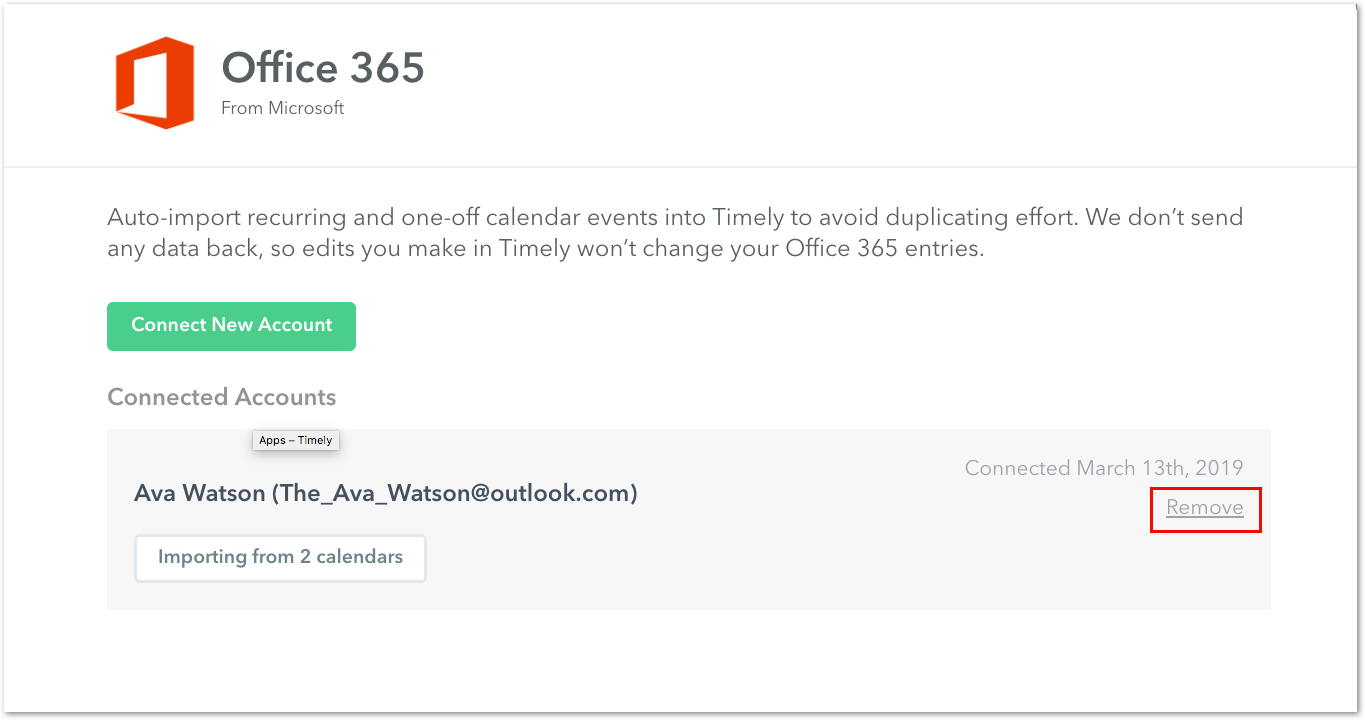
- Go to Settings > Apps > Office 365
- Click “Disconnect and remove all data”
- A confirmation panel will appear explaining that disconnecting will permanently delete all calendar memories
- Type ERASE exactly as shown to confirm
- Click the confirmation button to complete the disconnection
Events not showing up?
The Office 365 calendar sync has been improved for better reliability. If events still aren’t appearing:
- Wait a few minutes as sync may be processing
- Check that the events aren’t all-day or multi-day events (which are not imported) — private and confidential events still appear, shown as placeholders
- For recurring events, each occurrence should appear separately on your timeline
- If you’ve edited several events in quick succession, it might take some time for them to appear
- Try disconnecting and reconnecting the integration if issues persist
Can I connect my Office 365 Exchange account?
No, Timely’s O365 integration only connects to Microsoft’s web-based calendar services. We are not able to sync data using a Microsoft Exchange server.
I recently changed my Office 365 password
After updating your password, disconnect and reconnect the integration to ensure calendar events continue to appear.
Last updated June 18, 2026
Have feedback for this article or need more help? Contact us now.