
The individual user page
People & Team ManagementHandbookGet detailed information on your people's time tracking activities.Automatic time tracking isn’t just about streamlining workflows and giving your clients accurate bills. It’s also about giving you and your employees a clearer idea of how you’re spending your time.
Click the People page from the navigation menu. Scroll down to find the user you’re looking for, click on their name and you’ll be redirected to a page with all their info. Along with the user’s name, their user level and any teams they’re assigned to, you’ll find four tabs that give you essential data about the user.
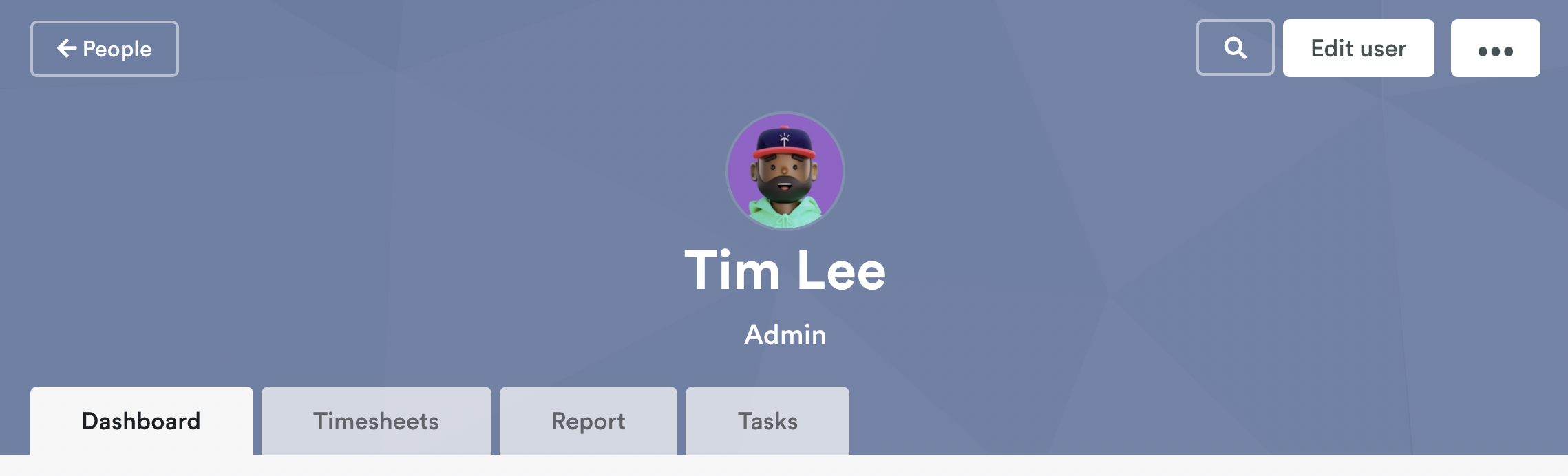
Dashboard tab
This is your default tab. Think of it as the bird’s-eye view of all the most essential info about a user. Before you scroll down to the Dashboard tab, you will notice the Edit user button on the top of the page.
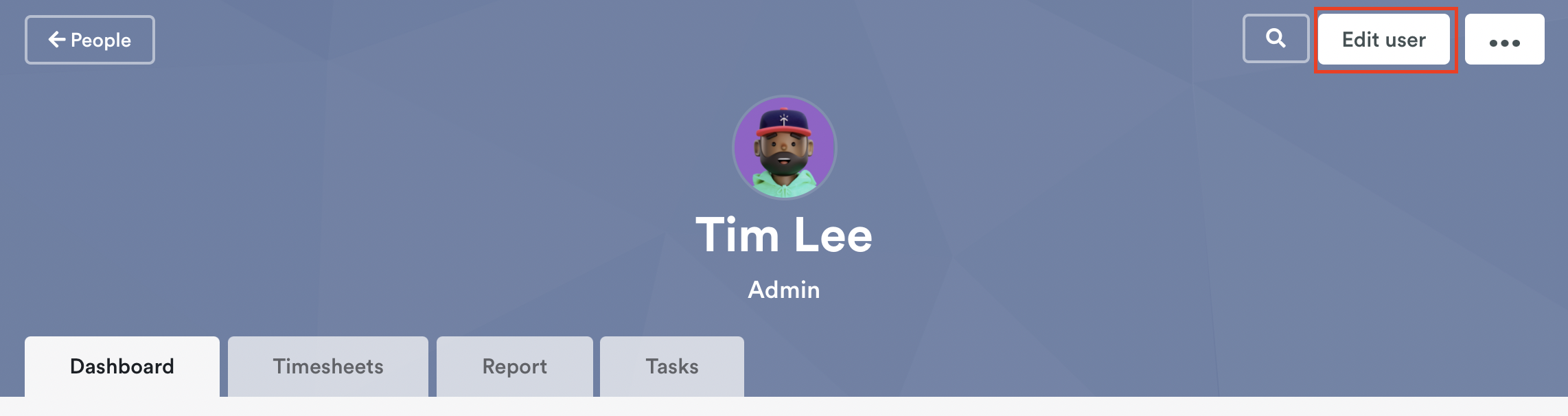
The Edit user button directs you to the permissions each user has. You can add or remove them from a project or team, adjust their hourly rates and change their user access level.
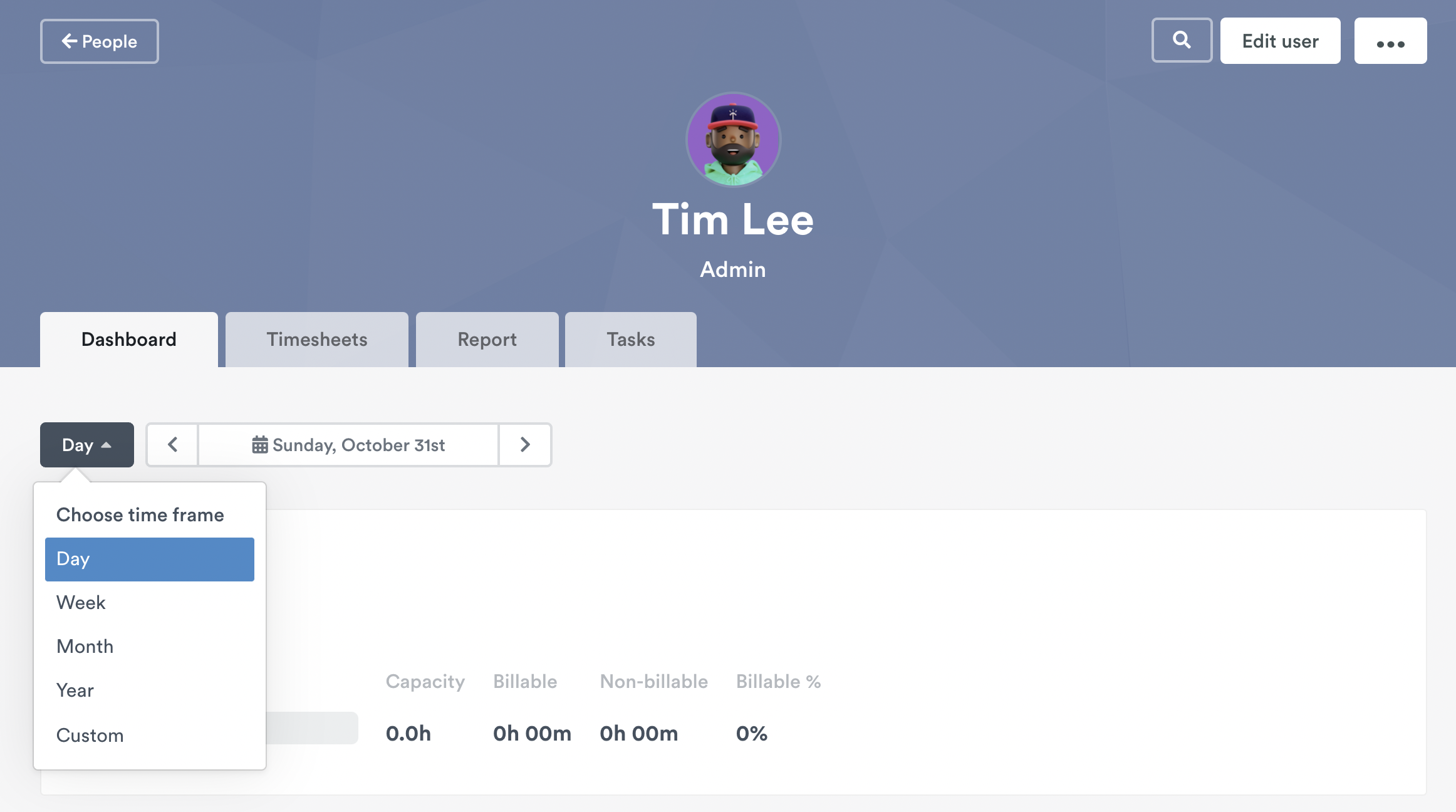
To quickly filter and scan a user’s logged hours, capacity, and billable/non-billable hours, click the button to the left of the data field. You can select Day, Week, Month, Year, or you can customize specific dates.
Scroll down and you’ll see the user’s Activities. It’s a quick list of their logged hours, recent activities and any logged anomalies.
Timesheets tab
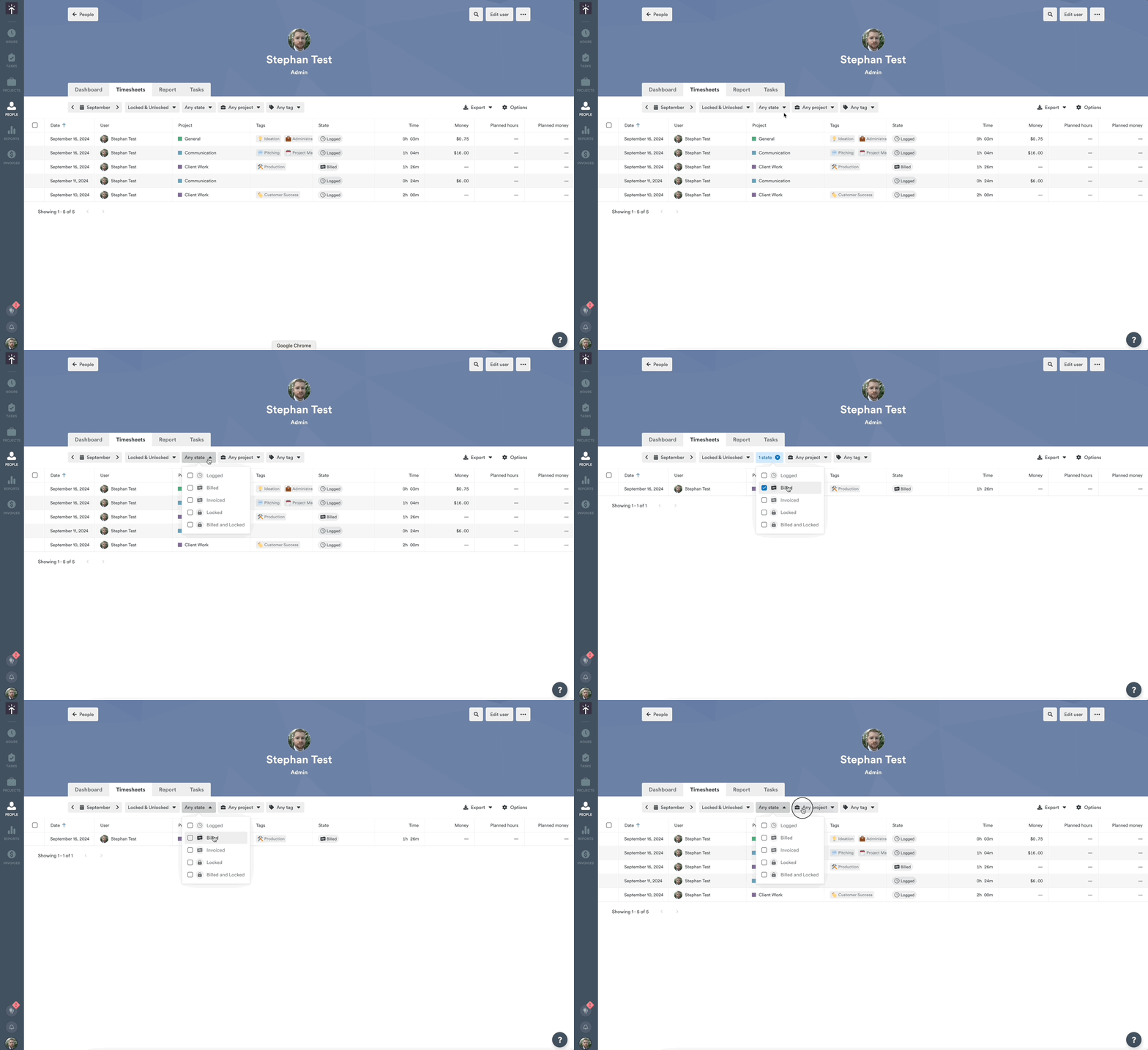
While scrolling through a user’s calendar to see their logged entries is great fun, it doesn’t give you any real insight into what you’re looking at. Thankfully, the Timesheets tab lets you review an employee’s logged and planned time entries in context.
The Timesheets tab is a quick way to gather all the individual entries for an employee over a specific period of time. Here you can filter by an entry’s status (billed, logged, or any custom status), the project it was logged to, and the tags that were used.
The Report tab
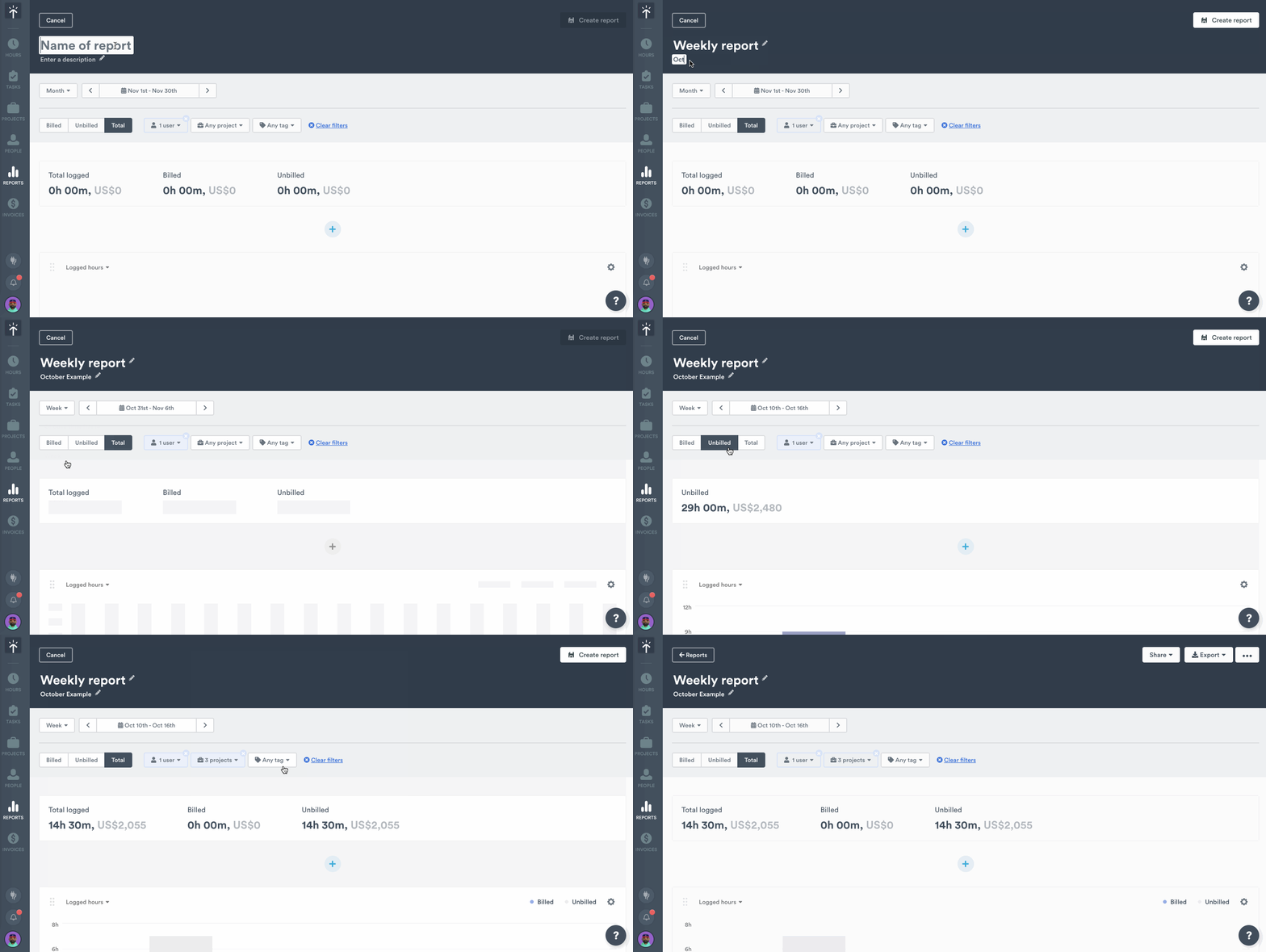
Whether it’s visualizing info for a performance review or gathering together your logged hours before meeting with a client, Timely makes it easy to grab the data you need and create reports that are rich and compelling. The Report tab lets you pull and filter information about the logged hours, projects, and tags for a specific employee. Send this information to the Reports Page in Timely to add charts, filters or customizations, and share the report with whoever needs the data.
Tasks tab
In the Tasks tab you can view a user’s tasks in the Timeline view or List view. You can filter tasks either by Completed tasks and their Availability.
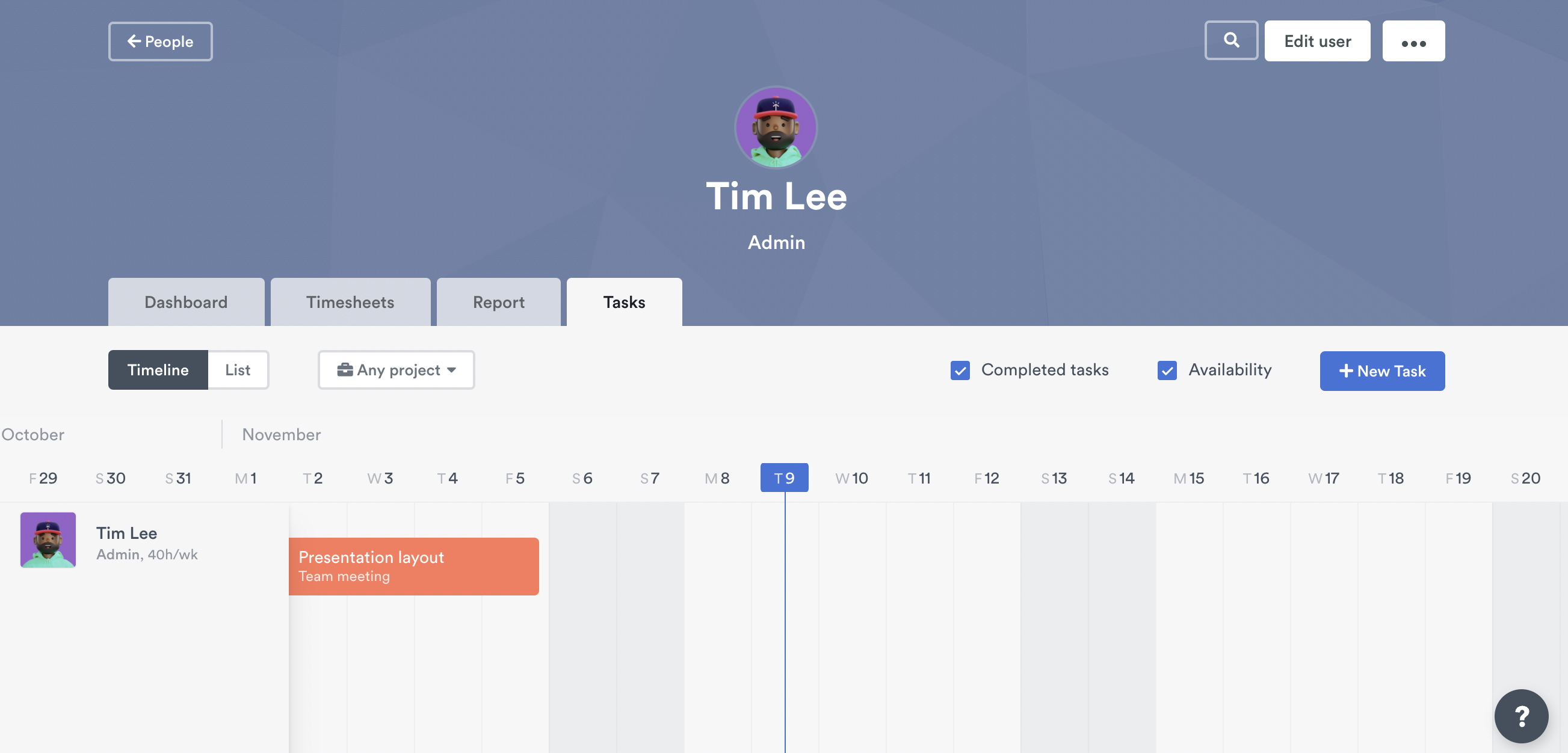
Not only can you view Tasks, you can add tasks! Simply click the + New Task button and you can add a task directly to your list.
Last updated April 1, 2026
Have feedback for this article or need more help? Contact us now.