
Setting default tags
Projects & TagsTagsHandbookPre-select specific tags for each project to automate tag assignment.Timely has made it easier than ever for folks to accurately log their hours and ensure the right Tag is used each time — with Default Tags!
Managers and Admin level users within Timely can pre-select the specific Tags that should be assigned for each Time Entry assigned to a Project — taking the burden off of users as they log their time. No additional clicks and no more forgotten Tags!
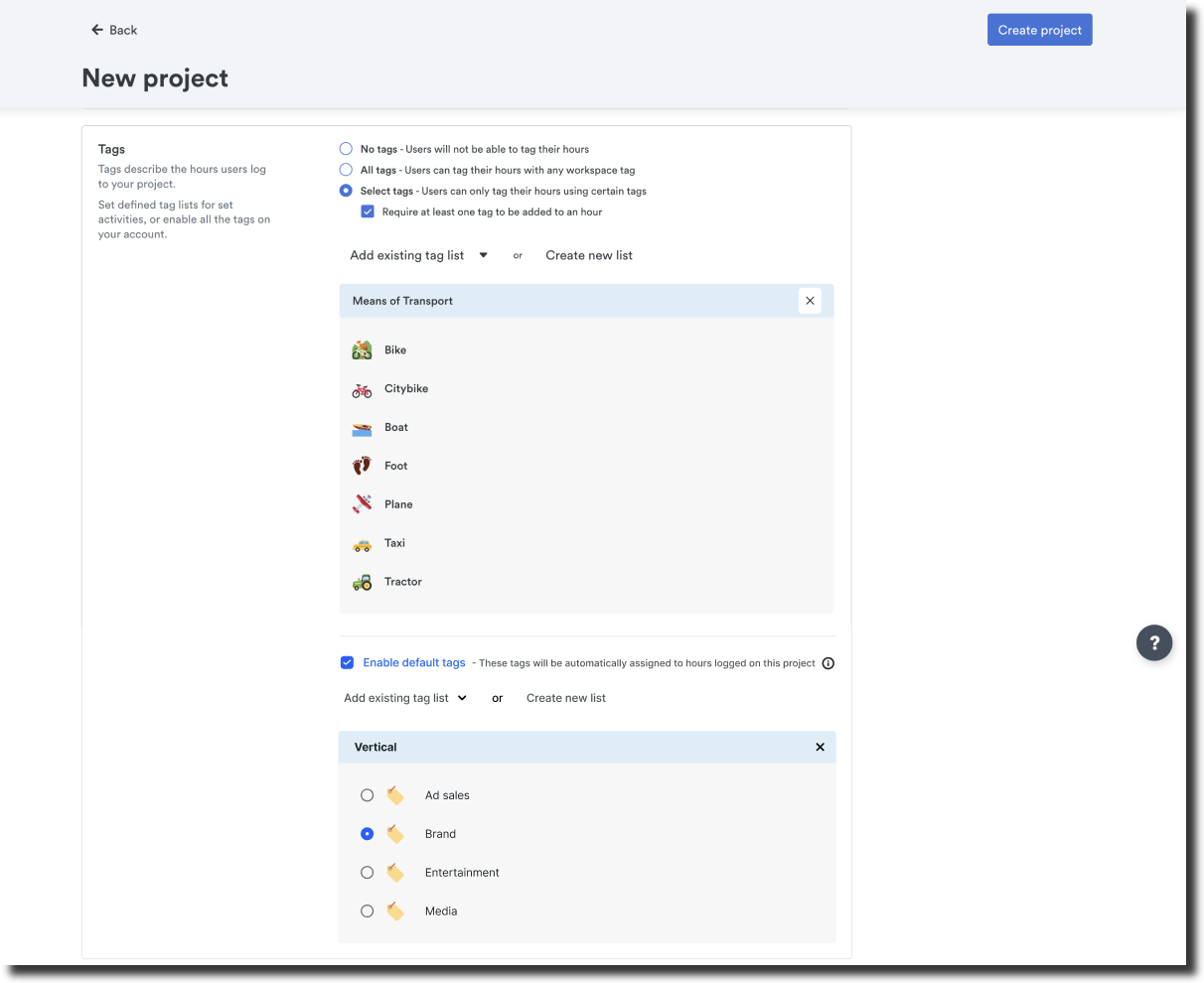
Setting default tags
You’ll see the option to enable Default Tags when editing an individual project or creating a new one from scratch. From the Tags section within a project:
- Click the checkbox near Enable default tags
- Select the Tag list(s) for this project
- Select the default tag which should be linked to the entries logged to the project
- Click Create Project or Update Project to finalize
- Done!
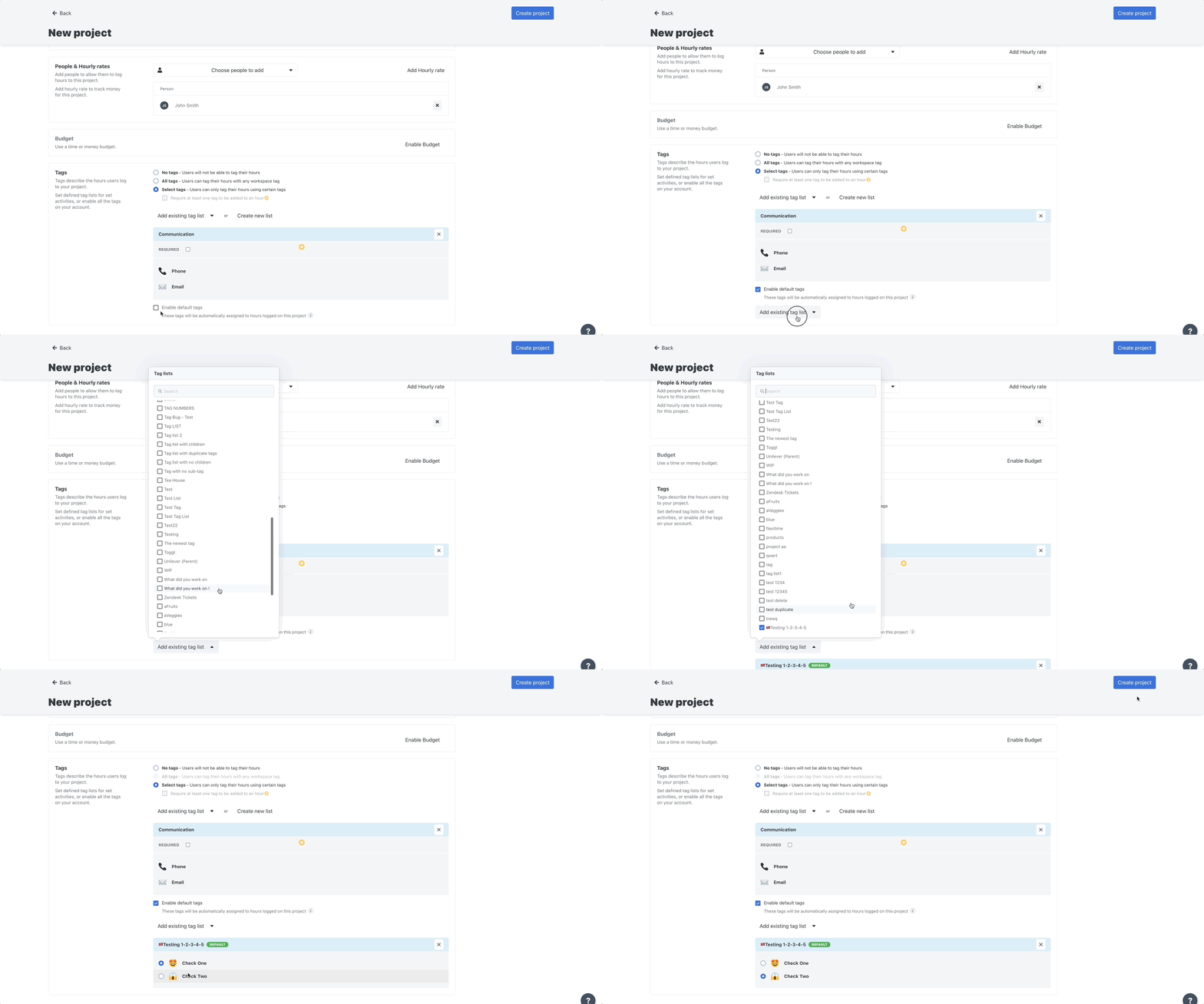
Creating a time entry that has default tags
Folks logging their time will do so through the normal process and won’t need to make any special selection within the Tags section for that entry. They can still manually assign Tags when or if needed and won’t see a special indicator that Default Tags are being assigned, until after the entry has been finalized.
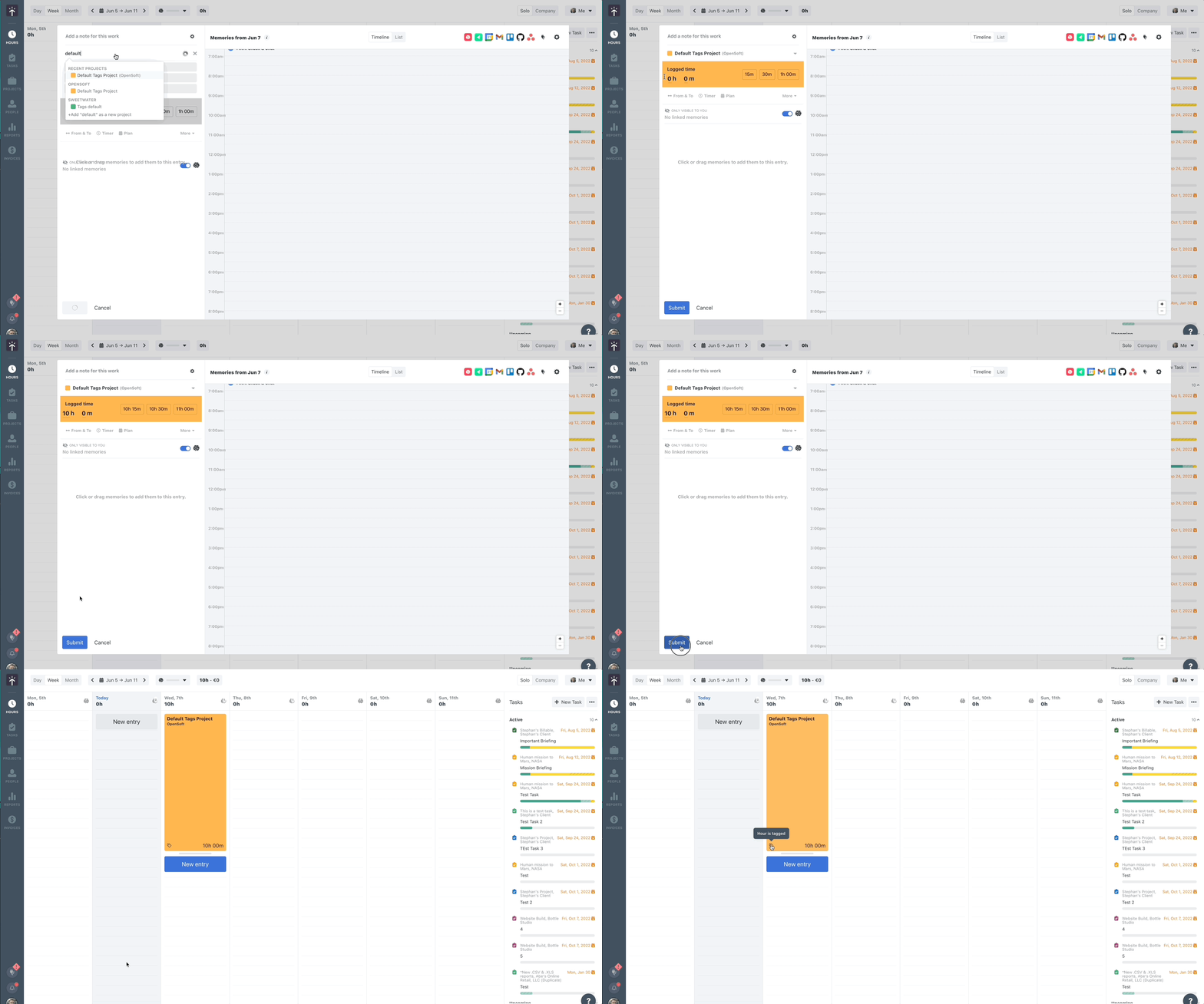
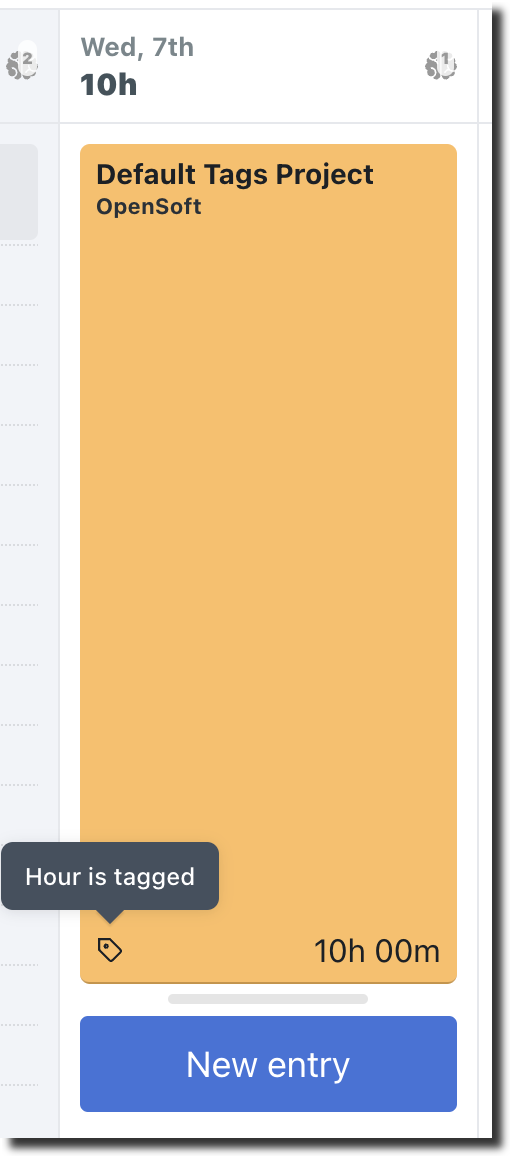
The Default Tags are assigned automatically with no input from the employee user.
Using default tags to search for a project
Once a series of Tags have been assigned to a project or Default Tags have been selected, admin and manager level users can search for projects that have those tags. Perfect for workspaces with a large number of projects or for folks who love quick and easy navigation.
From the Projects Dashboard click the “Any tag” dropdown along the top-right hand corner:
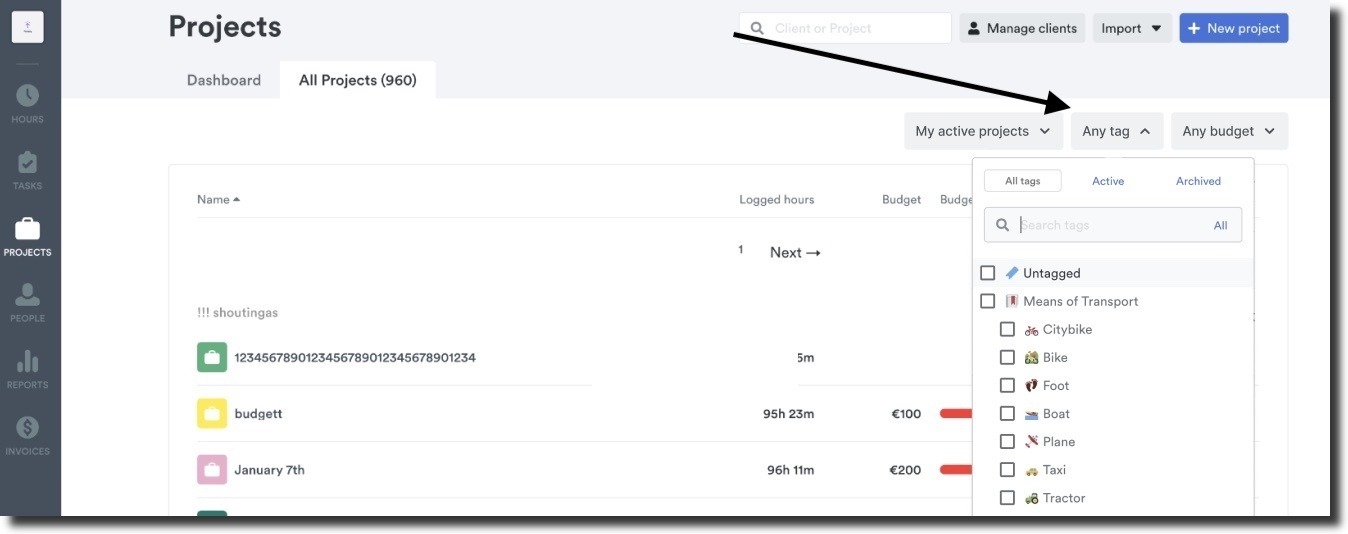
Enter in a bit of text that corresponds to a Tag into the search field and you’ll see all the projects that have that Tag associated.
FAQs
My users aren’t seeing the Default Tags I’ve selected when logging their time!
Once you’ve enabled Default Tags for a project and selected the appropriate Tags you’d like to enforce, they’ll apply automatically once a time entry has been created. There won’t be an indicator to the users that those Tags have been applied until the entry has been created.
How will Default Tags affect my Custom Reports?
By selecting and enforcing specific Tags for a project you’ll see those Tags assigned to time as it’s logged. So any Custom Reports you have that include information about Tag assignment would reflect the time that’s been logged with those Tags, including the defaults.
What about exports — do Default Tags display on my CSV or Excel exports from Timely?
Any export that includes Tags would include Default Tags as well. By setting Default Tags you are ensuring consistency in how folks are assigning their time and increasing the overall accuracy of your reporting around Tags. Default Tags are not a separate category of Tags in and of themselves.
Can I select more than one Default Tag per project?
You can select one Default Tag per Tag list and assign as many Tag lists to a project as you’d like.
Last updated April 1, 2026
Have feedback for this article or need more help? Contact us now.