
ClickUp Sync Integration
IntegrationsDeep Sync IntegrationsHandbookReal-time ClickUp sync for tasks, projects, tags, and time entries.Overview
The ClickUp Sync Integration automatically imports your ClickUp structure — spaces, folders, lists, tasks, subtasks, tags, and members — into Timely. It keeps everything aligned in real time, creates Memories from real work activity, and lets you optionally push time logged in Timely back into ClickUp.
Connecting Timely to ClickUp — Workspace Admin
- Head to Settings > Integrations in Timely
- Choose ClickUp from Next-Gen Integrations
- Click Connect workspace with ClickUp and choose your import profile:
- Folders as Projects — Spaces (Clients) → Folders (Projects) → Tasks
- Lists as Projects — Spaces (Clients) → Lists (Projects) → Tasks
- Folders as Clients, Lists as Projects — Folders (Clients) → Lists (Projects) → Tasks
- Spaces as Projects (No Clients) — Spaces (Projects) → Tasks
- Folders as Projects (No Clients) — Folders (Projects) → Tasks
- Lists as Projects (No Clients) — Lists (Projects) → Tasks
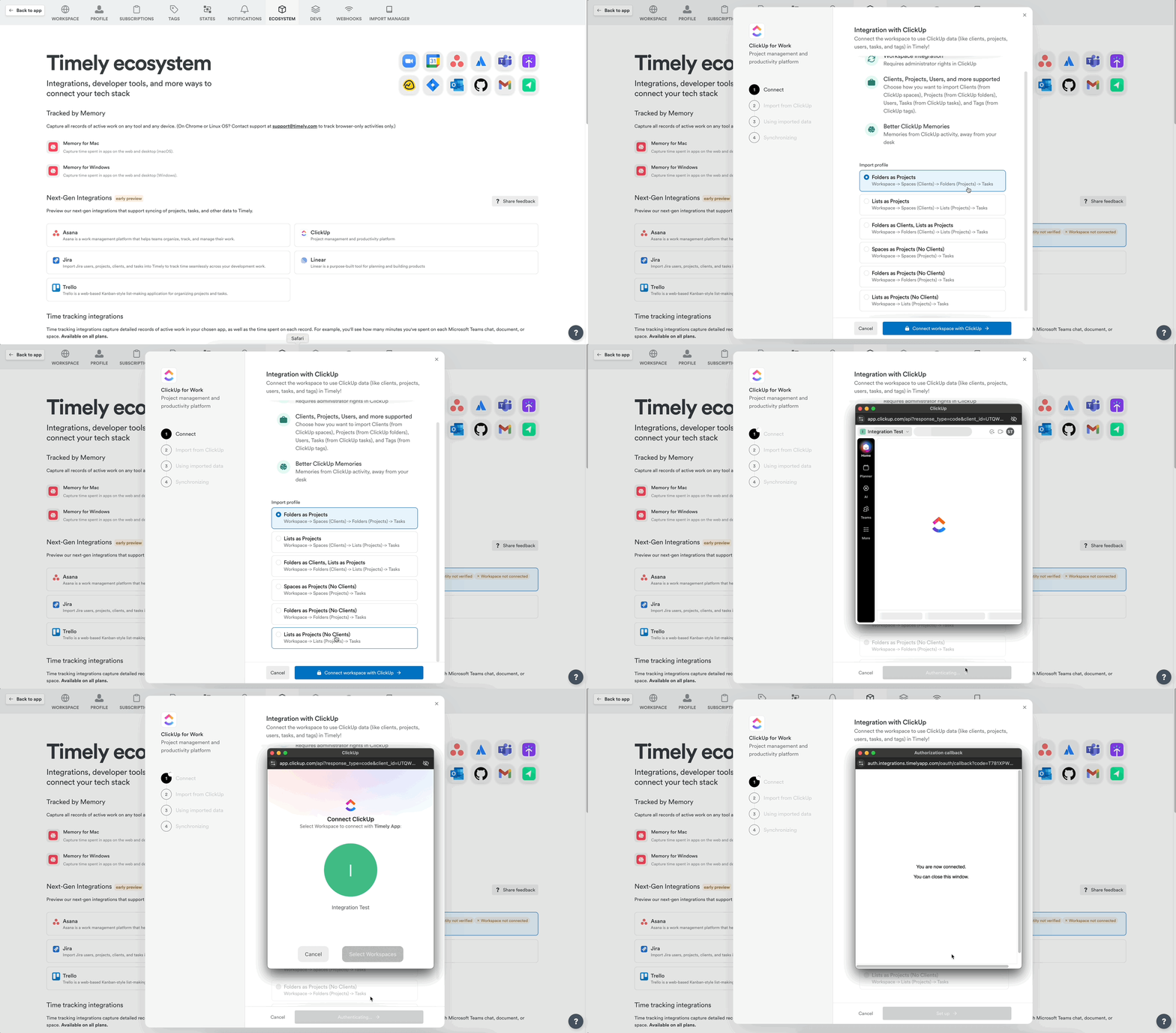
- Confirm your ClickUp workspace and click Select workspace
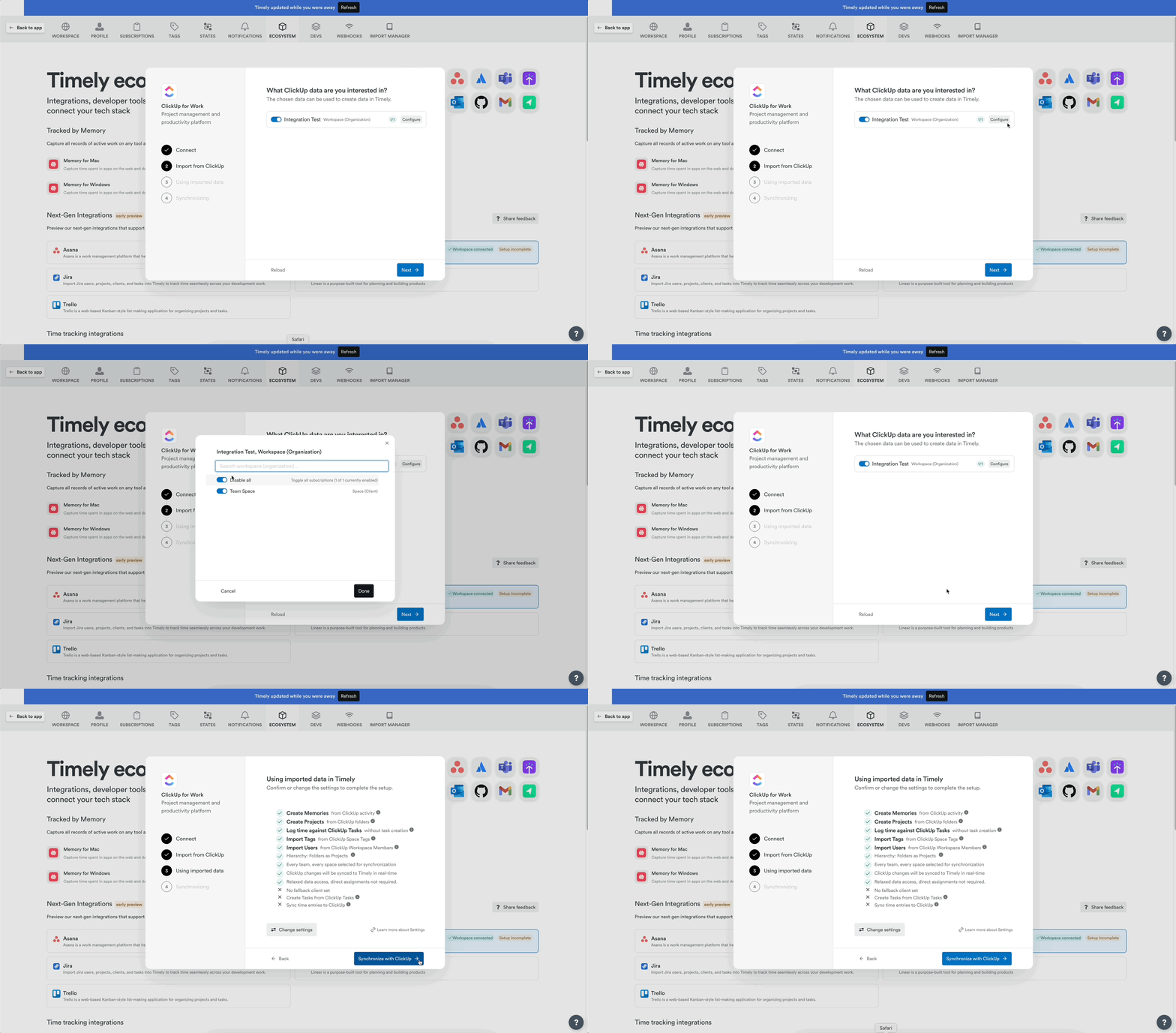
- Confirm the sync configuration (defaults pre-set):
- Create Memories from ClickUp activity
- Create Projects from ClickUp folders
- Log time against ClickUp tasks
- Import Tags from Space Tags
- Import Users from Workspace Members
- Real-time sync enabled
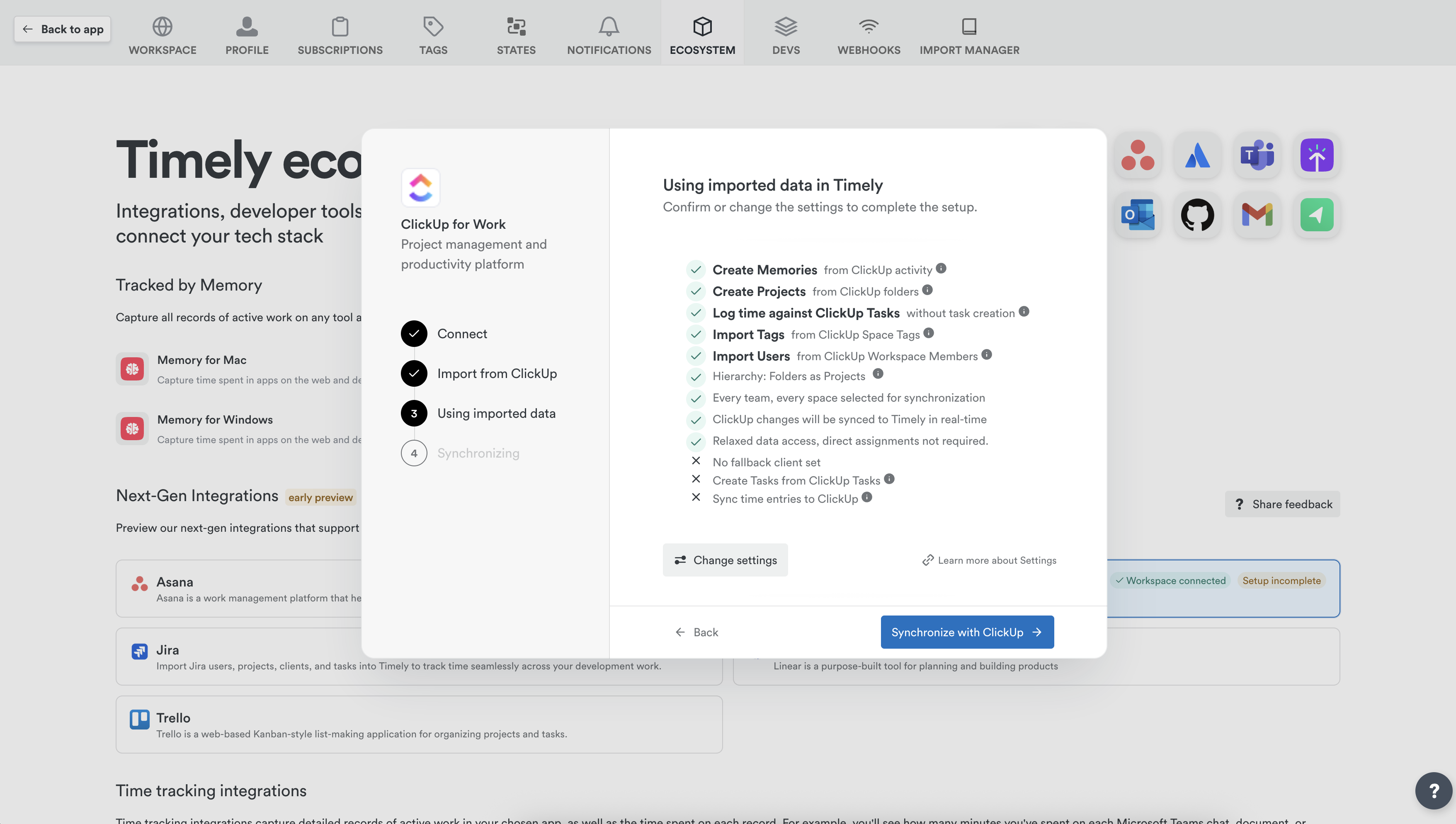
- Click Synchronize with ClickUp to finalize
Connecting — Personal Integration (Employees, Managers)
- Navigate to Settings > Integrations
- Find ClickUp in Next-Gen Integrations
- Click “Authenticate with ClickUp”
- Click Allow to approve permissions
Items synced from ClickUp
| ClickUp Item | Appears in Timely as | Notes |
|---|---|---|
| Spaces | Clients or Projects | Depends on profile |
| Folders | Clients or Projects | Depends on profile |
| Lists | Projects | Depends on profile |
| Tasks | Linked Work references | Available in time entry search |
| Subtasks | Linked Work references | Shown flat, not nested |
| Tags | Tags | Imported at setup; tags added later appear within about 2 hours |
| Members | Users or Unassigned Users | Guests excluded |
| Activity | Memories | If enabled (default) |
Duplicate client names during import
If two or more ClickUp entities share the same display name (for example, two departments both called “Acme”), Timely will import all of them rather than silently dropping the duplicates. Each additional client receives a numeric suffix to make it unique — for example, Acme (2), Acme (3), and so on.
Memories from ClickUp activity
These actions generate a Memory:
- Creating, editing, or completing tasks
- Creating, editing, or removing spaces, folders, and lists
- Status updates
- Creating comments
- Visiting app.clickup.com in your browser
Logging time against ClickUp tasks
Search for tasks directly in the time entry form. With the default configuration, tasks appear as Linked Work in AutoSheet or Attach a Task on the Classic timeline.
Linked work picker
The linked-work picker shows ClickUp tasks together with any Timely linked work items (work items managed in Timely itself, for example through the Timely API) in one list. Each item has its own icon so you can tell them apart.
Linked-work filters in AutoSheet
When a row in AutoSheet has a project that is linked to ClickUp, the linked-work picker automatically narrows its list to ClickUp tasks from that project. You can adjust this behaviour using the Filter menu inside the picker:
- Scope — All integrations, Same integration (ClickUp tasks only), or Same project (tasks from this specific project).
- Status — toggle Open and/or Done tasks on or off.
Active filters appear as chips at the top of the picker. Your preferences are saved and shared with the manual time-logging picker.
How ClickUp tasks load
The picker loads more ClickUp tasks as you scroll. Search looks up all tasks, so you don’t need to scroll to find one by name.
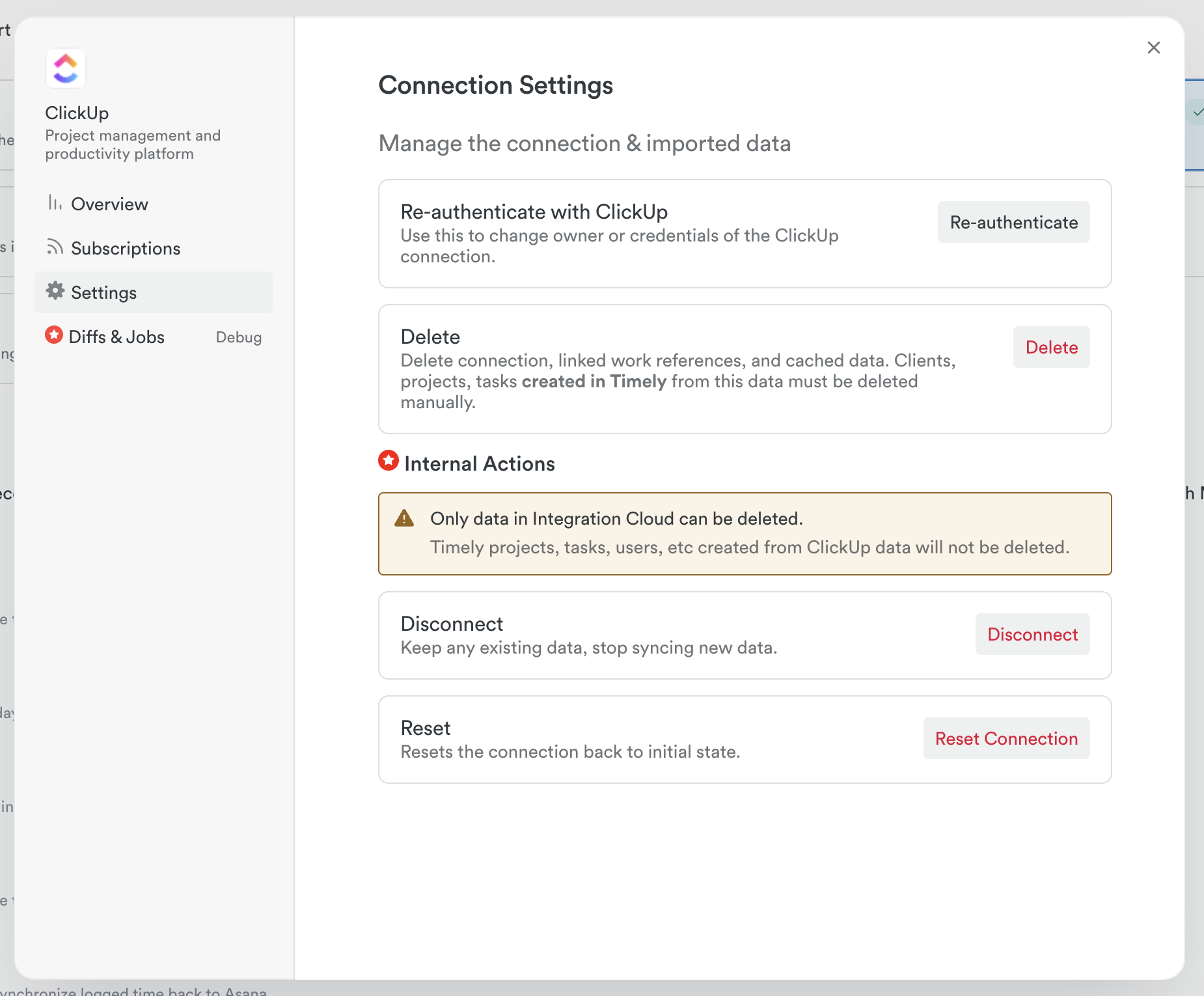
Removing the ClickUp integration
Head to Settings > Integrations, select ClickUp, click Settings → Disconnect.
FAQs
Do I need the Tasks add-on?
No — you can log time using Linked Work references. The Tasks add-on is only needed to import ClickUp tasks as full Timely Tasks and sync time back.
Can I change my import profile later?
No — you’ll need to disconnect and reconnect to select a different profile.
What doesn’t sync?
Custom fields, Goals and OKRs, two-way structural sync, comments as searchable content, and guest users are not supported at present.
Last updated October 7, 2026
Have feedback for this article or need more help? Contact us now.