
What happens if I remove a user?
People & Team ManagementHandbookHow to delete or remove a user from your Timely account without losing data.If you remove a user from your Timely account, no data will be lost whatsoever! The user will lose access to the workspace, but their data will still show under their name and will remain visible on your account and all reports.
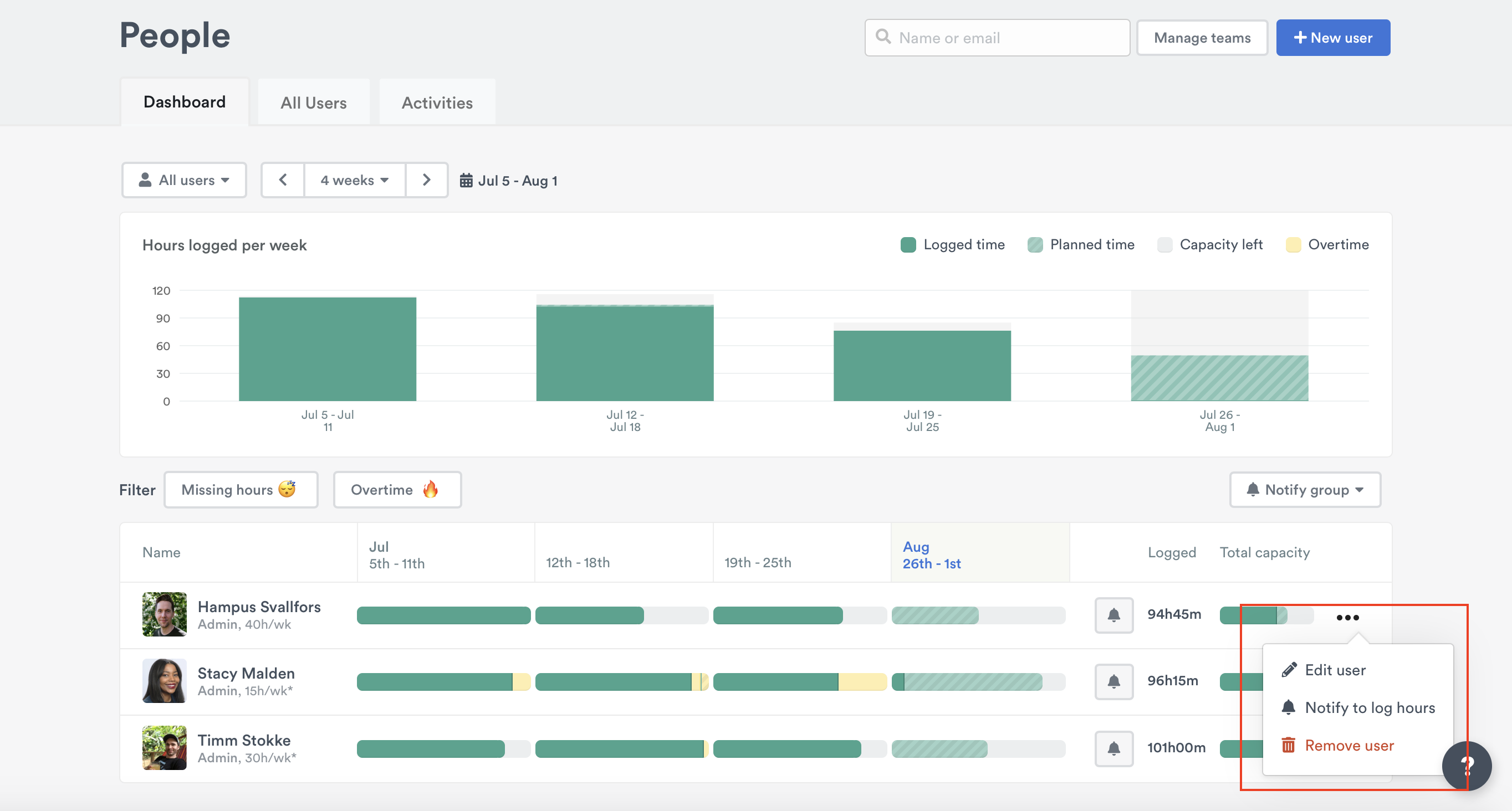
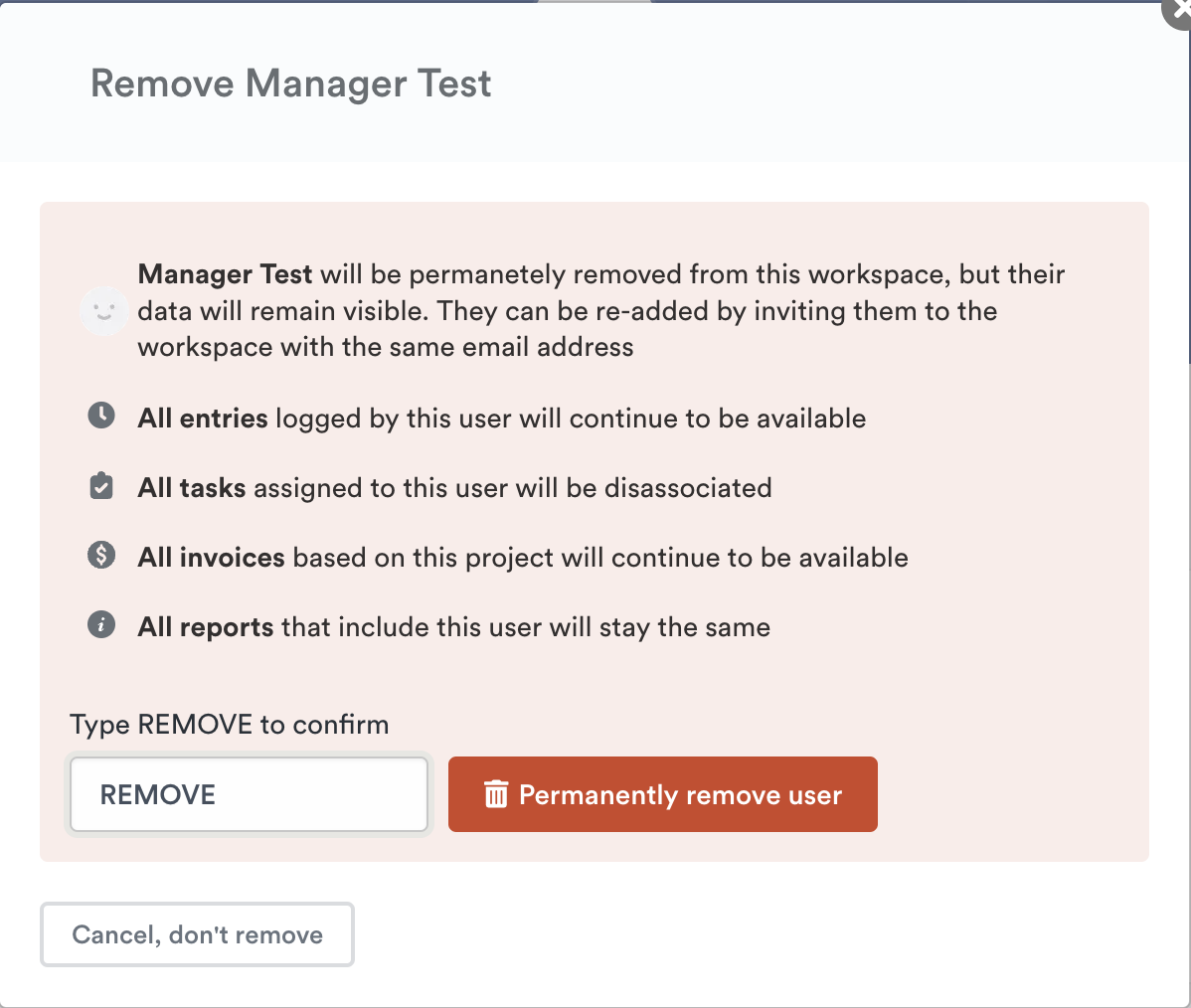
To delete a user:
- Head to the People page.
- Click the ”…” for the user you wish to remove.
- Select the “Remove User” option.
- Type REMOVE to confirm.
On Enterprise accounts billed by invoice, you can’t invite new users once all your contracted seats are in use. Removing a user frees up their seat straight away, so you can invite someone else. To add more seats, contact your Timely account manager. See Adding and removing seats for more on seats.
How do I delete/remove the original Admin on the account?
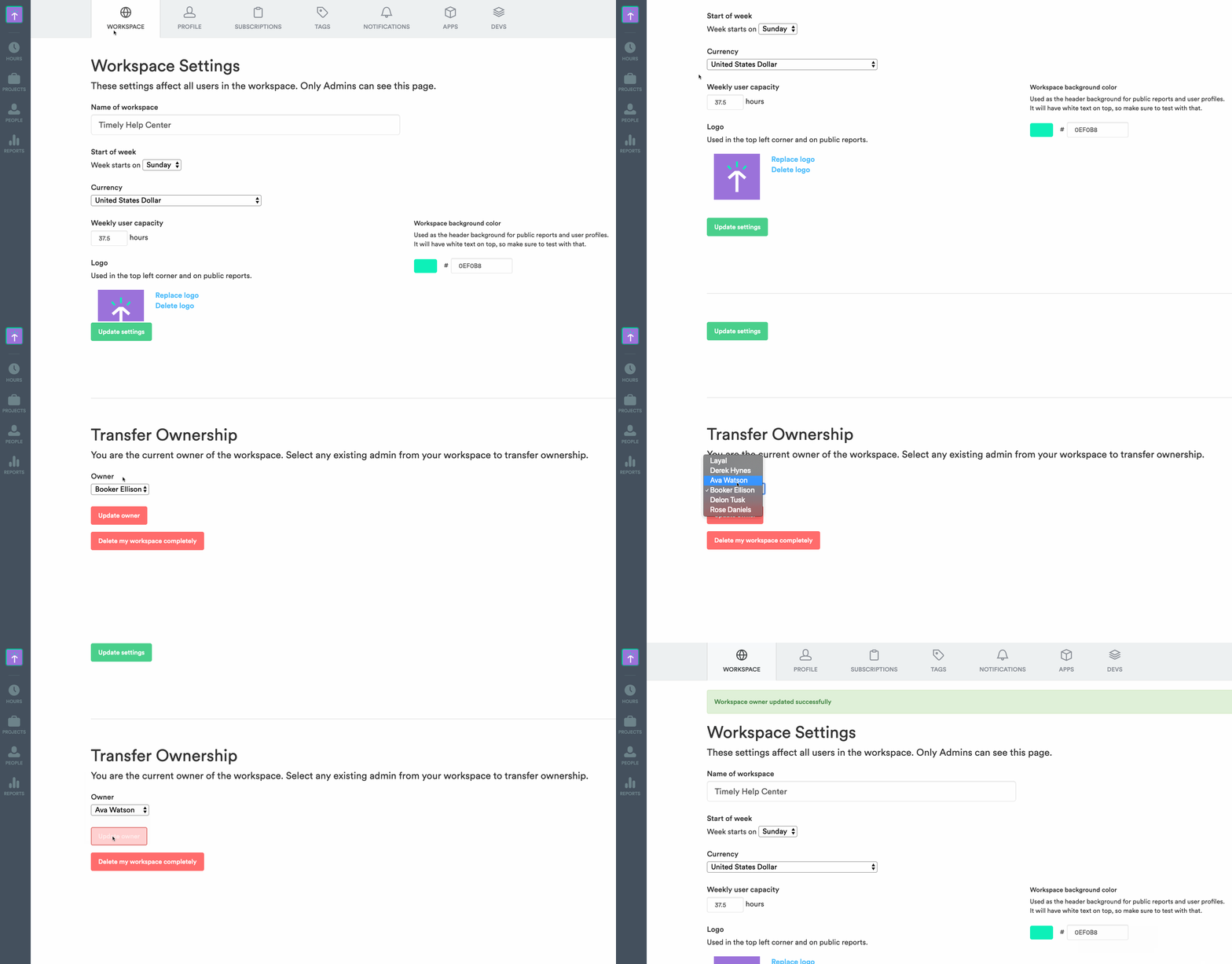
If the user you plan to delete is listed as the original admin or owner, it’s a little different. Ownership of the Timely account needs to be transferred to another Admin on the account before you can delete them.
Your Timely account owner can transfer their ownership from Settings > Workspace. They just need to scroll to the bottom of the page to reveal the option and select a new owner from the dropdown.
Can I add a deleted user back to the workspace account?
Absolutely! You can add a previously removed user back to the workspace in just a few clicks. Follow the same steps as you would for adding a new user, and as long as you use the same name and email address, that user can pick right up where they left off.
What happens to my subscription once I delete the original admin?
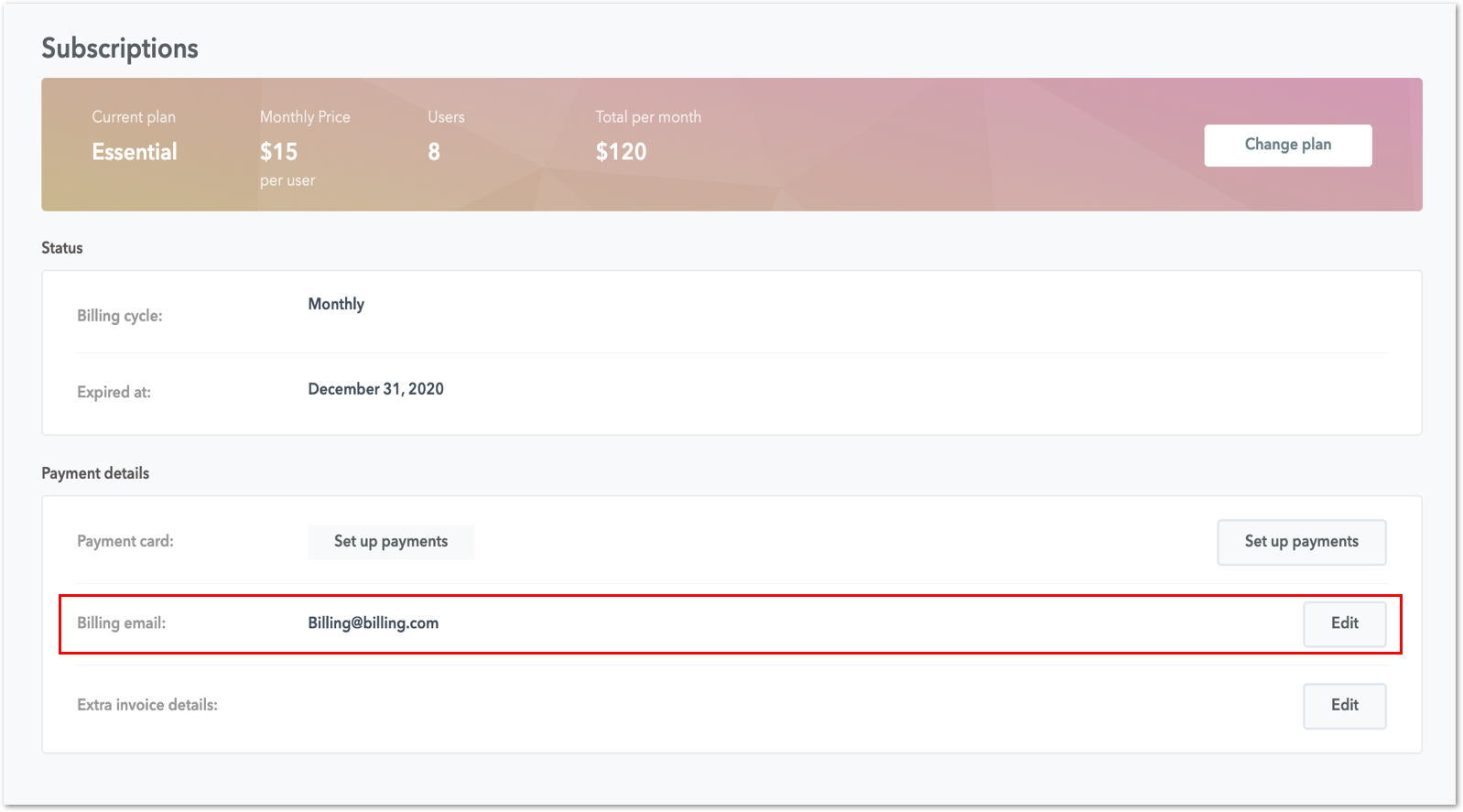
Nothing about your subscription will change. However, we will continue to send your account’s subscription invoices to the deleted admin if their email is still linked to your billing information. Avoid this by changing your account’s billing email in Settings > Subscriptions in the Payment Details section.
Last updated October 7, 2026
Have feedback for this article or need more help? Contact us now.