
Single sign-on options
Getting StartedHandbookQuickly access Timely using Google, Apple and Microsoft accounts.These days, keeping up with all the passwords you create becomes such a chore. That’s why we’ve made it really easy to access your Timely account. You can choose to sign in via Google, Apple, or Microsoft — rather than trying to remember a new password. In just a few clicks, you’ll be up and running.
- Sign in with Google
- Sign in with Apple
- Sign in with Microsoft
- Enterprise SAML SSO
- Troubleshooting SSO issues
- FAQs
Adding an SSO option
If you’ve already created a Timely account and you want to sign in using Google, Apple, or Microsoft, you’ll need to go to your profile and select which SSO option you want to use going forward. You’ll need to use the same email address your account was created with in order to set up an SSO:
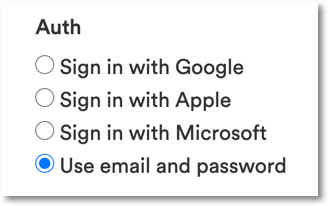
If you didn’t sign up for Timely using an SSO option, your default Auth option in your profile will be Use email and password. Clicking any of the SSO options will then take you to a page where you can authorize your credentials in Google, Apple, or Microsoft, and set your SSO preference going forward.
Sign in with Google
From your Profile, select Sign in with Google as your authorization option which will take you to a Google landing page:
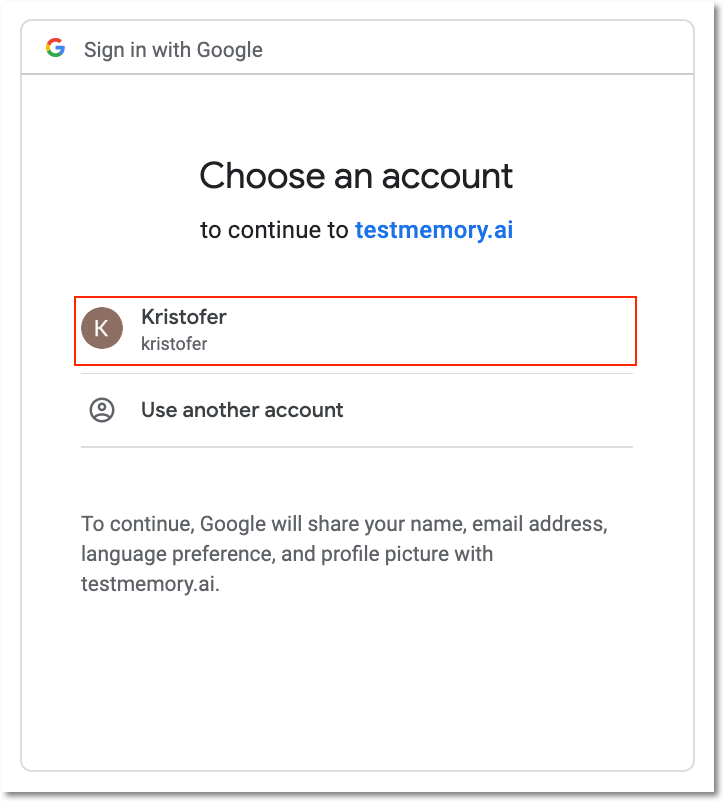
Sign in to Google and you’ll be brought back to your profile and you’ll be able to use Google the next time you sign into Timely.
Sign in with Apple
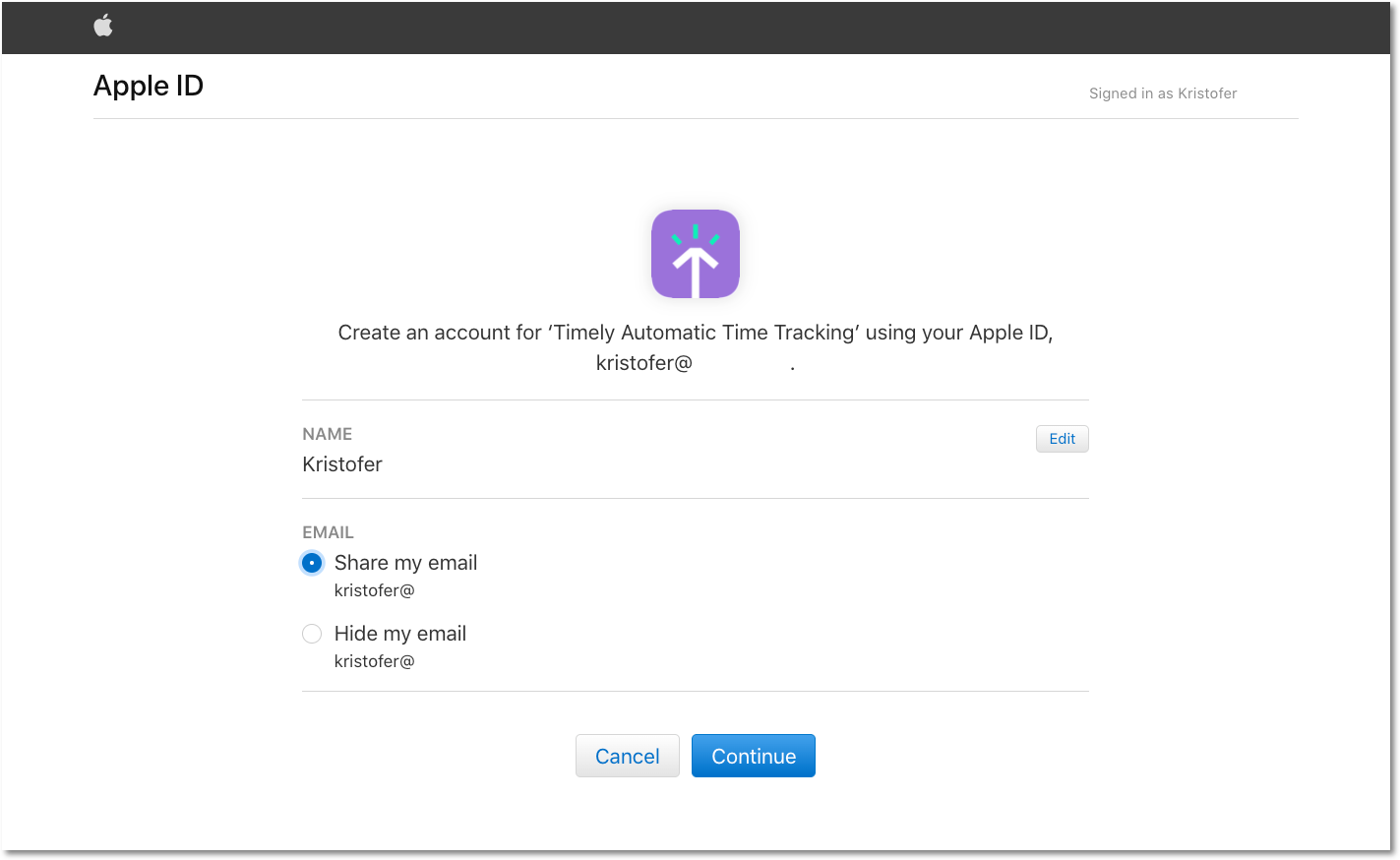
If you’ve already created a workspace or already have a Timely account, you will need to share your email in the set-up steps in order to enable Apple SSO, as hiding your email will create a separate workspace.
When you click on the option to Sign in with Apple, you’ll be taken to an external site hosted by Apple to sign in using your Apple ID email address and password:
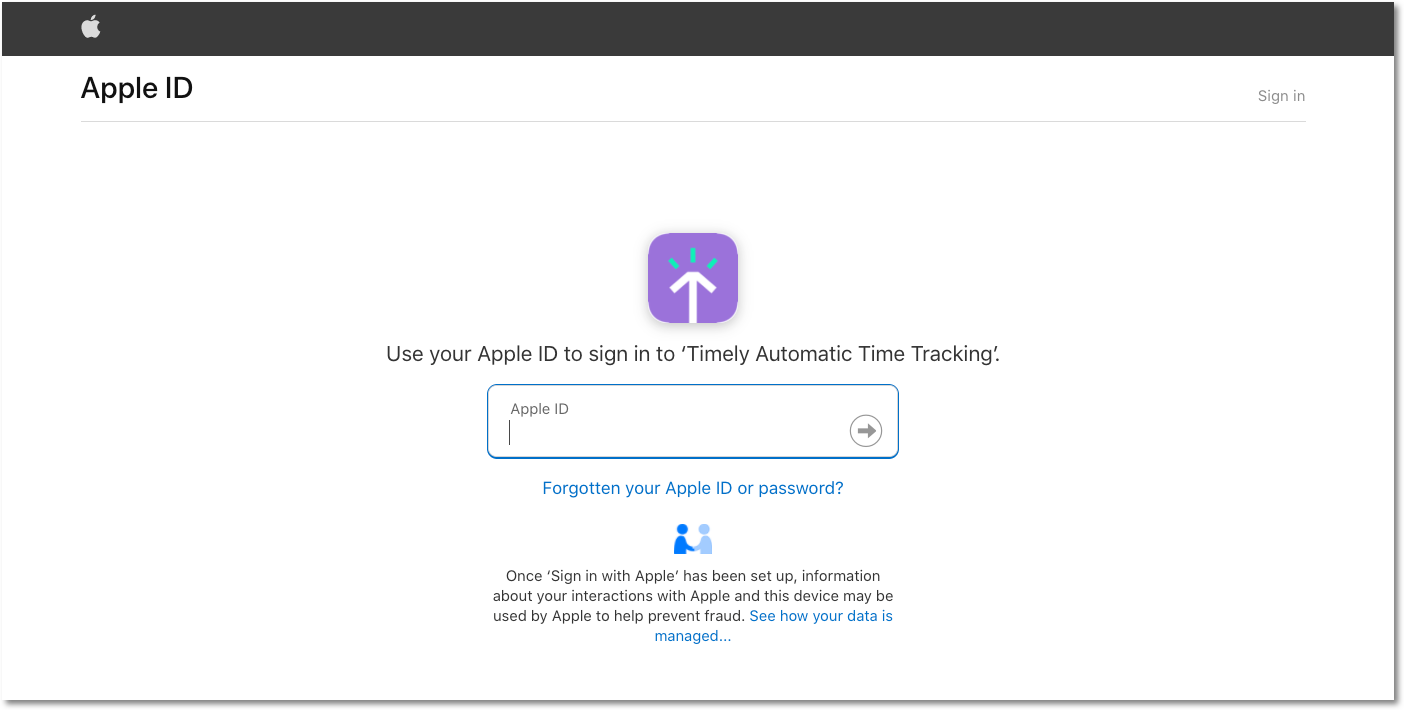
Once you’ve signed in, you’ll need to select the email address you want to use with your Timely account:
Sign in with Microsoft
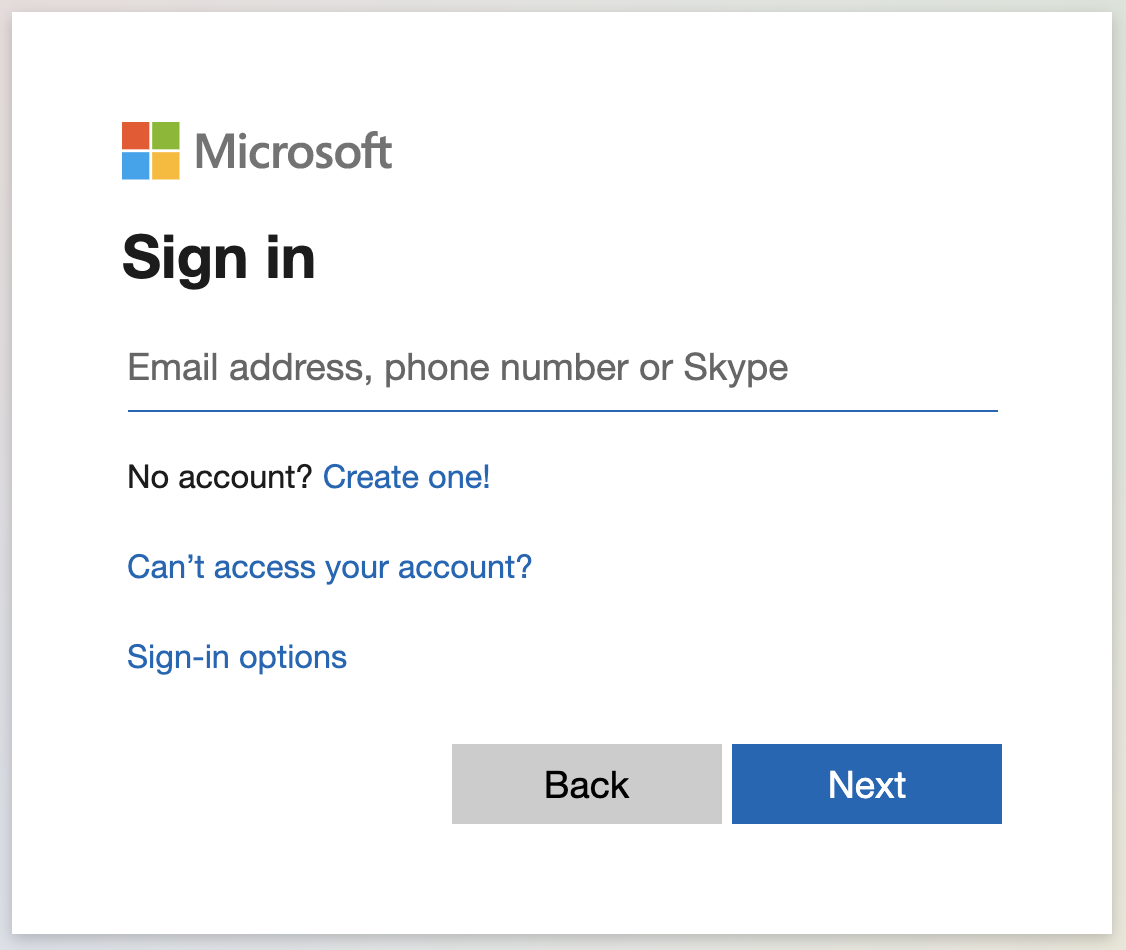
Clicking the option to Sign in with Microsoft will redirect you to an external page hosted by Microsoft where you can enter your email address. Follow the instructions and once you’re signed in, SSO with Microsoft will be enabled:
Enterprise SAML SSO
For organizations using enterprise identity providers like Okta or Azure AD, Timely supports SAML-based single sign-on. This allows your team to access Timely using their existing corporate credentials.
Learn more about setting up SAML SSO:
Troubleshooting SSO issues
If you encounter authentication errors during single sign-on, Timely provides detailed error information to help resolve the issue.
SAML SSO errors
For enterprise SAML integrations, error pages now include comprehensive support details:
- Reference ID: Unique identifier for the error occurrence
- Reason code: Specific error type (replay, correlation, validation, etc.)
- Issuer information: Details about your identity provider
- Timestamp: When the error occurred
Common SAML error types:
- Authentication responses that have already been used
- Mismatched authentication requests
- Configuration issues with your identity provider
- User account resolution problems
If you see a SAML error page, include all the displayed support information when contacting [email protected].
OAuth SSO errors
For Google, Apple, and Microsoft OAuth sign-ins, common issues include:
- Email address mismatches between providers
- Revoked authorization permissions
- Account conflicts between multiple providers
Microsoft / Azure: “We couldn’t verify your email address with Microsoft”
If you see this message after signing in with your Microsoft account, it means Timely received a valid token from Microsoft but your organisation’s Azure tenant did not include the information needed to confirm your email address is verified. This is a configuration issue on the Azure side, not with your Timely account.
Switching to a different Microsoft account will not fix this error.
To resolve it:
- Ask your IT administrator to verify your organisation’s email domain in Microsoft Entra ID.
- If your organisation uses a federated identity setup, contact [email protected] for a manual account link — include both your Timely account email and your Microsoft account email.
For full details, see Connecting Timely with Microsoft Entra ID (Azure AD).
FAQs
What if I want to log in with my email address and password again?
If you’ve already signed in with Google or Apple previously, typing in your email address while trying to log in will route you back to the single sign-on option you selected previously. If you want to go back to using your Timely email address and password instead of Google or Apple, select the Use email address and password option from your profile. You’ll then be asked to enter and confirm your password before disabling the single sign-on option.
I’ve turned on the option to sign in with Apple but I can’t log in. What do I do?
Try removing Timely as an authorized app, then turning on the Apple authorization option again from within your profile. Click here to remove Timely as an app via your Apple ID.
I turned on one of the SSO options and I keep getting brought to a new workspace. What happened?
This typically happens if you already have a Timely account but aren’t currently logged in, and go through the steps to set up SSO from the Timely login page. Since you’re not signed in, you’ve actually created a separate workspace using the SSO options on that landing page.
First, you’ll want to follow these steps to delete that duplicate workspace. Also, check to make sure you don’t have a Dewo or Glue account associated with that email address, as they are in use by our backend as well.
From there, sign in to your Timely account using your email address and password, then go to Settings > Profile and follow the instructions above to select an SSO option.
My company no longer uses Google/Microsoft as our email provider and now I can’t sign in. What do I do?
If you’re no longer able to sign in using the SSO option you set up because your company switched providers, please drop us a line at [email protected] and we’ll help you sign back in!
Last updated June 23, 2026
Have feedback for this article or need more help? Contact us now.