
Invoicing with QuickBooks Online
IntegrationsInvoicingHandbookSend billable hours from Timely to QuickBooks Online for seamless invoicing.With Timely, we want to make sure you’re able to focus on your work first and foremost. We spent a lot of time listening to feedback and working on an invoicing integration with QuickBooks Online, so you can harness the accuracy of automatic time tracking and the power of a specialist accounting solution.
Connecting to QuickBooks Online
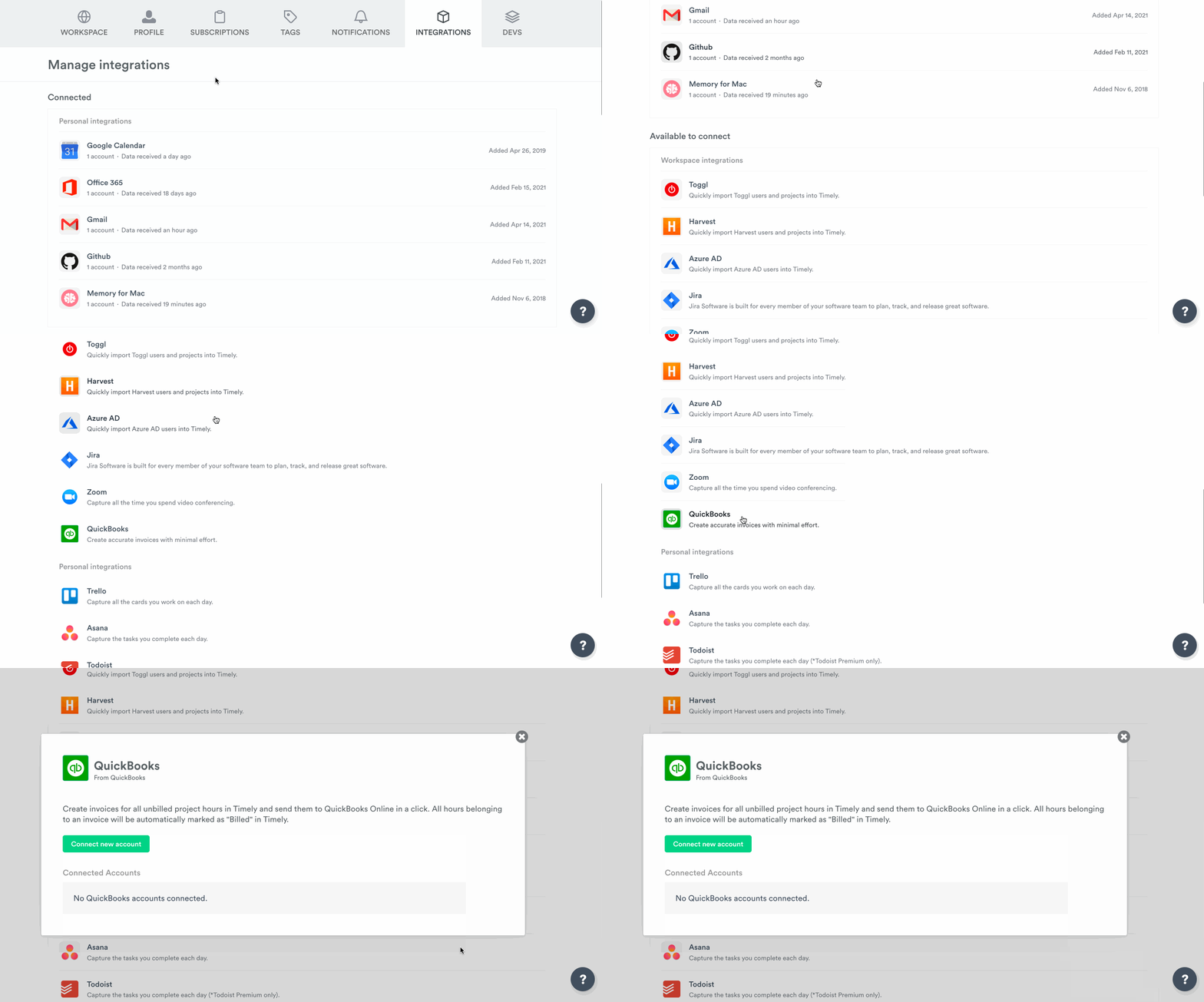
Head to Settings > Integrations — scroll down and you’ll see QuickBooks Online as an integration to connect:
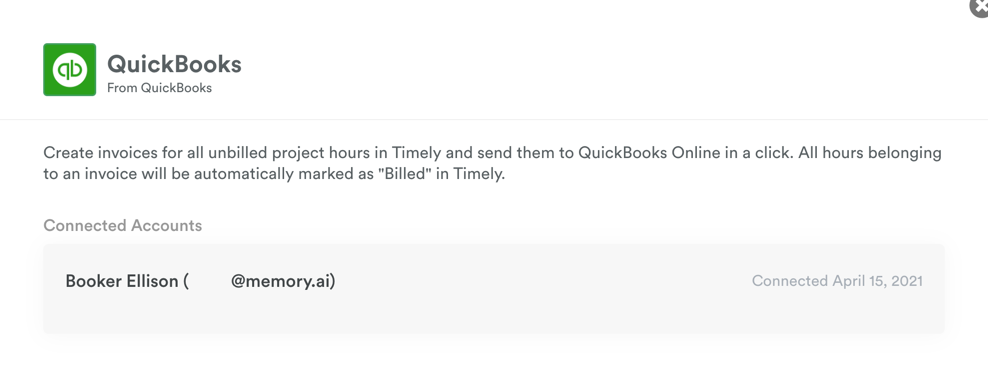
Once signed in, authorize with Intuit, connect your company with Timely, then click “Next”:
Creating invoices
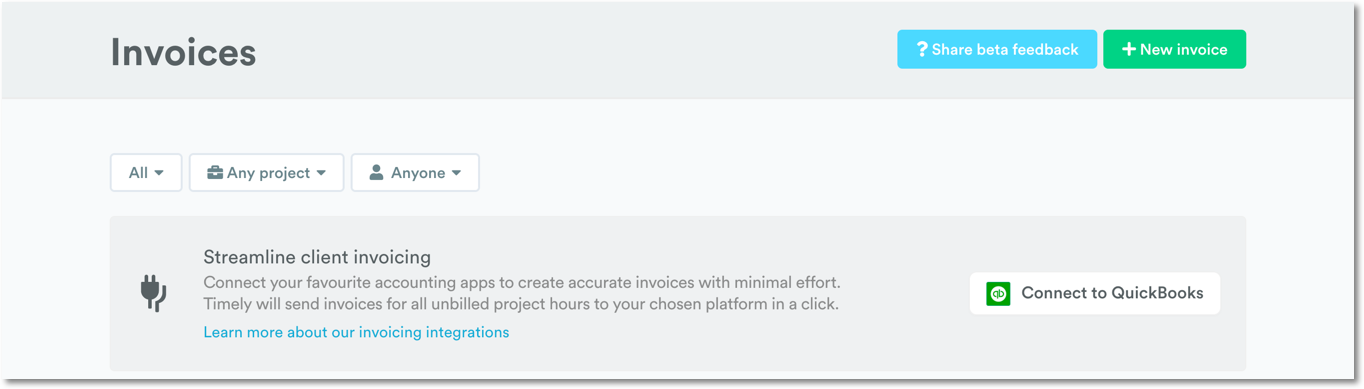
Even if you haven’t connected QuickBooks Online, you can still create invoices in Timely — you just won’t be able to send them to QuickBooks yet.

By default, new invoices include all unbilled hours on your workspace. You can narrow this by filtering for specific clients, projects, or billing periods.
Organize line items by person, tags, or team:
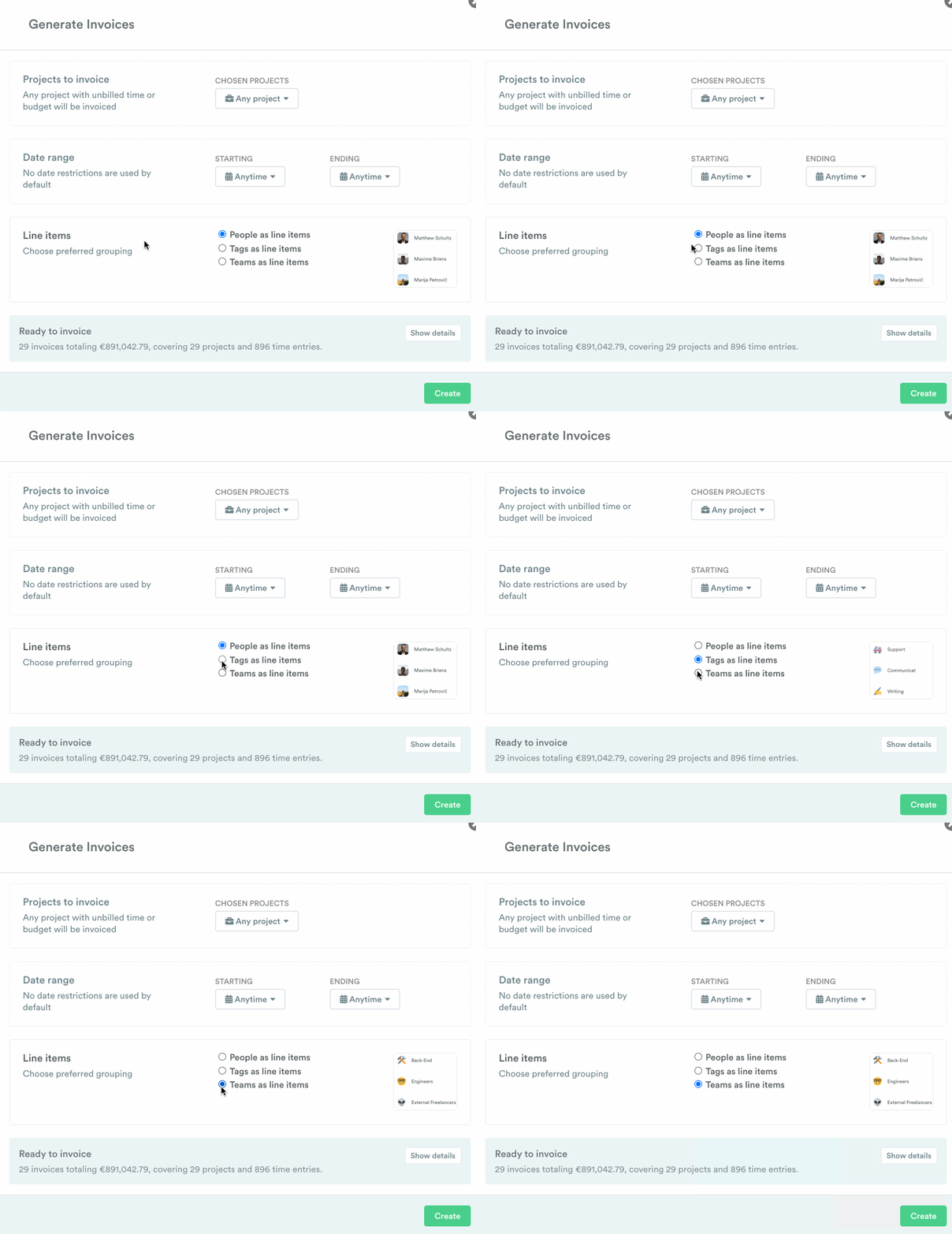
Once finalized, click “Create” to review your invoice before sending to QuickBooks.
Managing invoices
Click “Show details” at the bottom of the pop-out window to see a summary:
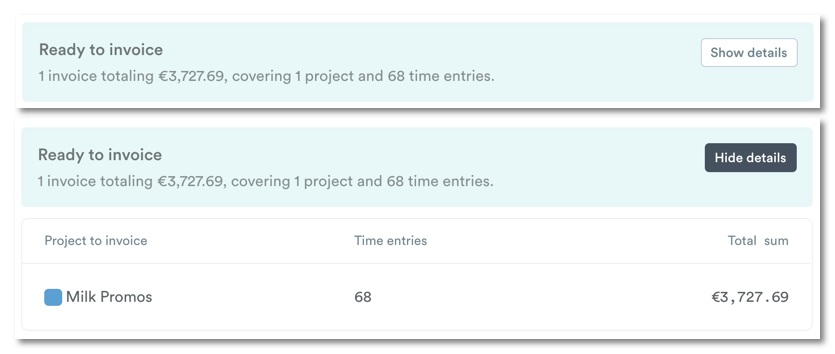
If everything looks okay, push the invoice to QuickBooks:

In QuickBooks Online, you can review the draft and send it off. Once payment is received, the status mirrors automatically in Timely.
Viewing invoices
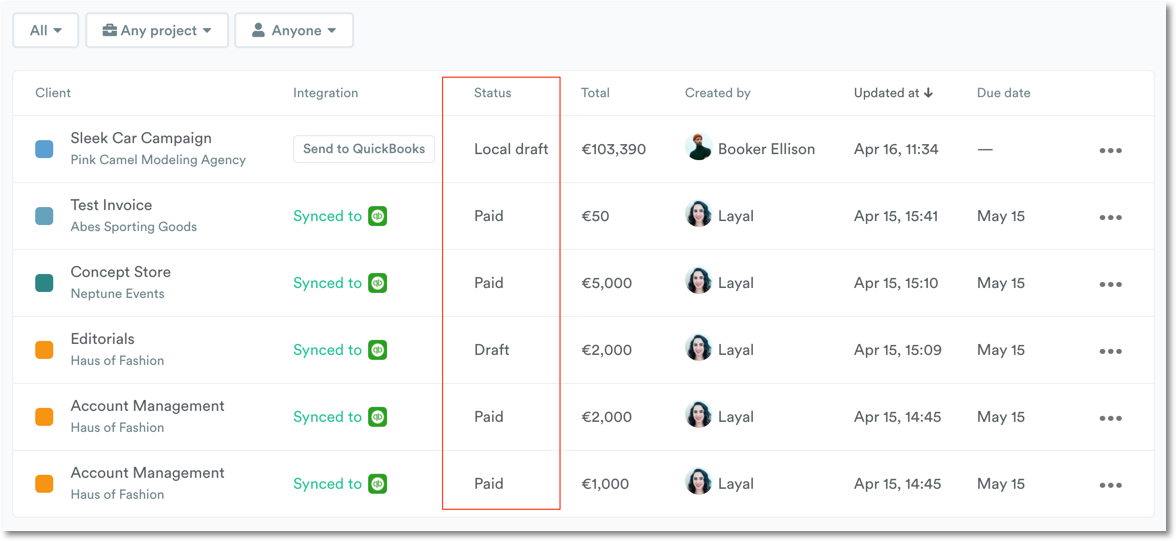
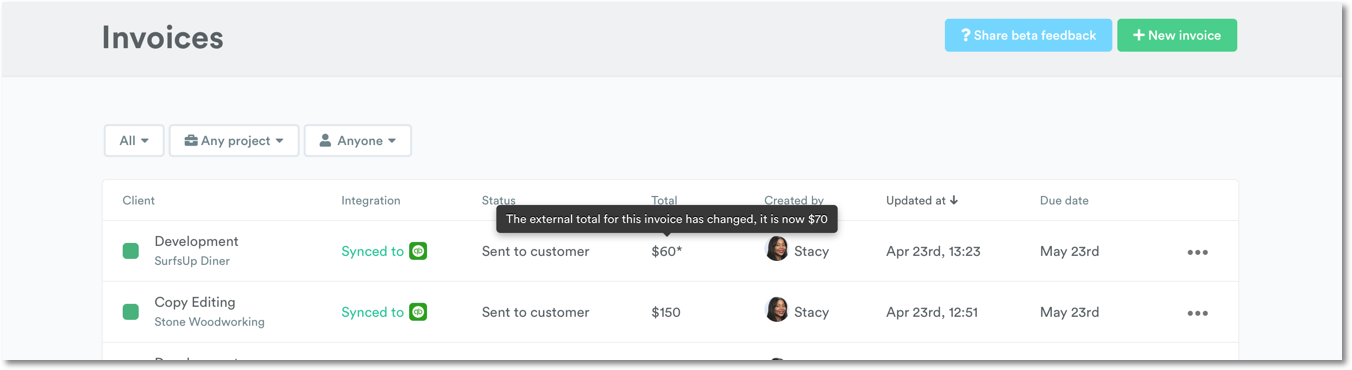
The Invoices tab provides a list of all invoices with details about client, sync status, payment status, amount, and creator.
Filter by:
- Local draft — only available in Timely
- Draft — sent to QuickBooks but not yet paid
- Sent to customer — sent in QuickBooks but not responded to
- Paid — sent and marked as paid
- Void — voided in either platform
FAQs
Which QuickBooks products does Timely integrate with?
Only QuickBooks Online. QuickBooks Self-employed is not currently supported.
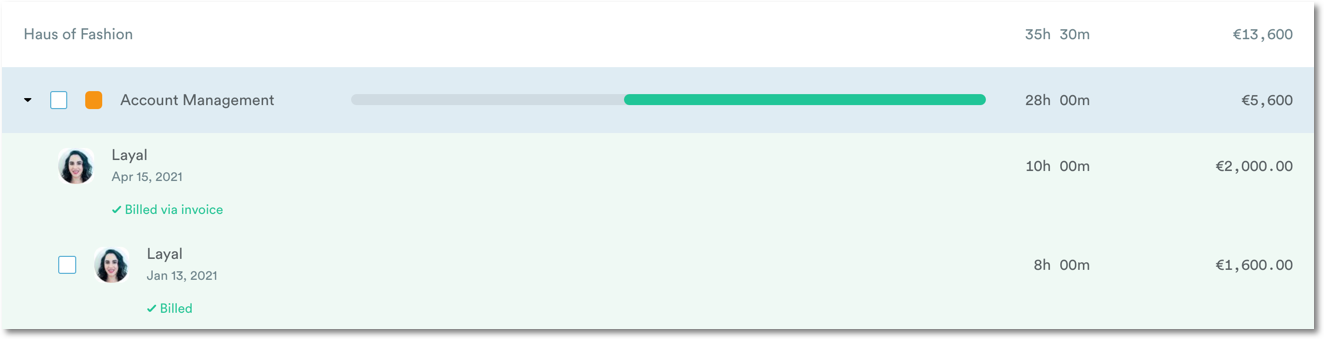
How do I differentiate between billed and invoiced hours?
“Billed” hours appear in green, whereas invoiced hours appear as “Billed via invoice”.
Do I need another tool to invoice?
Timely’s draft invoices cannot be exported or printed directly. You will need QuickBooks Online to send invoices and update their status.
Is it a two-way sync?
Yes. Invoices generated in Timely appear in QuickBooks as a draft, and status updates feed back to Timely. Voiding an invoice in Timely also voids it in QuickBooks.
What about projects with budgets?
You can invoice by budget or by logged hours. To invoice by budget, select the checkbox within a project:
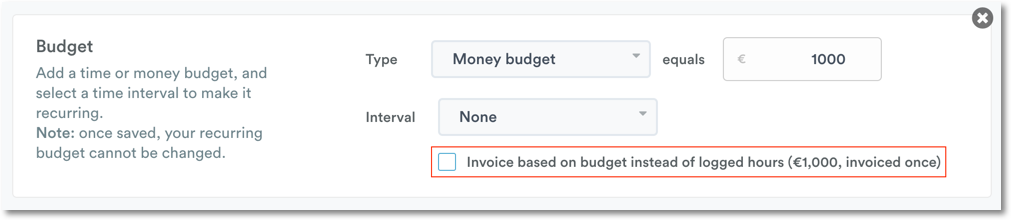
- Projects with recurring budgets can only be invoiced once per interval
- Projects with fixed budgets can only be invoiced as a full, one-off invoice
- You cannot create invoices for future dates
How are taxes, discounts, and currencies handled?
All taxes, discounts, and currency exchanges are handled within QuickBooks Online settings.
Last updated April 1, 2026
Have feedback for this article or need more help? Contact us now.