
Recurring Budget Projects
Projects & TagsProjectsHandbookTrack monthly- or weekly-recurring project budgets.Timely’s recurring budgets feature allows you to track your budget spending in monthly or weekly intervals for a set period, or over the life of your project. It’s super helpful if you regularly work on rolling projects and retainers, but also if you want to control how you divide resources across your different projects.
Set a recurring budget
1. From the Projects page, create a new project or edit an existing one.
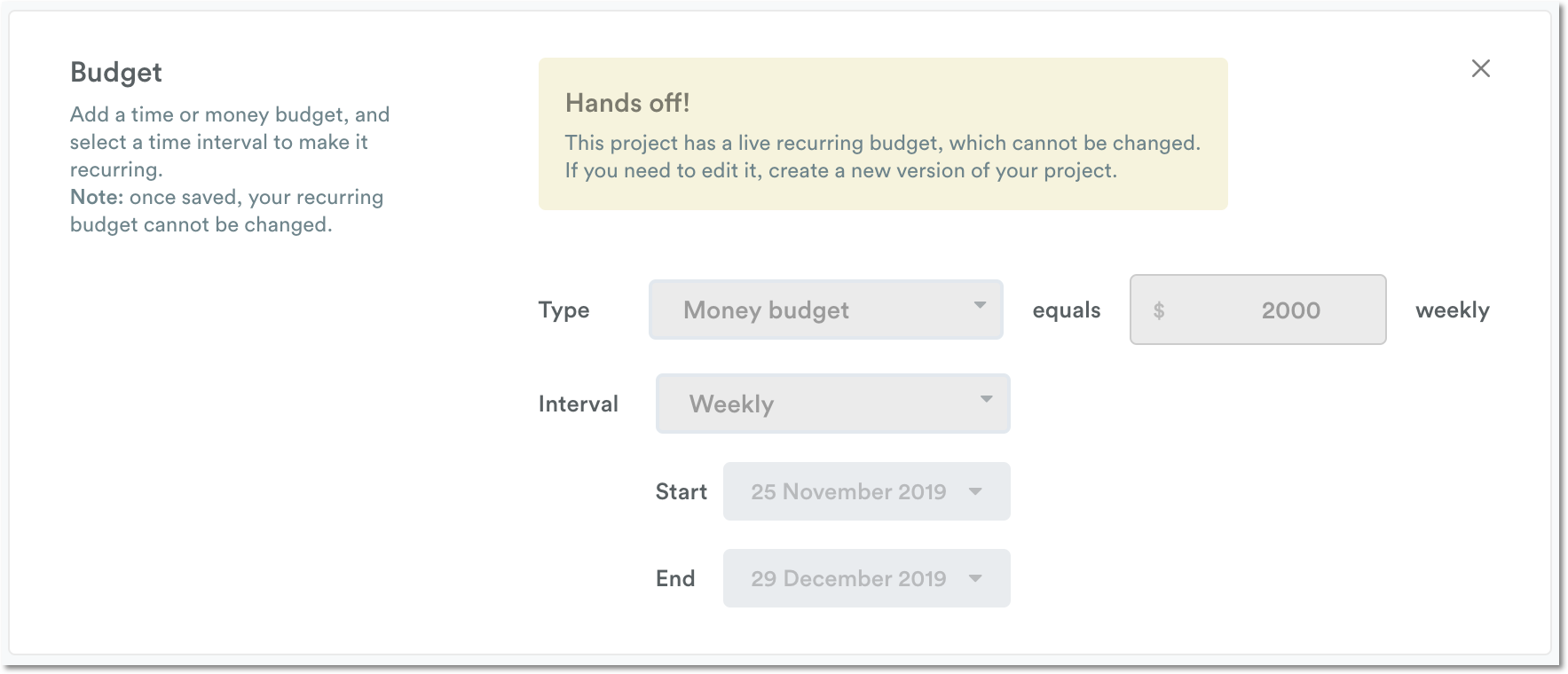
You can only add recurring budgets to brand new projects, or to existing ones that don’t already have one set. Once you set a recurring budget live on a project, its interval and start date can’t be changed, and neither can the budget for the current or past periods. You can change the budget for upcoming periods.
2. Expand the ‘Budget’ section and choose your budget type.
Select Time or Money, and enter the budget amount you’d like to set for each interval.
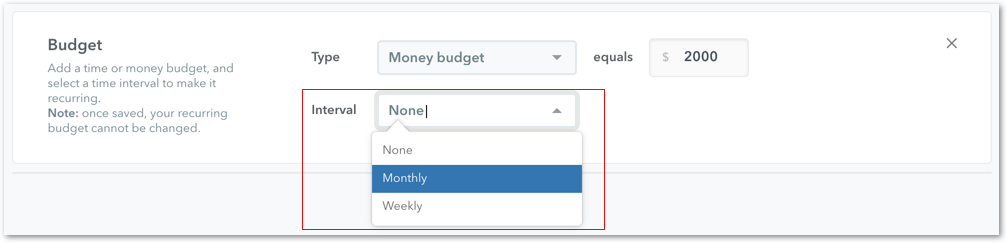
3. Choose your recurring budget interval — either Weekly or Monthly.
Selecting “None” keeps your budget as a total lifetime budget for the project, which won’t recur.
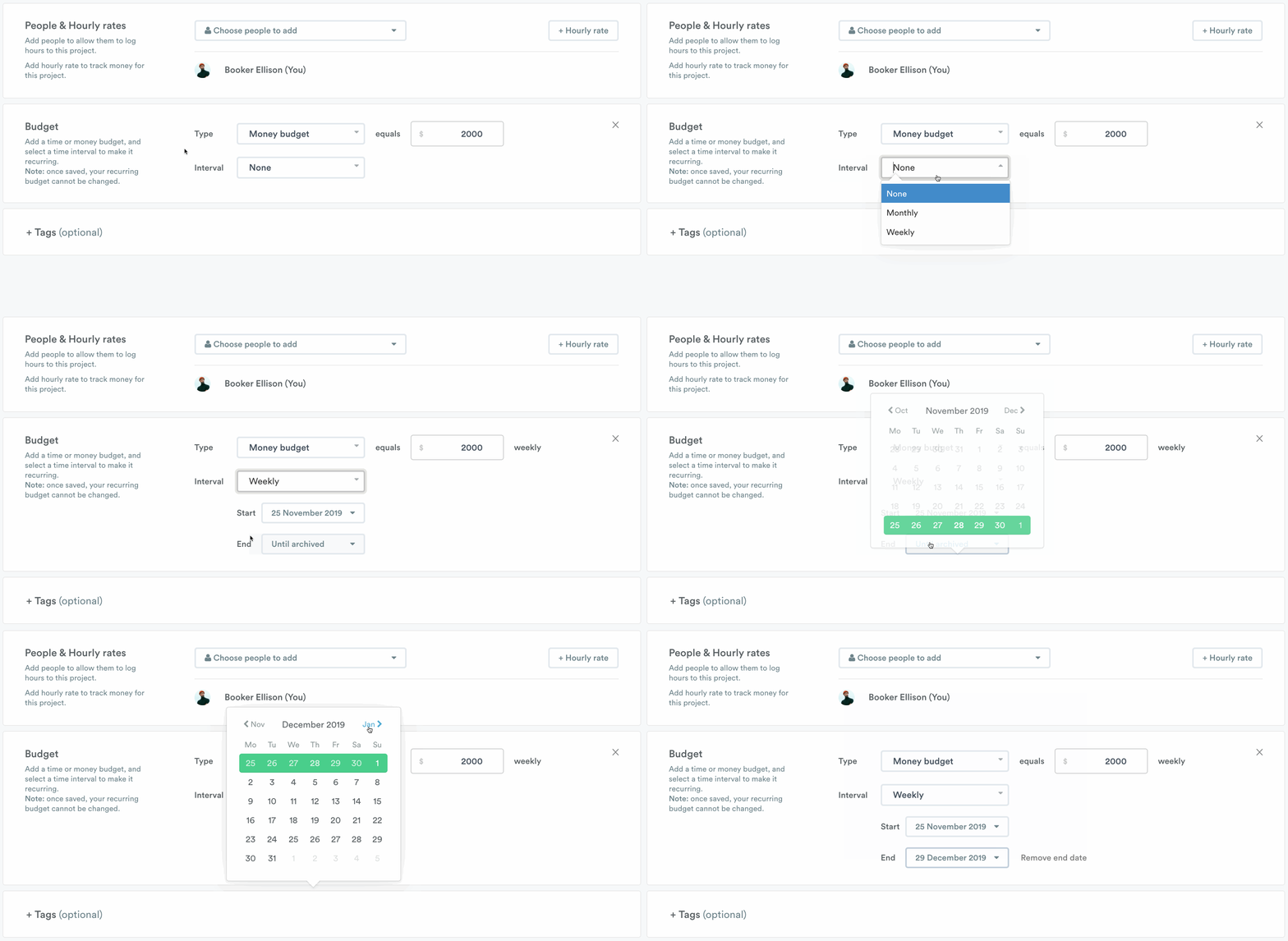
4. Set a start date for your recurring budget (required)
The logged time or money will reset automatically on the first of the month for Monthly budgets or every Monday for weekly budgets.
5. Set an end date for your recurring budget (optional)
If an end date is not specified, the “End” field will display “Until Archived”. This means that the budget on your project will continue to reset on a Monthly or Weekly basis until you archive the project.
The start and end dates only apply to your budget; you can still log time to your project outside of the recurring budget time period.
Change the budget for upcoming periods
You can change the budget amount from the next period onward without affecting the current period or any past periods.
- Open the project editor for a project with a live recurring budget and expand the Budget section.
- The budget schedule lists past periods, the current period and any scheduled periods. Enter the new amount for the next period.
- Save the project. A confirmation names the period the new budget will apply to.
The new amount takes effect when the next week or month starts. If you change your mind before then, enter a different amount and save again; it replaces the amount you scheduled earlier.
Track recurring budgets
The quickest way to see the current budget status for your project is from the Projects page in the ‘All Projects’ tab. It shows the budget overview for all your active projects in one place.
For the monthly or weekly budget status for a specific project, click on the project’s name to redirect to its Individual Project page.
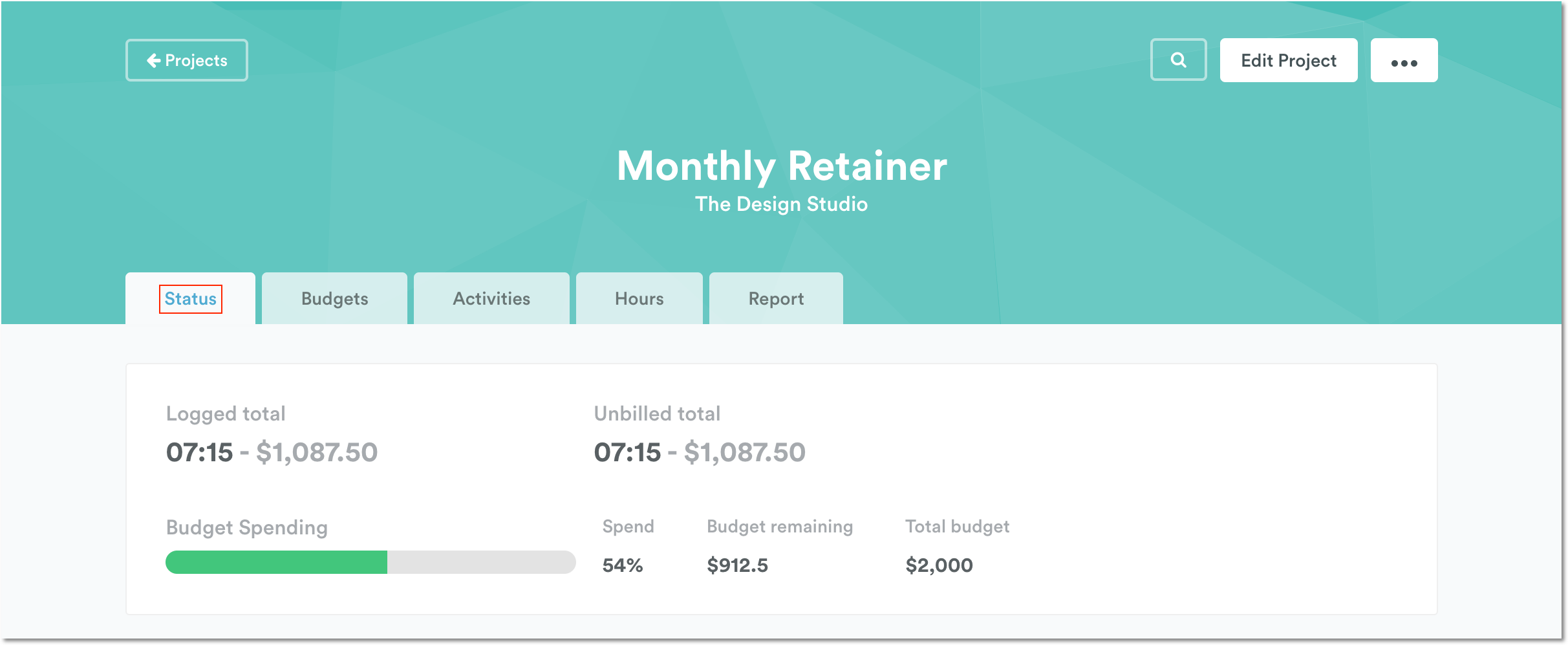
From the Status tab you will see the budget overview for the Month or Week interval:
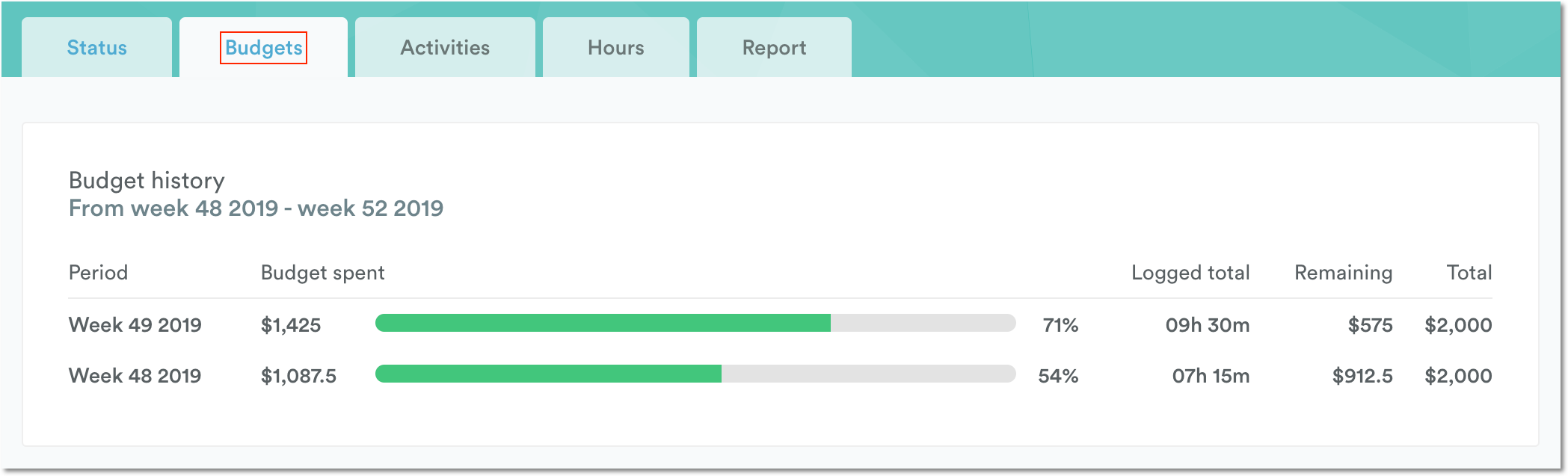
The Budgets tab provides a month-over-month or week-over-week overview of your recurring budgets from the start date of your recurring budget. Each row uses the budget that applied in that period, so the amount spent and remaining are calculated against that period’s own budget.
Budget threshold notifications
Timely sends notifications when a recurring budget project crosses the 50%, 80%, and 100% thresholds. Because the budget resets each period, these notifications also reset — meaning you will be notified again each time a threshold is crossed in a new recurrence interval.
| Threshold | When you’re notified |
|---|---|
| 50% | Once per period, when logged time or spend first crosses 50% of the interval budget |
| 80% | Once per period, when logged time or spend first crosses 80% of the interval budget |
| 100% | Once per period, when logged time or spend first crosses 100% of the interval budget |
This behaviour applies only to recurring budget projects. For non-recurring (fixed) budgets, each threshold notification is sent once for the lifetime of the project.
To manage which budget notifications you receive, go to Settings > Notifications. See Notifications for more details.
Report on recurring budgets over time
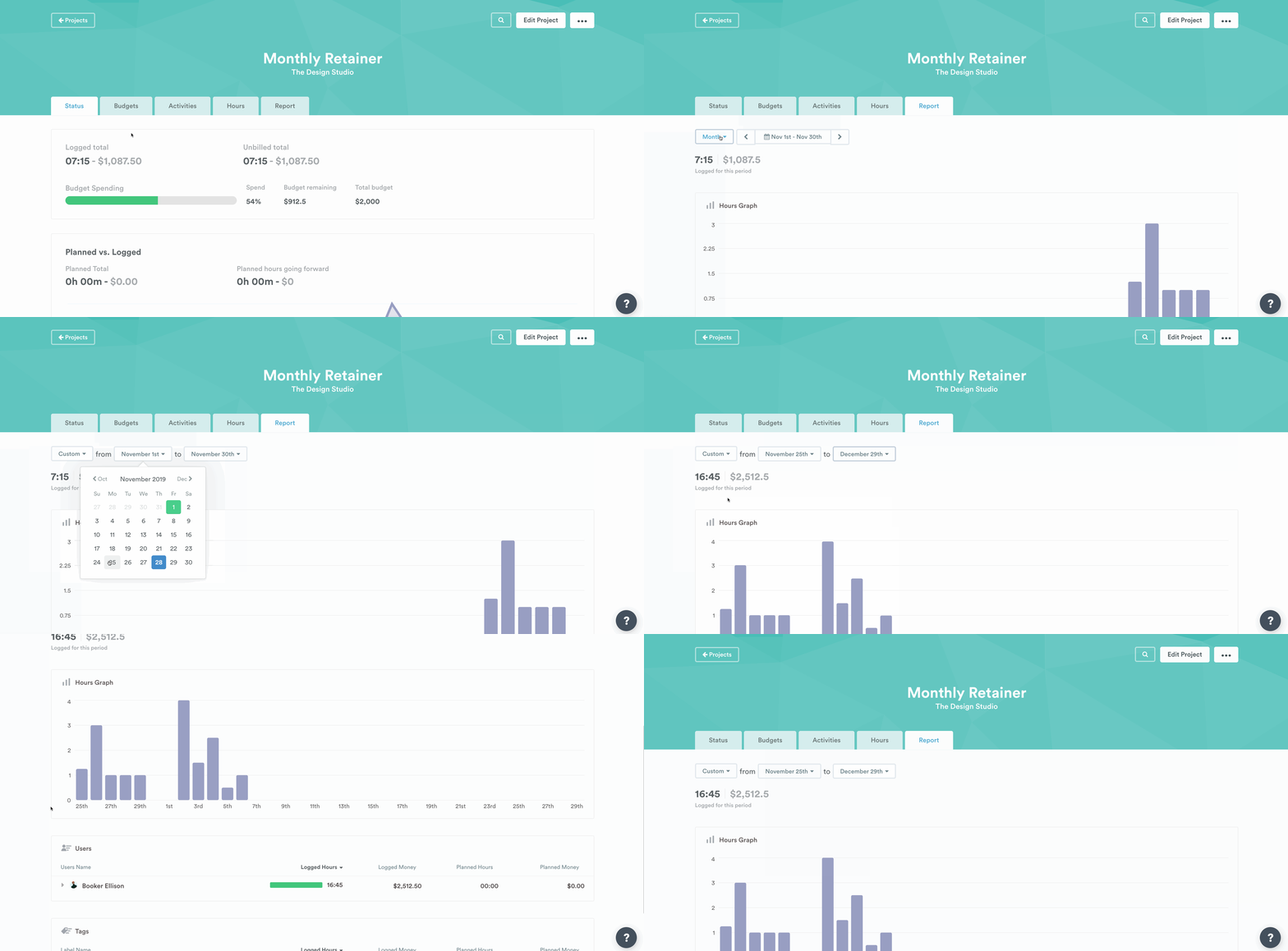
Want to see the total budget spent over several months, or for the total life of your project? From the Reports tab, select the time frame you want to review, and you’ll get an instant update on the total logged hours, plus a breakdown for money and time logged per User and Tag for your selected period.
FAQs
How do I edit a recurring budget?
You can schedule a new budget amount for upcoming periods from the project editor. The budget for the current and past periods can’t be edited. To change the interval or start date, archive the existing project and create a new version of the project with the recurring budget you need.
What happens when a project with a recurring budget is reactivated?
If a project with a recurring budget is archived then restored, the budget will resume and continue to reset every week or month until the “end date” has been reached or until it is archived again. If the “end date” for the recurring budget has passed, the budget will no longer reset.
Why can’t I set a recurring budget on my new project?
The recurring budgets feature is currently only available on Company level subscriptions. Upgrade your plan to get access to recurring budgets from Settings > Subscriptions tab.
Last updated October 7, 2026
Have feedback for this article or need more help? Contact us now.