
Migrate from Legacy to AutoSheet or Classic
Time Tracking: ClassicLegacy versionHandbookLearn how to migrate from the Legacy Timeline & List view to AutoSheet or Classic.If you’re currently using the Legacy Timeline & List view, you have two paths forward: upgrade to Classic (a refreshed, more powerful version of the timeline experience) or move to AutoSheet (fully automatic AI Agent timesheets).
Migrate to Classic
Switching from the Legacy experience to Classic is simple and you can do it yourself at any time.
- Go to the Hours section in Timely
- Make sure you’re on the Day view in the Timeline
- Look for the blue “Try the new Timeline!” button on the right side of the toolbar
- Click it to switch to the Classic experience
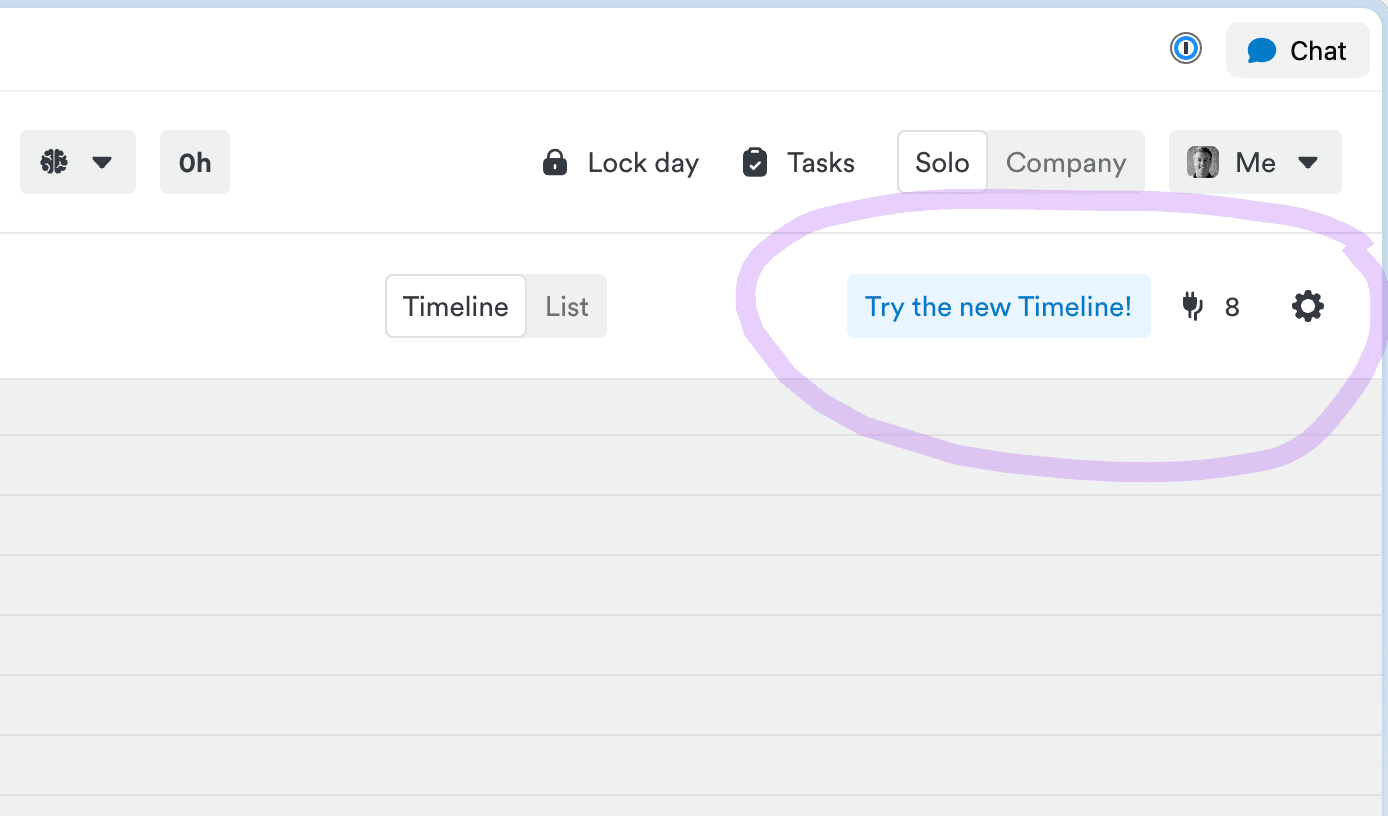
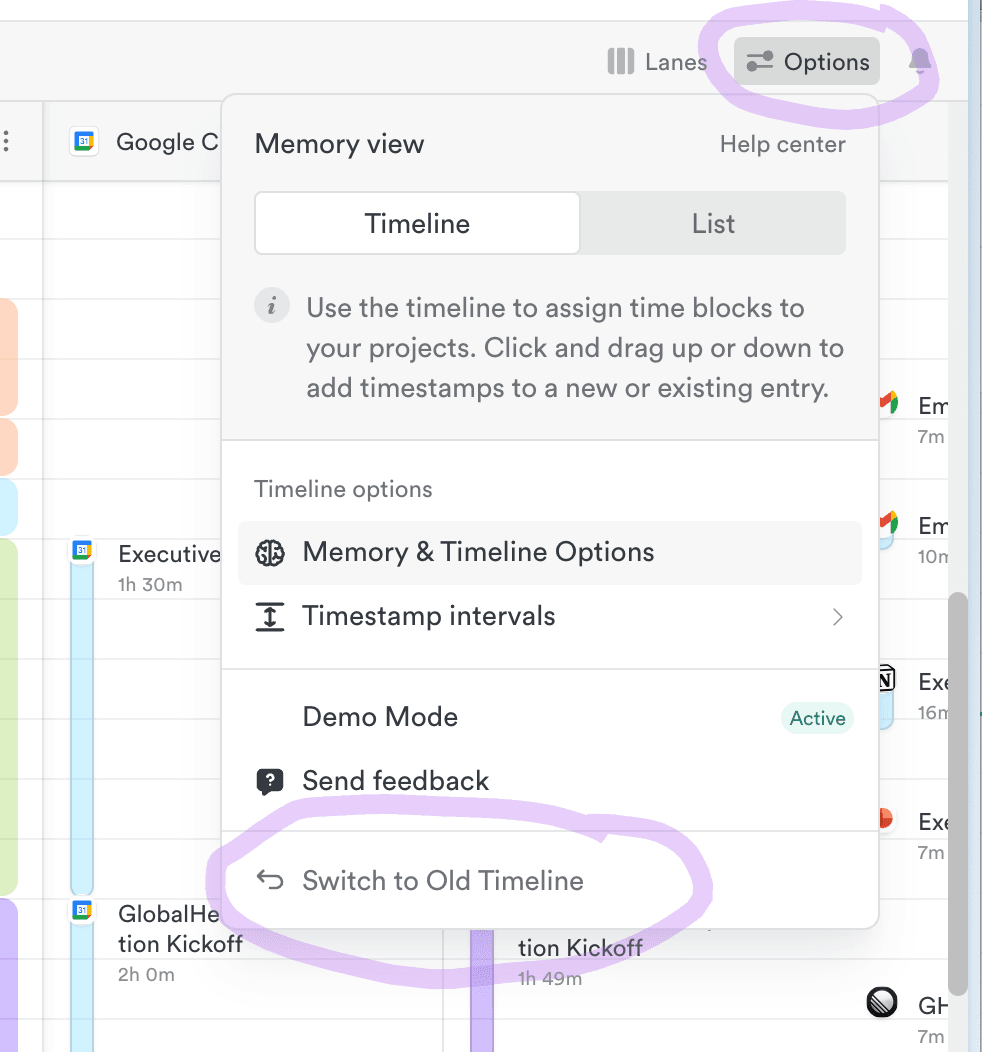
If you’d like to switch back to the Legacy view, open the Options dropdown in the top-right corner and click “Switch to Old Timeline”.
Migrate to AutoSheet
AutoSheet is Timely’s next evolution — fully automatic timesheets that write themselves using AI. We’re currently rolling out migrations to AutoSheet on a per-account basis to ensure a smooth transition for every team.
If you’re interested in testing out AutoSheet, we’d love to hear from you:
- Chat with us here — we’re happy to answer any questions
- Email us at support@timely.com to request access
Last updated April 16, 2026
Have feedback for this article or need more help? Contact us now.