
Resource Management Guide
Tips, Tricks & Best PracticesBest PracticesHandbookBalance workload, spot overtime, and rebalance capacity with a workspace set up for clear team-level reporting.Balance hours, spot overtime
Real-time visibility into time spent helps you adjust workload and capacity before things go off track. Use these tools to manage people and projects with confidence.
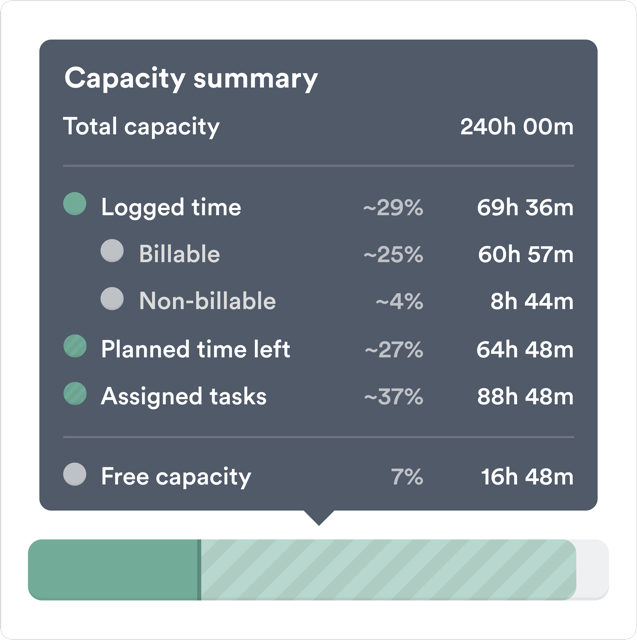
Want reports like these?
Follow the step-by-step guide below to see exactly how your team’s time is distributed, so you can spot overtime, flag resource gaps, and rebalance workloads.
1. Clients, Projects and Tags
Use Clients to represent internal departments so you can segment time data even when billing isn’t involved. Treat Projects as initiatives or campaigns to connect effort to business priorities. Apply Tags to track work types.
For example:
- Client: Product, Marketing, Customer Success
- Project: Sprint #38, Q4 Campaign Planning, Onboarding Workflow Review
- Tags: Meeting, Admin, Deep Work, Review and Feedback
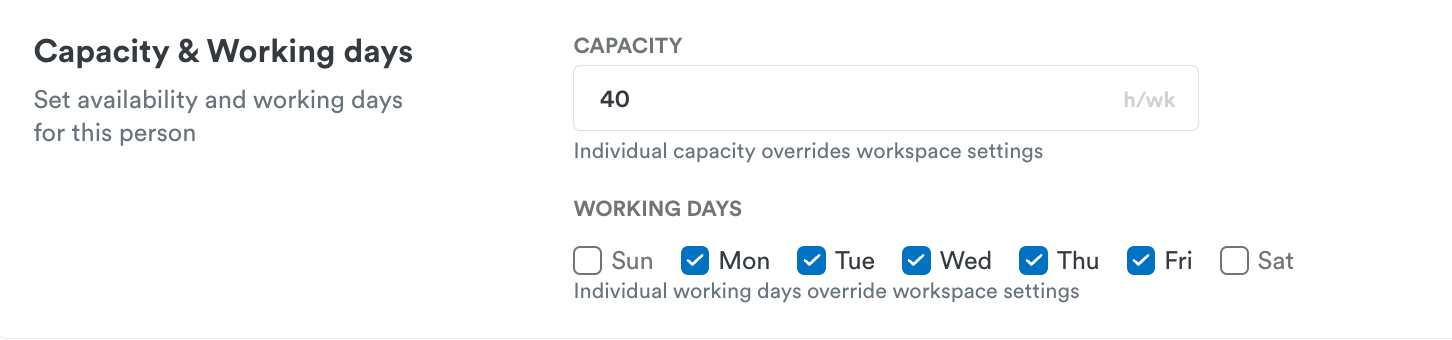
2. Set weekly capacity per employee
Define how many hours each person is expected to work. Timely tracks logged time against that limit, so you can catch overtime or underutilization early — before it becomes a pattern.
3. Group users into teams
Teams are already reflected in projects when you use clients to represent departments (see step 1), but the Teams feature in Timely lets you assign an entire department to a project with a single click — making setup faster and more consistent as you scale.

4. Monitor team workload in the People page
Use the People tab to see how each person is tracking against their capacity. Spot who’s overloaded, or who could take on more, at a glance — and act on it before the next sprint kicks off.
5. Reporting like a pro
With your workspace set up this way, you can easily report on both overtime and underused capacity across people and teams. See exactly where time is spent, and compare planned hours against actuals to spot gaps and overages.
For an at-a-glance view of how efficiently each person or team is using their capacity, add the Utilization % column to any People or Teams table widget. Found under the Calculated group in the column picker, it shows billable hours as a percentage of capacity — color-coded green (on target), yellow (below target), or coral (over capacity) — so you can pinpoint over-capacity and under-utilization without leaving the report. Learn more in the Employee Capacity article.
Pro Tip: Include Offline Time
For reports to be accurate, and truly useful, you’ll need to account for offline time as well. Define clear categories up front, so it’s easy for the team to log non-working time without friction.
A simple setup might include:
- Client: Overhead & Leave
- Projects: Leave, Lunch Breaks, Sick, Commute
Timely’s Toolbox
Key features to help you log smarter, not harder.
Last updated August 28, 2026
Have feedback for this article or need more help? Contact us now.