
Adding and removing seats
Billing & Workspace ManagementSubscriptionsHandbookFlexibility for building teams in Timely.An essential part of keeping teams effective is assembling the right number of people. Too many people, and it’s difficult to ensure everyone is engaged and reaching their full potential; too few, and the expert crew you’ve put together is at risk of burning out. Once you’ve got that magic number figured out, Timely makes it easy to ensure you have the right number of seats available on your account.
What are seats?
In Timely, seats are licenses that you can assign to any user you need to be a part of your Timely account. You’ll see the number of seats you currently have in the Subscriptions header when you’re on your Subscriptions page.

Checking who is using your seats
The Status section of your Subscriptions page breaks down how your seats are used. If you’re on an Enterprise plan or pay through the App Store or Google Play, you’ll find the same rows in a separate Seats and users section.
- Active shows how many people have accepted their invite. Click View active users to open the People list on your active users.
- Invited shows how many people haven’t accepted their invite yet. Click View invited users to open the People list on your pending invites.
Timely support logins don’t count toward these numbers. If our support team has been added to your workspace, they’ll still appear on your People page, but they don’t take up a seat.
Adding seats
If all the seats available on your subscription have already been filled, you can add another user to your account which will add another seat.
If you need to add some seats for the future, first go to Settings and click on Subscriptions. Scroll down until you see the Unused seats field. Click the “Add or remove seats” button to make any changes that you’d like. Easy as that!
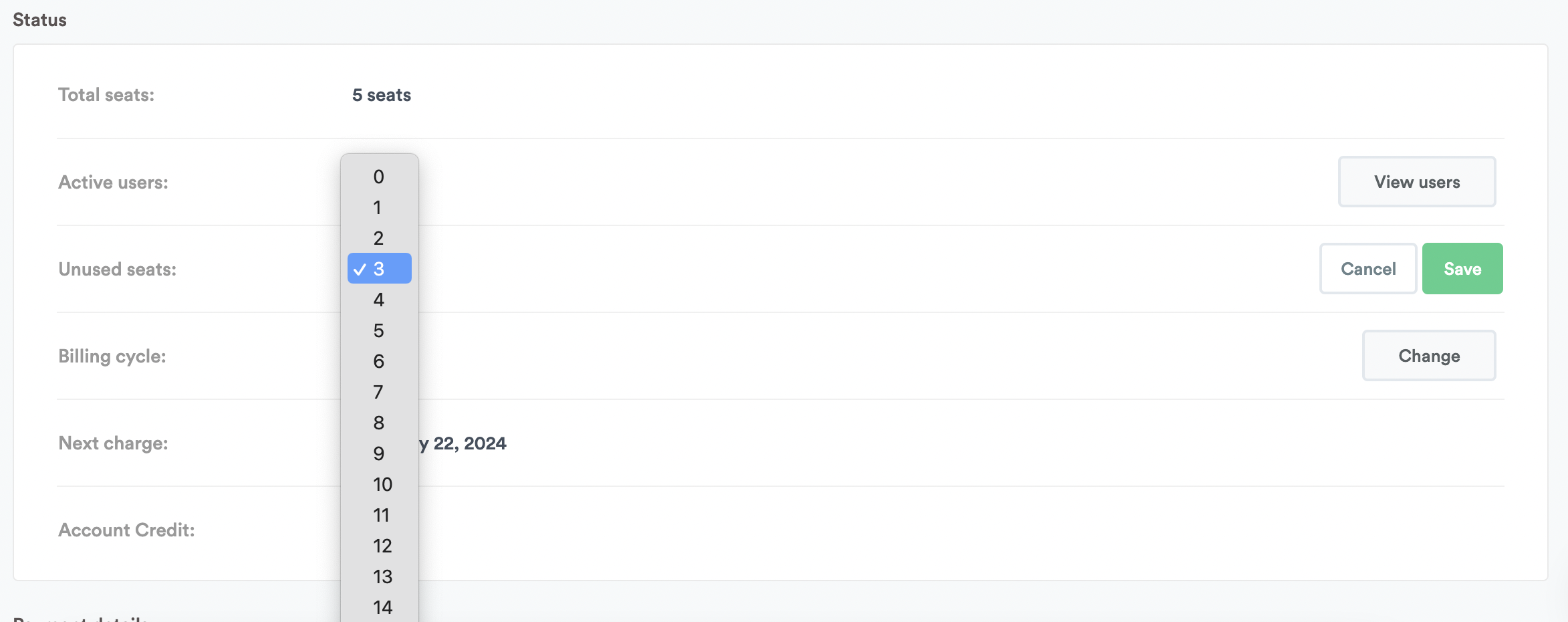
You’ll be charged for the pro-rata cost of the new seat when it’s added for the remainder of your billing period (i.e. Monthly or Yearly).
After the payment has been processed and you’ve added the seat, you can invite a new team member and get them rolling in Timely straight away!
Enterprise plans
On an Enterprise plan, your seat count is the number agreed in your contract. What happens when every seat is taken depends on how you pay:
- Paying by invoice: you can’t invite more people until more seats are added. Timely shows a User limit reached message asking you to contact your Timely account manager, who can add seats for you.
- Paying by card: you can keep inviting people. Each extra person adds a seat that’s charged to your card, the same as on other plans, and the user editor warns you about the charge before you add them.
If you’re not sure how your Enterprise workspace is billed, ask your Timely account manager.
Removing seats
If you decide that you no longer need some of the seats you’ve added to your subscription, no problem! Delete the user(s) directly from your People page.
If you’ve paid for additional seats above your plan’s minimum number of seats, the seat will not be automatically removed from your subscription. You can either add another user to fill that seat or head to Settings > Subscriptions to remove the seat from your plan and receive a pro-rata credit for the paid time remaining on that seat, from when it was added to the end of your current billing period.
You will see the number of unused seats listed in the billing summary at the top of the Subscriptions page, as well as under the Status section further down.
Last updated October 7, 2026
Have feedback for this article or need more help? Contact us now.