Create a time entry on iOS
Time Tracking: Classic iOS and Android Handbook Log and plan time on-the-go with Timely for iOS.Using Timely’s iOS app, you can quickly log hours even when you’re away from your desk. Get your time sheet signed, sealed and delivered so you can dive into much needed you-time!
Create a new entry
To get started, tap the blue ”+” button in the top-right corner of the “Hours” tab:
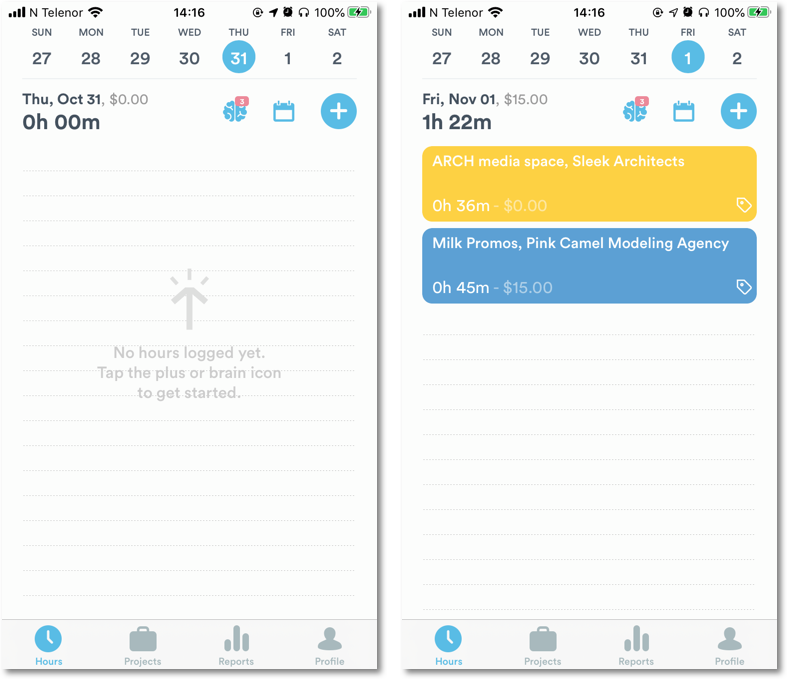
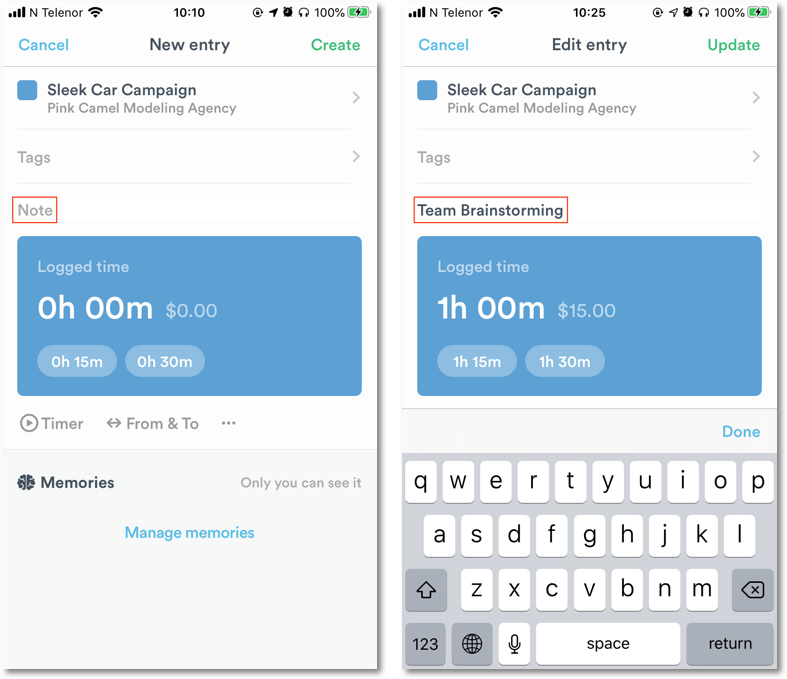
Add entry details
Tap “Note” to add info about what you worked on:
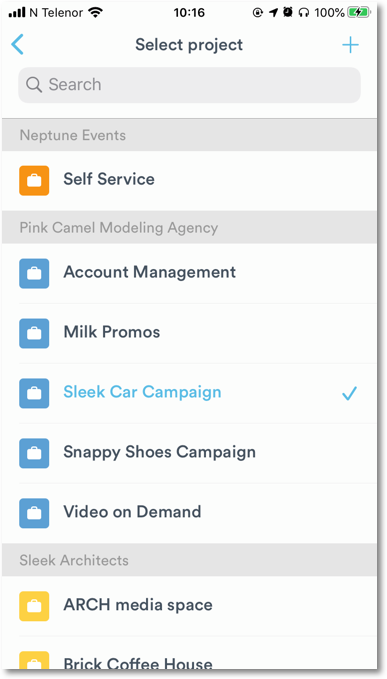
Tap on the project name to link your work to a specific project:
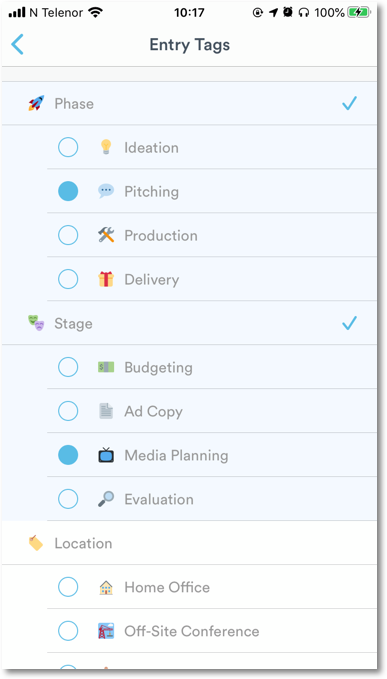
Categorize your work by adding tags:
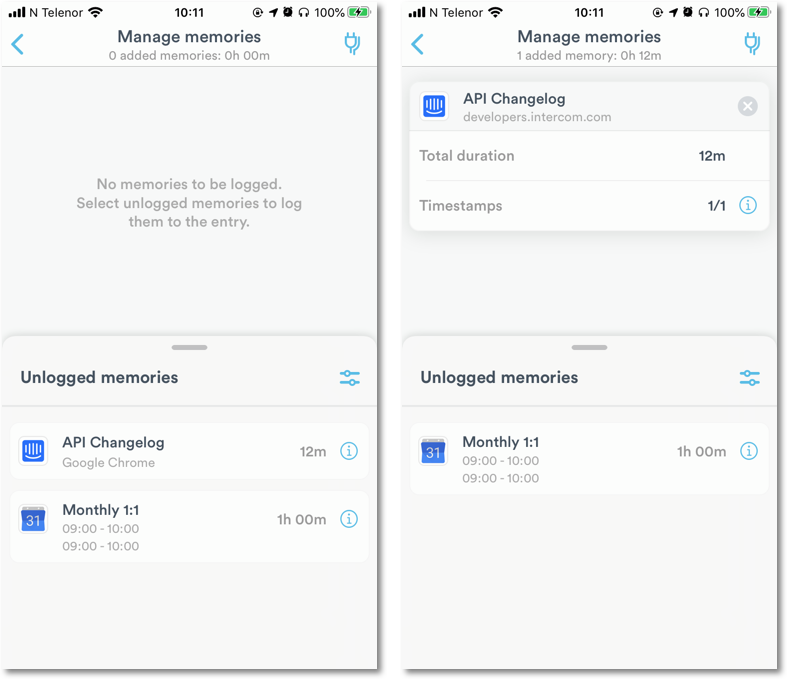
Manually enter your hours or tap “Manage memories” to select any memories you want to add to the entry:
More actions
Below your logged time options are additional actions you can take to edit your entry:
- Start a timer
- Use “From & To” to set a timestamp for your entry
- Tap ”…” to add planned time or move the entry to another date
Create entries from a draft
If you’ve enabled automatic drafts from your computer, you’ll be able to review draft time entries from your iOS device. Simply tap a draft to review the memories associated with it:
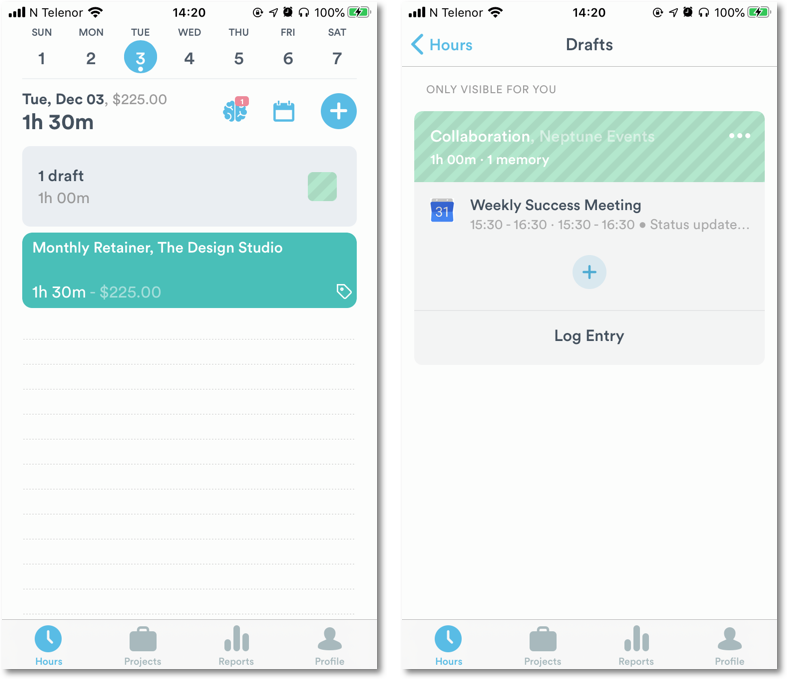
You can tap on individual memories to view their details or remove them from the entry, ignore them, or delete them from your inbox. You can also tap the ”+” button to add additional memories to your draft entry. Once you’re done, tap “Log Entry” to approve and add the draft as logged time!
Create an entry from memories
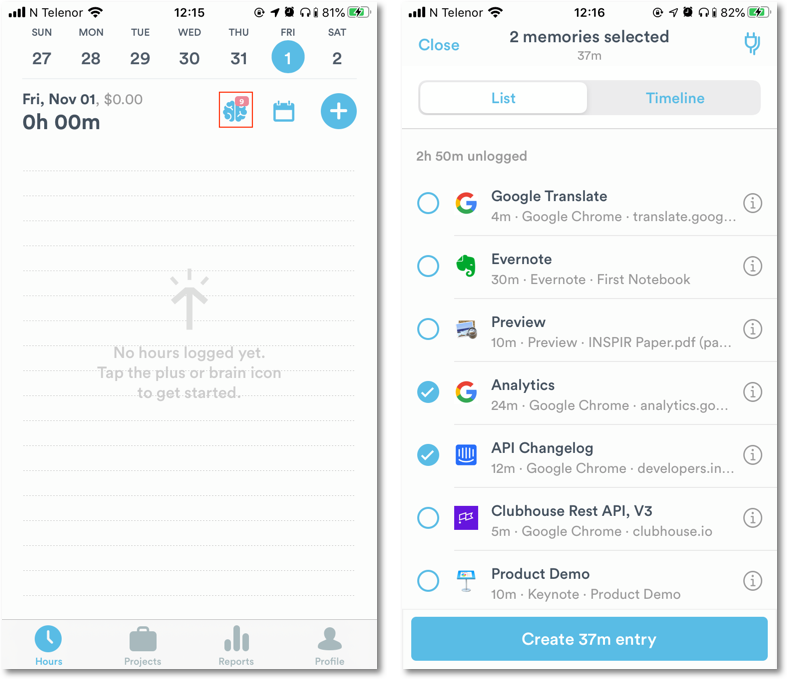
If you have Memory installed on your computer, you can also create entries from your memories. To get started, tap on the brain icon to access the Memory Inbox. From there, tap to include the memories you want to add to your entry:
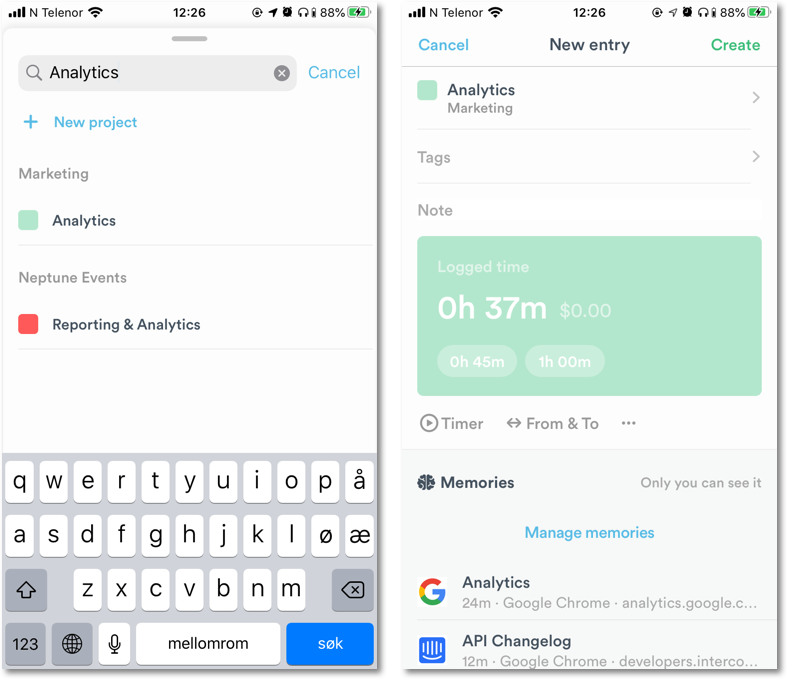
Select a project then finalize the entry details using the steps above. Tap “Manage memories” to add or remove any other memories that may need to be included in that entry:
FAQs
How do I delete an entry on iOS?
Tap on an existing entry then tap the red trash can icon below your logged time. Tap “Delete entry” to confirm or “Cancel” if you want to keep that entry.
Last updated April 14, 2026
Have feedback for this article or need more help? Contact us now.