GPS location time tracking for iOS
Time Tracking: Classic iOS and Android Handbook Remember where you've been for more accurate time tracking with Timely's GPS tracker on iOS.Timely’s iOS GPS tracker lets you track exactly where you’ve been and for how long. It’s super helpful when you have loads of client meetings, need to track time spent traveling for work, or just want to see how long you spend in the office each day.
Enable iOS GPS tracking
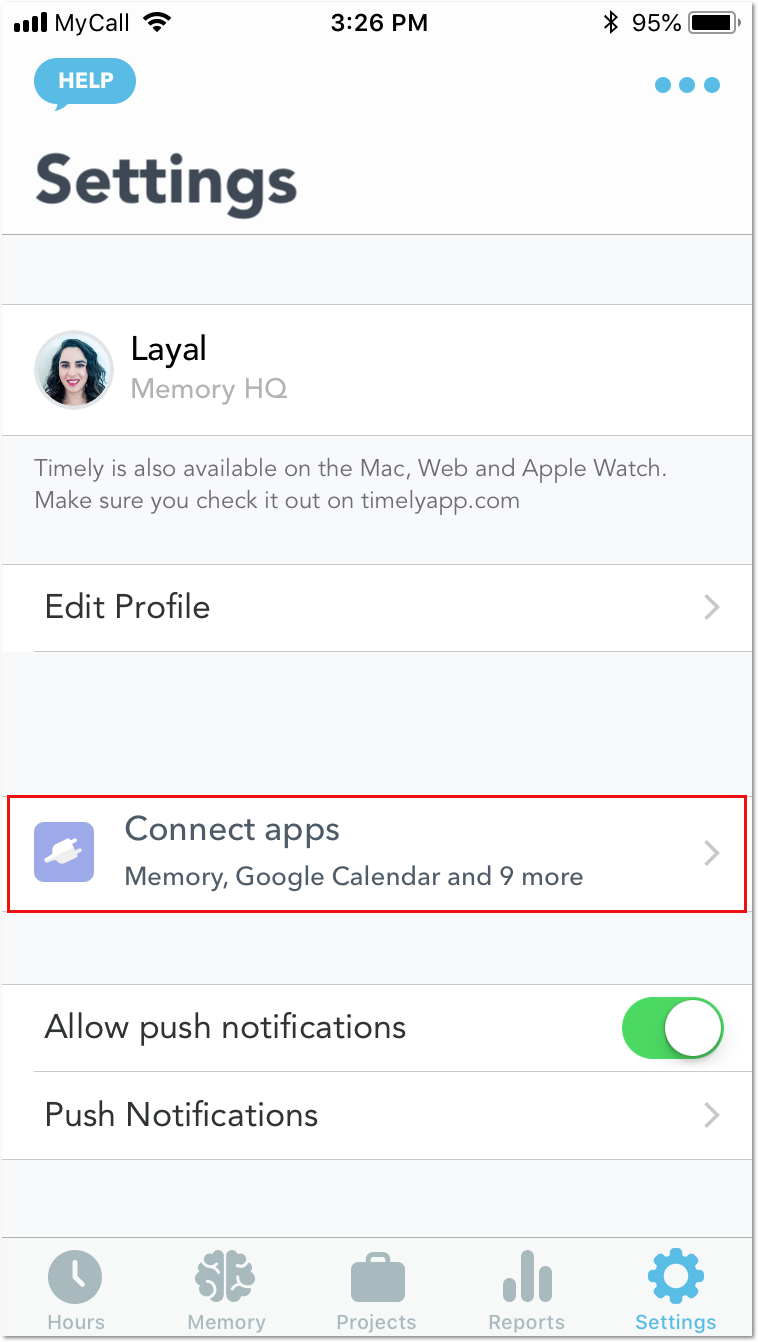
To start tracking your location, head to Settings at the right side of your bottom menu bar inside the iOS app.
Click “Connect apps”:
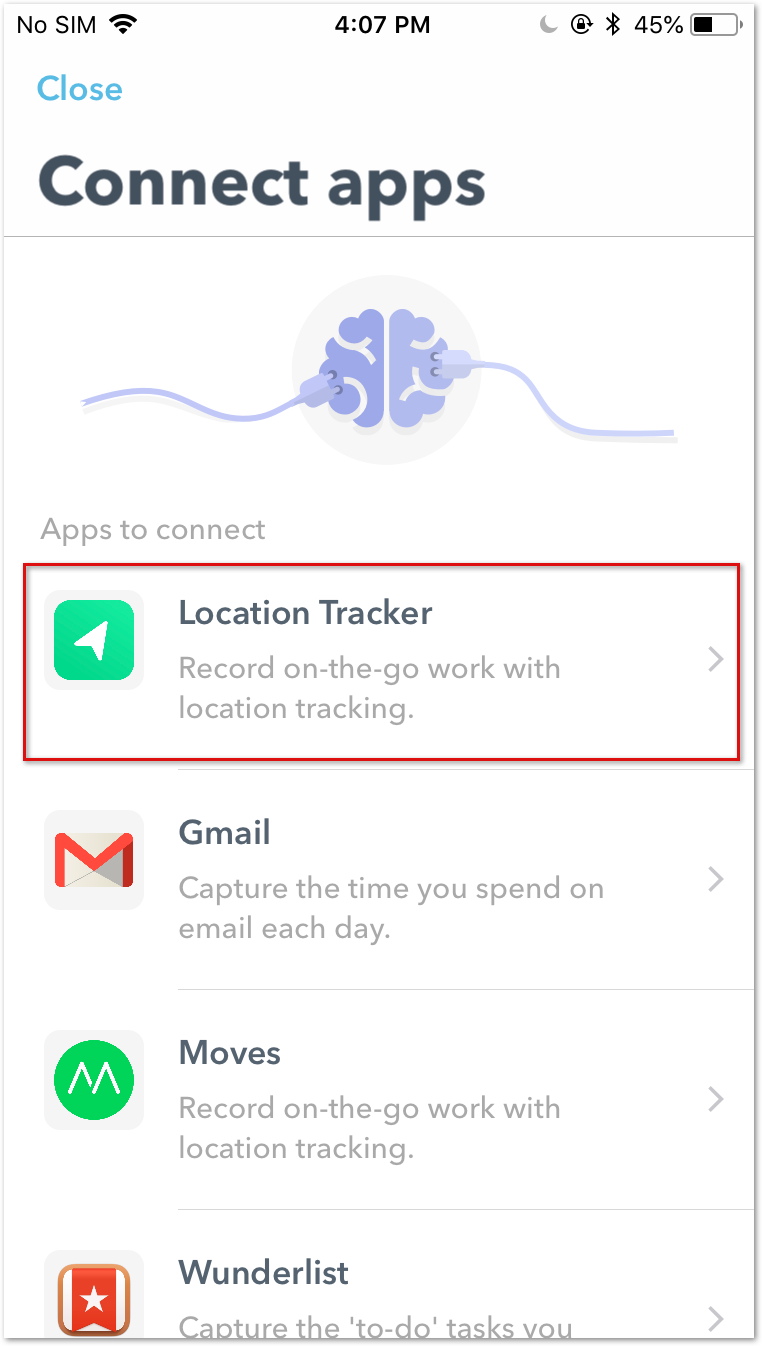
Find the Location Tracker option:
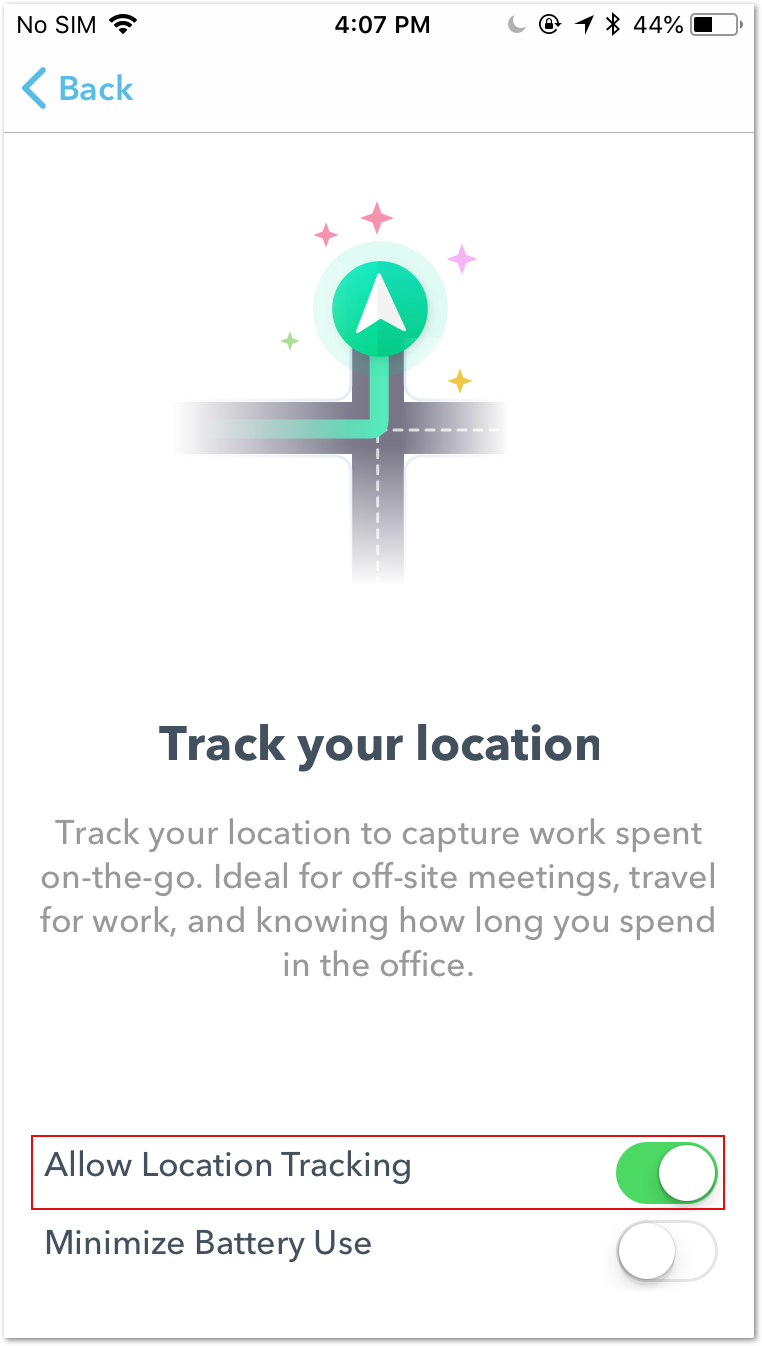
Switch on “Allow Location Tracking”:
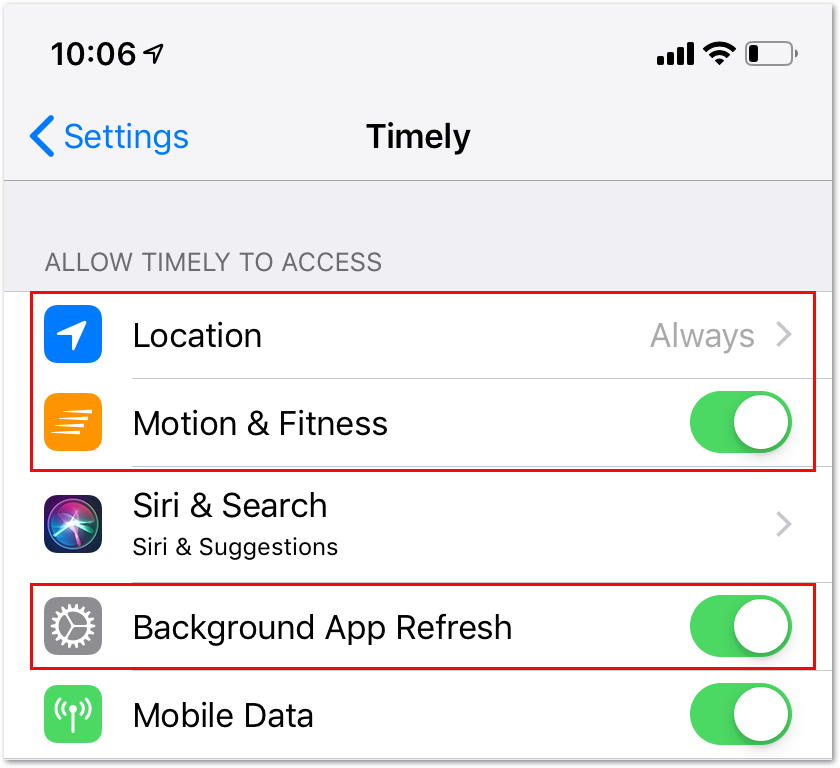
If you are unable to switch on the Background App Refresh from your App settings for Timely, you will need to make sure it is activated in your phone’s General settings. Head to iOS Settings > General > Background App Refresh > Background App Refresh and activate with the Wi-Fi and Mobile Data option.
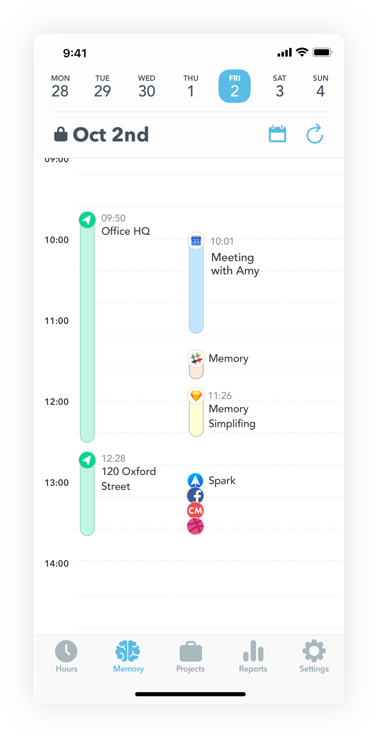
Once you’ve enabled your GPS location tracker, your activity will appear in your Memory Timeline. Location tracking records the duration you spend in each location, provided that you stay there for more than five minutes.
Create quick time entries
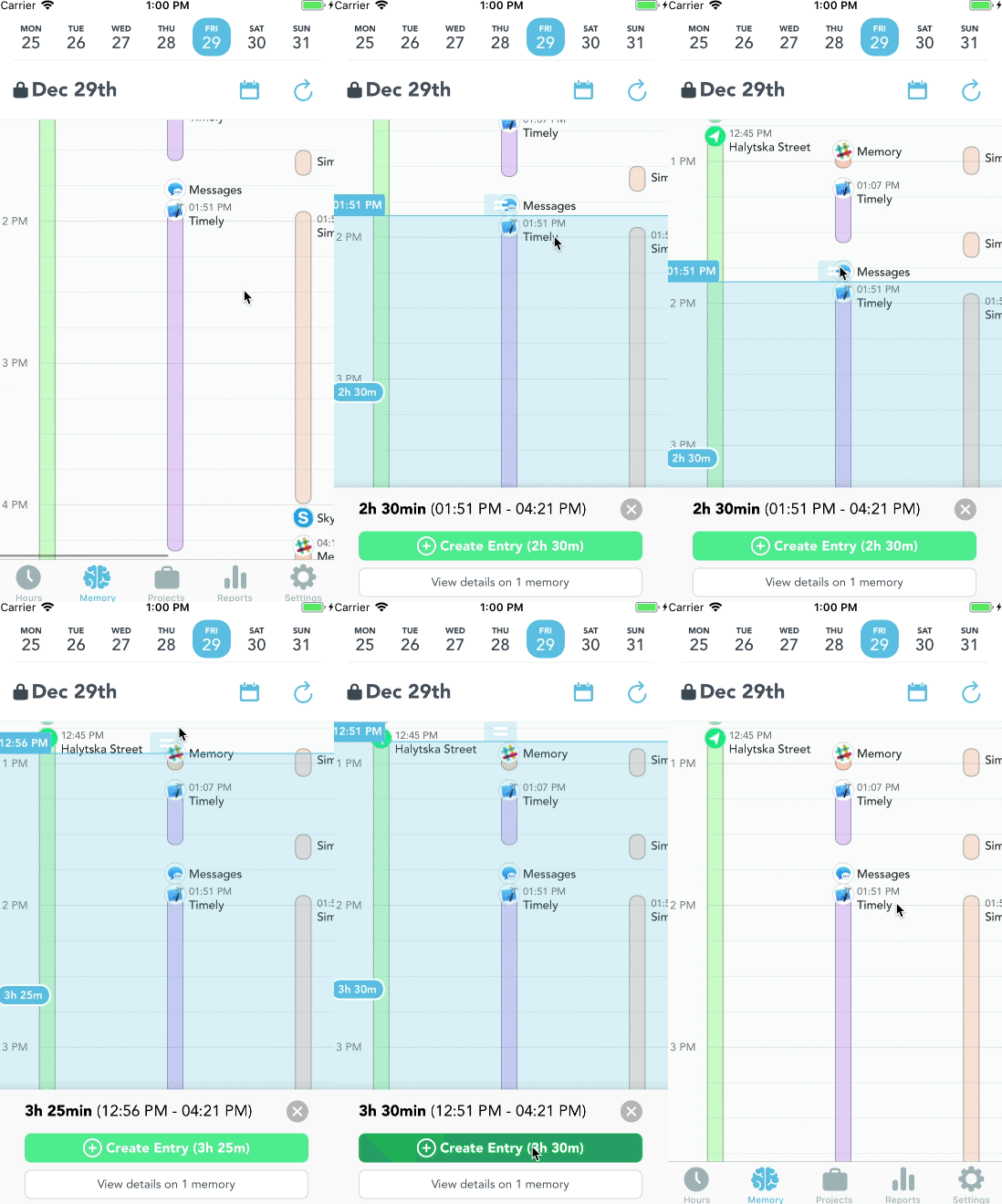
You can push tracked locations directly from your timeline to logged entries. Let’s say you were in a coffee shop for 40 minutes for a meeting and want to log that time. Just select the tracked location for that period and tap “Create Entry”.
Select your project, add notes and tags then click “Create”. Just like that, your location-based entry is saved!
FAQs
Why is my location only tracking addresses and not location names?
Timely’s GPS tracking registers your location based on your actual GPS coordinate, assigning that address to your location.
Can I name the address as a location?
Not at this time, but it’s something we are looking into.
Last updated April 14, 2026
Have feedback for this article or need more help? Contact us now.