Timely reports on mobile
Time Tracking: Classic iOS and Android Handbook Access all your Timely reports on-the-go from your iOS or Android device.With Timely’s mobile app you can access all the information you need with a few taps of your phone. Here’s how to access all your existing report templates, adjust filters and share reports with your colleagues and clients on-the-go.
View and tweak your reports
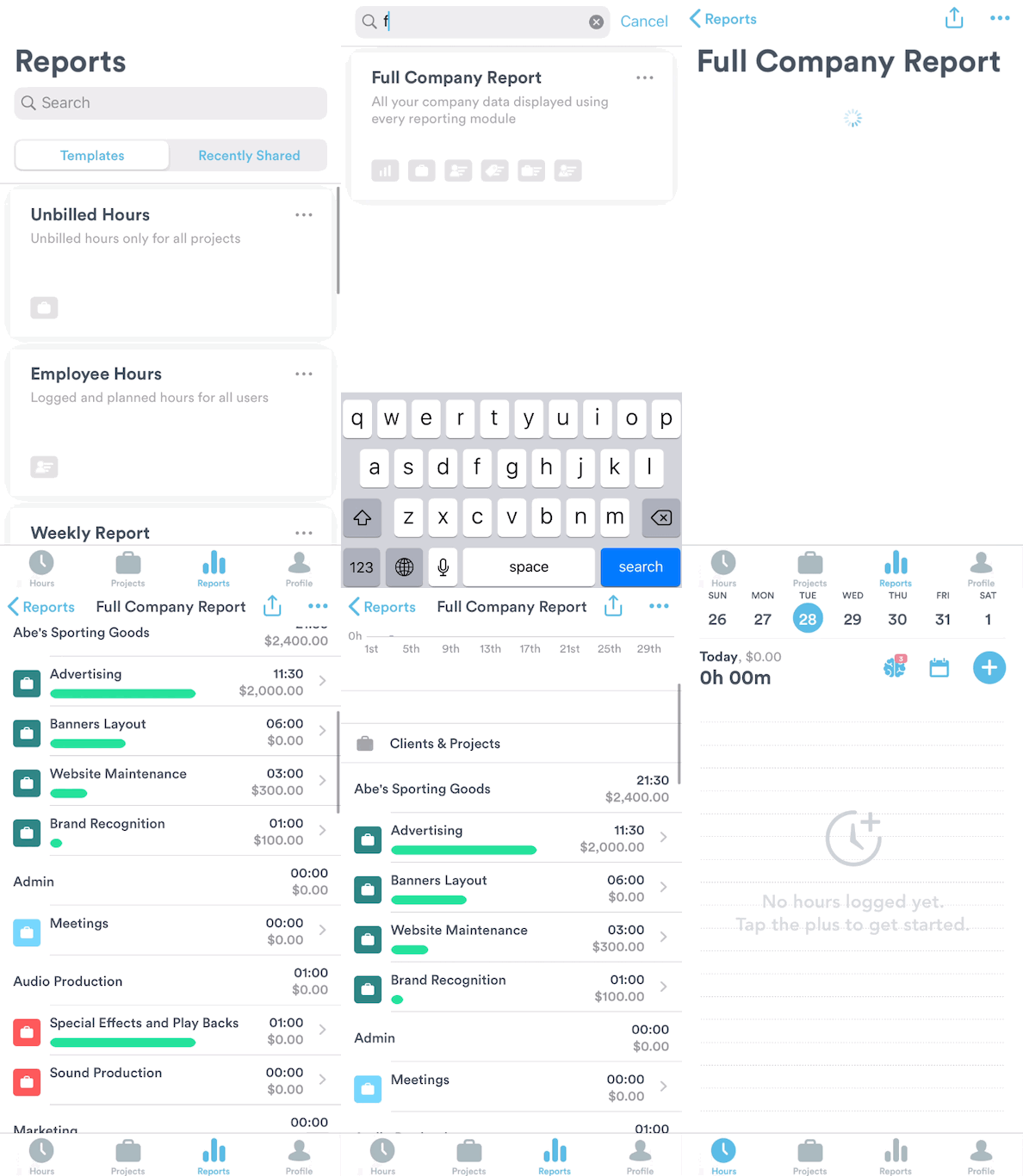
With a couple of taps, you can view all report templates and adjust dates and filters as needed.
View report templates
Simply open the Report section in Timely to see all the report templates you and your colleagues have ever created. Then just tap on one to see how employees and teams are doing.
Adjust report templates
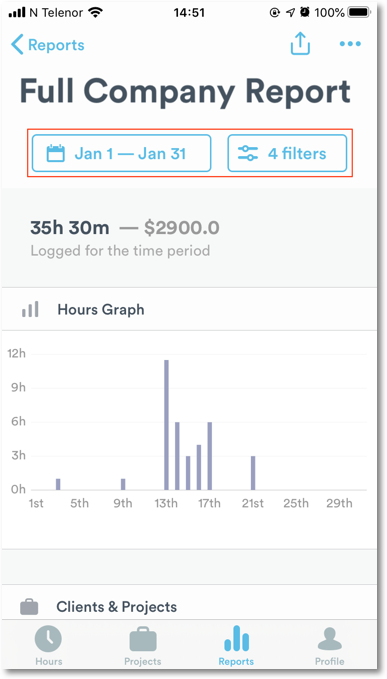
You can also adjust the dates and filters of your report templates, just as you would on the web and desktop apps.
Tap the date in the top-left corner of your report template and choose to see a day, week, month, year or customized period. Then just tap “Done” to save your changes.
Right next to the date selector, you will see “Filters”. Click on it to adjust these inputs:
- Users: Want a report for a single user, or several? Just select the ones you want to include.
- Tags: Select different tags to see where you’ve been allocating your time.
- Projects: Choose whether all logged hours, or only those logged under a certain client or project, should be reported.
Share reports on-the-go
Your client wants a granular breakdown of project time spend while you’re on the run? Not a problem! Just select a report template, adjust the dates and filters if necessary, and share it!
Share a report
Generate a shareable public link to a report as follows:
- Open the report template that you want to share.
- Review it to make sure the correct dates and filters are selected.
- Tap the arrow in the upper-right corner to generate a shareable link.
- Tap “Share” to send the link via an app of your choice, or copy the link and send it manually. Done!
Manage shared reports
Want an overview of all your shared links? Hit the “Shared” tab for a full history of every report you’ve ever shared.
Click on the three dots on the right of every shared link to:
- Copy the shared link to forward it to others.
- View the linked report.
- Revoke and delete the link. Everyone’s access will be revoked, and the report will be deleted.
Last updated April 14, 2026
Have feedback for this article or need more help? Contact us now.