How to set up Memory for Chrome
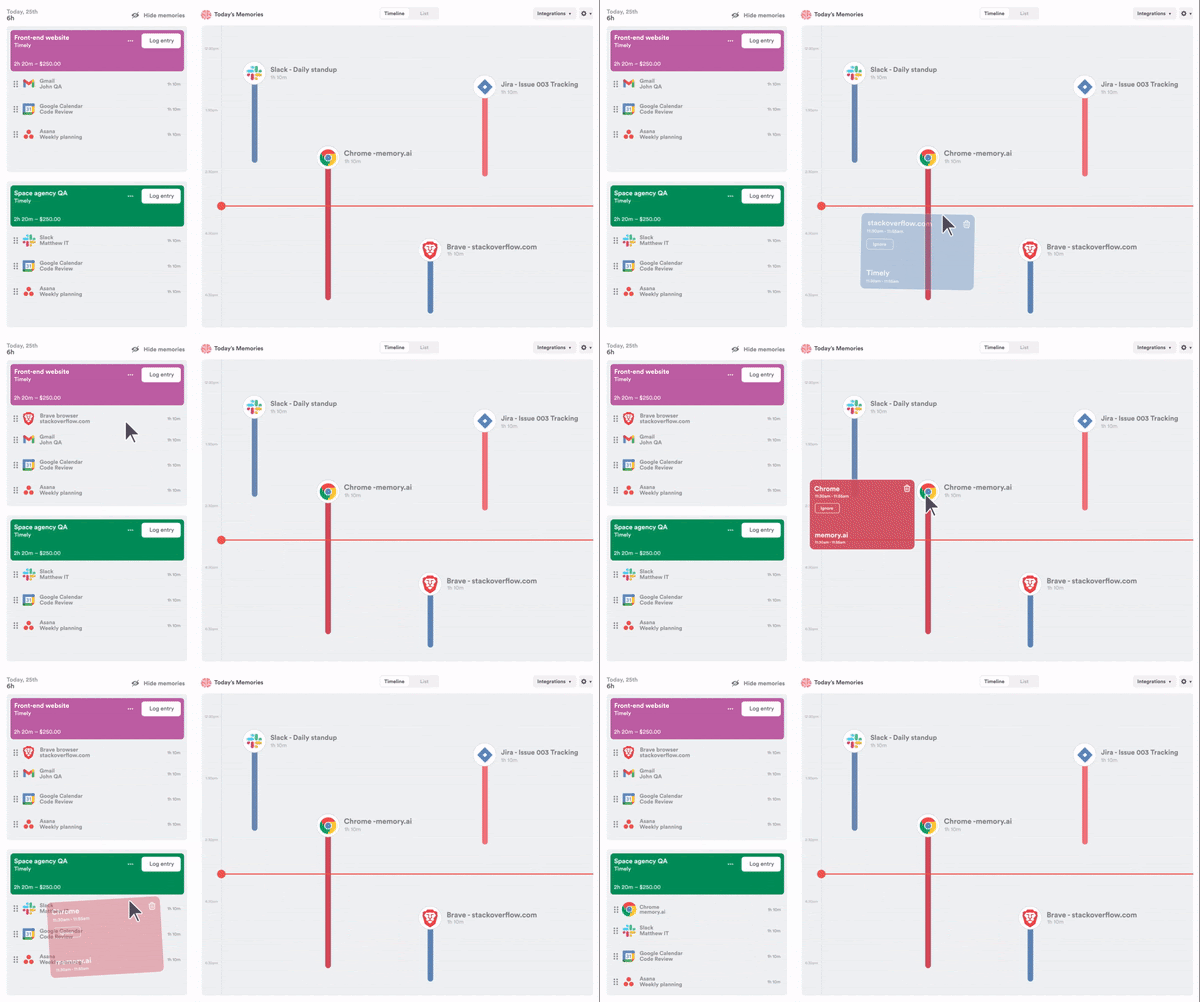
Time Tracking: Classic Legacy version Handbook Capture activity on any Chrome-based browser with Memory for Chrome.Timely’s Memory app automatically records everything you work on to your own, private timeline and, until now, it was only available for macOS and Windows.
If you’re a Chromebook user or work primarily out of Google Chrome or Chrome-based browsers such as Microsoft Edge, Opera, Vivaldi or Brave, we now offer a browser extension you can install that will automatically capture browser activity and populate your timeline, giving you oversight over your entire day.
Installing
Downloading Memory for Chrome is super easy:
- Head to Settings > Integrations
- Click “Memory for Chrome” from the list of integrations available to connect
- Click “Connect new account” to download from the Chrome Web Store
After being redirected to the Chrome Web Store, click “Add to Chrome”. If you receive a pop up, select “Add extension”:
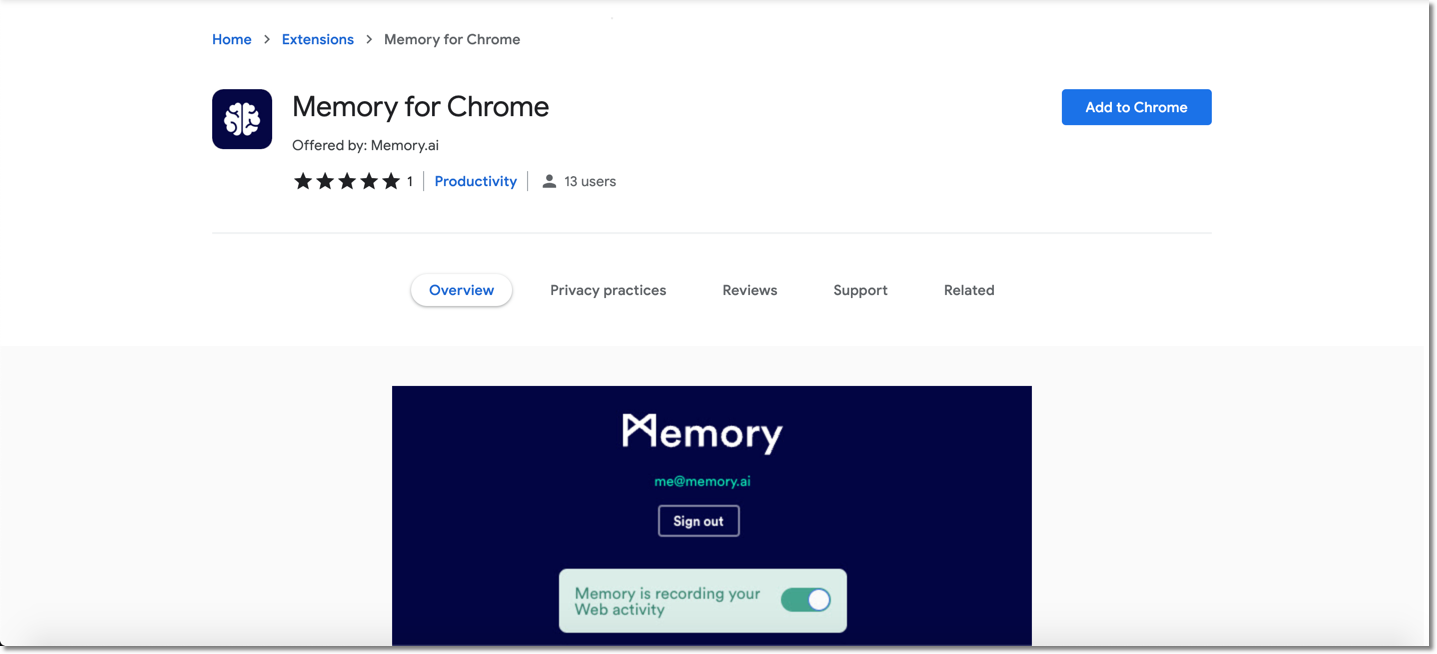
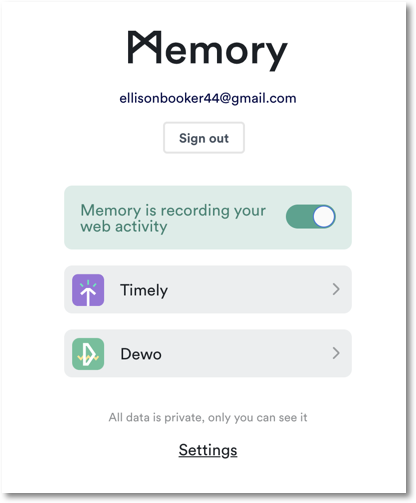
From there, sign in to your Timely account and you’re good to go!
Rules
Using simple rules, you can now tell Memory for Chrome to ignore or rewrite specific activities locally on your computer before anything is uploaded to your private timeline.
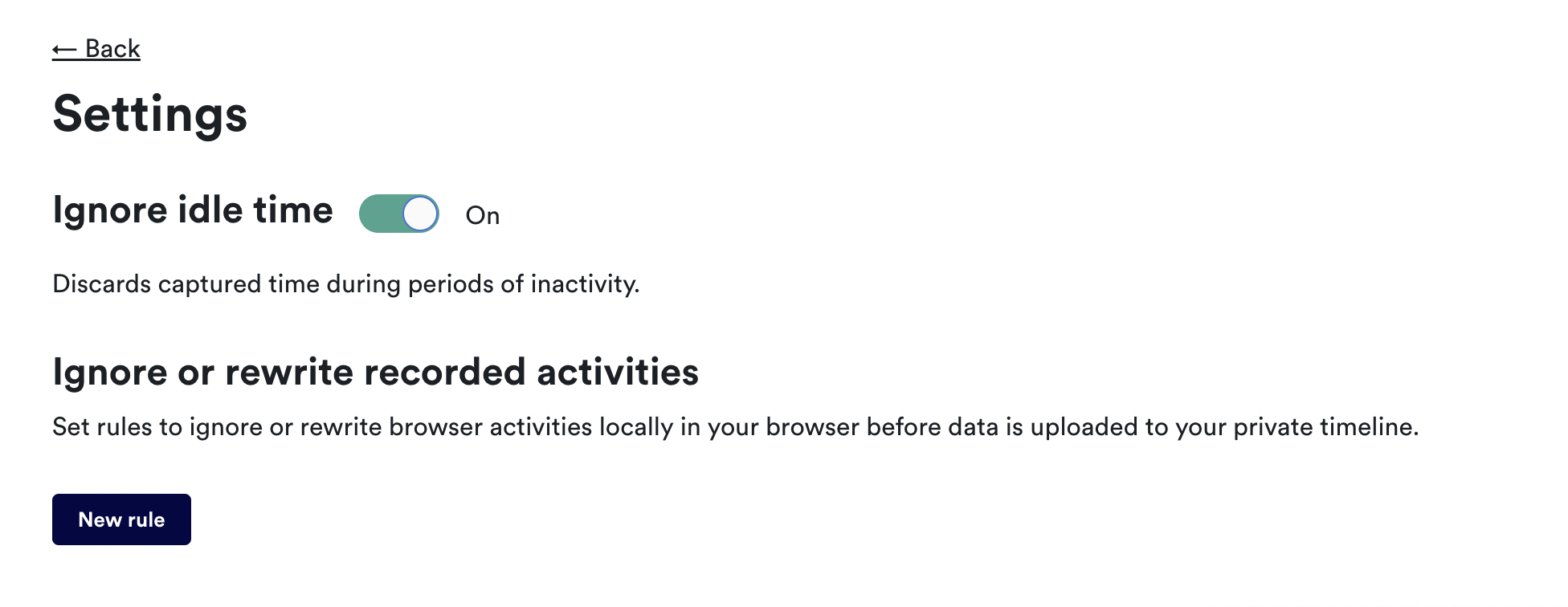
To start setting up rules, open Memory and then click Settings. From there, you’ll see a button to create a “New rule” for ignoring or updating the names of memories brought to the timeline:
- Enter the name of the website title, part of the URL, application or document name, for instance “Spotify”.
- If you don’t want to see the activity on your timeline, click the “Ignore the memory” radio button.
- If you want to change the name of the activity, select “Change the memory to” and enter a new title (and URL if applicable) to be displayed when the memory is uploaded to your private timeline.
- When you’re done, you can click “New rule” to write another or click “Back” if you’re finished.
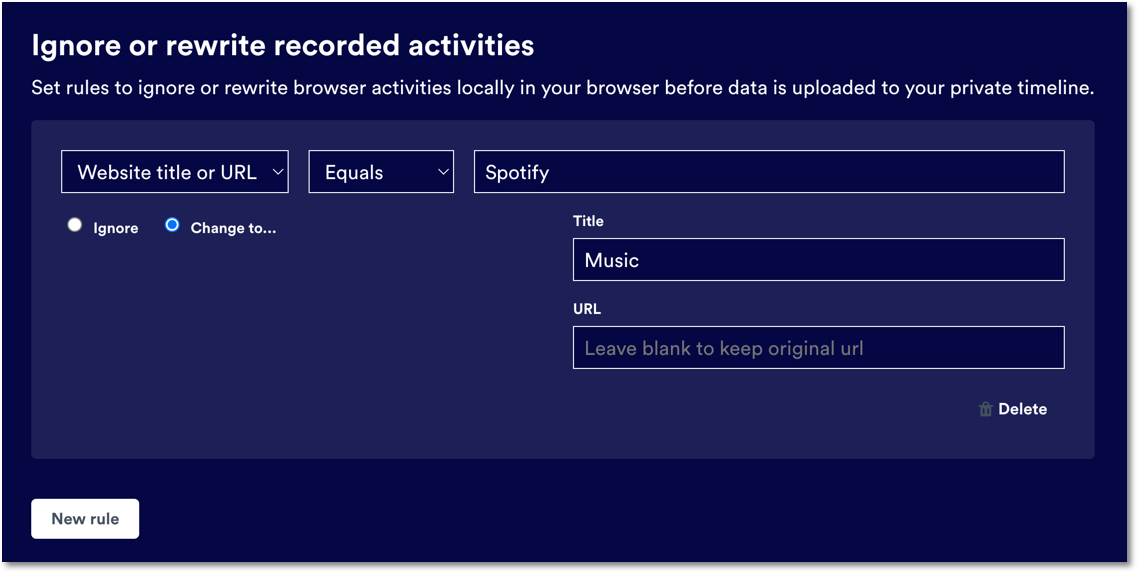
Rules are then applied in the order they appear in the list, meaning that if you have set up a rule to ignore Spotify followed by a rule that changes the name of Spotify memories to “Music”, the rule to ignore Spotify will be applied first.
Keep in mind: rules apply only to the desktop or website version of the app in question. As an example, if you have a rule to ignore Zoom memories from the desktop application, a memory will still appear in your timeline whenever you launch Zoom or open a Zoom tab/window from a web browser. In this case, you would need to set up two rules — one for blocking web app activity and one for blocking desktop app activity — to stop all Zoom memories from appearing in Timely.
Idle time detection
Not all work takes place at the computer. Impromptu meetings and water-cooler conversations can all lead to game-changing decisions. Whenever you step away from your computer, Memory can detect your absence, and prompt you to create an entry for the time you spend offline!
Simply click the Memory logo in your browser window, then Settings to toggle idle time detection ON or OFF.
Uninstalling Memory for Google Chrome
In the event you need to remove the Memory extension from your Google Chrome browser, you can do so by right clicking the Memory (brain) icon in your extensions area and then click “Remove from Chrome”:
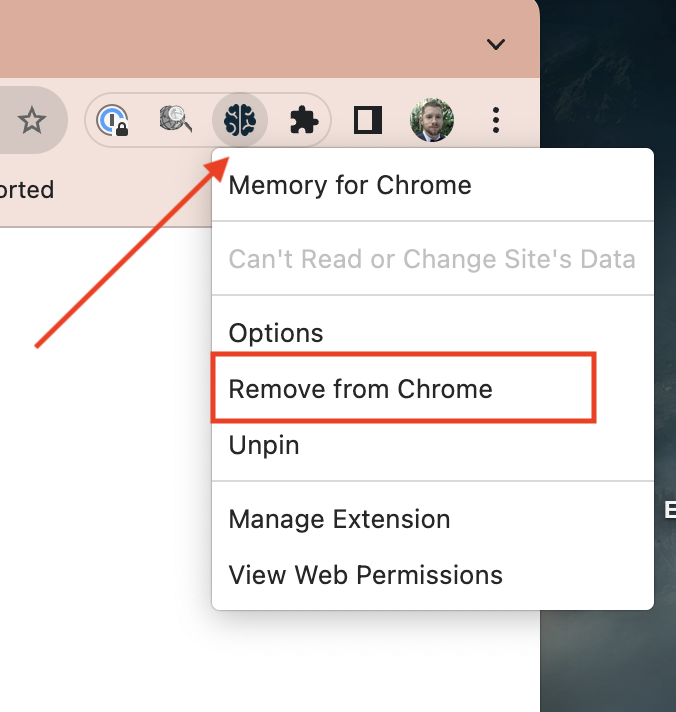
You may have to click the extensions icon (shaped like a puzzle piece) to reveal the Memory icon, if it isn’t visible by default.
You also have the ability to uninstall Memory via the Chrome Web Store by clicking the link HERE and then the “Remove from Chrome” button along the top:

FAQs
What happens if I’m running Memory on my computer and the browser at the same time?
Running parallel versions of Memory on the browser and OS-level (Windows/macOS) will result in duplicate memories appearing on your timeline. If you’re able to run Memory for Windows or Memory for Mac, then you won’t need to install and run Memory for Chrome; it’s built for users that aren’t able to run the standalone Memory app on their computers.
Last updated April 14, 2026
Have feedback for this article or need more help? Contact us now.