
Moving to the new Jira integration
IntegrationsDeep Sync IntegrationsHandbookMove from the retiring Timely (Deprecated) Jira app to the new Jira integration before January 15, 2027.Overview
The old Timely Jira app, listed in Jira as Timely (Deprecated), is being retired. Atlassian is ending support for Connect apps on January 31, 2027, so the old app will stop working on January 15, 2027.
To keep your Jira work flowing into Timely, move to the new Jira integration before then.
This guide is for the admin who connected the old app. The move takes three steps:
- Connect the new Jira integration.
- Check that your projects and issues are syncing.
- Uninstall the old app from Jira.
Before you start
- You need admin access in both Timely and Jira.
- The new Jira integration is available on the Premium, Unlimited, and Enterprise plans. On other plans, the Integrations page shows an upgrade prompt instead of the connect option. To upgrade, see Managing your subscription.
- You can connect the new integration while the old one is still connected, so there’s no gap while you test.
Step 1: Connect the new Jira integration
- In Timely, select Integrations in the bottom-left menu.
- Under Next-Gen Sync Integrations, choose Jira.
- Select Connect workspace with Jira and enter your Atlassian credentials.
- Approve the permissions and select your Jira site.
- Check the toggle for your Jira site is on, then select Configure to choose which projects to sync.
- Select Next.
- Review the default settings, then select Synchronize with Jira.
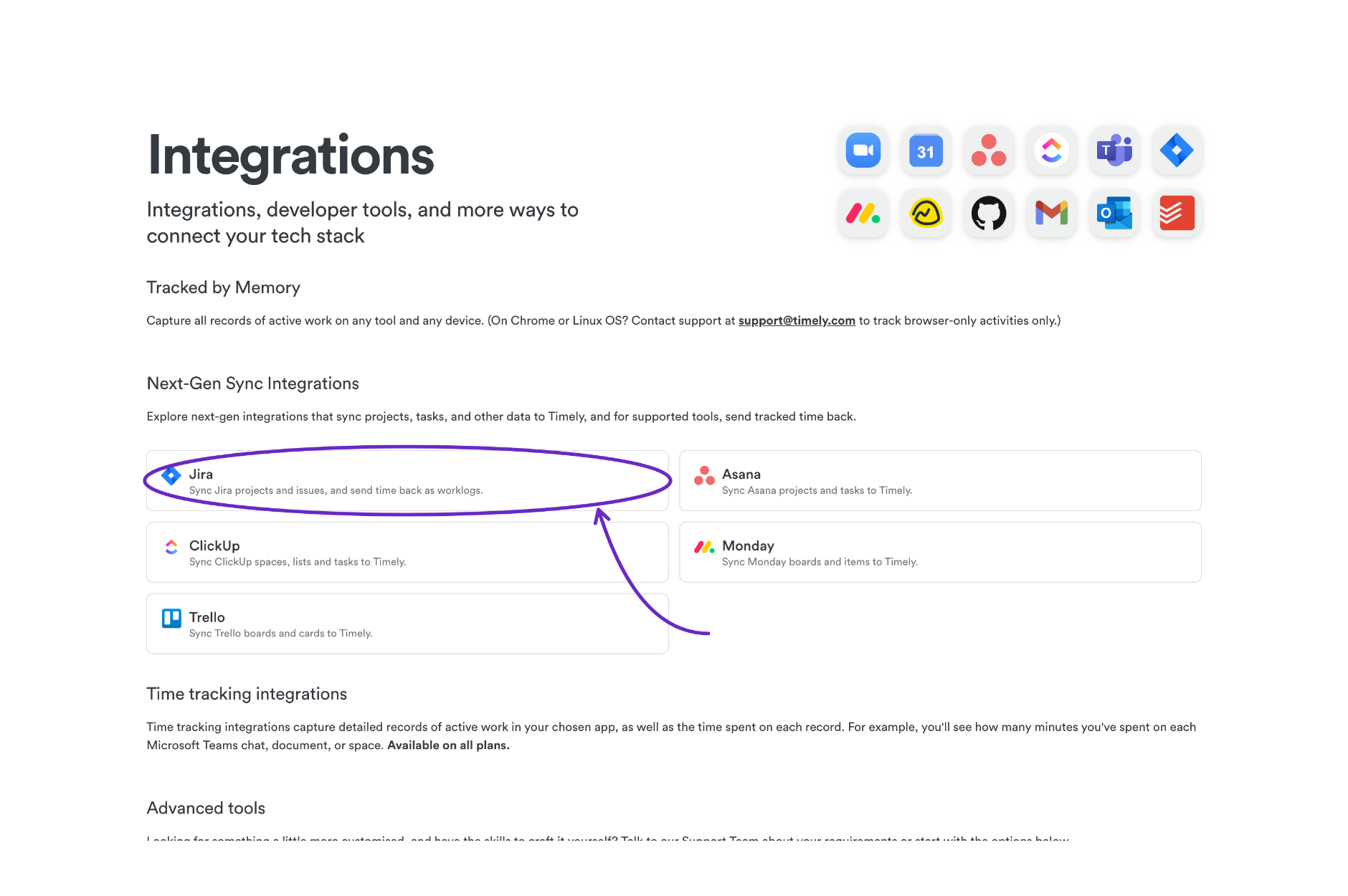
Find Jira under Next-Gen Sync Integrations.
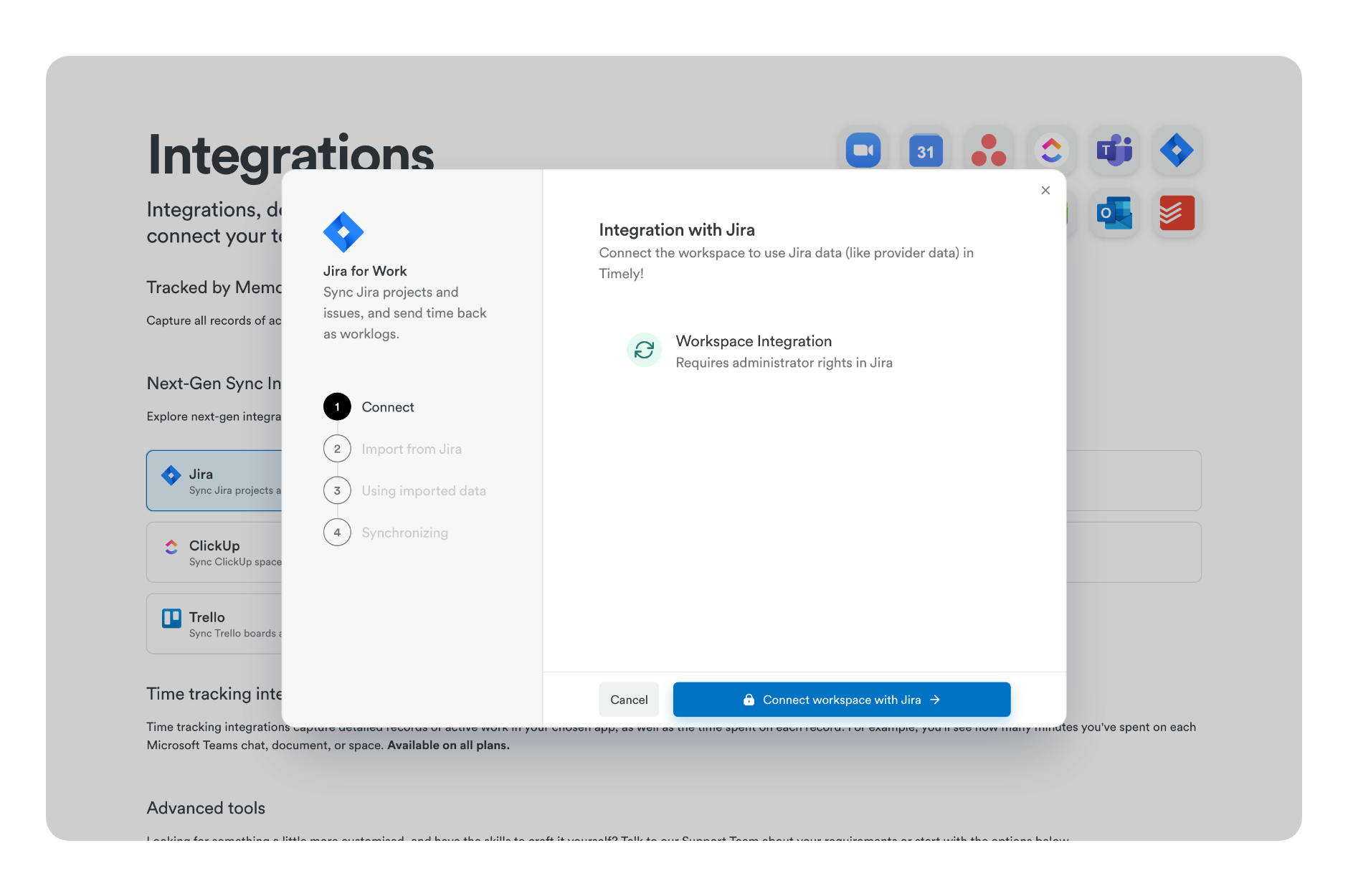
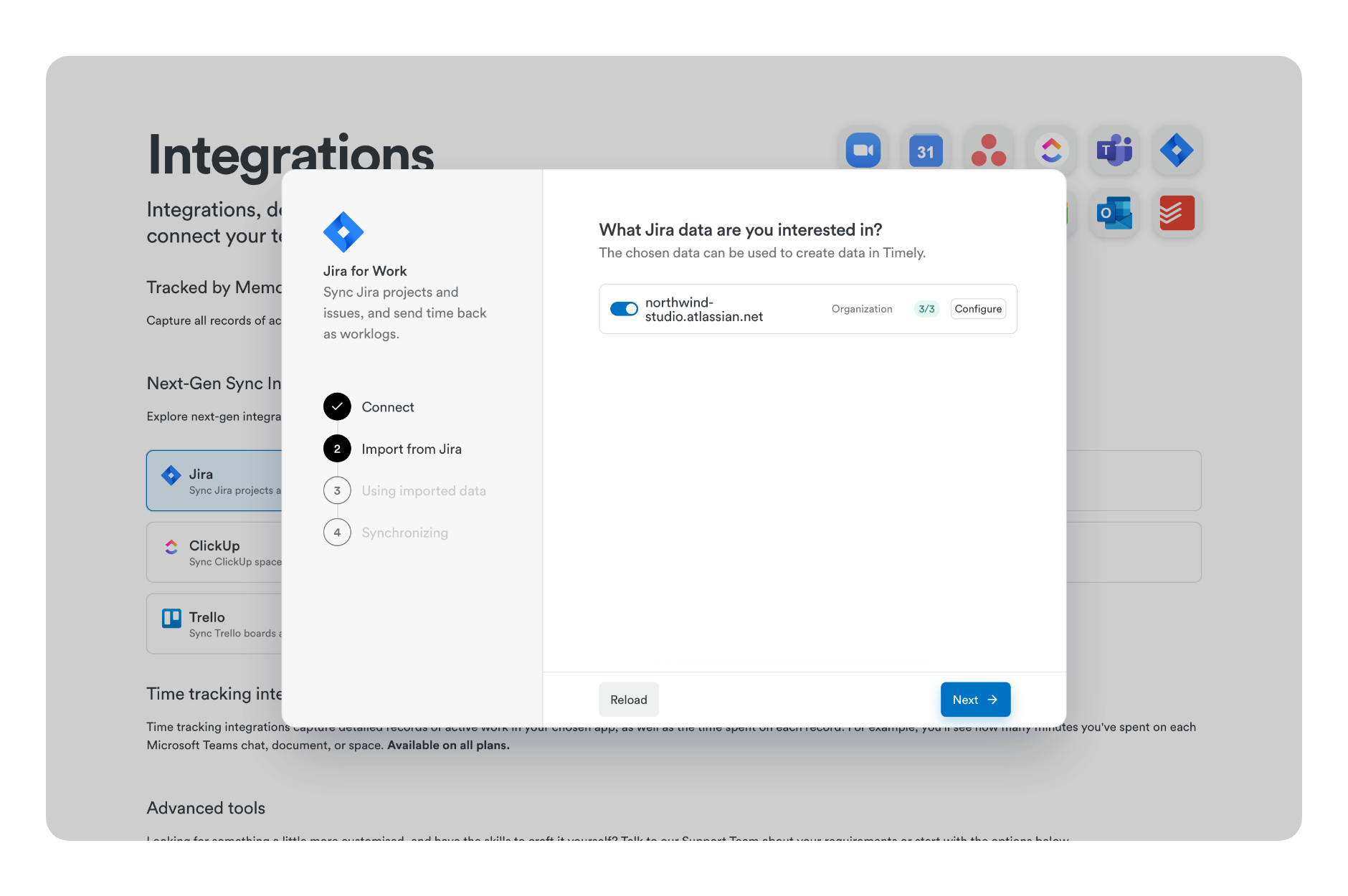
Connect your workspace, then choose which projects to sync.
The full set-up, including custom fields as clients, is in the Jira Sync Integration article.
One difference from the old app: an admin connected it once for the whole account. The new integration can ask each person to authenticate with Jira.
If your workspace restricts imported data to authenticated users, ask your team to connect too. They’ll find the personal integration steps in the same article: Settings > Integrations > Jira > Set up personal integration > Authenticate with Jira.
Step 2: Check it’s working
Give the first sync a few minutes, then check three things:
- Your Jira projects appear on the Projects page.
- When you log time, you can search for a Jira issue in the time entry form.
- Jira activity shows up as Memories for the person who worked on the issue.
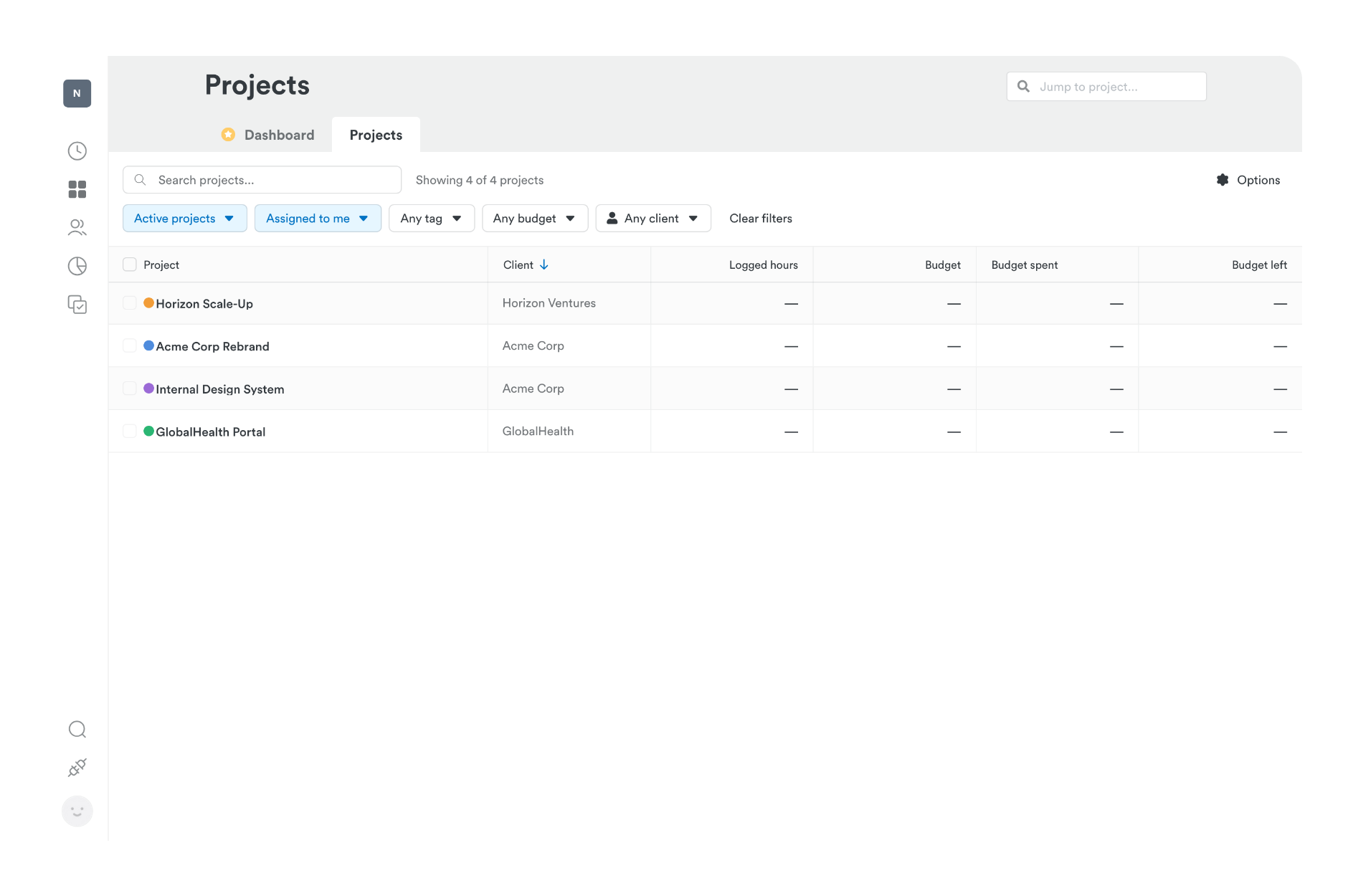
Your synced Jira projects appear on the Projects page.
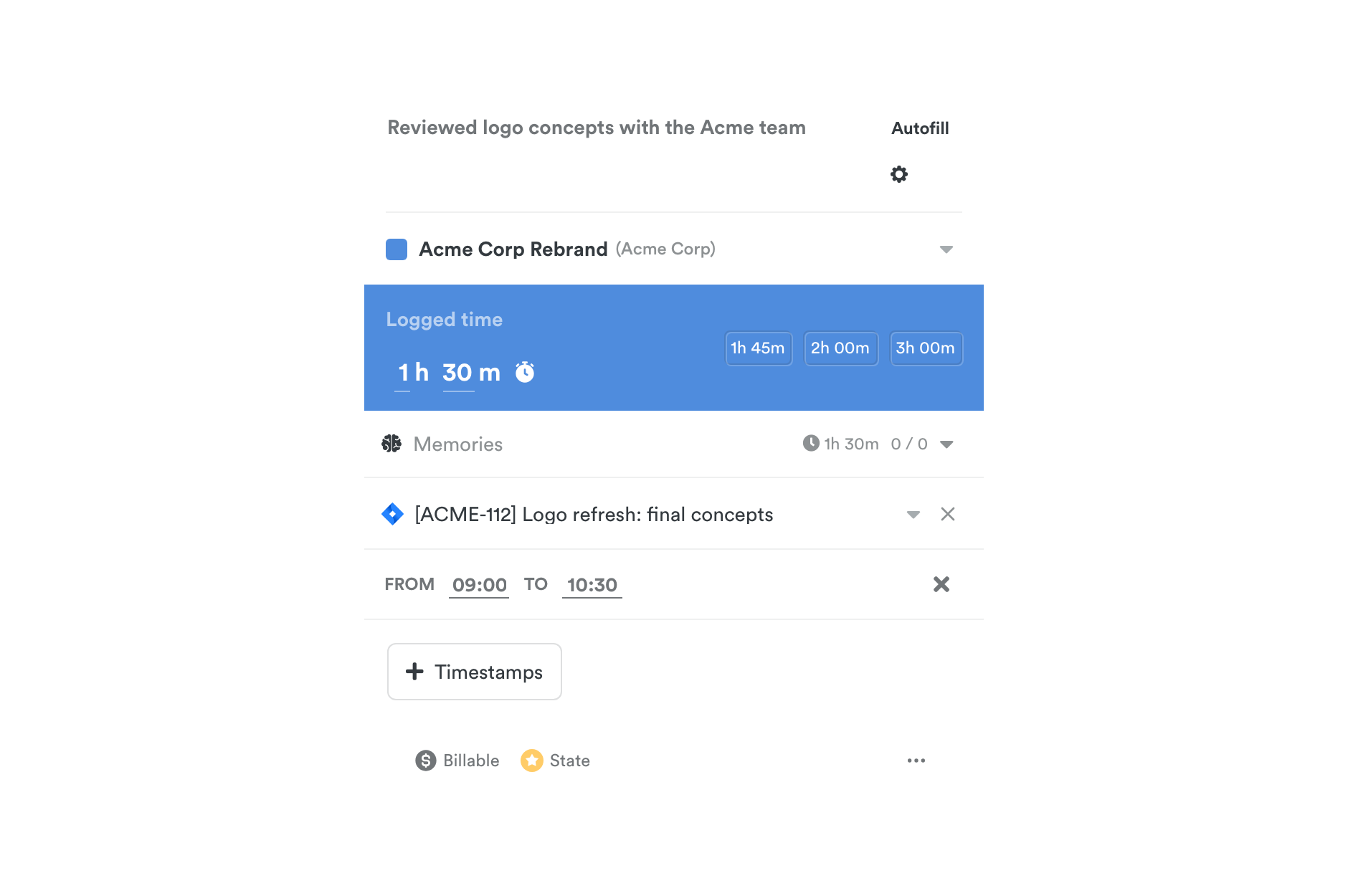
Search for a Jira issue when you log time.
If something is missing, go back to Configure and check the projects you selected. If it still isn’t right, contact us before moving on to Step 3.
Step 3: Uninstall the old app
In Jira, go to Apps > Manage apps, find Timely (Deprecated), and select Uninstall. If anything goes wrong, contact us and we’ll remove it for you.
Once the old app is gone, the new integration carries on syncing as before.
What happens to your existing Jira data
The old app brings Jira activity into Timely as Memories. When you uninstall it, those Memories are removed from Timely.
Time entries you’ve already logged stay as they are. Their time, project, and notes don’t change. If you logged one from a Jira Memory, it just won’t show that Memory anymore.
Once the new integration is connected, you can attach your Jira issues to time entries going forward.
FAQs
Do I have to do this?
Yes. After January 15, 2027, the old app stops working and Jira activity will no longer sync into Timely.
Can I keep the old app connected while I test the new one?
Yes, until January 15, 2027. Uninstall the old app once you’ve checked the new integration.
Will I lose any logged time?
No. Uninstalling the old app doesn’t change your time entries. Only the Memories it brought in are removed.
Does everyone on my team need to do something?
The admin connects the integration. Your team may be asked to authenticate with Jira if your workspace restricts imported data to authenticated users.
Where can I get help?
Contact us and we’ll help you through the move.
Last updated November 4, 2026
Have feedback for this article or need more help? Contact us now.