
New Features
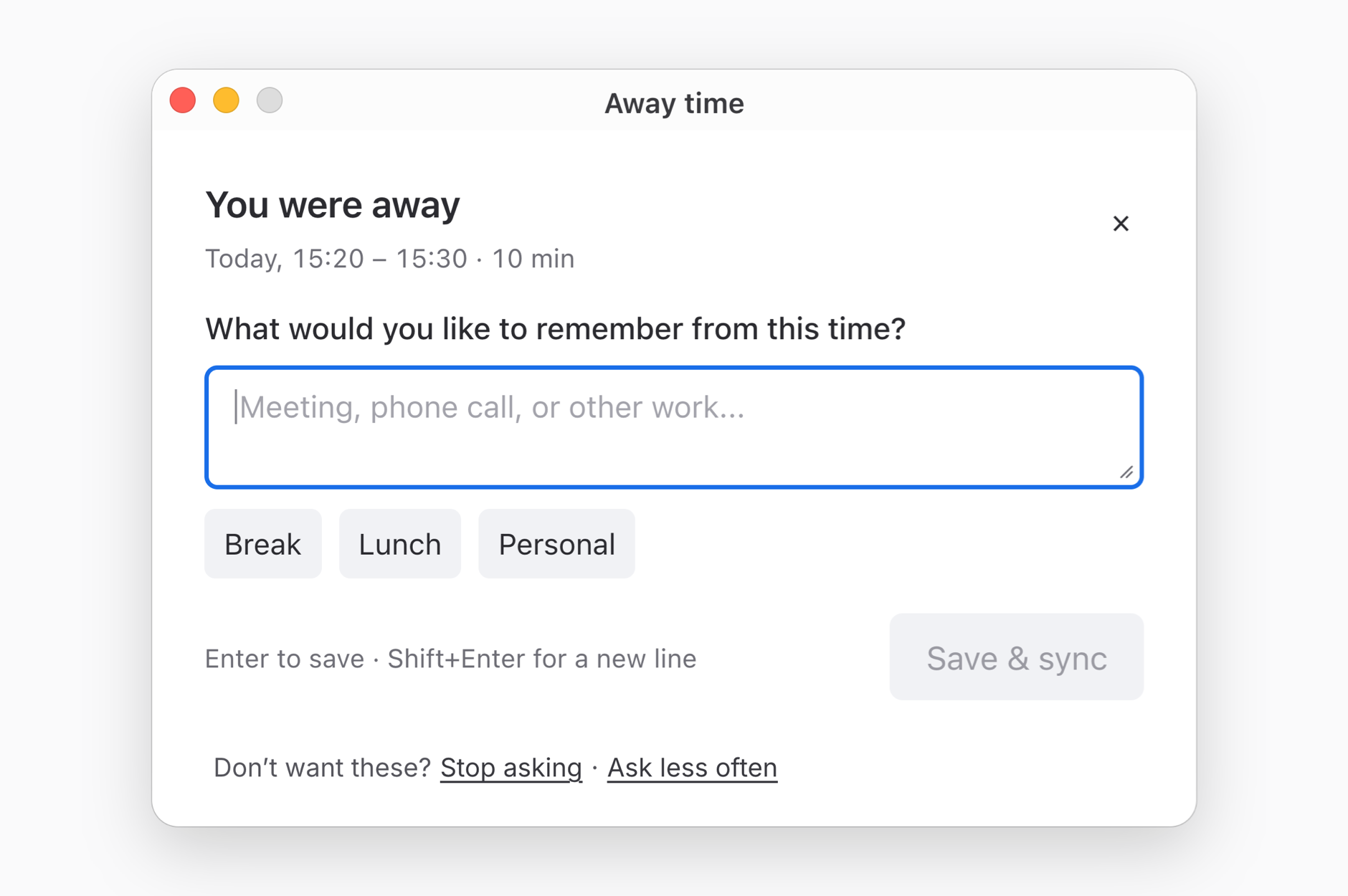
- Away time prompts in Memory. When you’ve been away from your computer, Memory can ask what you were doing once you’re back, so meetings, calls and other offline work don’t go missing from your day. Type a quick note, reuse a recent one, or pick Break, Lunch or Personal. The prompt is off by default: to turn it on, open Memory, go to Settings → Away time, scroll down and switch on “Ask what I did when I’m back”. If it shows up more than you’d like, click “Ask less often”, or “Stop asking” to turn it off. See how away time prompts work. (If you’d already turned it on, this update switches it off once, so turn it back on and Memory will remember your choice.)
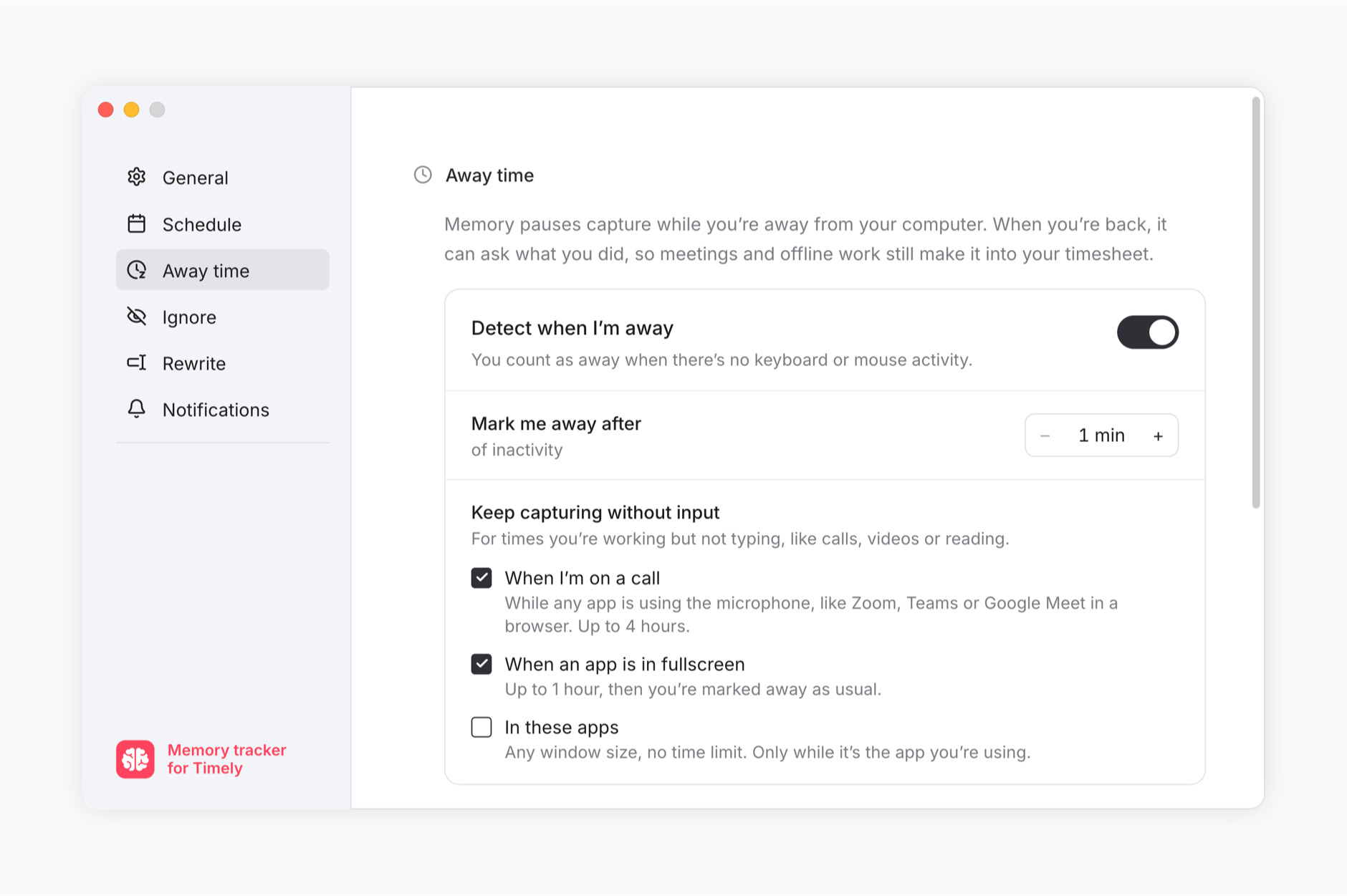
- Know when Memory isn’t capturing. Memory can now show a small notification in the corner of your screen when it stops capturing, so you’re never left wondering why time is missing. Open the new Notifications tab in Memory’s settings to choose which ones you want: when you’re marked away, when Memory is paused, when you’re outside your tracking schedule, or when an ignore or rewrite rule matches the window you’re in. They’re all off by default. Click a notification to jump straight to the matching setting. Learn how Memory captures your work.
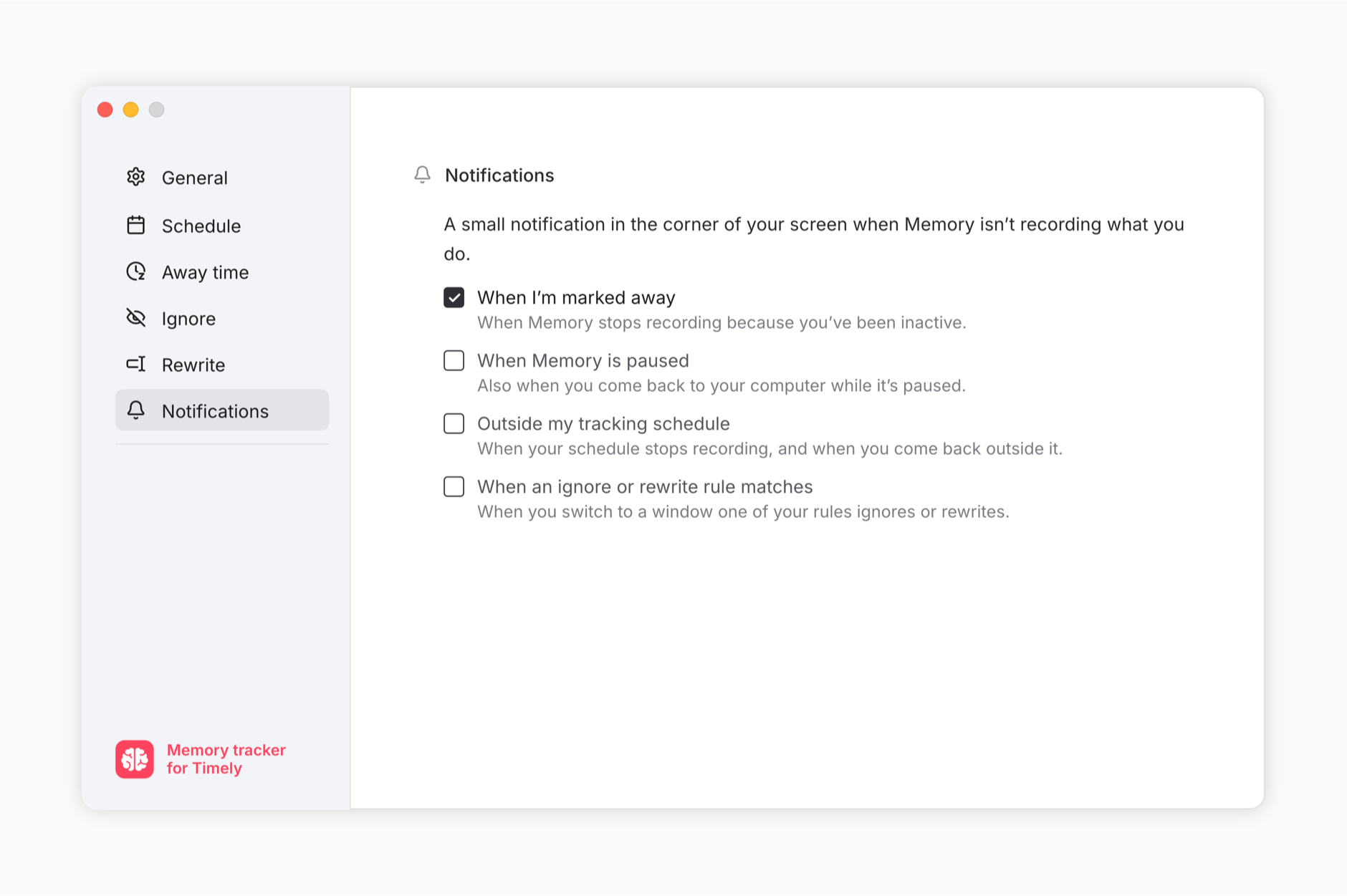
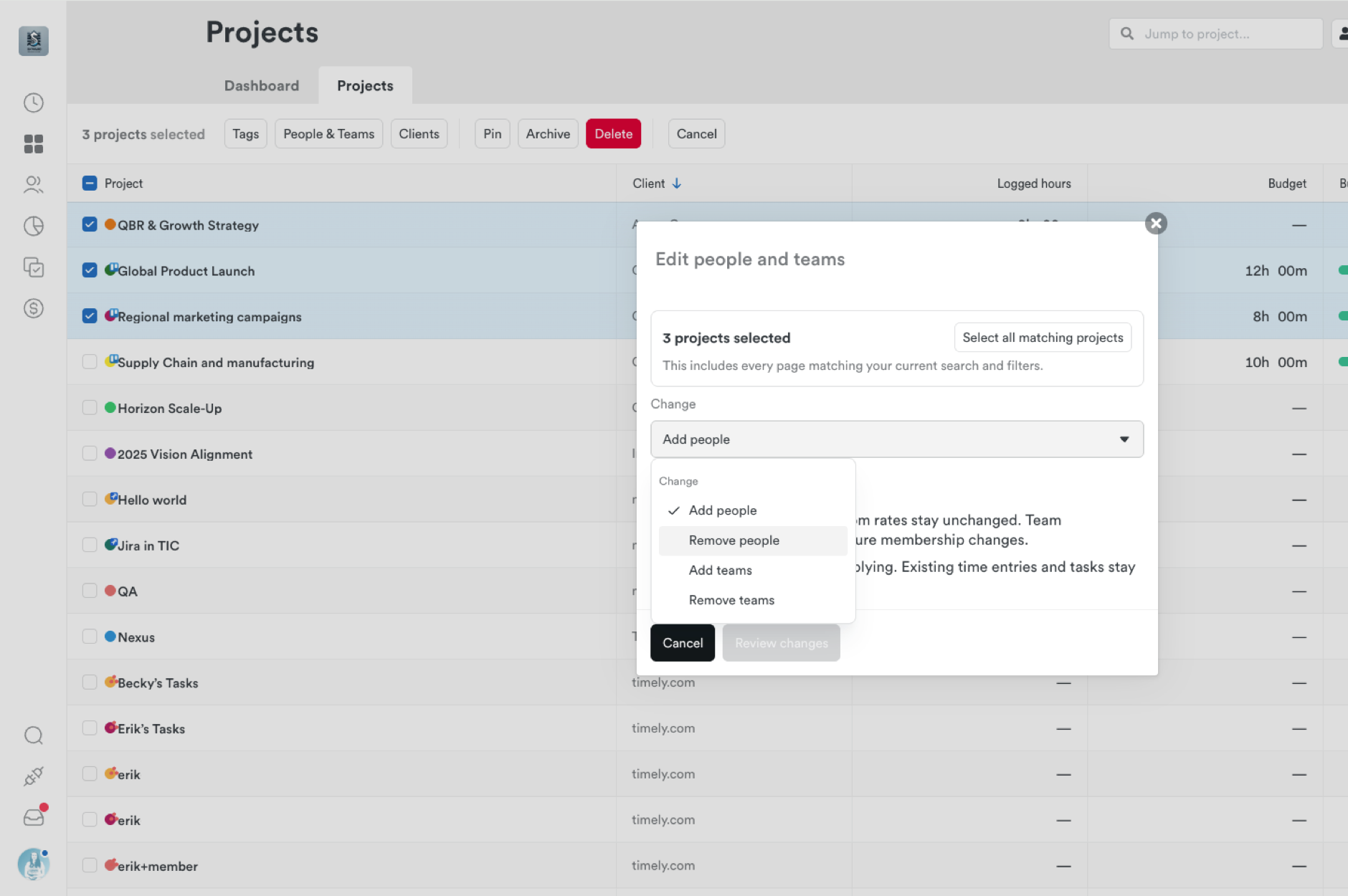
- Bulk edit projects. Admins and managers can now update many projects at once. Select projects across pages, or everything matching your filters, then add or remove tags, change tag requirements, update people and teams, or reassign clients. Ticking the header checkbox selects every matching project, not just the 50 on screen, and the toolbar shows the filtered total. You’ll see exactly what will change before you confirm, including which projects are already set up or can’t be changed, and why. Learn how to bulk-update projects.
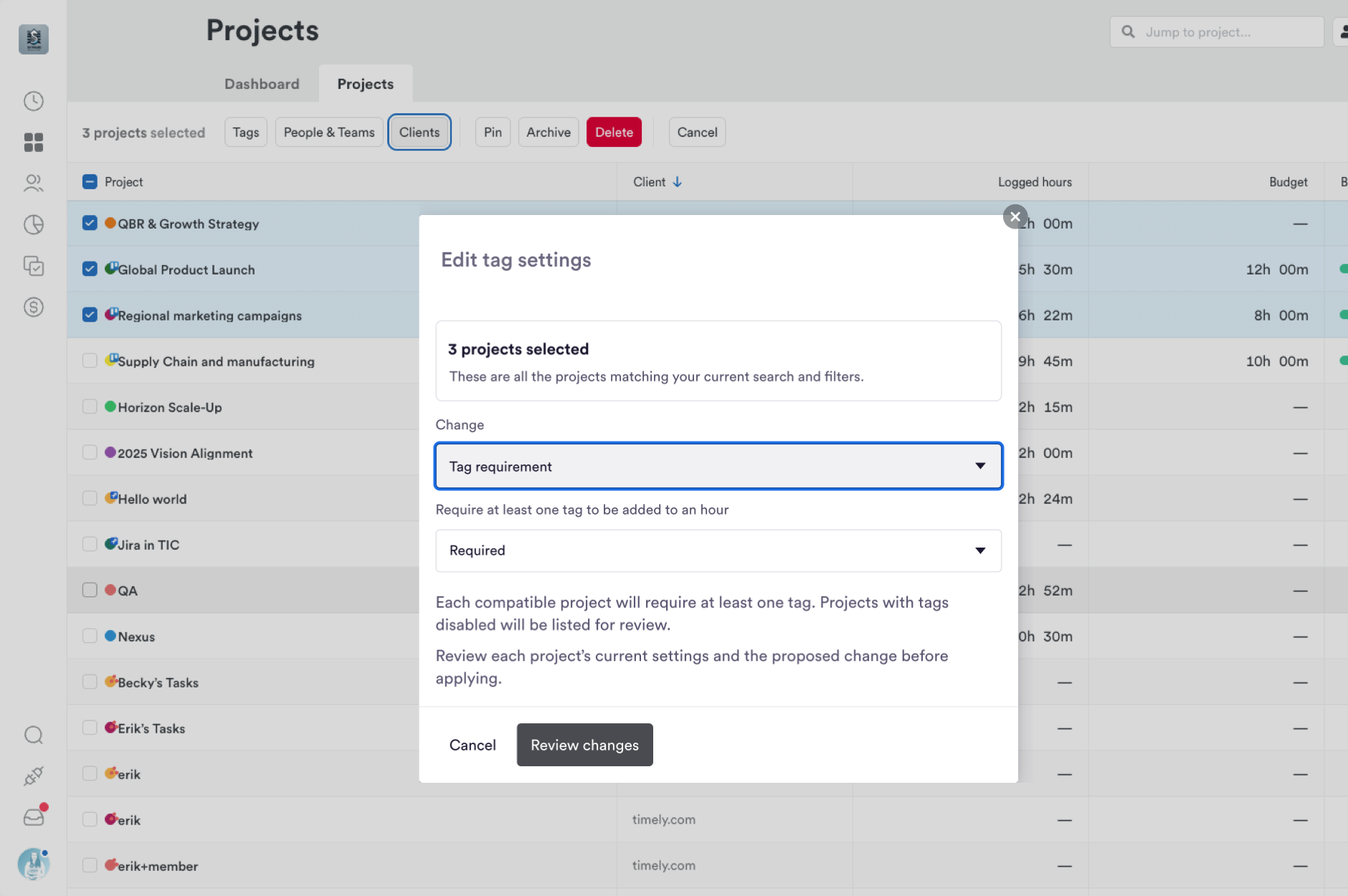
The same goes for people and teams: add or remove them across every selected project in one go.
- Let employees create their own projects. Admins can give individual employees permission to create and manage their own projects, without promoting them to Manager. Set it when inviting or editing a person. It’s off by default. Learn about user access levels.
- Budget milestone alerts for employees. Admins can turn on “Notify employees of budget milestones” so project members who are employees get alerts at 50%, 80% and 100% of a budget. Alerts show only the percentage and project name. It’s off by default. See how notifications work.
- Manage tags in bulk. On the Tags settings page, select tags and lists, filter by Active, Archived or All, then archive, restore, move or permanently delete them in one go. Selecting a list selects all its sub-tags, and your selection stays put as you filter. Learn about creating and managing tags.
- Copy past sessions to another workspace in Memory. Preview and copy past sessions, including their summaries, into a different workspace. You can also choose other workspaces to receive new sessions going forward. Learn how Memory captures your work.
- Admins can update a team member’s name and photo. Anyone who can manage users can now rename a person or change their photo from the user editor. Email stays under the person’s control. Learn about editing users.
Improvements
- Better project suggestions. Project suggestions are more relevant when assigning time, and promising ones are kept for you to review without a retry. Follow-on time in the same session can also be assigned automatically. Learn about AutoSheet.
- Remove old Zoom connections. Admins can now remove Zoom connections left behind by people who’ve moved on. Learn about the Zoom integration.
- Use Timely in narrower windows. Pages that were desktop-only now work in narrower browser windows and on tablets.
- Sync integrations on plans that don’t include them. If your plan doesn’t include sync integrations, you’ll now see the section with an option to upgrade, and connections can’t be re-established until you do. See what’s included in each plan.
Bug Fixes
- ClickUp links open the right place. “Visit in ClickUp” links now open the correct folder, list or space instead of showing an access error, and existing links update on the next sync. See what syncs from ClickUp.
- ClickUp task assignments stay put across accounts. People who belong to ClickUp workspaces connected to more than one Timely account now keep their task assignments and restricted task lists in each one. See what syncs from ClickUp.
- Linear projects reach every connection. Linear projects that belong to more than one team now appear in every connection that includes any of those teams. See what syncs from Linear.
- GitHub issues and pull requests link to the right organization. Items opened by someone other than the repository owner are now linked to the repository’s organization.
- Asana teams with very large memberships now import. Large teams no longer cause the import to fail.
- Sync integrations update reliably. Sync integrations now update reliably after you change what to import or run a manual sync.
- Outlook Mail stays connected. Outlook Mail connections no longer stop working over time, and they recover on their own from temporary slowdowns on Microsoft’s side.
- The AutoSheet linked-work picker stays open. Closing the filter menu no longer closes the picker. Learn about AutoSheet.
- Selecting a range in AutoSheet counts each hour once. Batch selecting and reassigning across a stretch of time now counts each logged hour a single time.
- Memory on Windows opens from the tray again. Opening Memory’s settings from the away prompt while the main window was closed no longer stops it from opening from the tray or taskbar, and minimized windows now restore when you click the tray icon. Learn about Memory for Windows.
- Fewer false upload alerts in Memory. Upload error notices now appear only after repeated failures, not after a brief blip.
- Project list filters show each project once. Filtering by several tags no longer shows the same project more than once.
More updates
Faster search, richer report exports, and team lead compliance views
Product Update Q3 2026: Nearly 190,000 timesheets, filled in by AutoSheet
Smarter Timelines, easier edits and more control over your notes
See your seats at a glance, plus cleaner exports and invoices
Per-period recurring budgets, faster Trello and Jira syncing, and reliability fixes
Faster Linked-Work Search, Flexible Time Logging, and Reliability Fixes