
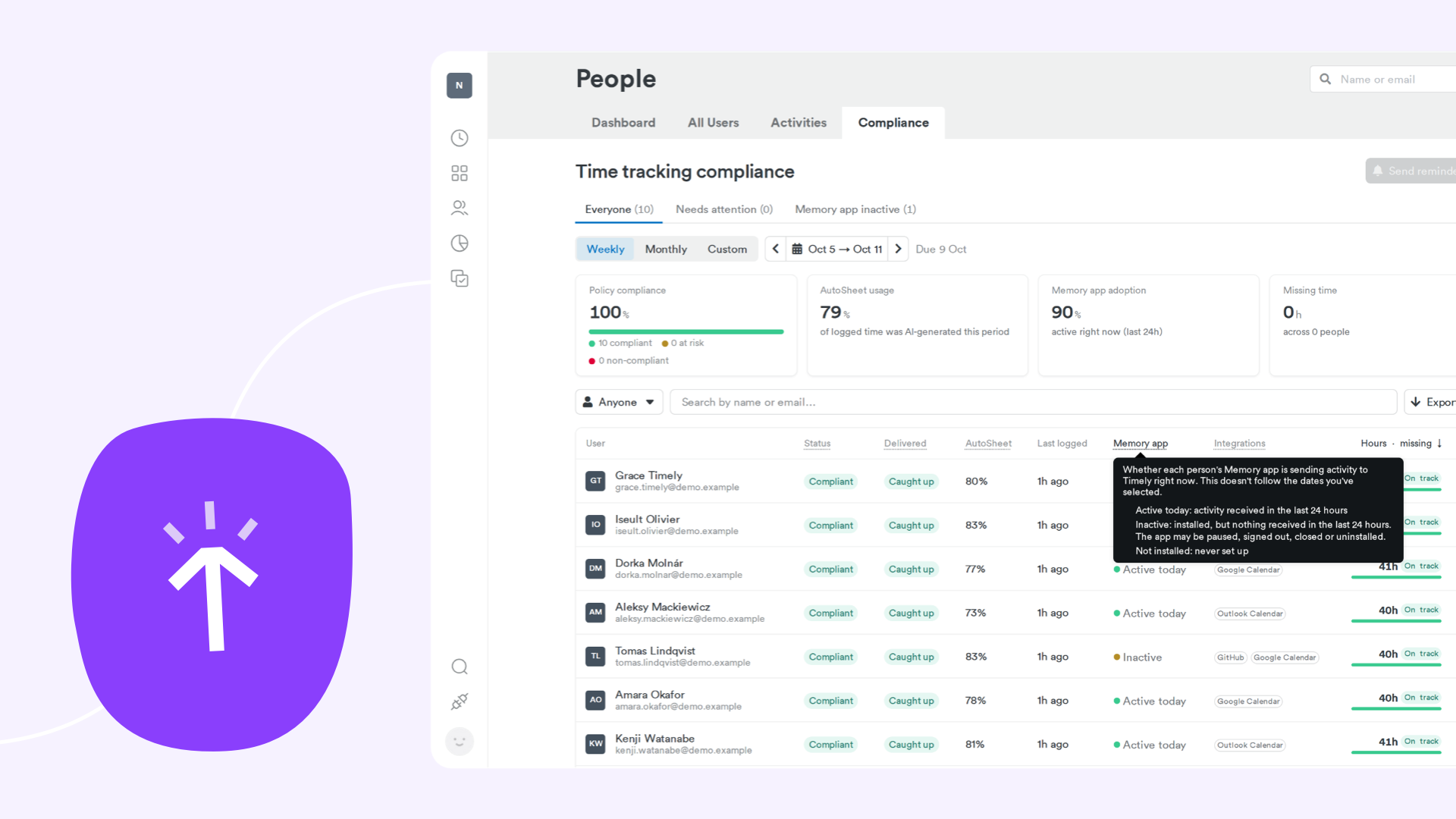
In October, nearly 3 in 4 AutoSheet timesheets went in complete, without anyone lifting a finger. This month’s updates close more of the gaps: Memory can ask what you did while you were away from your desk, Timely emails you when an integration like Google Calendar disconnects, and AutoSheet now shows every hour you’ve logged in one place. Team Leads can check their own team’s time and send reminders themselves, so Admins don’t have to chase the whole company. Plus bulk editing for projects and tags, and exports that line up with your other tools.
Catch the time you’d otherwise lose
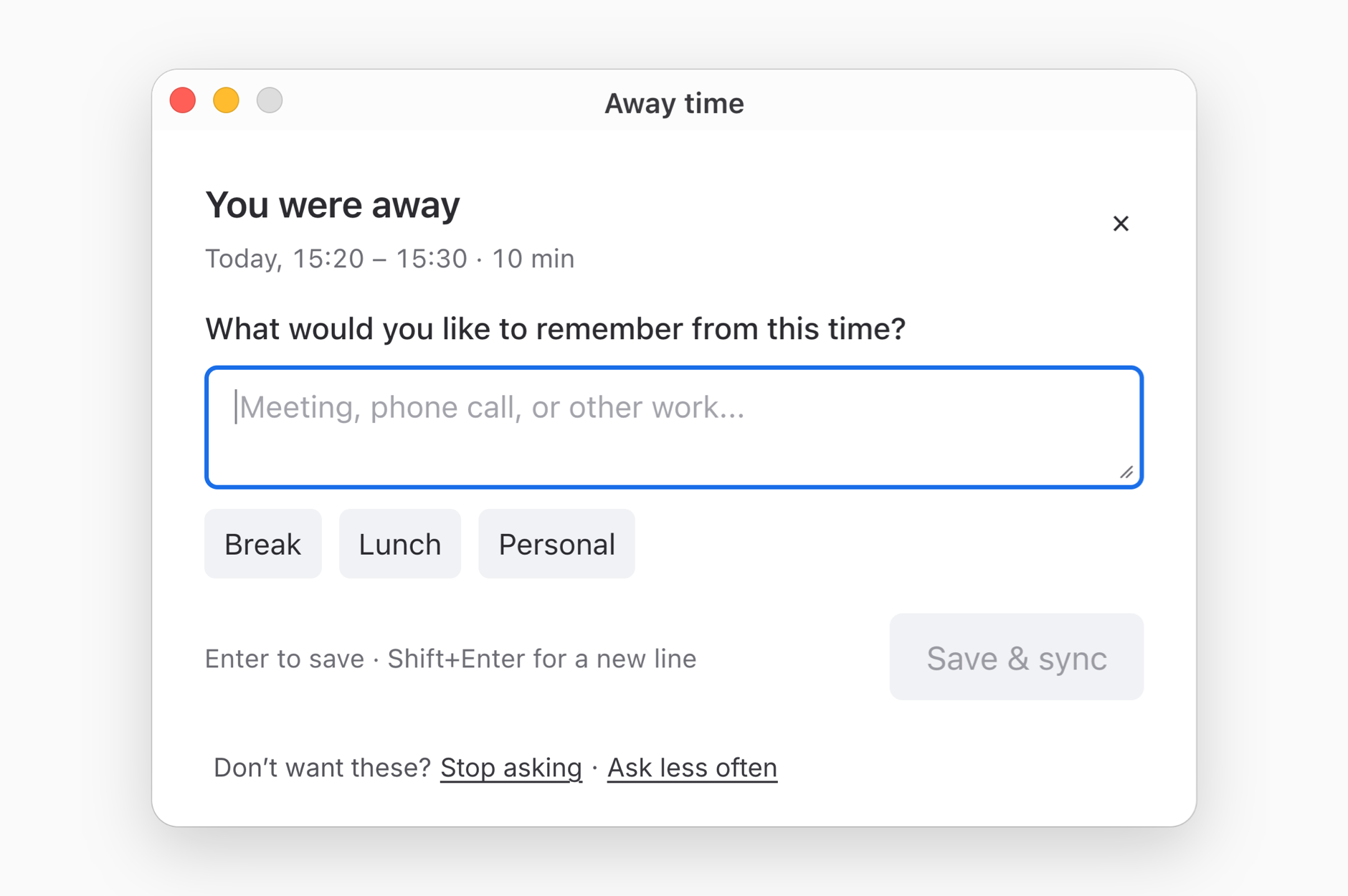
Away time prompts in Memory
Meetings, calls, and offline work make it into your day. When you come back to your computer, Memory can ask what you were doing. Type a quick note, reuse a recent one, or pick Break, Lunch, or Personal. It’s off by default: in Memory, go to Settings > Away time and switch on Ask what I did when I’m back. If it asks too often, click Ask less often. See how away time prompts work.
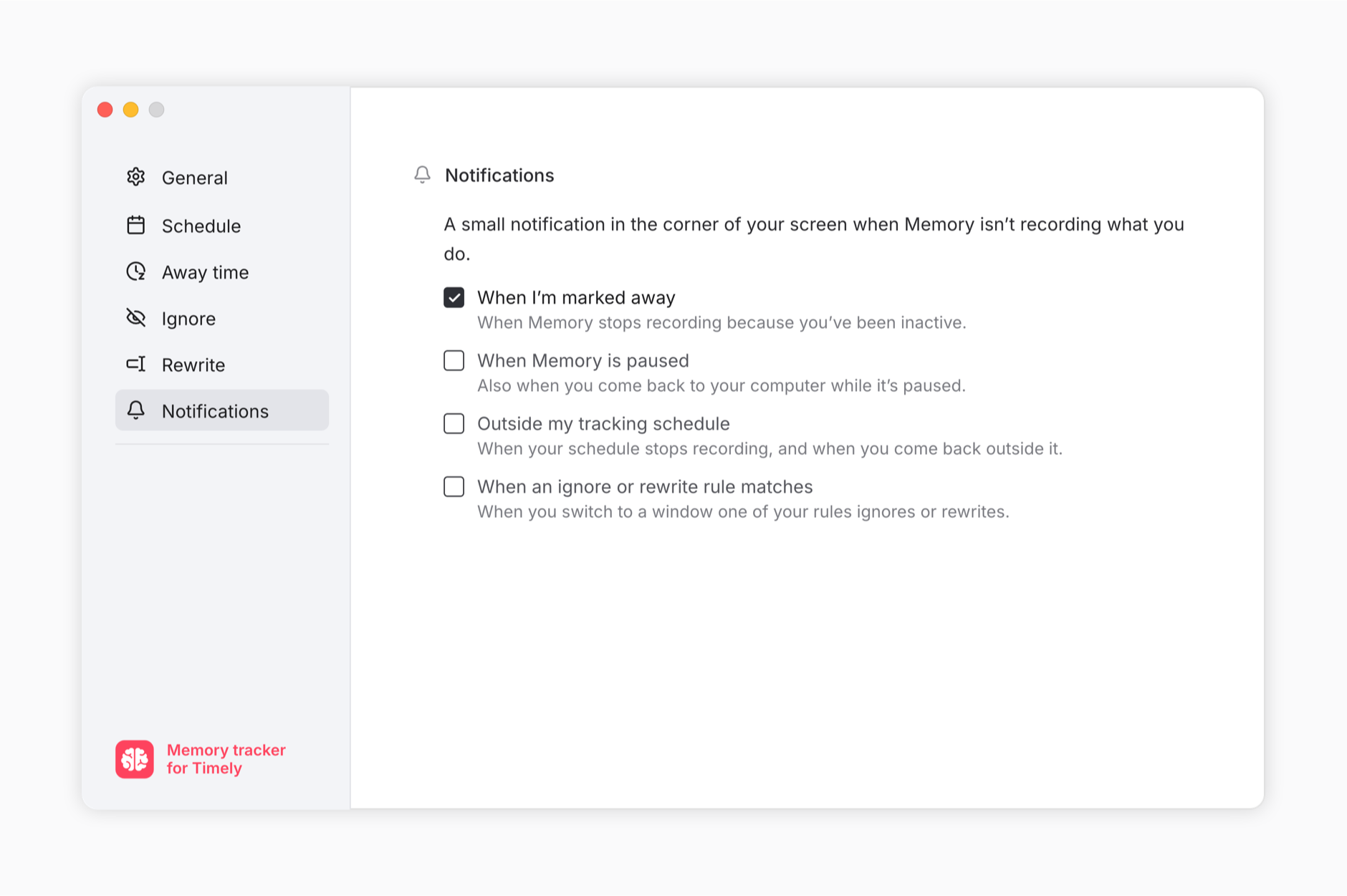
Know when Memory isn’t capturing
No more wondering why time is missing. Memory can show a small notification when it stops capturing: when you’re marked away, when it’s paused, when you’re outside your tracking schedule, or when an ignore or rewrite rule matches the window you’re in. Choose which ones you want in the new Notifications tab in Memory’s settings. Click a notification to jump straight to the setting behind it. Learn how Memory captures your work.
Know when an integration disconnects
Reconnect before time goes missing. When a calendar, email, or workspace integration disconnects, such as Google Calendar, Outlook, Microsoft Teams, or Zoom, Timely now emails the right people so they can reconnect it. Admins also get a weekly digest of disconnects across the workspace. And an Outlook calendar that keeps failing to import now shows as disconnected, so it doesn’t look connected while nothing comes in. Learn about integration notifications.
All your hours in AutoSheet
One place for everything you’ve logged. Time you add by hand or through the API now appears in AutoSheet’s timeline and table next to your automatic entries. Edit the project, tags, and note right there. AutoSheet won’t create duplicates over time you’ve already logged, and a day with only manual hours can still be submitted as done. Explore the AutoSheet timeline.

Keep your team on track
Compliance over any period
Check everyone’s time before you invoice or close the quarter. The Compliance dashboard now has a Custom option alongside Weekly and Monthly. Pick any start and end date up to a year apart. See how custom date ranges work.
Team Leads can run their own compliance
Team Leads don’t have to wait for an Admin. Team Leads can now open the Compliance dashboard for the teams they lead, then filter, export, and send reminders to their own people. Admins still see the whole workspace. Learn how to access the Compliance dashboard.
The dashboard also explains itself better. Click a column label to see what it means, and hover an Inactive Memory app status to see when activity last came in. People with no weekly capacity now show as No capacity rather than On leave.
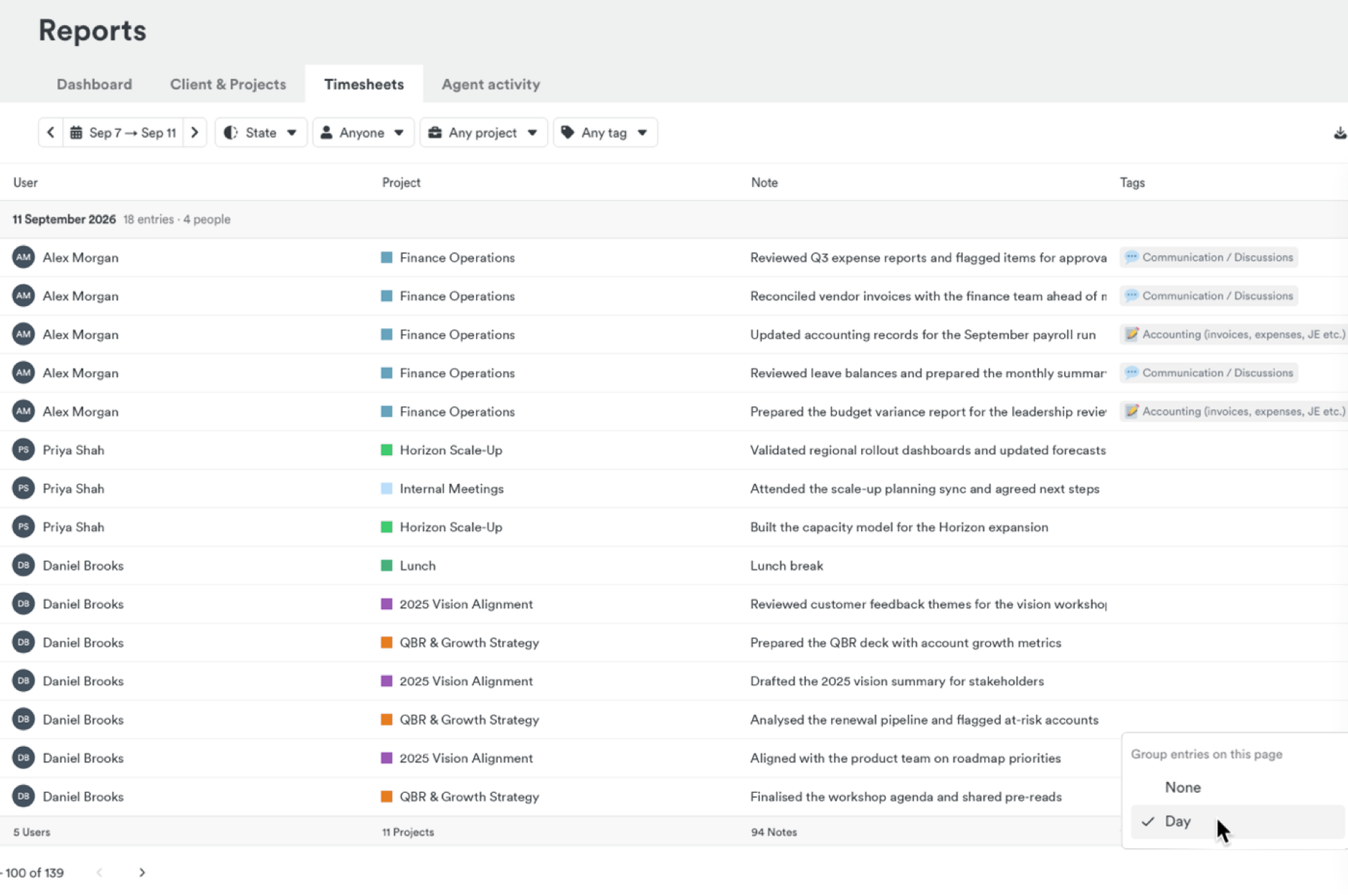
Review timesheets one day at a time
See each day’s work, who logged it, and the day’s total. In the Timesheets tab, open Options > Group by > Day. Timely remembers your choice, and your exports stay the same. Learn how to group entries by day.
Change many things at once
Bulk edit projects
Update a whole client’s projects in one go. Admins and Managers can select projects across pages, or everything matching a filter, then add or remove tags, change tag requirements, update people and teams, or reassign clients. You see exactly what will change before you confirm, including which projects can’t be changed and why. Learn how to bulk-update projects.
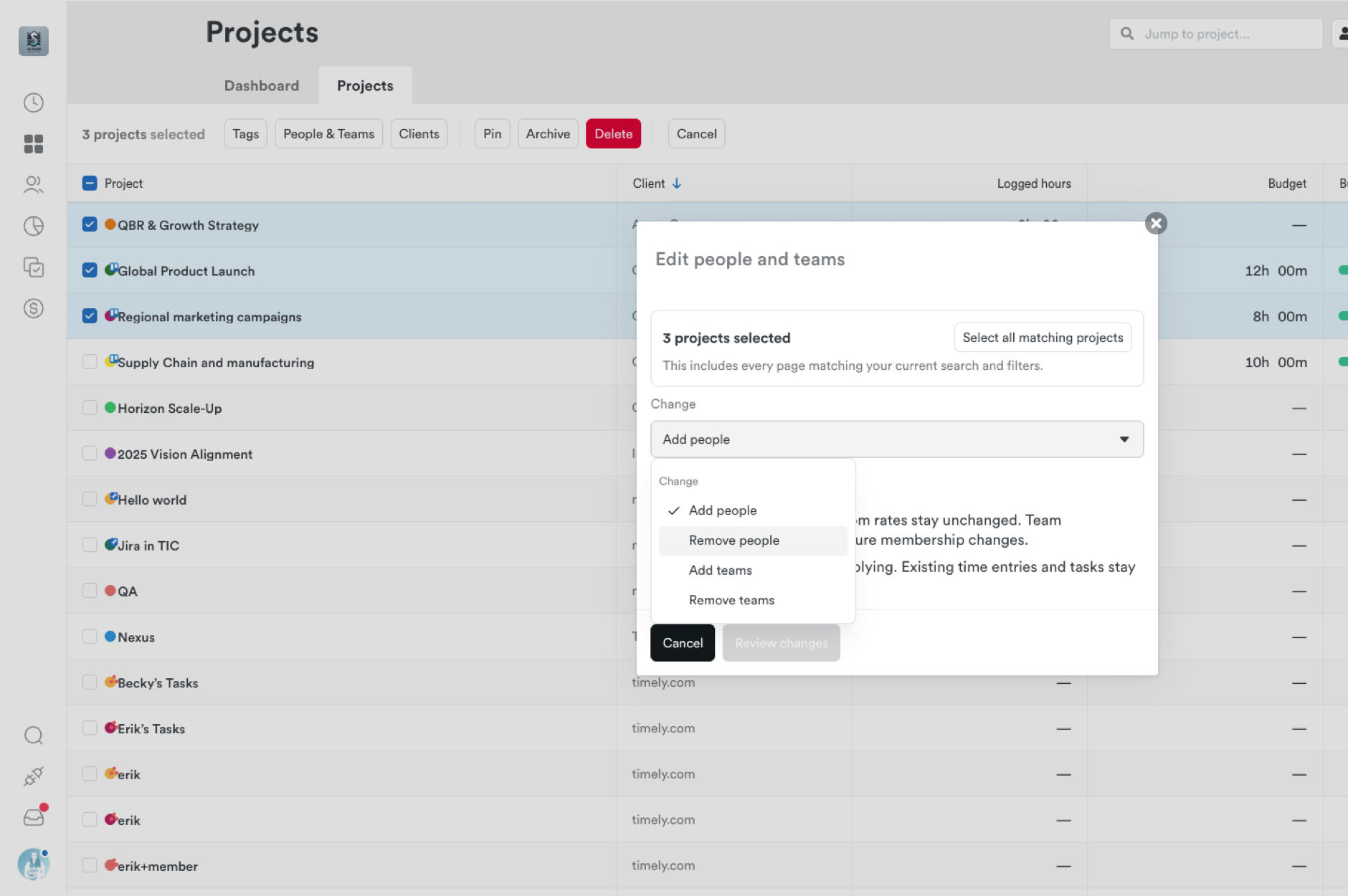
Manage tags in bulk
Tidy up your tag lists in minutes. On the Tags settings page, select tags and lists, then archive, restore, move, or delete them together. Selecting a list selects all its sub-tags, and your selection stays put as you filter. Learn about creating and managing tags.
Let Employees create their own projects
Give the right people more control without making them Managers. Admins can let individual Employees create and manage their own projects. Set it when you invite or edit someone. It’s off by default. Learn about user access levels.
Exports that fit your other tools
Match Timely data to your invoicing, payroll, and BI tools. Custom Report exports can now include an Entry ID column, so every row has its own unique number for matching in tools like Power BI. You can also add Billable Rate and Cost Rate columns, which follow each person’s rate permissions. And you can show time as hours and minutes (1:30) or as a decimal (1.50). The time format is saved with each report and used for downloads, scheduled exports, and emails. See the export fields.
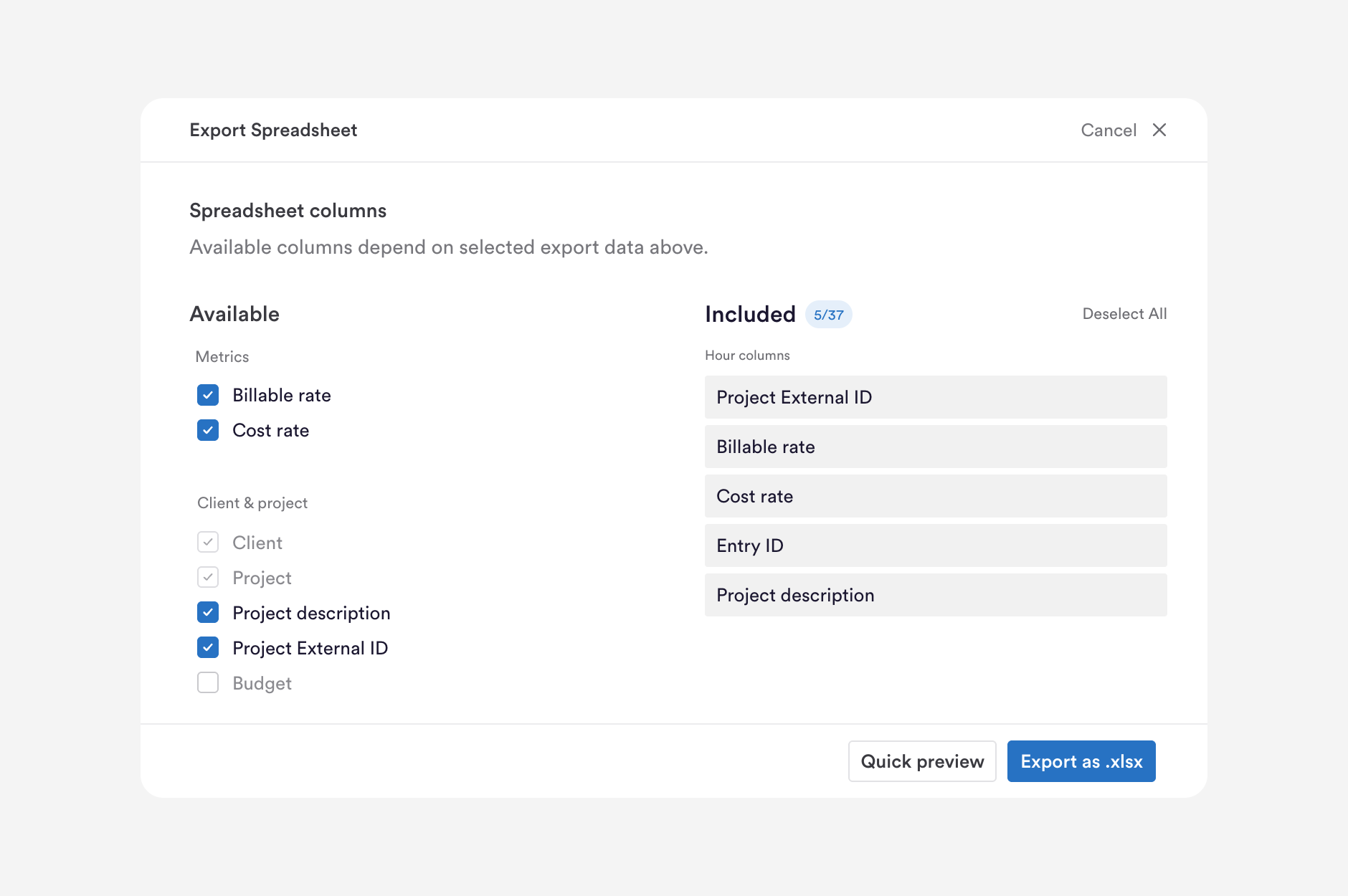
Also in this release
- Quick search (⌘K, or Ctrl+K on Windows) is now available to everyone on desktop, with people shown first
- Budget milestone alerts for Employees, at 50%, 80%, and 100% of a budget
- Admins can update a team member’s name and photo
- Invite links now expire after 14 days, and you can resend them from the People page
- Memory now captures which WhatsApp chat, or which Claude or ChatGPT conversation, you were in
- Memory on Mac starts more reliably at login, and tells you if something stops it
- New projects fill in the client you used last time
- Shift-click to select a range of rows in AutoSheet’s Table view
- Copy past Memory sessions to another workspace
- Timely now works in narrower browser windows and on tablets
- Clearer warnings when a card payment fails, including when integrations would be disconnected
- More reliable syncing for ClickUp, Linear, Trello, Jira, Asana, monday.com, and Outlook Mail, with clients you assign in Timely kept on synced projects
Want the details as they ship? Every change is in the changelog, updated weekly.