ClickUp pitches itself as the “everything app” — including built-in time tracking. But native time tracking in ClickUp has real limits, and depending on how your team works, those gaps can leave billable hours uncaptured. This guide covers how ClickUp time tracking works, who can use it, where it falls short, and how Timely’s ClickUp integration fills the gaps.
How does ClickUp time tracking work?
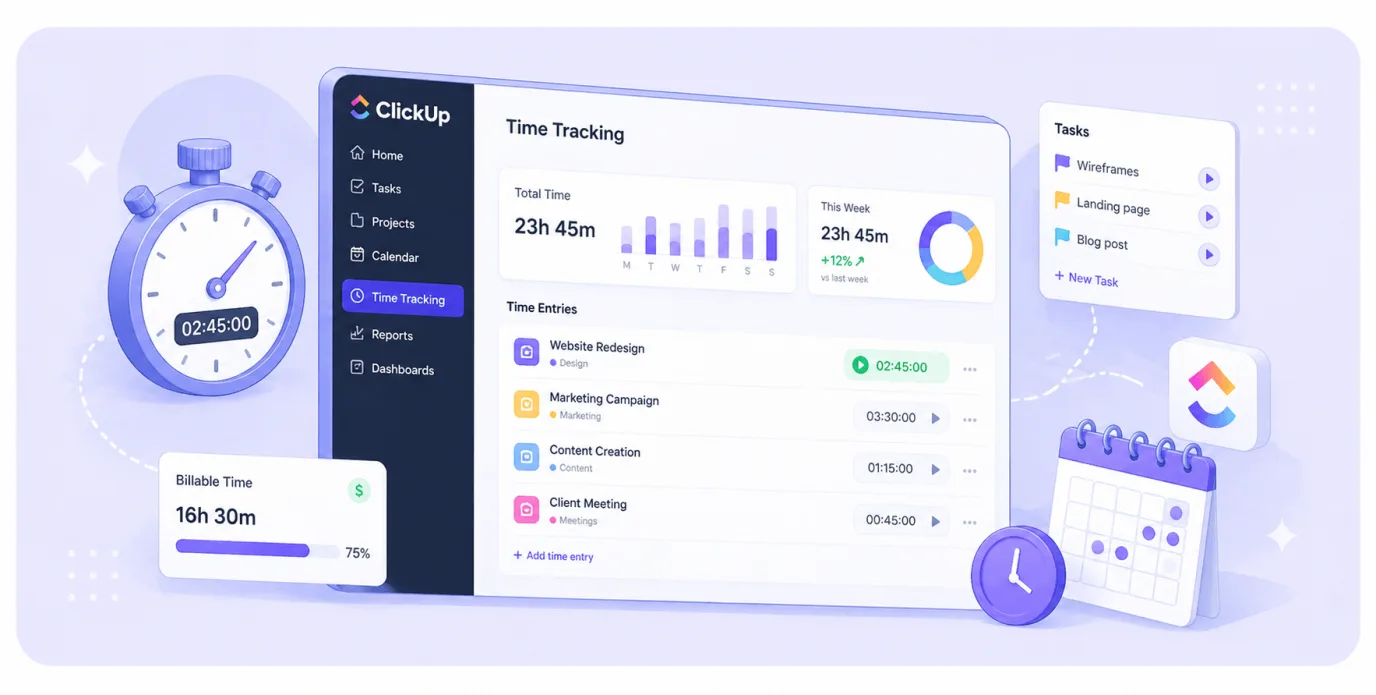
ClickUp includes built-in time tracking that operates at the task level. Once enabled, it integrates into your workflow across tasks, views, and dashboards.
Time tracking is enabled via ClickApps
An admin must activate the Time Tracking ClickApp before use. Once enabled, time tracking becomes available workspace-wide, including tasks, timesheets, and dashboards.
Track time directly on tasks
All time tracking in ClickUp ties to tasks and subtasks. You can start tracking from:
- Inside a task view
- List, Board, or Calendar views
- The global toolbar or quick action menu
Each time entry links to a specific task for visibility into time allocation.
Three ways to log time tracking data
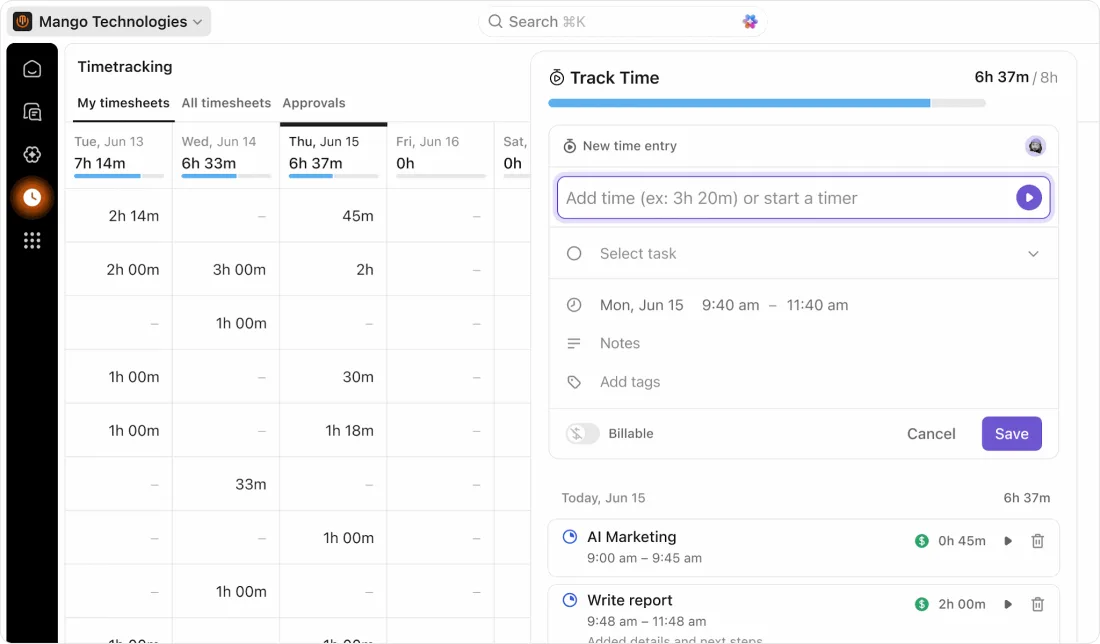
ClickUp offers multiple tracking methods:
- Timer: Start and stop while working for precise tracking
- Manual entry: Add time after finishing a task
- Time range: Enter start and end times for ClickUp to calculate duration
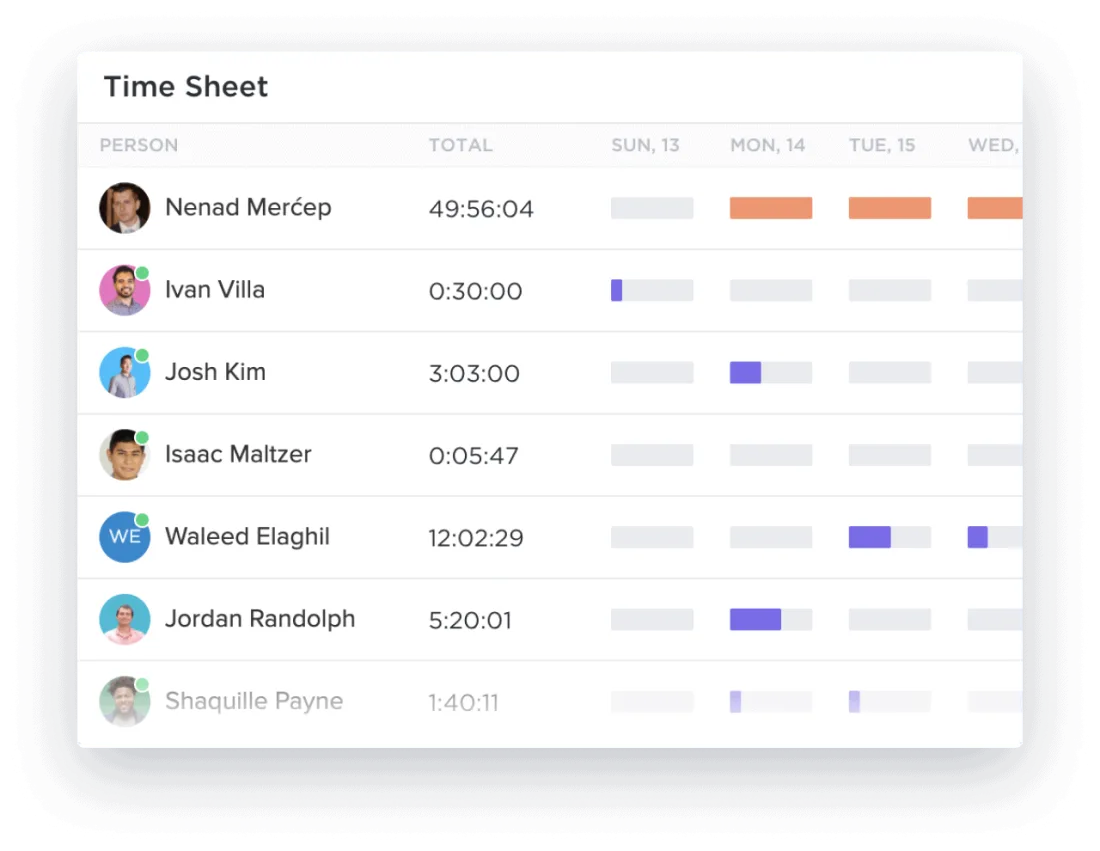
Built-in timesheets and reporting
All tracked time flows into timesheets and dashboards, allowing you to:
- View time across tasks, projects, and team members
- Compare time tracked versus time estimates
- Break down time by user, date, or workspace level
Supports billable and non-billable time
ClickUp lets you categorize time entries by marking them as billable or non-billable, adding notes, tags, or labels, and editing entries later.
Who can track time in ClickUp?
Available on the Free plan
ClickUp includes time tracking in its Free Forever plan, enabling small teams to:
- Track time spent on tasks
- Log time manually or with a timer
- View entries directly in tasks and list view
No upgrade required for core features
Basic time tracking remains consistent across all plans — Free, Unlimited, and Business — including timers, manual entries, and per-task/user/project viewing.
What paid plans add
Higher plans provide:
- More advanced dashboards and reporting
- Better permission and workspace setting controls
- Additional integrations and automation options
Works across views and workflows
Time tracking is accessible from tasks, subtasks, list view, dashboards, and reports.
Automatic tracking depends on how you use it
ClickUp supports timers and manual entries but lacks background tracking. Users must start timers or add entries manually, making consistency dependent on team habits.
The downsides of tracking time natively in ClickUp
Still heavily manual
Despite timer support, ClickUp requires user input. Users must start and stop timers, log time afterward, or manually adjust entries. There is no true background tracking, so it’s easy to miss entries or underestimate how long work actually took.
No automatic tracking across tools
ClickUp tracks only within tasks. Work in browsers, docs, or meetings goes uncaptured, and time spent outside ClickUp requires manual entry.
Reporting is decent, but not deep
While dashboards provide visibility, detailed analysis remains limited. Breaking down time by client or profitability, analyzing trends, or building clean reports without extra setup proves challenging.
Limited billing and financial workflows
ClickUp allows marking time as billable but lacks built-in invoicing, rate management, and automated billing workflows.
Task-based tracking can feel restrictive
All time ties to tasks and subtasks, making it harder to track multiple tasks in one session, log time against clients directly, or see full-day work timelines.
Data quality depends on team habits
Manual tracking creates consistency issues. Some users log everything while others batch-log at day’s end, resulting in uneven team data and reduced reporting reliability.
How Timely helps you better track time in ClickUp
Adding Timely alongside ClickUp provides clearer, more reliable hour tracking without changing team workflows.
Automatic tracking across your entire workday
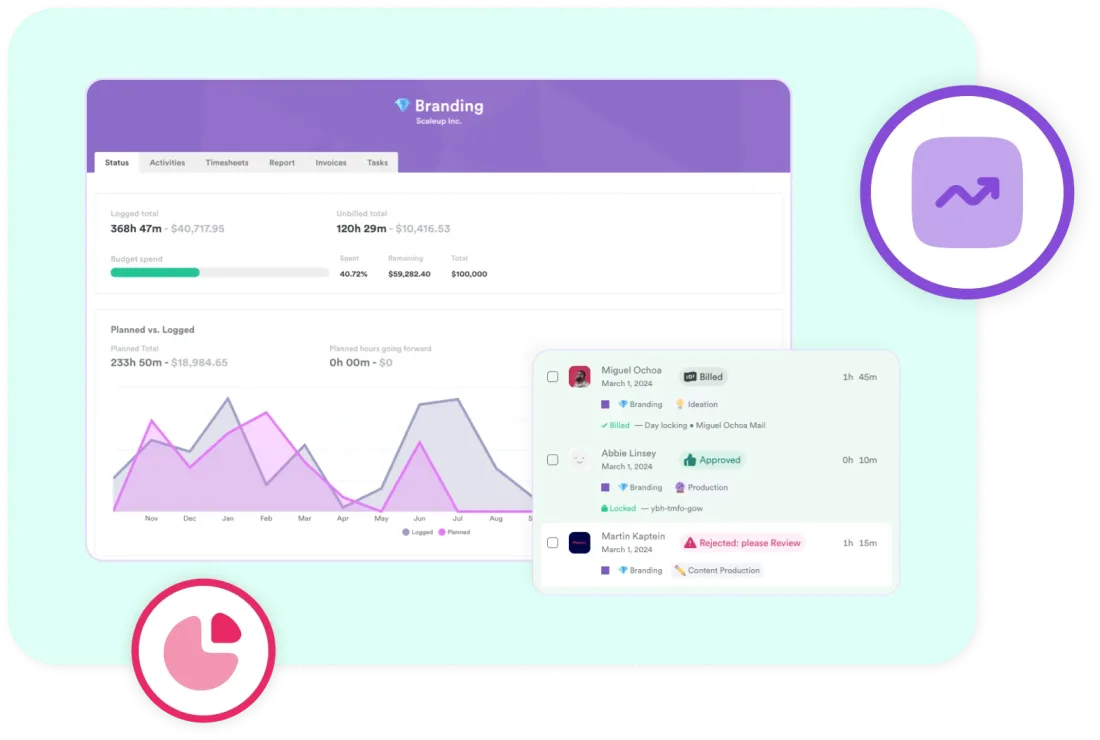
Timely uses automatic time tracking to build a private timeline across apps, documents, and meetings. Users review their day and assign entries accordingly, resulting in complete weekly logs without gaps.
A clearer weekly view of time worked
Timely displays all time worked across projects in one place, allowing users to review and adjust entries before submission and understand actual weekly allocation.
Track time across spaces, folders, and projects
Timely consolidates time from ClickUp’s distributed structure (spaces, folders, tasks) into a single view, allowing post-hoc assignment even across multiple tasks.
Better time reporting at a glance
Timely provides clean reporting showing where time goes across projects, how teams spend time weekly and monthly, and which work takes longer than expected — all without manual dashboard building.
Built for teams, not just individuals
Timely supports multiple users with individual timelines, manager-visible team activity, and consistent reporting across entire teams.
Works alongside ClickUp as a dedicated app
Timely complements rather than replaces ClickUp. Users continue managing tasks in ClickUp while Timely handles background time tracking, organization, and reporting.
Looking for a similar setup with another project management tool? Take a look at our guide to Monday time tracking.