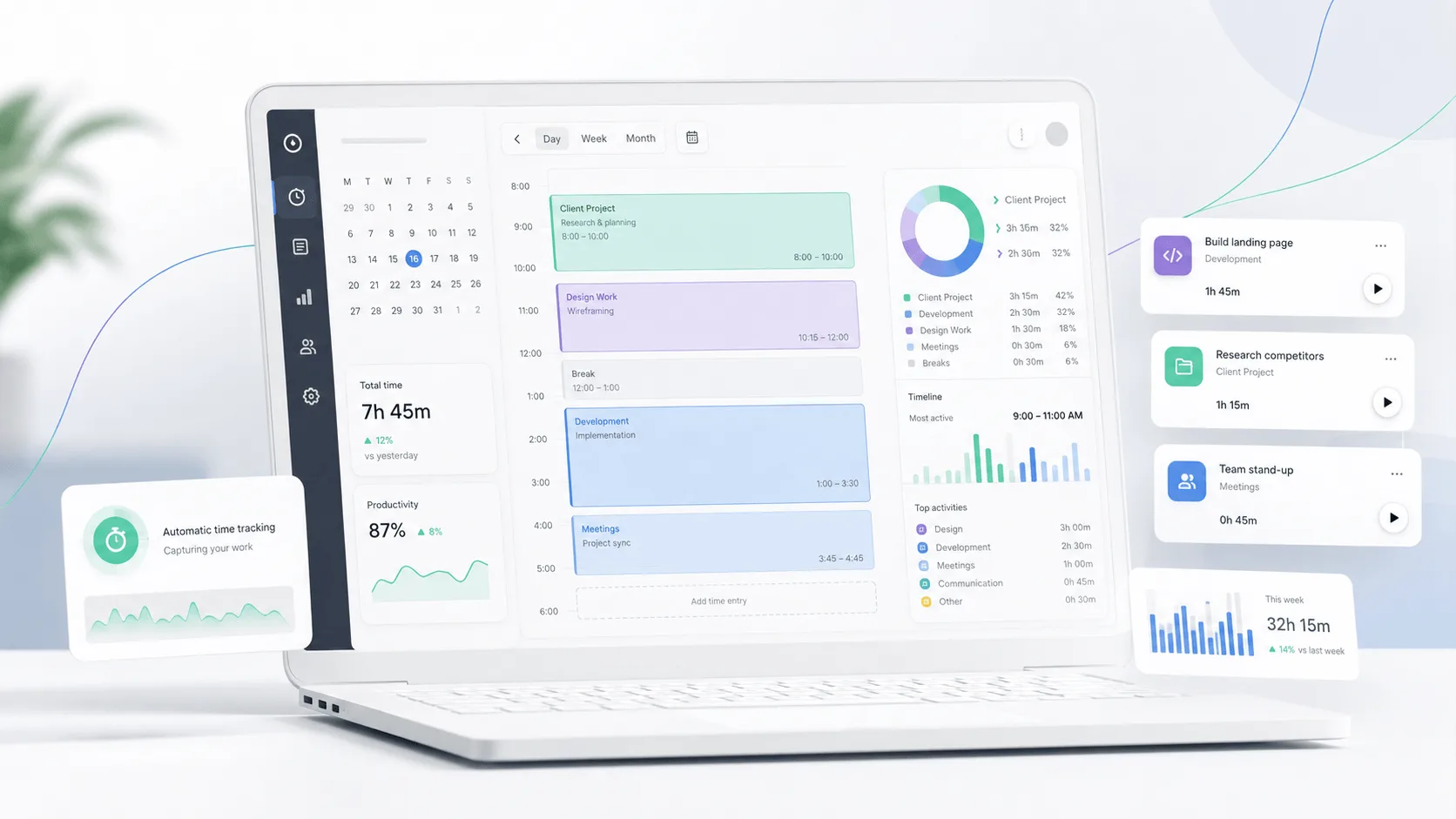
Choosing a time tracking tool can seem like a big mess. All the tools look similar, starting off with the basic time tracker function. You may start thinking that the difference is all about the pricing. But then you look into the mobile app, integrations, project management features, reporting and more... And all of a sudden, your list of requirements becomes a smaller ebook.
TimeCamp can feel like a safe choice because it can log hours, do attendance tracking, and it has a decent desktop app. But will it really meet your requirements for day-to-day business operations?
Today, we give you an objective and honest TimeCamp review, based on 800+ reviews from real users across G2 and Capterra. We'll break down the most important pros and cons to help you determine if TimeCamp is the right choice for your business.
TL;DR
- TimeCamp is easy to learn, with a straightforward interface for tracking hours across projects and clients.
- You get several ways to track time, including timers, manual entries and automatic tracking in the background.
- Project tracking is one of the stronger parts of the product, especially if you need to track billable hours and see where client time is going.
- Reporting works well for billing and analyzing tracked hours, although the filtering options can start to feel restrictive once your reporting needs get more specific.
- The free version and low starting prices make TimeCamp a good value for freelancers and smaller teams.
- The biggest complaints are around bugs, awkward timesheet editing and synchronization problems between the desktop and mobile apps.
- TimeCamp is a solid budget-friendly choice, but Timely is the better option if automatic time tracking is your main priority, especially if you prefer private activity capture and automatically drafted timesheets.
Get the better, more powerful alternative to TimeCamp for automatic time tracking. Try Timely today for free.
Pro: TimeCamp is easy to learn and use
A time tracking app really should not need much explaining. You open it, pick what you are working on, track time, and move on with your day. TimeCamp seems to get this part right.
The interface is fairly easy to figure out, even when you start adding multiple projects, clients, and tasks into the mix. You can organize your time entries as you work instead of ending the week with a pile of hours that you somehow need to sort out.
One G2 user liked how detailed they could get with their tracking:
"The fact that I can track time for multiple clients, projects and tasks allows me to get very detailed in what I am doing."
The calendar view gets some love too. Another G2 reviewer said:
"It's super easy to use and I really enjoy tracking my time in 'calendar mode'."
The same thing comes up on Capterra. One user pointed out that employees are not forced into a single way of logging their hours:
"There are different ways to input your tracked time."
That flexibility matters when you have a team where everyone works a little differently. Some people want a timer running in the background. Others would rather fill everything in later.
Either way, TimeCamp does a good job of keeping the basic experience simple. You can get into the tool and start tracking without having to learn every feature first.
Pro: There are several flexible ways to track time
Remembering to start a timer sounds easy until you actually have to do it every day. You get into a task, jump into a meeting, or switch clients and suddenly realize you have no idea when you started working.
TimeCamp gives you a few ways around this. You can run a regular timer, add hours yourself or use its automatic time tracking software to record activity in the background. One G2 reviewer explained why the latter works so well for them:
"I don't have to worry about 'starting the clock,' which I'll forget 90% of the time."
The automatic tracking also comes up on Capterra. One lawyer who uses TimeCamp for billable work said:
"My favorite feature is the automated time tracking."
This becomes especially useful for billable hours tracking. You can look back at the time spent on different activities, assign those hours to the right projects and use them for invoicing instead of trying to reconstruct your day from memory.
TimeCamp is not limited to people sitting at a desk either. Its mobile app supports GPS tracking and geofencing, which can be useful if employees need to clock in from a job site. The same tracked hours can also be used to monitor attendance.
So you are not stuck with one way of recording work. You can choose the method that makes sense for the type of work you are doing.
Pro: Project profitability and client tracking gives you clear visibility into working hours
Tracking time is one thing. Actually knowing what all those hours mean for a project is where TimeCamp gets more interesting.
You can organize tracked time by client and project, which makes it much easier to see where the workday is going. One G2 reviewer explained how their company uses that setup:
"My company has split all our clients into their own tasks, which ensures we charge the correct client the correct amount of hours."
Capterra reviews tell a similar story. One user relies on keyword-based time tracking to automatically connect activity with the right client:
"I use the time tracking with keywords every day to track how much time I am spending on each client every month."
That data can then tell you a lot more than how many hours somebody worked. TimeCamp lets you track billable hours against projects and compare tracked labor with budgets, which gives you a better idea of project performance. You can also add project costs through expense tracking and see how those costs affect profitability.
There is a productivity side to it as well. TimeCamp can record application and website activity and detect idle time, giving managers another way to understand the team's productivity.
Of course, having more employee data does not automatically make a team more productive. But if you need to know which clients are eating up more hours than expected or whether a project is still worth the effort, TimeCamp gives you plenty of data to work with.
Pro: Reports are useful for billing and analyzing tracked time
Once you have a few weeks of tracked hours, the timer itself stops being the interesting part. You want to know where those hours actually went and, more importantly, what you can do with that information.
This is where TimeCamp's reporting features come in handy. You can break down historical data by project, person or date, then use those reports for invoicing or checking how much work different projects are actually taking.
One G2 reviewer uses the reports specifically for billing:
"I also like being able to see different reporting options that help me with my end-of-month invoicing."
A Capterra user had a similar experience with finding the hours they needed to bill:
"It is easy to use and easy to find where your time is for billing."
The reports go beyond invoices too. TimeCamp lets you look at hours by project and compare how people are spending their working time. Combined with its productivity monitoring features, this gives managers more context than they would get from a basic time tracking software tool.
The newer AI time tracker can also capture activity in the background and help fill timesheets automatically, giving those reports more data to work with.
Reporting may not be the flashiest of the TimeCamp key features, but it is one of the more practical ones if tracked hours eventually need to turn into invoices or useful project data.
Pro: Pricing offers good value for smaller teams
Is TimeCamp free? Yes, and the free version is actually useful enough for some people to stick with it long term. You get the basic time tracker plus unlimited users and projects, along with several other free features.
One G2 reviewer said the free plan was already enough for their freelance work:
"I like that the free option satisfies my needs."
The same point comes up on Capterra. One reviewer had tried other tools and still came away impressed with the price:
"Timecamp is the cheapest time tracking software that i have worked with so far."
If you do need more, the paid plans do not start particularly high. Starter costs $3.99 per user, billed annually, while Premium is $6.99 and Ultimate is $9.99. Paying monthly pushes those prices up to $5.49, $9.99, and $13.99, respectively. The enterprise plan uses custom pricing. Our full breakdown of TimeCamp pricing covers what each tier includes.
For small teams, that gives you plenty of room to pick how much TimeCamp you actually need. You can stay on Free if basic tracking does the job, then move up once you need features such as invoicing, productivity tracking, or more advanced billing controls.
The value gets harder to judge as your headcount grows since most paid plans charge per user. But for a freelancer or a smaller team, TimeCamp gives you a pretty low entry point without forcing you to pay before you can properly use the product.
PS. Make sure to read our comparison between TimeCamp and Clockify too.
Con: Bugs and technical issues can interrupt time tracking
The problem with bugs in a time tracker is pretty obvious. If the tool you use to record working hours starts acting up, there is a good chance you will end up fixing those hours yourself later.
This comes up in both G2 and Capterra reviews. One G2 user had several problems with synchronization and the desktop timer:
"PC app timer updates once in five minutes, very misleading."
The same reviewer also complained that manual entry in the browser can be confusing, with the input jumping between different parts of the day. If you regularly move between multiple tasks, having to go back and correct tracking data can quickly become annoying.
Capterra users have run into similar issues. Bart V., who had used TimeCamp for more than a year, said:
"At times TimeCamp can be a little buggy."
He also mentioned possible server problems, although he said they only happened occasionally. Another Capterra review describes cases where TimeCamp would stop working and previously entered records appeared to be missing until the issue was resolved.
None of this means the timer is constantly broken. But reliability matters more here than it would in many other types of software. If you cannot start timer tracking properly or the apps fail to stay synchronized, the productivity insights you get afterward can only be as accurate as the data that made it into TimeCamp in the first place.
Con: Reporting and filtering options can feel limited
TimeCamp gives you plenty of data, but getting that data into exactly the view you want can be a different story.
This becomes more noticeable once you create projects for multiple clients and want to compare them side by side. One G2 reviewer summed up the problem pretty clearly:
"Greater filtering capability, e.g., by project, would make Timecamp easier to work with."
Capterra users have run into similar limitations when trying to connect tracked hours with billing. One reviewer said:
"The reporting is not easy. I wish there was a way to mark time against each invoice."
For basic reporting, this probably will not bother you much. You can still see where hours went, check team performance and pull the essential features you would expect from a time tracker.
Things get trickier if you manage fixed-fee projects or need to slice the same data in several different ways. Knowing that a project used 80 hours is useful. Being able to quickly compare those hours against another project, billing period or client is much more useful.
So the reporting is certainly usable, and plenty of reviewers actually like it. The limitation is flexibility. Once your reporting requirements become more specific, you may find yourself wishing TimeCamp gave you more control over filters and how tracked data is presented.
Con: Editing and managing timesheets can be cumbersome
Automated time tracking is great when everything gets logged correctly. The annoying part starts when it does not and you have to jump into the timesheet to fix things yourself.
This comes up in G2 reviews. One user said:
"TimeCamp is a little bit quirky when you're trying to enter something manually."
A Capterra reviewer ran into a more specific problem:
"Logging manual time when entries are incorrect is cumbersome."
That reviewer explained that overlapping entries could prevent them from adding the manual time they wanted. They also experienced cases where the widget became stuck in manual mode.
This probably will not be a huge issue if most of your tracking happens correctly in the background. But once you start correcting hours across several projects, small annoyances can add up.
It is also worth remembering that TimeCamp is not full project management software. You can organize work around projects and connect it with project management tools, but the timesheet is still where a lot of the actual time data has to be cleaned up. G2's review analysis also identifies task selection and moving tasks as recurring points of frustration.
If accurate hours are how you judge project progress or bill clients, you may end up spending more time checking entries than you expected.
Con: Desktop and mobile apps can have synchronization problems
TimeCamp works across a web app, desktop software and the TimeCamp mobile app. In theory, that means you can keep tracking regardless of where you are working. In practice, some reviewers have had problems keeping everything working together.
One G2 reviewer reported a pretty major desktop issue:
"The desktop app has stopped working on my PC."
Over on Capterra, another reviewer ran into synchronization problems that actually affected their reports:
"The software sometimes doesn't sync and the reports of my time are off."
This matters because quite a few TimeCamp features depend on those apps collecting data properly. The desktop app handles computer activity tracking, including applications and websites tracking.
The mobile side can be used for GPS location tracking and attendance monitoring. TimeCamp says mobile entries synchronize with the web account, although its own documentation notes that synchronization happens at intervals rather than instantly.
Not everyone has these problems. There are also G2 reviewers who specifically say the apps sync well. But if you rely heavily on desktop activity tracking or the mobile app rather than basic browser-based time entry, synchronization problems are worth knowing about before you roll TimeCamp out across a team.
Con: Customer support experiences are inconsistent
TimeCamp's customer support is an interesting one because the reviews are all over the place.
Some users have had a great experience. One G2 reviewer said:
"Support has been helpful and felt personalized."
Another G2 reviewer simply described the support as "excellent." So there are clearly plenty of customers getting the help they need.
Then you get reviews like this one on Capterra:
"In today's world, where customer service is crucial to success, it's surprising that they don't prioritize it."
That review was posted in September 2024, so this is not just feedback left over from TimeCamp's early years. At the same time, another recent Capterra reviewer described their customer support experience as excellent.
Plenty of users seem happy with the help they receive. The problem is that the experience is not equally positive for everyone.
Get the better TimeCamp alternative for automatic time tracking
TimeCamp is a solid choice if you want affordable time tracking, especially because there is a free plan and the paid plans start pretty low. But if automatic tracking is the main reason you are shopping for this kind of software, Timely gives you a different experience.
Timely's Memory tracker records activity across web and desktop apps in the background. Instead of remembering to start and stop timers, you can review what you worked on and turn that activity into accurate time entries afterward. Timely can also draft timesheets based on the activity it captures, so there is less chance of losing billable work because somebody forgot a timer.
There is also an important difference in how that activity data is handled. Timely keeps the information captured by Memory private to the individual user. Managers do not automatically get a feed of everything an employee does on their computer.
You still get the features you would expect once the hours are captured, including project reporting, billable rates, and team capacity data.
Try Timely for free and see how much of your workday it can capture automatically.